
Waste Profile Control (SPIRENE): Setup, Use, Mobile Alerts, and Reporting
This enhancement adds waste profile governance to Route Manager, enabling you to require approved waste profiles for specific product charge codes, track expirations at customer default products, control mobile pickup behavior when profiles are expired, and monitor compliance via an Expiring Waste Profiles report.
Setup
Configure Waste Profile Codes
About Waste Profile Codes
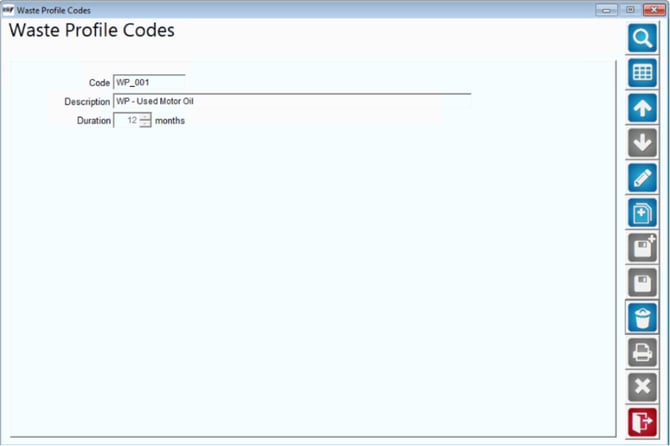
Waste Profile Codes represent approved waste streams and define how long an approval remains valid. Each code includes a human-readable code, a description, and the number of months before expiration. The expiration duration is used to auto-calculate the default expiration date on customer default products.
Use a clear naming convention for codes (e.g., WP-USED-OIL-12) to make selection and reporting easier for users.
Add or Edit Waste Profile Codes
- Navigation: List → Product Codes → Waste Profiles
- Code (up to 10 characters) – required
- Description (up to 60 characters) – required
- Months (1–999) – required
- Save to make the code available for assignment on customer default products
2) Enable settings on Product Charge Codes
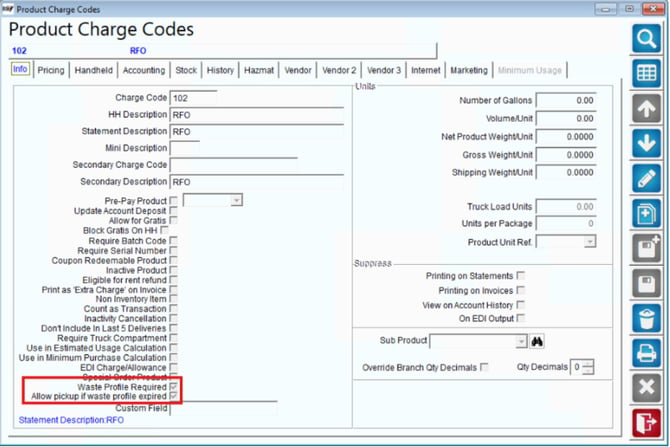
- Navigation: Product Info → Product/Charge Code. Two settings have been added:
- Waste Profile Required – when enabled, customers using this product must have an associated waste profile code and expiration
- Allow Pickup if Waste Profile Expired – when enabled, MOM will warn but still allow pickup if the assigned default product’s profile is expired
- Navigation: Customer Info → Products tab → Default Products. The options are available on the edit of the default product
- Waste Profile Code – select one of the codes you created
- Waste Profile Expiration Date – auto-defaults to Today + Months from the selected profile code; can be overridden to match the customer’s official approval date
If Waste Profile Required is ON and Allow Pickup if Waste Profile Expired is OFF, drivers will be blocked in MOM from performing the pickup when the profile is expired.
3) Assign Profiles at the Customer Level
Customer Default Products
- Navigation: Customer Info → Products tab → Default Products. The options are available on the edit of the default product
- Waste Profile Code – select one of the codes you created
- Waste Profile Expiration Date – auto-defaults to Today + Months from the selected profile code; can be overridden to match the customer’s official approval date

Daily Use
- Driver Experience in Mango One Mobile (MOM)
- Allow Pickup if Waste Profile Expired = OFF → MOM displays: “You cannot pick up this item as their waste profile is expired” and blocks the pickup (quantity picker is grey)
- Allow Pickup if Waste Profile Expired = ON → MOM displays: “Waste profile expired, pickup still allowed” and permits the pickup.
- Compliance Monitoring: Expiring Waste Profiles Report
Daily Use
Driver Experience in Mango One Mobile (MOM)
On-stop alerts
- Allow Pickup if Waste Profile Expired = OFF → MOM displays: “You cannot pick up this item as their waste profile is expired” and blocks the pickup (quantity picker is grey)
- Allow Pickup if Waste Profile Expired = ON → MOM displays: “Waste profile expired, pickup still allowed” and permits the pickup.
- Account # Range
- Expiration Date Range
- Waste Profile Code Range
- Account #
- Stop #
- Delivery Name
- Delivery Address
- Item Code
- Item Description
- Waste Profile Code
- Expiration Date
Compliance Monitoring: Expiring Waste Profiles Report
Navigation: Reports → Management → Expiring Waste Profiles
Report criteria
Report columns
FAQs
Can one customer have multiple waste profiles?
Yes. Waste profiles are tied to the default product/charge code, so a customer can have several profiles if they receive multiple services that require distinct approvals.
How is the default expiration date calculated?
When you select a Waste Profile Code on a customer’s default product, the system adds the Months value from that code to the current date. You can override the date to match the customer’s official approval period.
What happens if I enable Waste Profile Required but forget to assign a code at the customer?
You will be prompted to provide the Waste Profile Code and Expiration Date for that default product. MOM will not be able to validate pickups properly until this information is set.
Can I allow expired pickups for some products but not others?
Yes. Set “Allow Pickup if Waste Profile Expired” per product/charge code to tailor behavior by service type.