
Effective equipment management is essential for maintaining accurate inventory records, optimizing asset utilization, and ensuring customer satisfaction. MOM provides a streamlined process for reconciling equipment during service stops. This process allows drivers to update existing equipment details or add new equipment found at a customer’s location directly within the MOM application.
Once the equipment data is captured and saved in MOM, it is further reviewed and finalized in RMA. This ensures that all equipment changes are accurately reflected in the customer’s records. By following the steps outlined in this guide, users can efficiently manage equipment updates, ensuring data integrity and operational efficiency.
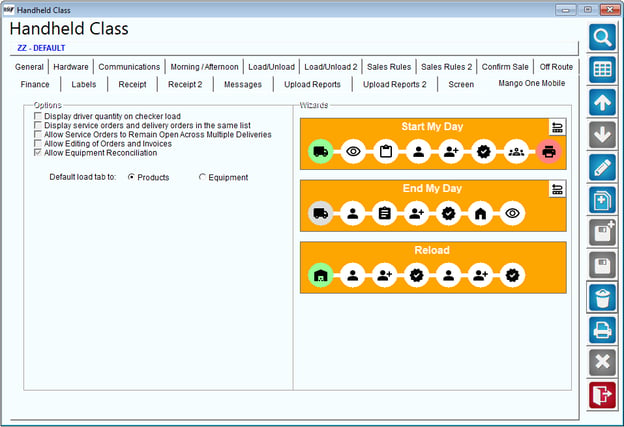
SetupNavigate to Lists > Handheld Class in RMA. Select "Allow Equipment Reconciliation", then save this setting.
Process Overview
1. Select Stop on MOM
2. Navigate to Equipment Option
3. Reconcile Equipment
4. Edit Existing Equipment
5. Add New Equipment
6. Exit and Save Edits
7. Review and Finalize in RMA
ProcessSelect Stop on MOM
- Open the MOM application.
- Choose the specific stop where you need to perform equipment reconciliation.
Navigate to Equipment Option
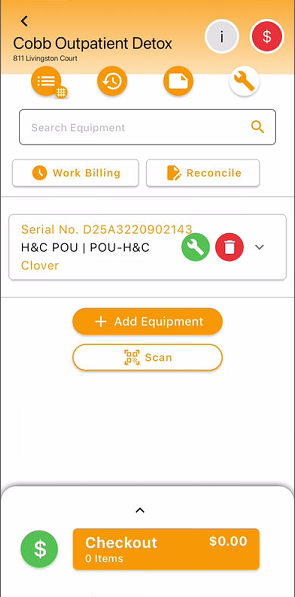
- In the selected stop, find and select the `Equipment` option.
Reconcile Equipment
- Tap on the `Reconcile` button.
Edit Existing Equipment
- The equipment currently listed at the customer's location will be displayed.
- Tap on any existing equipment entry you wish to edit.
Modify the following details as necessary:
- Serial No
- Serial No. 2
- Location (on-site, nonexistent, customer owned)
- Type
- Style
- Rent Start Date
- Rent Cycle
- Rent Rate
- Rental Product Code
- Statement Bills
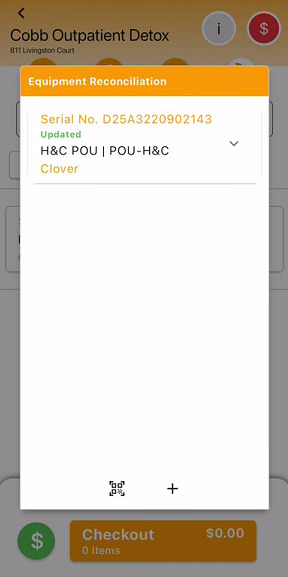
Tap on the Reconcile button, and the following will show. If the Customer has existing equipment, it will be listed.
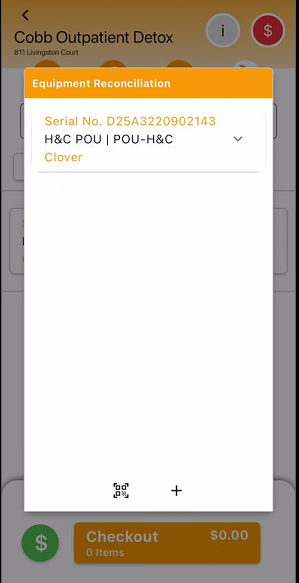
Tap on the existing equipment to edit.
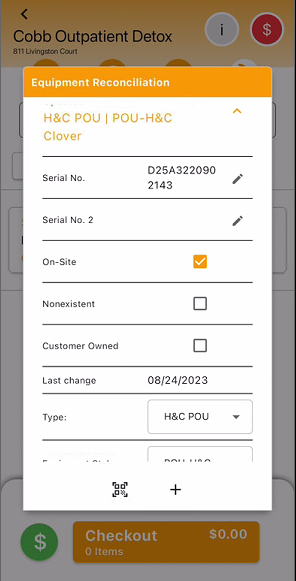
After editing, collapse the dropdown. The equipment status will now show as `Updated`.
Add New Equipment
- To add new equipment, tap on the plus sign. The Driver can also use the QR code sign to scan the equipment.
- The new equipment screen will be shown.
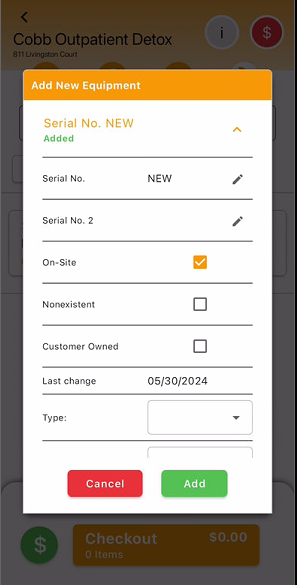
Once all details are entered, tap on `Add`. The new equipment will now appear as `Added`.
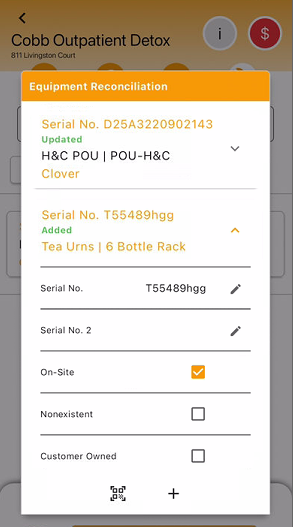
Exit and Save Edits
- To exit the screen, tap anywhere outside the box.
- These edits will be saved upon checkout.
- If equipment is added to skipped stops, these will also be saved.
Review and Finalize in RMA
After uploading the data:
Go to `RMA > Equipment Processing > Equipment Reconciliation`.
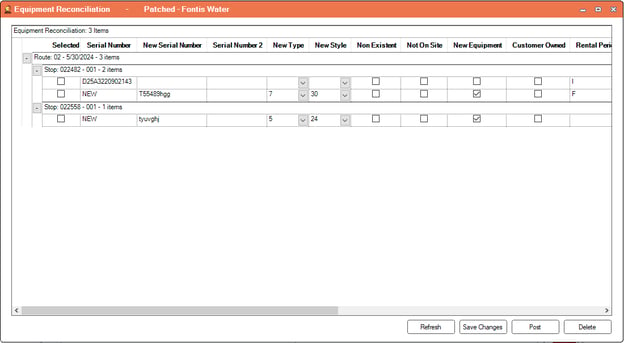
- Review the changes made during the equipment reconciliation process.
- Make any necessary edits.
- Save the changes.
- The updated information will be posted to the customer’s record upon final saving.
This article ensures a clear and thorough process for equipment reconciliation on MOM and updating the RMA system with the necessary equipment details.