
You may find it helpful to have a custom form that you created using a PDF editor to be filled out on your Mango One Mobile [MOM] software. This functionality has been added to MOM to allow users to:
- Create custom PDF forms of any type with various data input elements
- Use fillable PDF forms to enter and edit data on the handheld
- View the collected information as it is associated with invoices.
The data fields can come from a number of different fields, such as:
- Text boxes
- Check boxes
- Radio buttons
- Date fields
- Dropdown list
- Buttons
In addition, you can pull information from other handheld data such as:
- Equipment serial numbers
- Customer address
- Signatures
With so many data elements, you can do almost anything. Your imagination will be your only limits.
SetupFollow these steps to add all the PDF forms which will be available to the Driver or Technician on Mango One Mobile.
- Gather all PDFs to be used on Mango One Mobile.
- Create a folder in the RMA root folder and place PDFs in that folder.
- Go to Lists > Customer Setup Codes > Customer Forms.
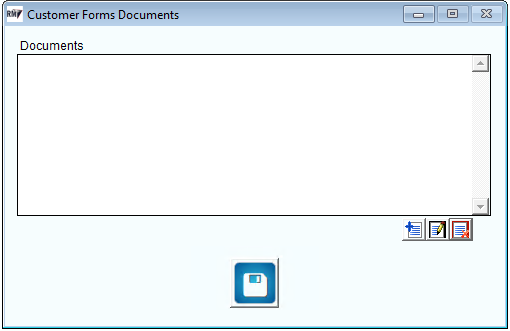
- Select the notepad icon with the blue plus sign to add a document to this list.
- Navigate to the folder setup in Step 1 above, and select the document needed.
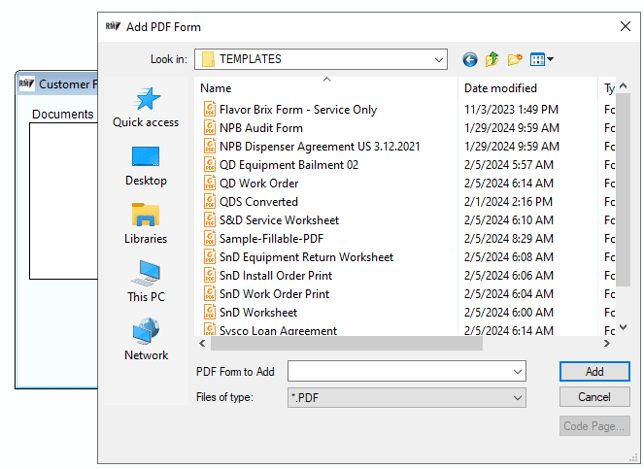
- Select Add to add this PDF to RMA.
- Enter a document description and select OK.
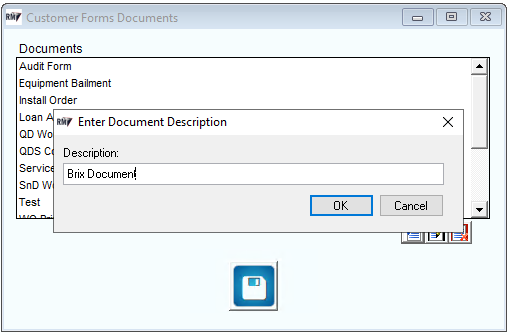
- Repeat until all PDfs are added.
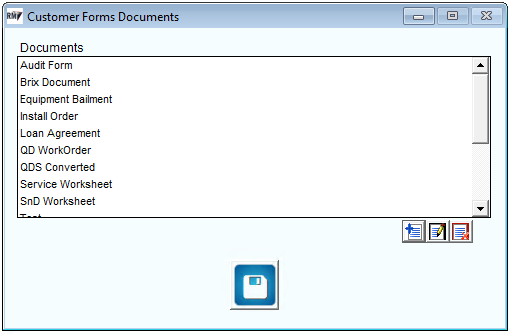
- Use the notepad icon with the pencil to edit the document name.
- Use the notepad icon with the red X to delete a document.
- Select the Save icon to save and exit this screen.
Using PDFs on Mango One Mobile
PDF Forms are available on the Checkout/Shopping cart screen after order details and payments have been entered.
In the section Add Ons, there is a button labelled PDF Forms.
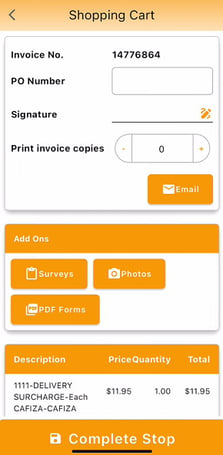
Select PDF Forms, and all the forms available to be edited will be listed here:
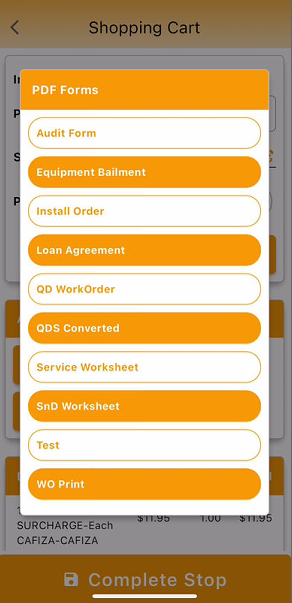
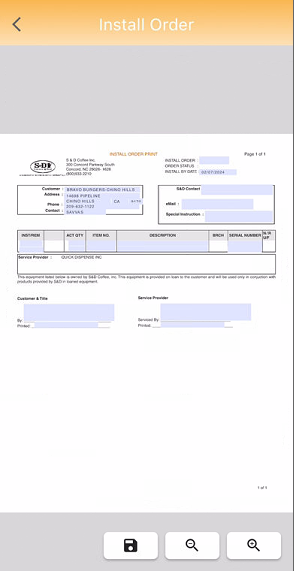
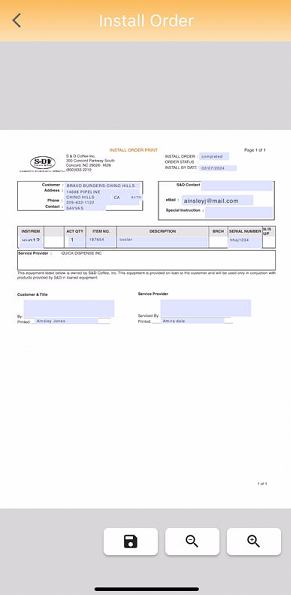
Scroll through the list to select the PDF Form to be filled in. Once a form is selected, it will open on the device to be edited:
The device can be rotated to a landscape position to make edits easier to perform:
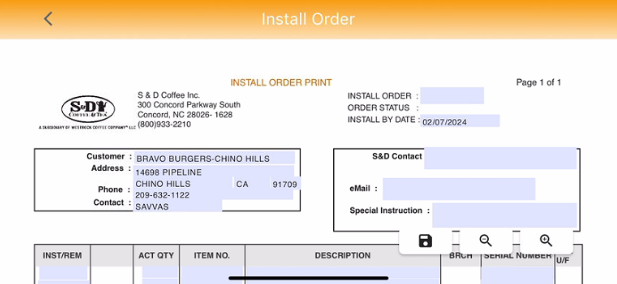
The Customer’s Name, Address and Contact are all filled in from the Stop Details.
The selected document here is an Install Order, and the Install by Date is automatically populated with the current date.
On this screen, there are 3 pop-up buttons:
 - Use this button to save any changes made to the form.
 - If the screen is zoomed in, use this button to zoom out (make the view smaller).
 - use this button to zoom in (make the view larger).
Please note: Zooming in and out on the screen can also be managed by pinching two or more fingers together and moving the fingers inwards or outwards on the screen.
Once the data entry is done, select save to save the completed form:
If save is not done, when the user attempts to navigate away from the screen, a prompt will be displayed to alert the user of unsaved changes:
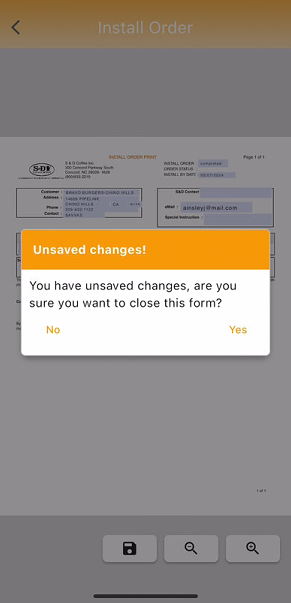
Select No to go back to the form to save changes or make more edits.
Select Yes to confirm closing the form and discard changes.
Once the PDF is saved, a new section on the Checkout/Shopping Cart screen – PDF Forms - is created. Here, the user can see all the completed forms for this customer:
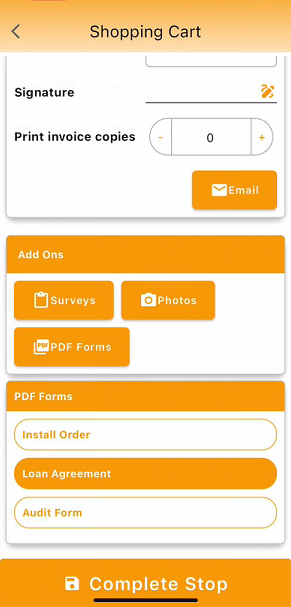
Tapping on any one of these completed documents will open the form, and the user is able to make edits. All edits must be saved.
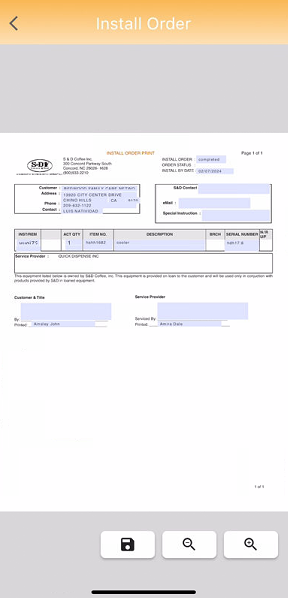
Completed PDF documents cannot be printed to handheld printers. When the invoice is saved, the PDF Forms are saved with the invoice, and sent to RMA.
Viewing PDFs on RMA
When the driver has uploaded his route, the PDF documents can be seen on the invoices under Invoices & Adjustments on RMA as well as on the customer account in the View Invoices window.
NOTE: PDF's do not display on the customer's Contacts tab under the filing cabinet.
- Navigate to Transactions > Invoices and Adjustments.
- Select the Invoice.
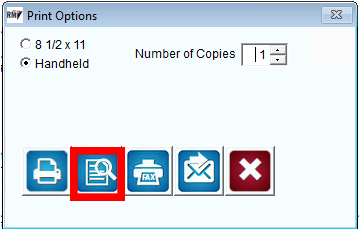
- Select the print button to print the invoice.
- Select the Preview button to show the Invoice:
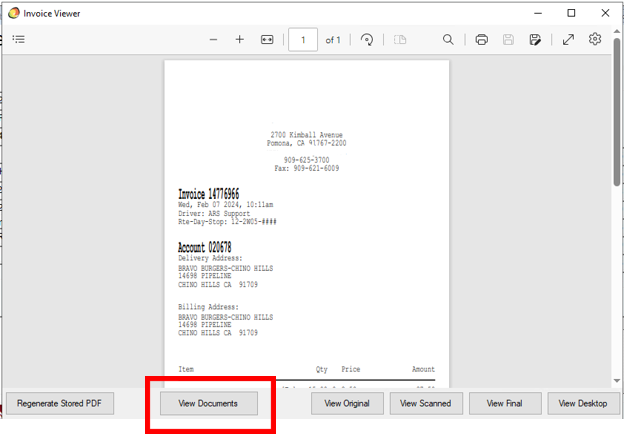
- When the invoice has loaded, select the 'View Documents' button to view all completed PDFs.
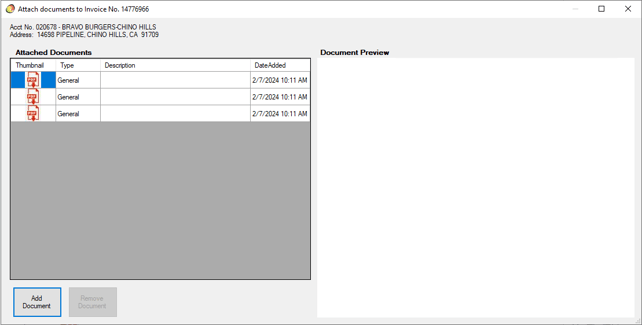
- All documents completed and saved on Mango One Mobile will be listed here.
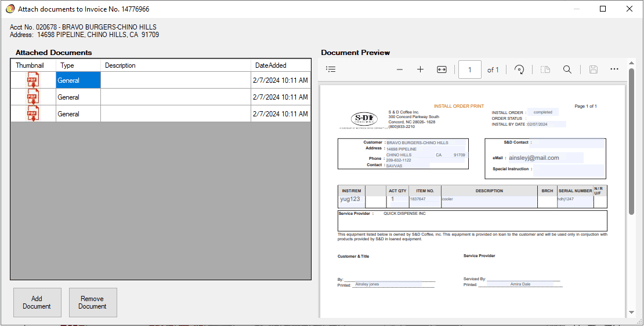
- Select each document to preview.
- When the invoices are posted, follow steps 2-7 to view the documents on the invoice on the Customer's account
More Help
If you want additional information on what you can do with layout and design, you may want to refer to this article from Adobe on form creation.