
Introduction
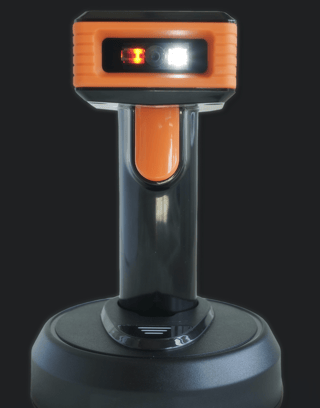
This article provides a guide for using handheld devices equipped with wedge scanning technology to streamline daily operations. The wedge scanner, functioning as a keyboard input device, allows for efficient barcode scanning and data entry, enhancing the accuracy and speed of various tasks. From initial setup and product loading to equipment management and end-of-day procedures, this guide covers all essential steps to ensure seamless integration of the handheld device into your workflow.
RMA Setup
1. Hardware Setup:
- Navigate to HH Class > Hardware Tab.
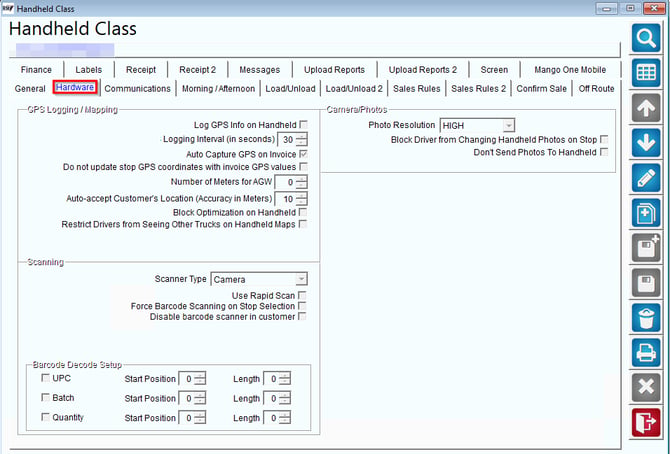
- Set the scanning method to WEDGE
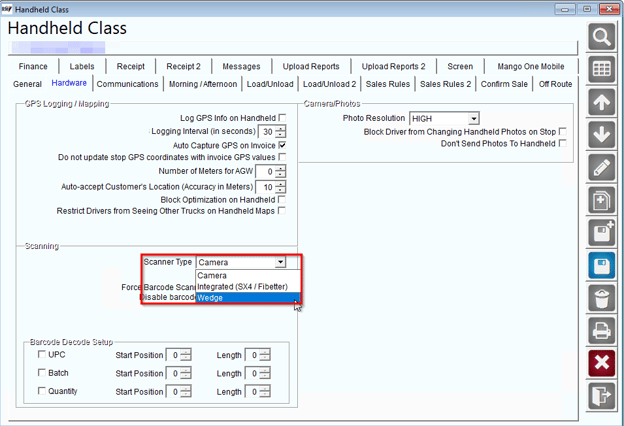
2. Barcode Setup for Products:
- Go to the Product Charge Code section.
- Locate the product's UPC code to generate a barcode.
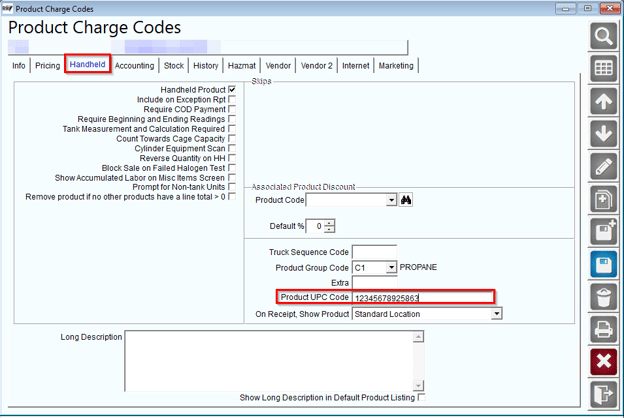
- Use the handheld device to scan this barcode at the beginning of your shift.
3. Barcode Setup for Customer Accounts
- There is no setup within RMA that is required for accounts to be scannable.
- What is required is that the customer receiving products, has a barcode created at their location with their ROUTE ID assigned as their barcode.
- This could be a barcode that is setup on the window or door of the customer's location where drivers can scan the barcode.
- You MUST make sure the barcode is their RMA accounts ROUTE ID. For RMA V8 systems, this means their ROUTE ID should consist of a total of 9 characters.
- Please keep in mind that if there Account has multiple stops, the ROUTE ID goes based off of that stop number. You will take the general account number from RMA and then add 3 0's t the end of it to get their ROUTE ID number. If it's multiple stops on the account, the last 0 on the ID will be replaced by the stop number.
- However, Stop 1 would equal 000, Stop 2 would equal 001, Stop 3 would equal 002, Stop 4 would equal 003, etc. The last number is one digit less than the actual stop number on the account.
Example:
I have account an account with 2 stops:
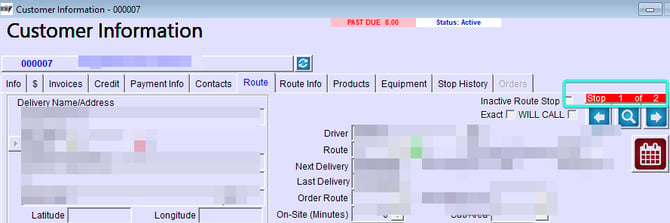
The account number is 000007.
The ROUTE ID number is 000007000 for stop 1.
The ROUTE ID number is 000007001 for stop 2.
If the customer has a barcode created for their stop 2 address, the barcode has to say 000007001 for it to properly pull up stop 2 on the handheld.
Steps to Connect Your Bluetooth Scanner to an iPhone1. Navigate to Settings:
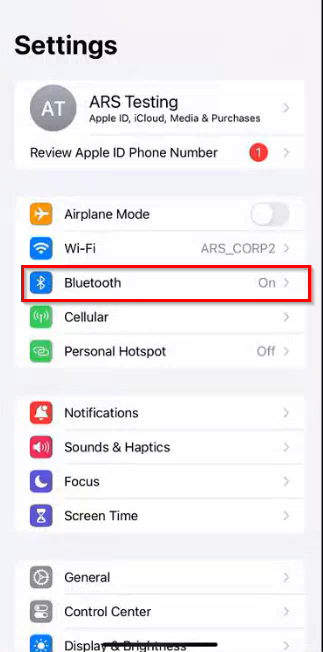
- On your iPhone, open the Settings app.
2. Select Bluetooth:
- Within the Settings menu, tap on Bluetooth.
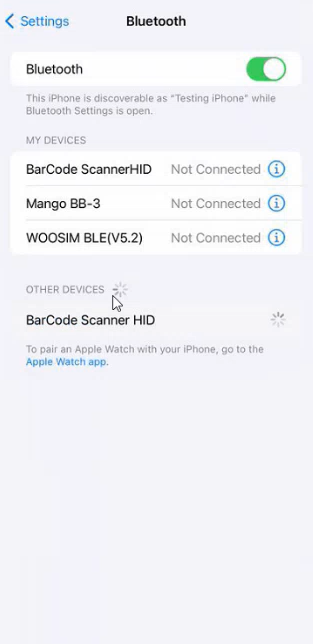
3. Connect to the Bluetooth Scanner:
- Find your Bluetooth scanner in the list of available devices and tap on it to connect.
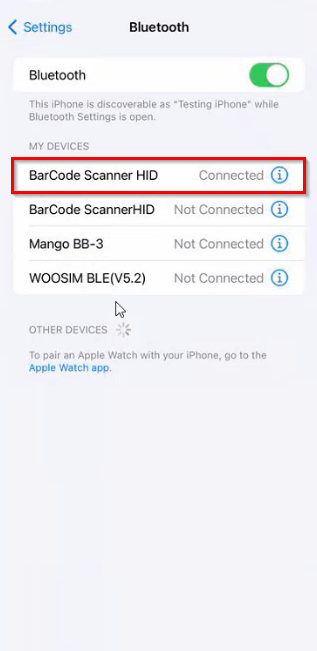
4. Confirm Connection and Access the MOM App:
- Ensure the scanner is successfully connected. Once confirmed, exit the Settings app and open the **MOM** app to begin using the scanner.
1. Using the Wedge Scanner on the Main Screen:
- While on the main screen, you can use the wedge scanner to quickly navigate to customer stops by scanning their Route ID barcode.
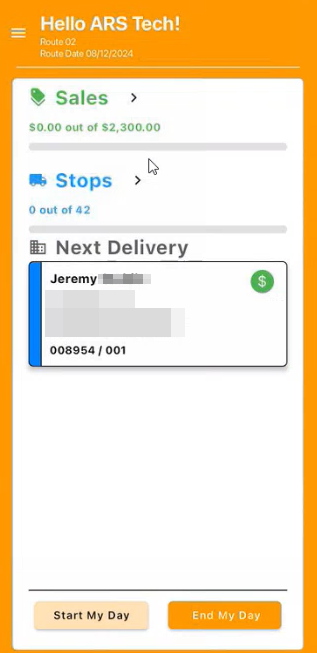
- If you have a list of customer stops for the day, simply scan each customer's barcode to navigate directly to their stop.
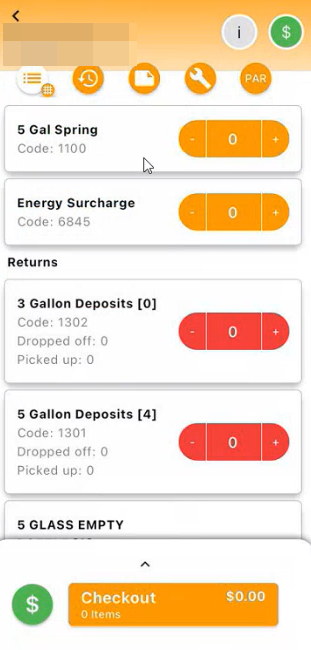
2. Equipment Scanning at Stops:
- Upon arrival at a stop, scan the barcode on any tanks or equipment.
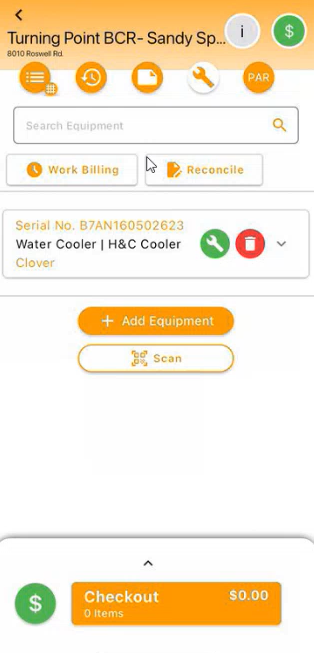
- If the equipment requires servicing, scan its serial number to bring up the relevant details on the following screen. Proceed with servicing as usual.
3. Adding Products to an Account:
- To add products not currently listed, scan the product barcodes. The scanned items will automatically be added to the account.
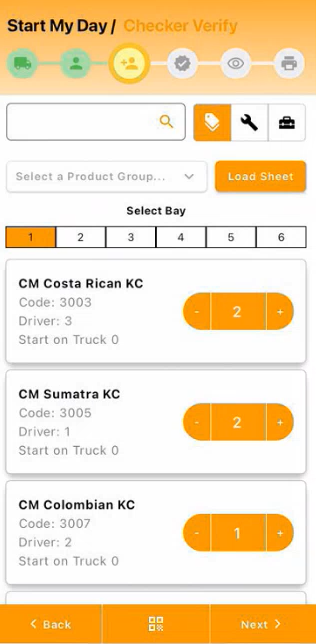
4. Equipment Management:
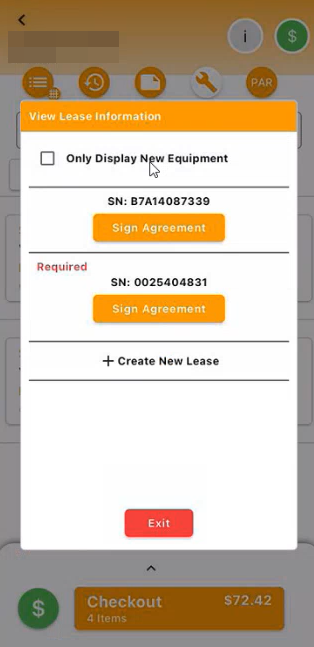
- To add or load equipment that was scanned at the start of the day, simply scan it again with the wedge scanner.
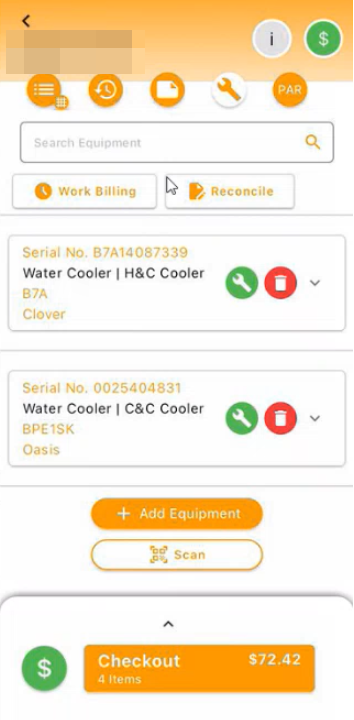
- No further action is required other than signing off on the lease.
5. End of Day and Reloading Equipment:
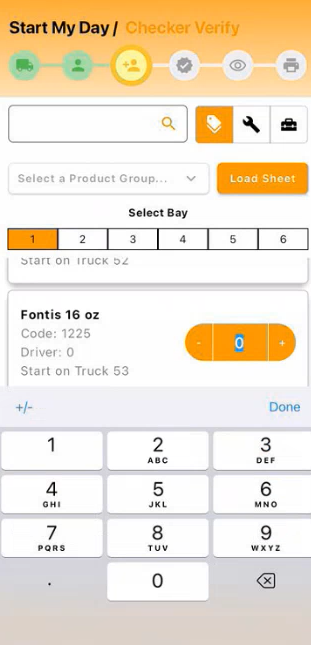
- The wedge scanner is also used for end-of-day procedures and reloading equipment. Just scan the items as needed.
Note: To bring up the keyboard, double-click on the wedge scanner icon. The wedge scanner functions as a keyboard input device.
Whether you are navigating customer routes, servicing equipment, or managing inventory, this article will help you make the most of the wedge scanner's capabilities. By following these procedures, you can enhance productivity, reduce errors, and ensure that all necessary data is accurately captured and processed throughout the day.