
Introduction
This article aims to provide you with a comprehensive understanding of the process involved in transferring gallons of liquid from one commercial truck to another using the Electronic Truck Interface (ETI) system.
Transferring gallons between trucks is a common operation in industries where liquids like fuels, chemicals, or other fluids need to be moved from one vehicle to another for various reasons such as load balancing, delivery adjustments, or vehicle maintenance. The ETI system plays a pivotal role in ensuring the accuracy and efficiency of this transfer process.
The ETI system facilitates this operation by electronically managing the transfer of gallons, monitoring the flow rate, and precisely measuring the quantity being transferred. This level of automation not only streamlines the process but also minimizes the chances of errors and reduces the manual effort required.
Throughout this article, you will be guided through the steps involved in this gallon transfer process, ensuring that you have a thorough understanding of the procedures to perform this operation effectively and in compliance with industry standards and safety regulations. Whether you are transferring gallons of liquid between trucks regularly or need to do it occasionally, this guide will equip you with the knowledge and insights needed to carry out this operation smoothly using the ETI system.
Setup
- Inventory needs to be enabled under Branch Setup> Desktop Tab> Inventory Tracking
- For more information on Inventory please review the Inventory Overview article.
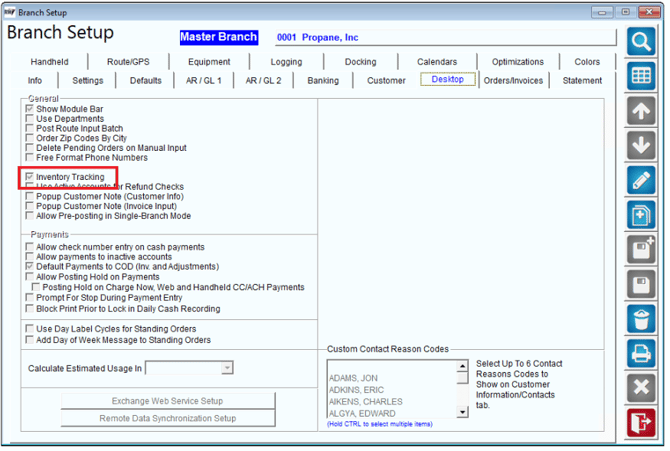
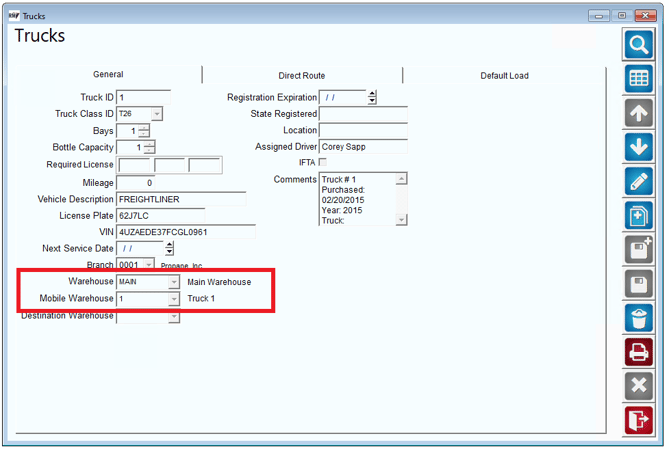
2. Verify all trucks have assigned mobile warehouses. This can be found under Lists> Truck Information> Trucks.
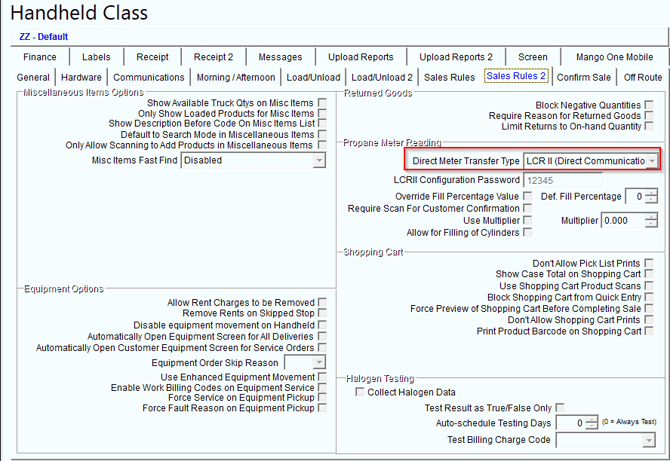
3. Products that will be used for transfer need to have a direct meter transfer product class assigned like below. 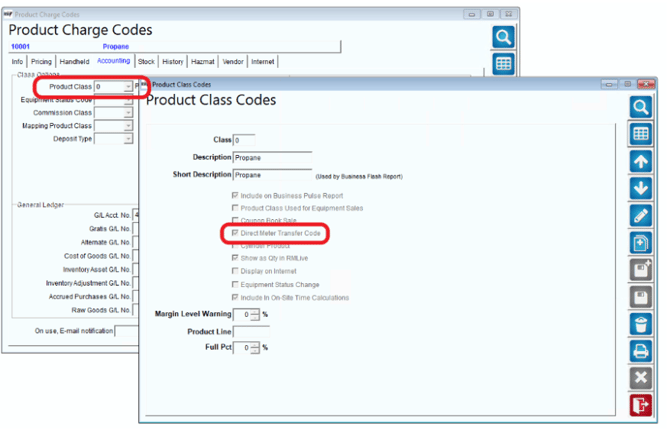 4. Under Lists> Routes Handheld Class> Sales Rules 2 Tab> LCR-II Direct Communications needs to be selected as a Direct Meter Transfer Type.
Truck to Truck Transfers on MOM
Truck to truck Transfers enable you to transition freight from one truck to another seamlessly. Follow the detailed steps below to complete a truck transfer:
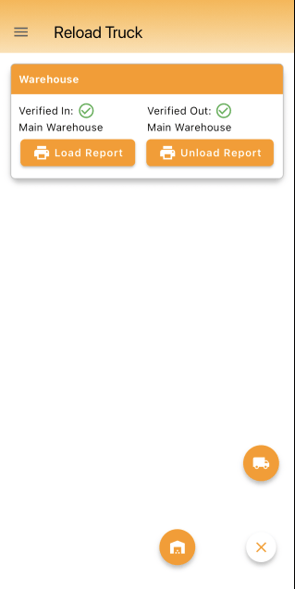
To initiate a truck to truck transfer, select the truck icon on your device, typically located on the main dashboard of the Reload Truck screen. This will open the Truck Transfer screen.
On the Truck Transfer screen, choose the current truck holding the shipment and the destination truck you want to transfer the shipment to. Then, select the “Next” button at the bottom of the screen to proceed. 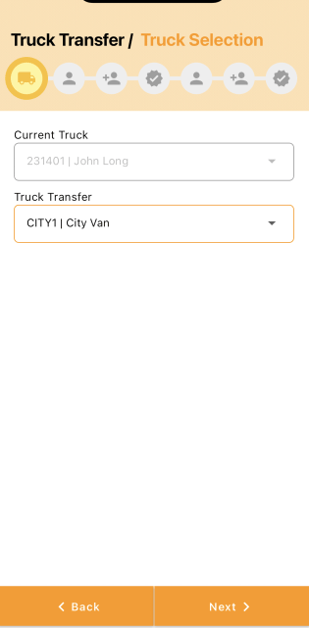
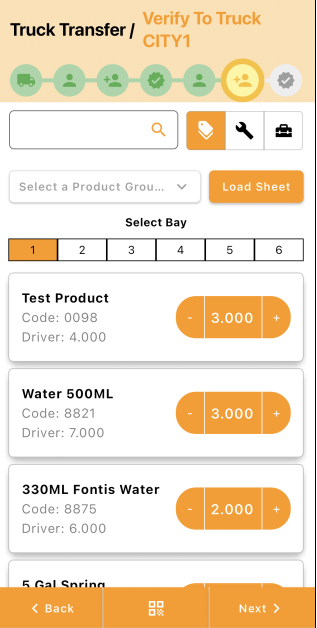
At the top of the screen, verify the destination location for the shipment to ensure it is correct. Enter the quantity of the product to be transferred and select “Next” to move forward. 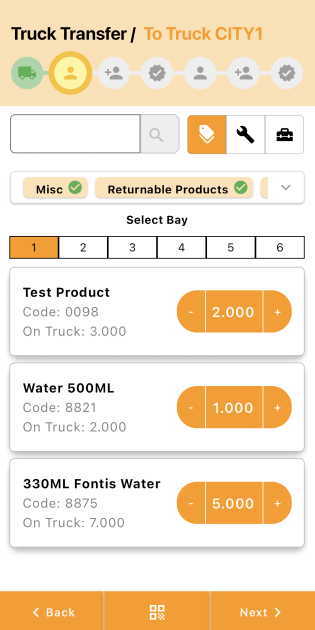
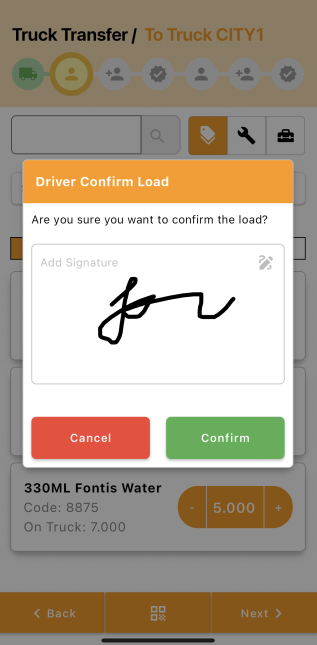
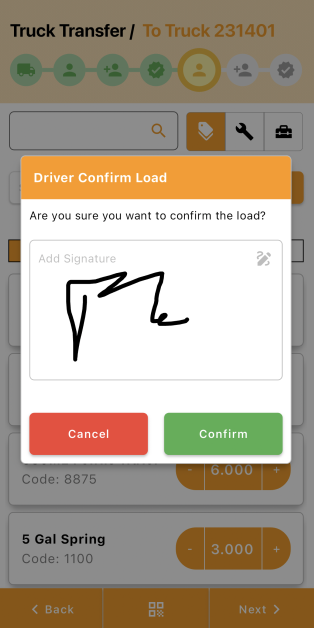
The driver must then add their signature to confirm the load. Use the signature pad on the screen to sign, ensuring accountability and record-keeping. Tap the green “Confirm” button to proceed.
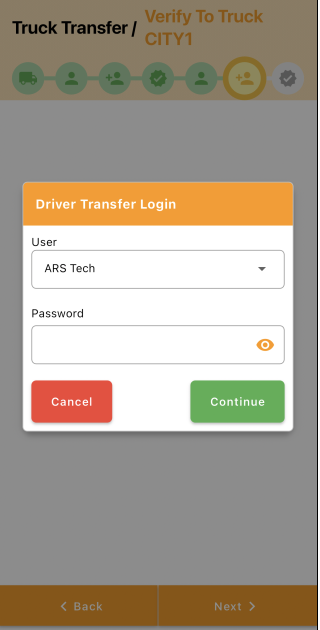
Next, the receiving driver must perform a transfer login by entering their credentials to accept the transfer. This step ensures that the correct driver is handling the shipment. After entering the credentials, select the green “Continue” button to advance. 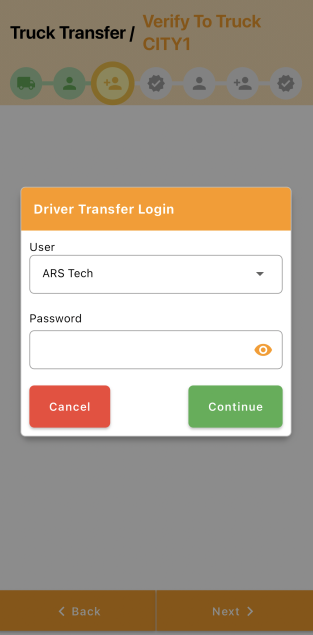
Verify and enter the correct product quantities by double-checking the quantities listed on the screen against the actual quantities being transferred. Enter any necessary adjustments and select “Next” to continue.
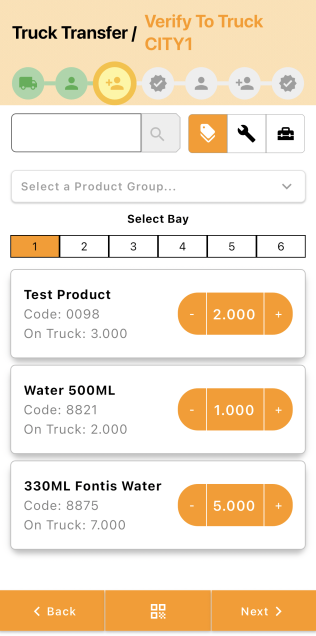
The driver must add a signature to finalize the transfer. This second signature confirms the driver’s acceptance of the transferred load. After adding the signature, select “Confirm”.
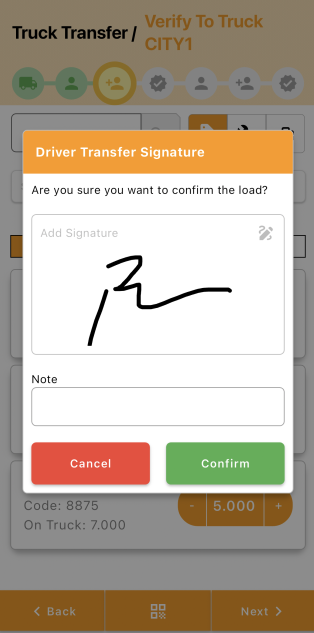
Enter and verify the shipment quantities again to ensure they match the actual shipment. This step serves as a final verification to prevent any discrepancies. Select “Next” to proceed.
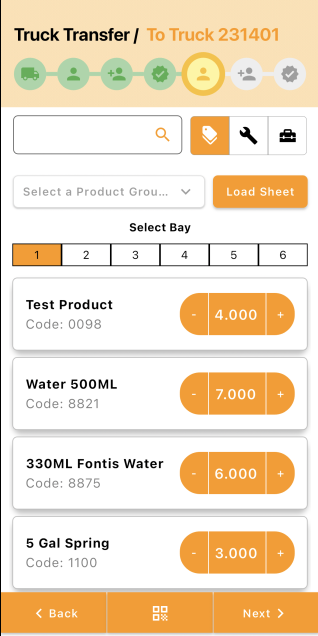
Note: To view Load Sheet functionality, click here.
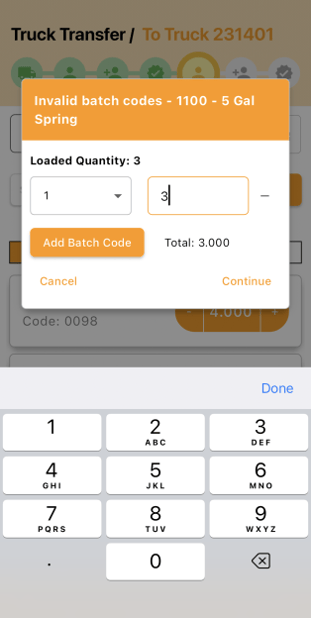
If there is a mismatch in quantities, update the batch code to reflect the correct information, helping in tracking and tracing the shipment accurately. Continue with the process.
The driver will need to add a signature to confirm the load. Then, select “Confirm”.
Enter in the driver transfer login credentials again to confirm the driver’s identity and ensure security in the transfer process. Select “Continue”.\
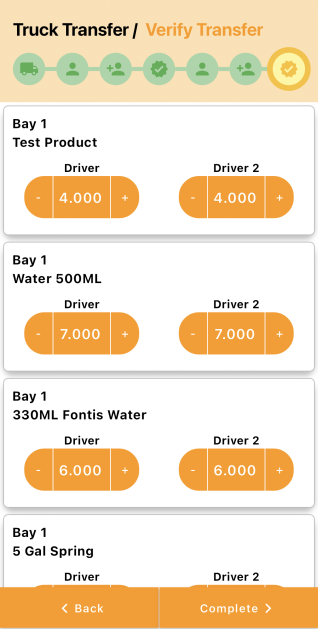
Verify the final quantities of the product, with both the transferring and receiving drivers ensuring that the quantities match their records. Select “Next” to move to the final step.
Ensure that both Driver 1 and Driver 2’s quantities match exactly to avoid any issues. Select “Complete” to finalize the transfer.
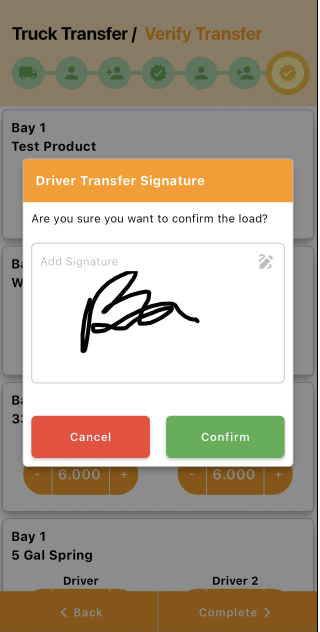
Add the final driver transfer signature to confirm that the entire transfer process is complete and accurate. Select “Confirm”.
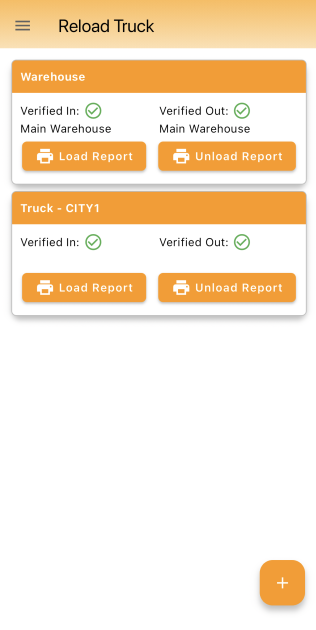
After confirming, you will be redirected to the Reload Truck screen. Here, you can review the details of the verified truck transfer, ensuring everything has been processed correctly.
Support
If you need further assistance from our support team please email us at support@advantagers.com or call us at 209-632-1122