Introduction
Advantage Route Systems has a BlueTooth interface to the Liquid Controls (LCR) IQ meter. This unit, when equipped with the BlueTooth module can be directly connected to your Route Manager handheld. This will allow you to use your Mango Mobile device to:
- Enter presets
- Begin pumping
- End Pumping
- Capturing the number of gallons pumped.
This added functionality allows you to save time and have greater accuracy when delivering propane and other liquids.
Note: Many of the features for the LCR.IQ are similar to the LCR II meter. You may find some of the reference materials for the LCR II applicable to this meter as well.
This document will explain the needed configurations to add this utility to you Mango Mobile software.
General Setup
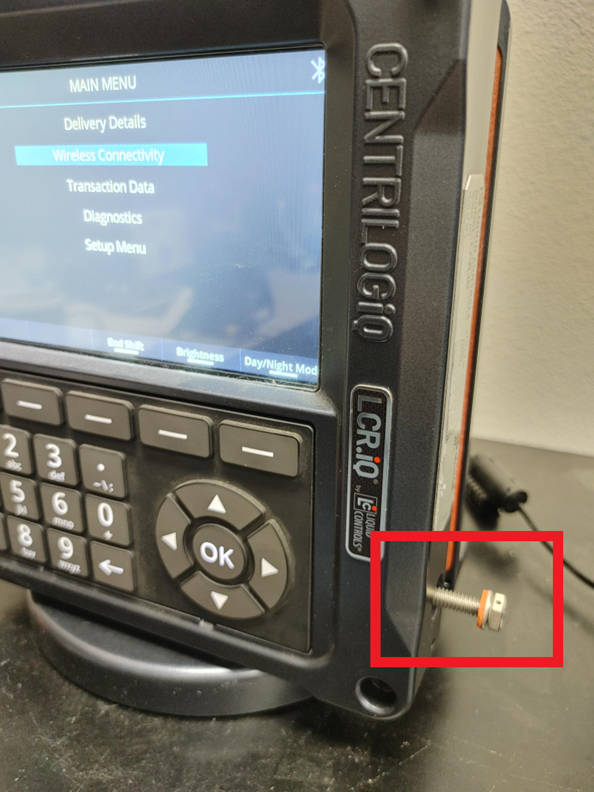
To modify any of the LCR.IQ options/configurations below, you must first put LCR.IQ into configuration / setup mode. That is accomplished by unscrewing the configuration bolt on the right side of the unit until the LCR.IQ displays the Main Menu. Once all configurations have been made, tighten the configuration bolt on the right side to take the LCR.IQ out of configuration mode.
Communications
- From the Main Menu, use the up/down arrow keys on the bottom right of the LCR.IQ to select the Setup Menu and then press the OK key. You should now see the Setup Menu.
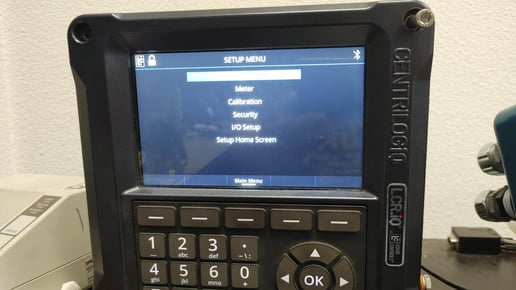
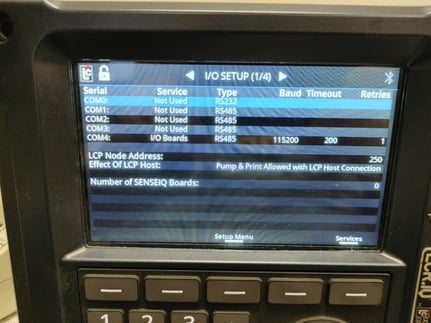
- Select the I/O Setup option and press the OK key. This will take you into the I/O Setup Menu, page 1 of 4. Confirm the options are set the same as below. If any need to be changed, use the up/down arrow keys to highlight the incorrect item and press OK. That will bring up the allowed options. Modify the following options to match the image below.
- LCP Node Address: 250
- Effect of LCP Host: Pump & Print Allowed with LCP Host Connection
- Use the right arrow key to move to I/O Setup page 2 of 4.
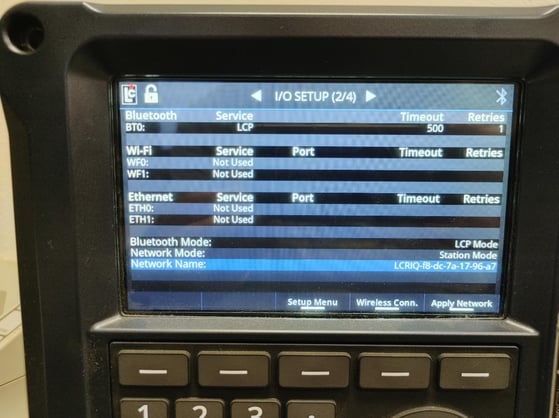
- Confirm the Bluetooth Settings on the BT0 line match the picture above. If necessary, edit the values by selecting the line and pressing the OK key. Match the settings for Service, Timeout, and Retries.
- Confirm that Bluetooth Mode is set to LCP Mode and edit to match, if necessary.
- Press the key just below Apply Network to save the I/O changes.
- Press the key just below Setup Menu to return to the Setup Menu.
- Press the Key just below Main Menu to return to the Main Menu.
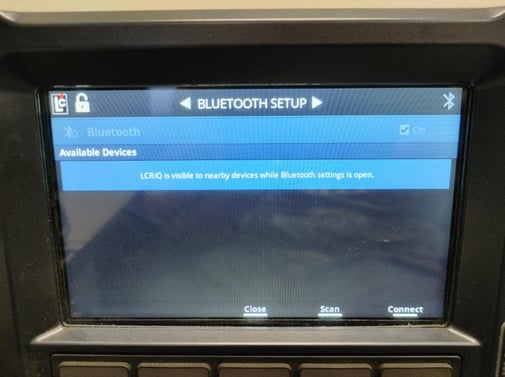
- Select Wireless Connectivity on the menu and press the OK key. Confirm that Bluetooth is set to ON and that the screen says it is visible to nearby devices. Once you’ve done that, you can select Close.
Printer Settings
If you do not plan to use a truck mounted printer [Epson] to print tickets with your LCR.IQ, follow the instructions below to disable the printer functionality.
- From the Main Menu, choose Setup Menu and press the OK key.
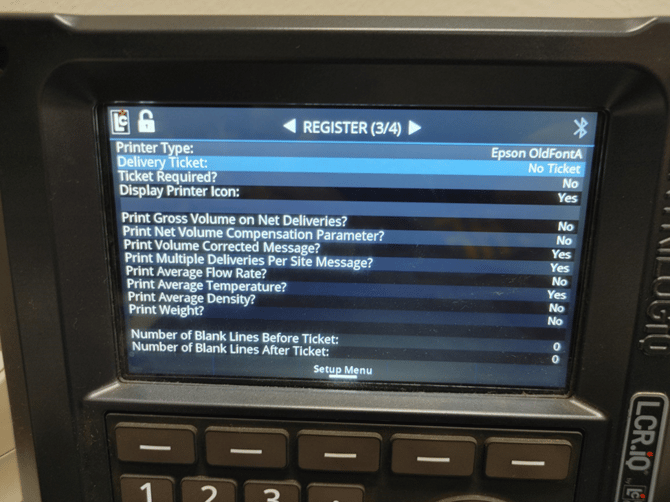
- Choose the Register menu item and press the OK key.
- Use the right arrow key to move to Register page 3 of 4.
- Set the Delivery Ticket option to No Ticket.
- Set the Ticket Required option to No.
Preset Settings
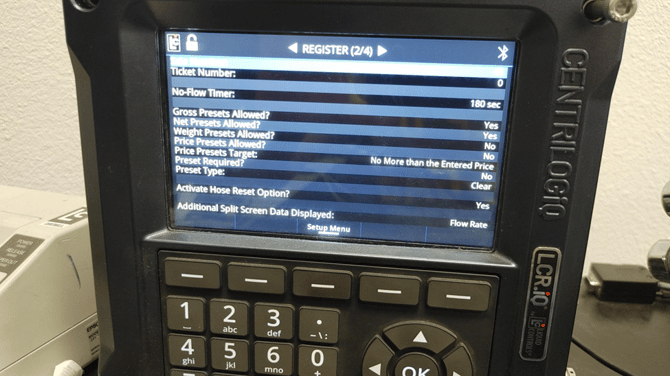
If you plan to allow your driver to use preset quantities from the handheld, follow the instructions below to enable presets on the LCR.IQ.
- From the Main Menu, choose Setup Menu and press the OK key.
- Choose the Register menu item and press the OK key.
- Use the right arrow key to move to Register page 2 of 4.
- Set the Net Presets Allowed? option to Yes.
- Set the Preset Type option to Clear.