Introduction
This article will go over the process to setup Sub Products within RMA.
The Sub Product feature is intended to be used for products that need to be tied together when sold. The setup can also be used to auto create Tariff charges with certain products.
NOTE: Please be aware that Sub Products only apply to HH invoicing. This automated process does not apply to Desktop or Delivery Orders. If a Sub Product needs to be charged on a desktop or delivery order, the users will need to add the product manually.
Setup
When creating a Sub Product setup, you need to make sure that a Sub Product charge code is created first.
This charge code will then apply to the Product Codes that you want to set a relation with.
In this example, I will be showing how to setup a Sub Product Code for Tariffs.
- Go to Lists>Product Codes>Product Charge Codes.
- Click on the "add" button to create a new Product Charge Code.

- Input Charge Code Information/HH Description.
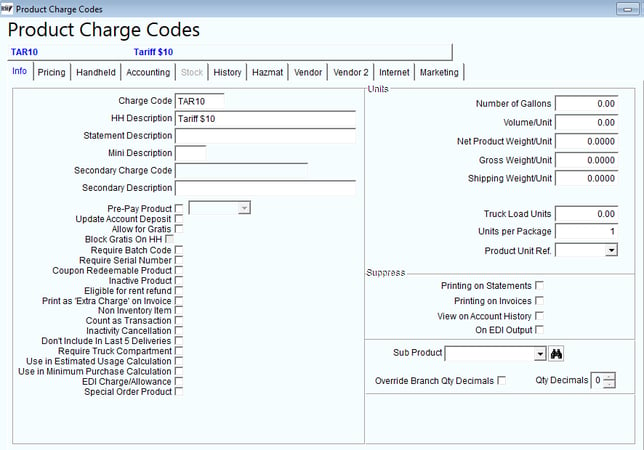
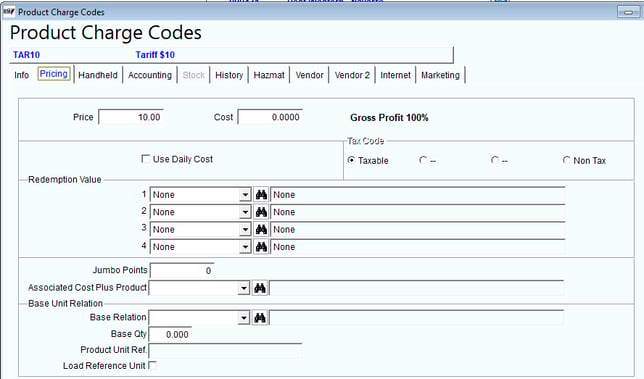
- Go to the Pricing Tab.
- Input the price you plan to charge for the Sub Product.
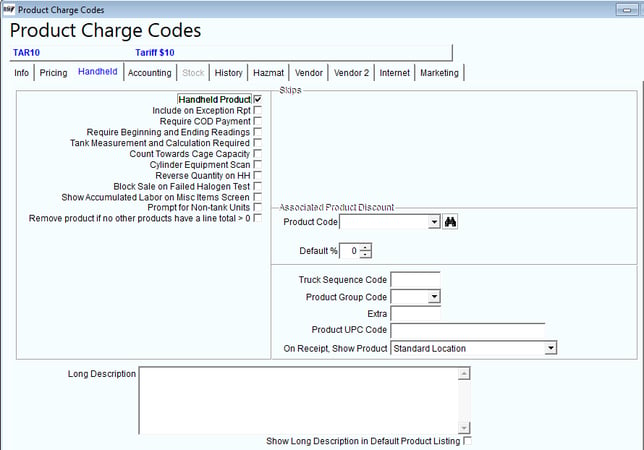
- Go to the Handheld Tab.
- Mark the product as a Handheld Product.
- Next go to the Accounting Tab.
- Set the Class Code and G/L Code for this product code.
NOTE: The Class Code and G/L Code should be determined by the Accounting Staff for proper reporting. The G/L and Class Code in the following image is just an example.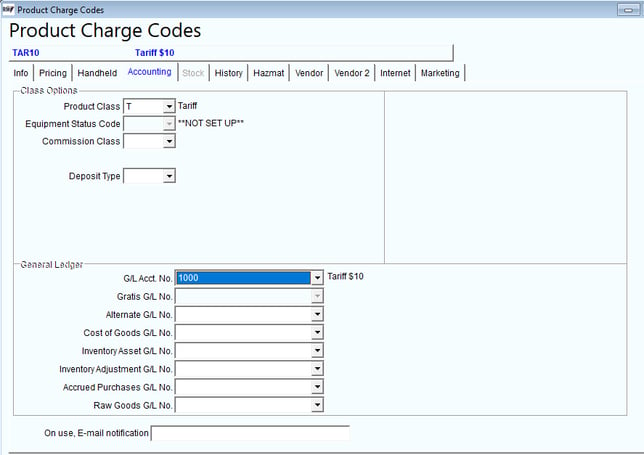
- Save the Product Code once changes are made.
- Next, locate the Product Code you will be charging a Tariff (or sub product charge) on.
- On the Info Tab, locate the Sub Product field in the bottom right hand corner.
- Modify the Product Code and select your Sub Product Charge Code (i.e. Tar10).
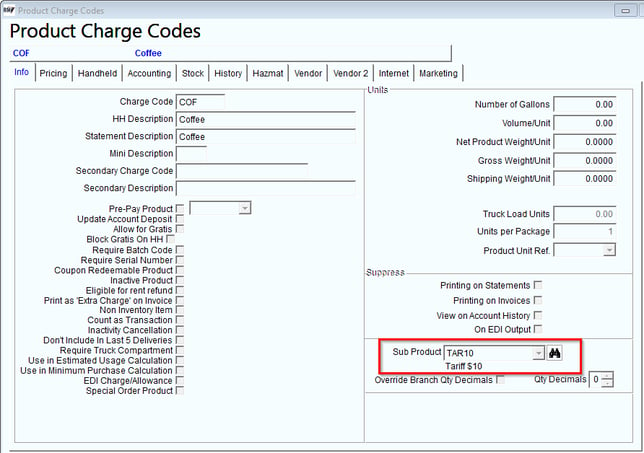
- Save the changes to the code.
- This finalizes the setup of the Sub Product feature.
NOTE: You can apply the Sub Product code to as many main Product Charge Codes as needed.
HH Process
The Sub Product feature is only available on the handhelds for Mango One Mobile and Mango Mobile.
The ratio works 1:1 for this feature. This means that if the main product has a sold qty of 5, the sub product would auto populate a qty of 5 and so on for any other quantities input.
Please use the following steps to process the charges:
- Confirm that the Sub Product Setup has been properly completed.
- Download a route on the handheld.
- When in the Invoicing window for the customer, select the main Product Charge Code. This could be under the Default Codes or the Miscellaneous Codes.
- In this example, I will show the process on Mango Mobile using the Coffee main Product Charge Code under Miscellaneous items. The example will have a main Product Code qty of 5.
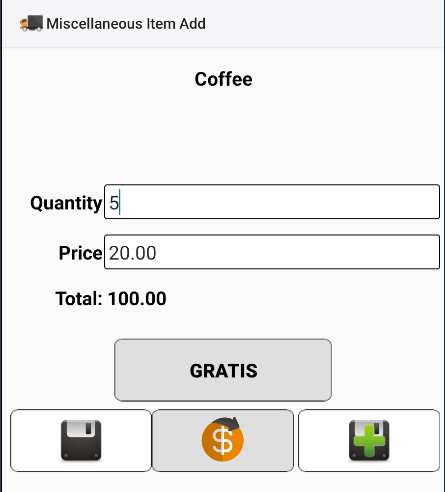
- In this example, I will show the process on Mango Mobile using the Coffee main Product Charge Code under Miscellaneous items. The example will have a main Product Code qty of 5.
- After entering the qty and clicking save, you will then see that the Sub Product auto populated with the same qty.
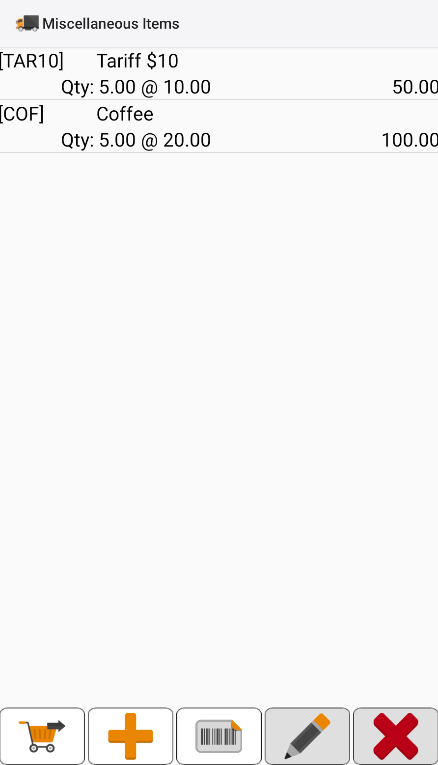
NOTE: Please be aware, if you remove the main product from the invoice it will not auto remove the Sub Product. You would have to manually remove both products if you do not want to charge for them.
This concludes the process to charge a Sub Product on the Handhelds.
Invoice Example
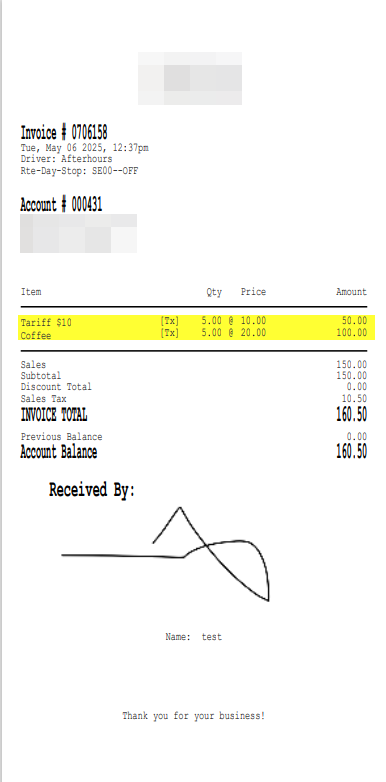
Here is an example of how that invoice will show for the customer.
As you can see, the Sub Product does show as a line item on the receipt.