
Introduction
Statement Assessment Codes are used as one form of charging a customer for a service. In most cases I would expect that it would be used if you needed to print out a statement for a customer versus emailing them.
This module is only available for Advanced/Enterprise Support Plans on V7. If you are currently on a Pro Support Plan, this module can be purchased if your current build is V8 8.1 or newer.
Setting up Statement Assessment Codes
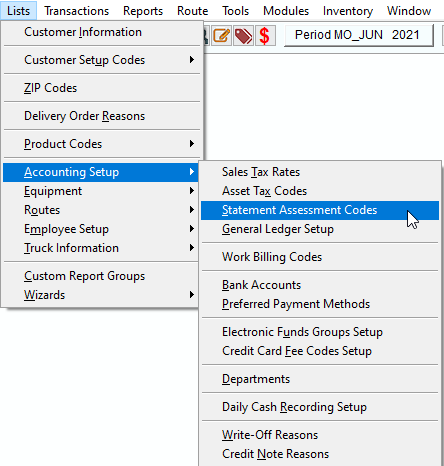
Go to Lists > Accounting Setup > Statement Assessment Codes.
Click the "Add" button to add a new Statement Assessment Code.
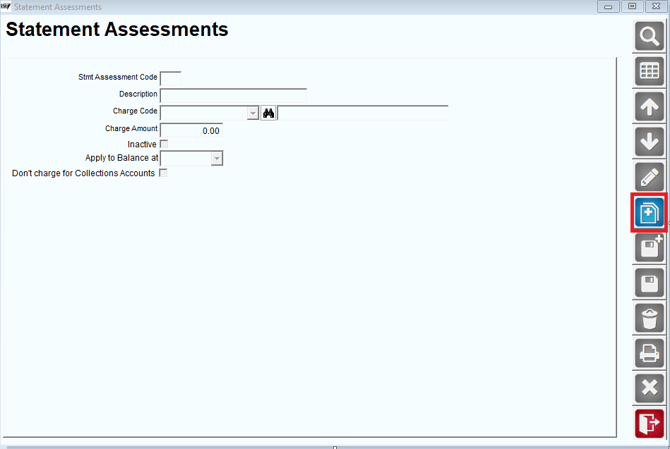
Choose a statement assessment code letter.
Put in a description.
Enter in a charge code that you would like to use for the fee.
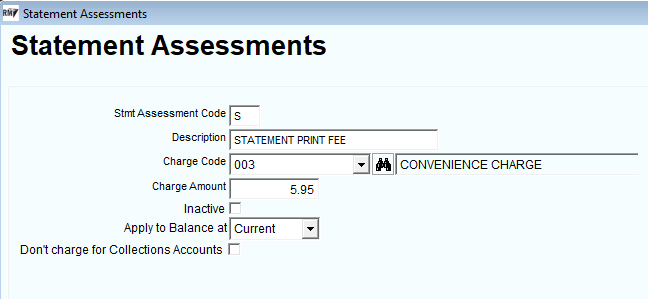
Enter the amount you would like to charge.
Choose when you want this applied.
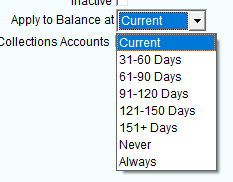
The "Inactive" and "Don't charge for Collections Accounts" check boxes are optional.
Setting up the Statement Assessment Code on the Customer
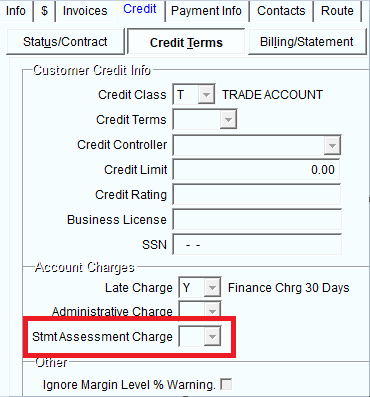
You can set up the statement assessment charge on the customer under Lists->Customer Information->Credit tab->Credit Terms tab.
Generating the Assessment Charges
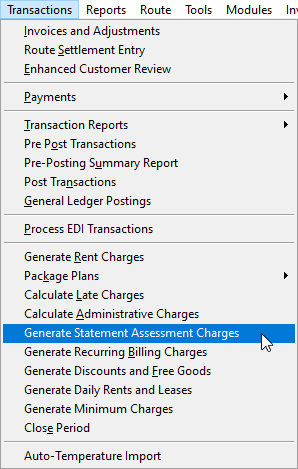
Go to Transactions->Generate Statement Assessment Fees.
Next you will select the account range or leave it as is to include all accounts.
Select the statement assessment code range or individual code by selecting the same code in the "to" and "from" fields.
Select a minimum balance then select whether you would like to "Show Detail on Statement Assessment Charges Report.
Hit the checkmark to generate your charges.
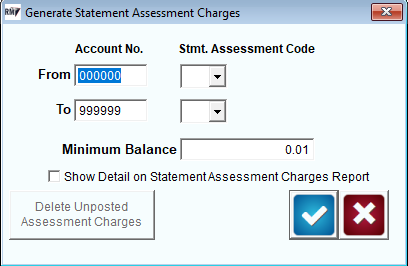
NOTE: If you run your charges and for any reason need to delete them and do it again, there is an option on the bottom left of the screen to delete all pending assessment charges that have been run.
Reporting
The "Statement Assessment Charges Report" is not accessible through the reports menu. It is actually created when you "Generate Charges".