
Introduction
This article will walk you through how to setup Skip Reasons so that they work with Nightly Propane Calculations to provide you with the most accurate tank readings on a daily basis. Correctly setting up Skip Reasons is especially important for customers who do not have tank monitors.
NOTE: This process only works for Propane calculations using stop history. If you are using an equipment monitoring system such as OTOData this process will not work.
Setup
Branch Setup
To begin setup for percent full calculations, you will need to select your industry inside Branch Setup. Go to File > Branch Setup > Settings > Industry. This only works for Propane Bulk and Propane Cylinder.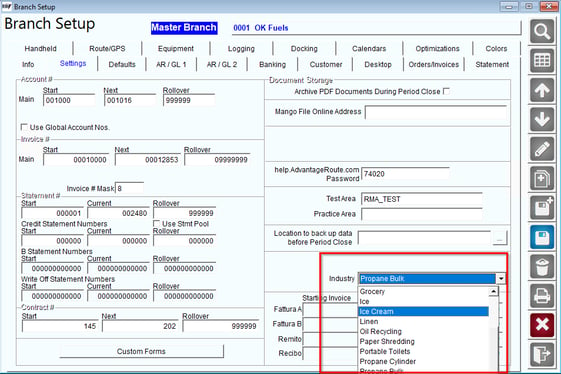
Skip Reason Setup
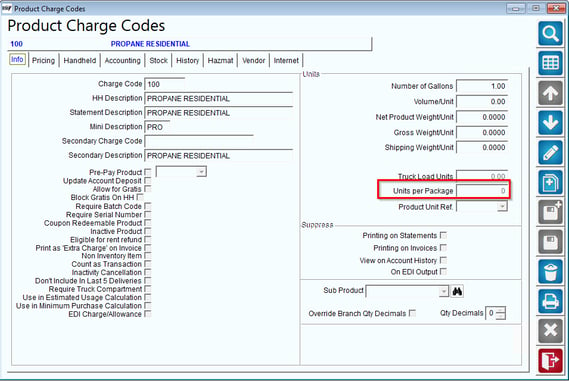
To setup your skip reasons so that they update your tank percentage levels on the customers' accounts you will need to make a few changes to your Skip Reason Charge Codes. You can do this by navigating to List > Product Codes > Product Charge Codes. Under the info tab, input the units per package that you want for the skip reason. In this example, the skip reason is "tank is full 50%", so the Units per Package will be 50.
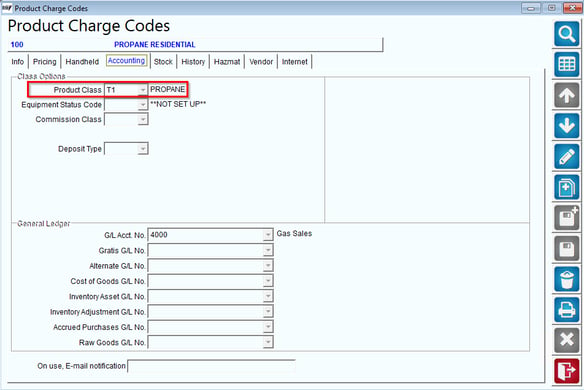
You will also need to also set the product class for your charge code. This is found under the Accounting tab. Skip reasons are product class "9".
Process
Skip Reason Invoice
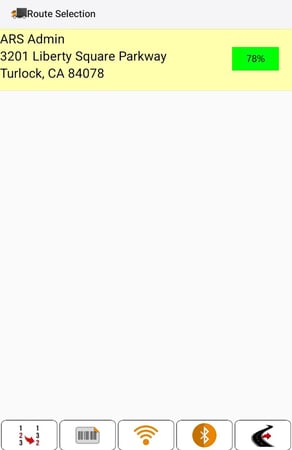
Once your branch setup and product charge codes are set, now it is time to service the customer on your handheld device. To begin this process your driver will need to download his route. Once his route is downloaded, he will go to the route selection screen to begin servicing customers. For this process we will start by selecting a customer to skip, using one of the skip reasons you have modified in the skip reason setup portion.
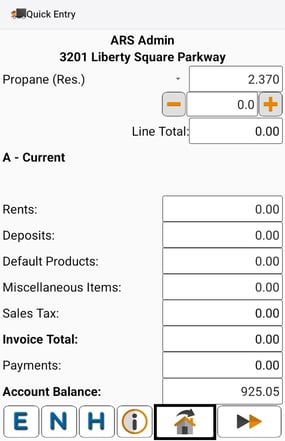
After selecting the customer you are servicing, you will be directed to the sales or "quick entry" page. To access skip reasons, you will select the house button on the bottom of the screen.
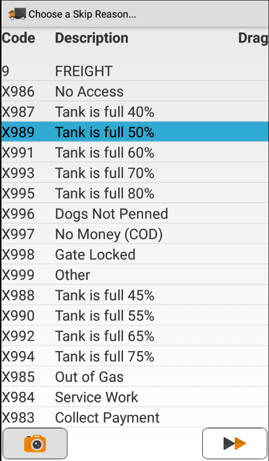
Select the reason you are skipping this customer. In this example, we have selected "Tank is full 50%".
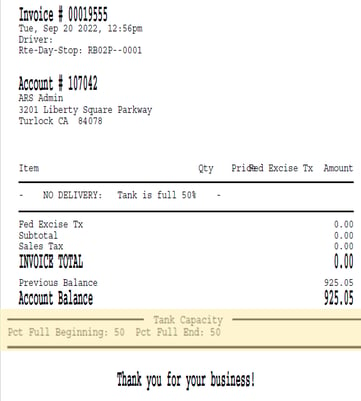
Below is an example of what your customers invoice will look like when your driver selects a skip reason to update their percentage full. Because we selected "full at 50%" skip reason, you will see this value reflected at the bottom of the receipt.
Nightly Propane Calculations
Before Invoice is posted / NPC has run
Nightly Propane Calculations use algebraic formulas to determine the current tank level, the require gas date and the out of has date. When a skip reason is used, the Units Per Package is used in these formulas to generate the most accurate percentage possible. NPC is only ran once a day and at the time of your choosing. For more information and the list of formulas, please refer to the article linked below.
Nightly Propane Calculations Article: Nightly Propane Calculations
To setup this process correctly, Nightly Propane Calculations need to be set. Go to Lists > Routes > Adv. Communications Configuration > Propane/Meter. Ensure that the "Run Calculations" checkbox is selected.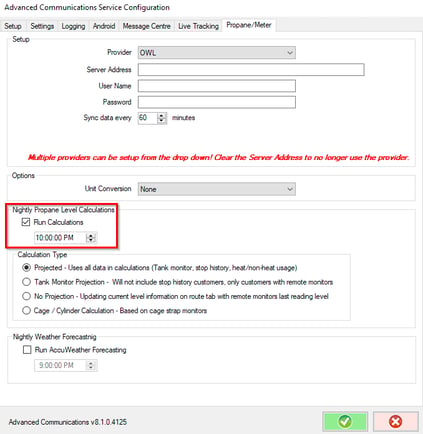
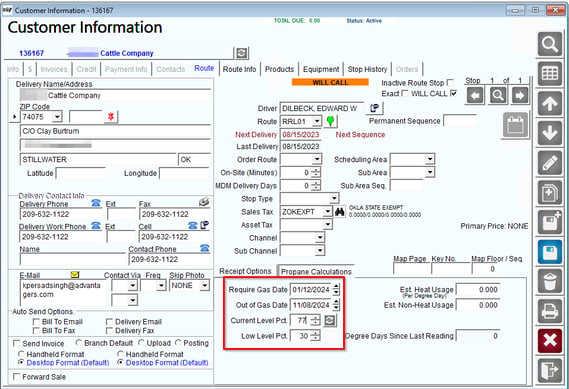
This is a screenshot of the percentage levels of a customer before we serviced them on the handheld.
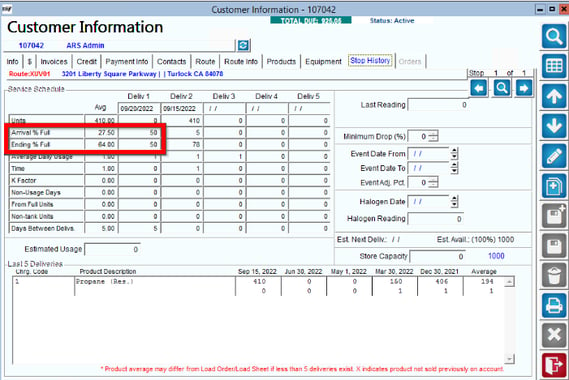
Once the invoice is posted it will update your stop history. Notice that for Delivery 1, the arrival % and ending % are both 50.
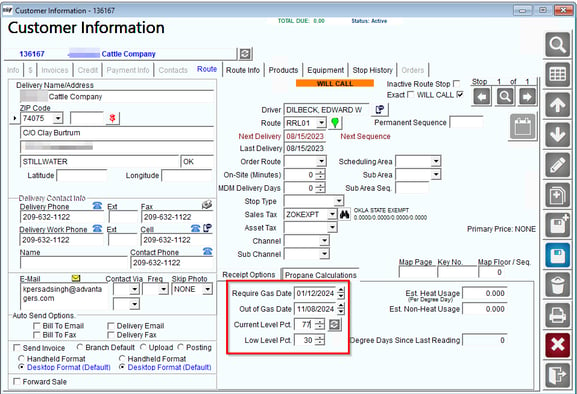
After the invoice posted and Nightly Propane Calculations has run, the Route tab will update with Current Level Percentage, Require Gas Date and Out of Gas Date.
If you have any questions, please contact support@advantagers.com.