
Introduction
To maintain “law and order” in your system, it is necessary to set up security options that match the needs of your organization. Smaller companies may not require strict security settings, while others, such as large multi-branch companies may take advantage of the security options built into the system to establish a more secure environment.
Use the steps below to setup restrictions on your employees access to different portions of the RMA software.
Setting up Security Level Codes
Security Level Codes control the level of access granted to each user in Route Manager, and can be found under Lists > Employee Setup.
Listed on the right portion of the screen, you can control the level of access granted to each area of the program. The screen below displays a standard ‘Admin’ code. Each employee assigned to this code will have full access to the system, since all of the items in the list are set to ‘All’ access.
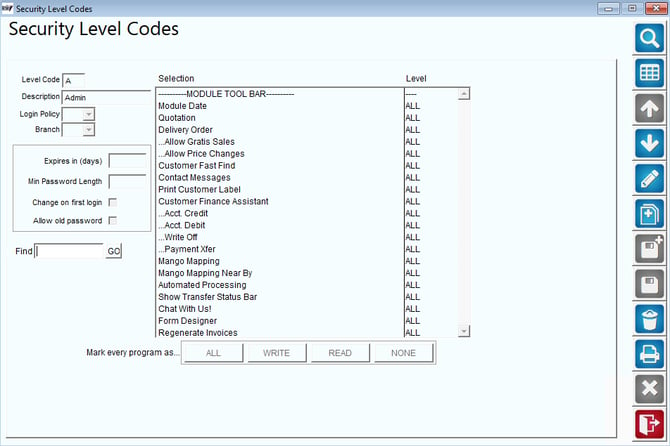
- Expires in (days): Displays the number of days before the login password will expire.
- Min Password Length: Displays the minimum number of characters that the password must be.
- Change on first login: Forces a password change on the first login.
- Allow old password: Allows previous passwords to be used.
Changing the access level is as simple as double-clicking on each item as you scroll down the list.
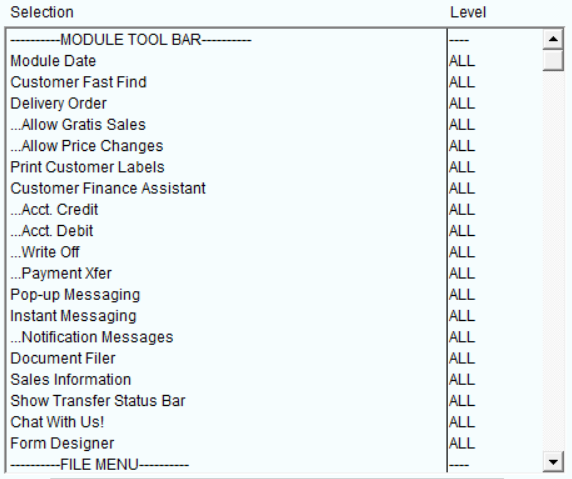
Four levels of access can be assigned to most of the items in the list:
- ALL (Full Access): Gives the user the ability to modify, add, and delete data.
- WRITE: Gives the user the ability to modify and add data.
- READ: Gives the user the ability to view the data only.
- NONE: Restricts the user from viewing the data.
NOTE: Not all four of the access options are available on some items within the list.
Additionally, you can mark all of the items as ALL, WRITE, READ, or NONE globally by clicking one of the buttons on the bottom of the Security Level Codes screen:

If you are using the Login Policy option (discussed earlier), assign a policy to each Security Level Code.
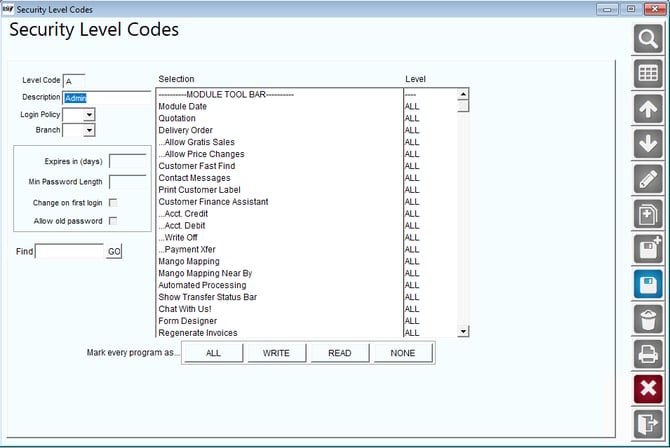
Create all of the Security Level Codes that will be needed in your company (e.g., Admin, Clerical, Drivers).
Establishing Security with Employees
Assign the appropriate Security Level Code to each employee under Lists > Employee Setup > Employees, on the Information tab.
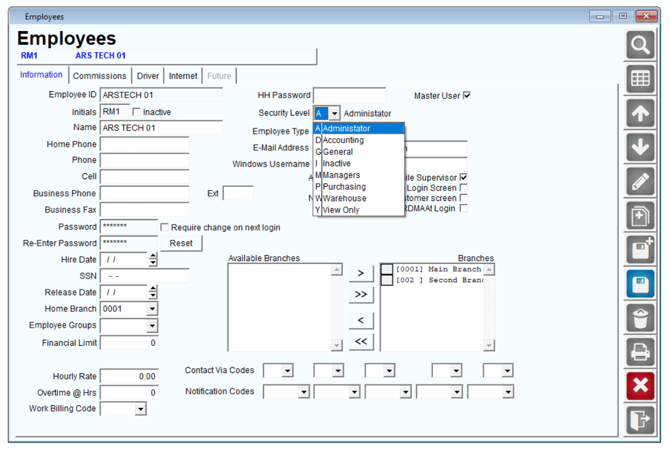
After selecting the Security Level Code, establish a password for each employee. Another important option is the ‘Master User’ checkbox on the top-right portion of the Employees Information tab. The ‘Master User’ option will enable the user to setup and view Security Level Codes within the system. Generally, only administrative users should have this option selected.
Using Detailed Customer Security
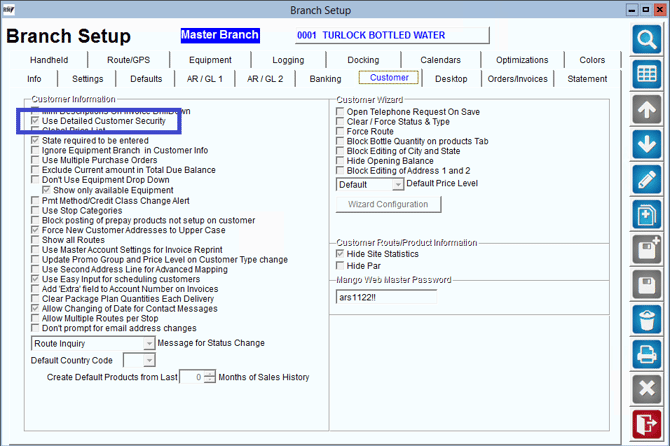
If you would like to dig down further into security level codes, you have the option to turn on "Detailed Customer Security" within Branch Setup. This will allow you to turn on and off each field within the Customer Information Screen, such as Sales Rep, Delivery Calendar, Sales Tax, etc. To use detailed customer security please navigate to File>Branch Setup>Customer and enable the highlighted option. Once this option has been enabled, there will be a series of new items available within Lists > Employee Setup > Security Level Codes.
Setting up Login Policies (Optional)
Using Login Policies in Route Manager is entirely your preference. This option allows you to add a level of security by forcing each user to update their password information periodically.
A typical Login Policy created for a standard user is shown below (Login Policy is found under Lists >Employee Setup):
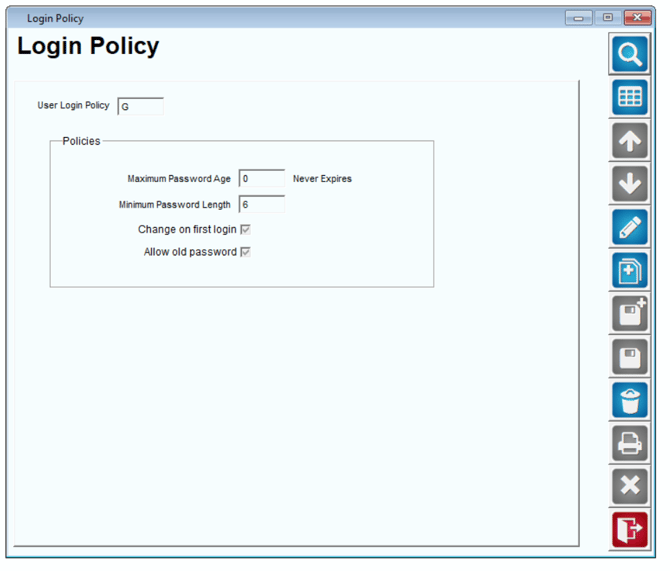
- Maximum Password Age: Establish the number of days that will pass before the system prompts the user for a new password.
- Minimum Password Length: Enter the minimum number of characters required for the password length.
- Change on first login: Select this option to require that each user change their password the first time they log in to Route Manager.
- Allow old password: Select this option if each user will be allowed to use their old passwords when the current password expires.