
Introduction
The Sales vs. Returns Report includes detailed sales and product return information that also calculates the percentage of sales vs. returns for the date range entered. Access: Reports > Accounting Reports > Sales > Sales vs. Returns Report.
NOTE: For further information on setting up and managing product returns, refer to Chapter 2.13 of the Supplemental Guide.
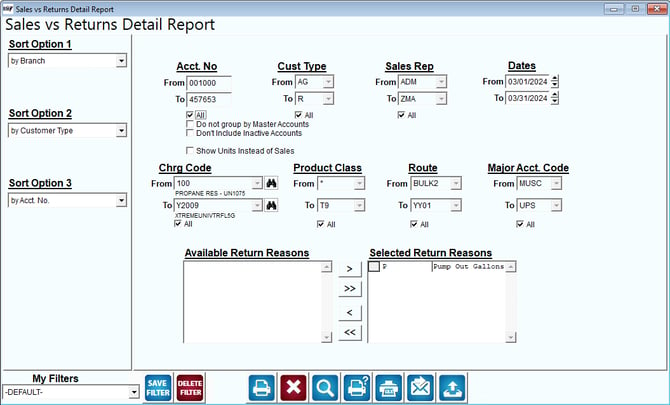
Fields:
Sort Option 1, 2, 3: You can choose from the following categories:
- Branch
- Customer Type
- Account Number
- Date
- Charge Code
- Product Class
- Employee ID
- Route
- Major Acct. Code
- Period
- Price
- Stop
- Return Reason
- None
Acct No: Enter the range of account numbers to include in the report.
All: Default to include all customers.
Do not group by Master Accounts: Choose this option to include sub account information on the report if using master billing.
Don’t include inactive Accounts: Choose this option to exclude account information for inactive customers.
Show Units Instead of Sales: Select this option to show the quantity of units sold rather than the sales dollar amounts.
Cust Type: Select the range of Customer Types to include in the report.
All: Default to include all Customer Types in the report.
Sales Rep: Select the range of Sales Reps to include in the report.
All: Default to include all Sales Reps in the report.
Dates: Enter the range of dates to include in this report.
Chrg Code: Enter the range of charge codes to include in this report.
All: Default to include all charge codes in the report.
Product Class: Select the range of Product Class Codes to include in the report.
All: Default to include all Product Class Codes in the report.
Route: Select the range of Routes to include in the report.
All: Default to include all Routes in the report.
Major Acct Code: Select the major account number range to include in the report.
All: Default to include all Major Account Codes in the report.
Available Return Reasons: Includes all of the available Return Code Reasons.
Selected Return Reasons: Includes all of the Return Code Reasons that will be included in the report.
NOTE: Use the arrows or double-click on each Return Code Reason to add or remove from each list.
Sort Option 1, 2, 3: You can choose from the following categories:
- Branch
- Customer Type
- Account Number
- Date
- Charge Code
- Product Class
- Employee ID
- Route
- Major Acct. Code
- Period
- Price
- Stop
- Return Reason
- None
Acct No: Enter the range of account numbers to include in the report.
All: Default to include all customers.
Do not group by Master Accounts: Choose this option to include sub account information on the report if using master billing.
Don’t include inactive Accounts: Choose this option to exclude account information for inactive customers.
Show Units Instead of Sales: Select this option to show the quantity of units sold rather than the sales dollar amounts.
Cust Type: Select the range of Customer Types to include in the report.
All: Default to include all Customer Types in the report.
Sales Rep: Select the range of Sales Reps to include in the report.
All: Default to include all Sales Reps in the report.
Dates: Enter the range of dates to include in this report.
Chrg Code: Enter the range of charge codes to include in this report.
All: Default to include all charge codes in the report.
Product Class: Select the range of Product Class Codes to include in the report.
All: Default to include all Product Class Codes in the report.
Route: Select the range of Routes to include in the report.
All: Default to include all Routes in the report.
Major Acct Code: Select the major account number range to include in the report.
All: Default to include all Major Account Codes in the report.
Available Return Reasons: Includes all of the available Return Code Reasons.
Selected Return Reasons: Includes all of the Return Code Reasons that will be included in the report.
NOTE: Use the arrows or double-click on each Return Code Reason to add or remove from each list.