
Introduction
The Sales Comparison Report (Reports > Accounting Reports > Sales > Sales Comparison Report) provides detailed product sales figures based on multiple date ranges and a variety of additional criteria. Use the sort options to provide different styles of reporting, and then choose your filter options and the "Comparison Periods".
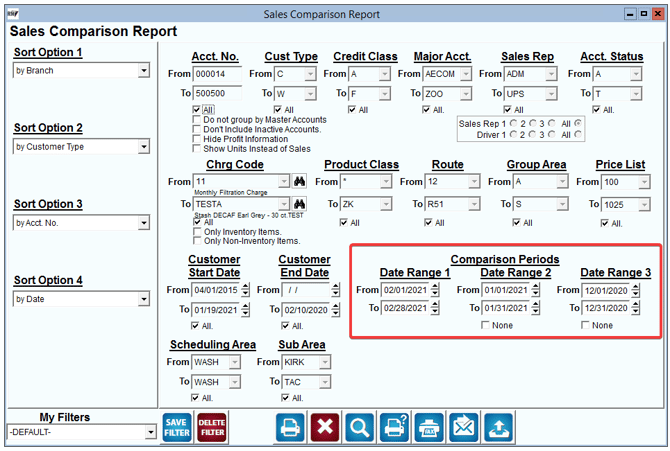
Fields:
Sort Option 1, 2, 3: You can choose from the following categories:
- Branch
- Customer Type
- Account Number
- Date
- Charge Code
- Product Class
- Employee ID
- Route
- Major Acct. Code
- Period
- Price
- Stop
- Invoice Number
- Quantity
- Sales
- Gallons
- Group Area
- None
Acct No: Enter the range of account numbers to include in the report.
All: Default to include all accounts.
Do not group by Master Accounts: Choose this option to include sub account information on the report if using master billing.
Don’t include Inactive Accounts: Choose this option to exclude account information for inactive customers.
Hide Profit Information: Check this box to suppress all of the “profit” related figures from the report (i.e., Cost of Goods and Gross Margin).
Show Units Instead of Sales:
Cust Type: Select the range of Customer Types to include in the report.
All: Default to include all Customer Types in the report.
Credit Class: Select the range of Credit Class Codes to include in the report.
All: Default to include all Credit Class Codes in the report.
Major Acct Code: Select the Major Account Code range to include in the report.
All: Default to include all Major Account Codes in the report.
Sales Rep: The range of Sales Reps to include in the report.
All: Default to include all Sales Reps in the report.
Sales Rep 1-3: Select the desired Sales Rep field to include in the report.
Driver 1-3: Select the desired Driver field to include in the report.
Account Status: Select the customer Account Status Code range to include on the report.
All: Default to include all Account Status Codes in the report.
Chrg Code: Enter the range of Charge Codes to include in this report.
All: Default to include all Charge Codes in the report.
Product Class: The range of Product Class Codes to include in the report.
All: Default to include all Product Class Codes in the report.
Route: Select the range of Route ID’s to include in the report.
All: Default to include all Route ID’s in the report.
Group Area: Select the range of Group Area Codes to include in this report.
All: Default to include all Group Area Codes in the report.
Price List: Select the range of Price Lists to include in this report.
All: Default to include all Price Lists in the report.
Customer Start Date: Select the Customer Start Date range to include on the report.
All: Default to include all Customer Start Dates in the report.
Customer End Date: Select the Customer End Date range to include on the report.
All: Default to include all Customer End Dates in the report.
Date Range 1-3: Enter up to three date ranges to compare in the report.
None (Date Ranges 2 and 3): Select this option to disable the date range from being included in the report.