
Introduction
The Route Times report allows you to look at a single route or multiple routes to see the stop time that each customer was serviced. It will display the stops Start Time, End Time and overall Delivery Time. You can also view the sequence number information to better evaluate your routes efficiency.
This report can by found by going to Reports > Routes Reports > Management > Route Times.
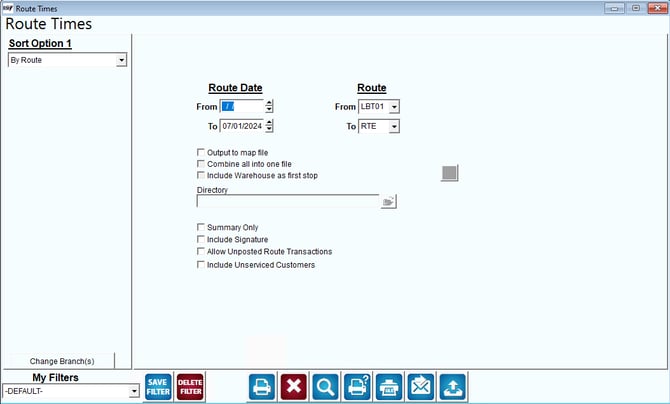
Fields:
Sort Option 1: This option is defaulted for you. This report can only be printed by Route.
Change Branch: If you are logged into multiple branches, this option may be shown and allows you to re-select the branches to include in the report instead of having to completely exit the report.
Route Date: The range of dates to include in the report.
Route: The range of routes to include in the report.
Output to map file: You may choose to print this report to paper or output it to a file that can be imported into a mapping program such as Microsoft Streets & Trips. If you choose this option, it will prompt you for the next two fields. These are only required if you are using an output file. See Appendix D for more assistance.
Combine all into one file: If you are requesting more than one route, you can choose this option. This will combine stops for more than one route/day combination into a single file. If you do not check the box, the system will create a unique file for each route/day item.
Include Warehouse as first stop: Choose this option to include the warehouse location established in File > Company Setup as the starting point of the route.
 Pushpin: Used with Mango Mapping.
 Directory: Enter the path (or directory) where the file should be saved. The path should include the drive letter, as in the following example: C:\MAPPING.
Summary Only: This will do the report in Summary format and leave out details.
Include Signature: not currently being used.
Allow Unposted Transactions: Click this box to display unposted transaction information.
Include Unserviced Customers: Choose this box to include unserviced customers in the report.