
Introduction
This report allows the user to export route data for processing in a third party application such as Microsoft Streets and Trips. The Route Stop Mapping report can be found under Reports > Route Reports > Management > Route Stop Mapping.
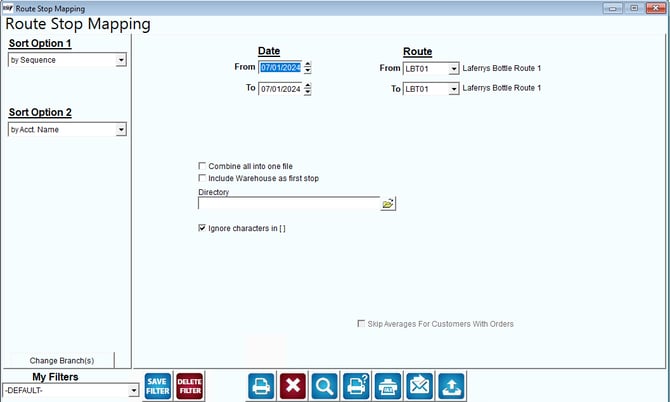
Fields:
Sort Option 1 & 2: You can choose to sort by the following categories:
- Sequence
- Account Name
- Account Number
Change Branch: If you are logged into multiple branches, this option may be shown and allows you to re-select the branches to include in the report instead of having to completely exit the report.
Date: Enter a date range for the routes you would like to export.
Route: The range of routes to include in this export process.
Combine all into one file: Check here to combine all routes selected into one export file.
Include Warehouse as first stop: Select this option to include the Warehouse location as the first stop. This is useful for route optimization.
 Directory: Enter the path (or directory) where the file should be saved. The path should include the drive letter, as in the following example: C:\MAPPING.
Ignore Characters in [ ]: Choose this option to ignore characters in brackets [].