Introduction
The Route Messages Report screen is used to generate reports that display specific messages related to routes and accounts. This report allows users to filter and view various types of messages associated with different routes, accounts, or date ranges, and helps with logistical management and planning.
Process
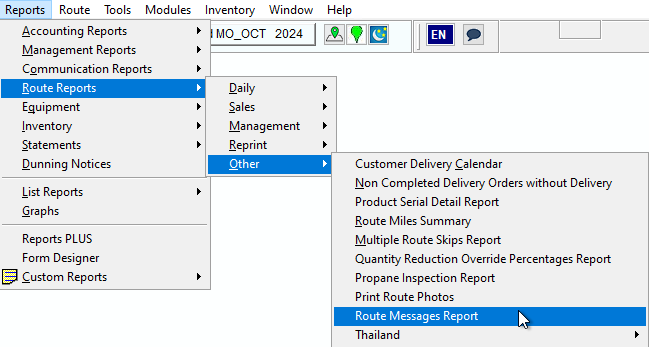
Navigate to Reports > Route Reports > Other > Route Messages Report.
Filter the kinds of messages that you would like to be generated on the report.
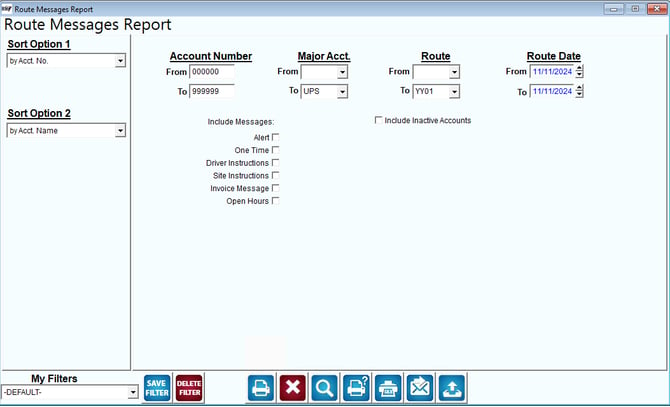
Route Messages Report Screen Fields
Sort Options
- Sort Option 1: Allows sorting by a primary criteria (options could include sorting by Account No., etc.).
- Sort Option 2: Allows sorting by a secondary criteria (e.g., Account Name).
Filters
- Account Number (From/To): Defines the range of account numbers for which the report will be generated.
- Major Acct. (From/To): Specifies the major account filter for the report, allowing selection within a range or specific account type (e.g., "UPS").
- Route (From/To): Sets the route range for which the report is filtered.
- Route Date (From/To): Specifies the date range for which routes are included in the report.
Include Messages (Checkbox Options)
- Alert: Includes alert messages in the report.
- One Time: Includes one-time messages.
- Driver Instructions: Includes driver instructions.
- Site Instructions: Includes site-specific instructions.
- Invoice Message: Includes invoice-related messages.
- Open Hours: Includes messages related to open hours.
Other Options
- Include Inactive Accounts: Checkbox to include accounts that are inactive.
Action Buttons
- Save Filter: Saves the current filter settings for future use.
- Delete Filter: Deletes the currently selected filter.
- Other Icons: Various icons likely for executing the report, printing, faxing, emailing, and other actions.
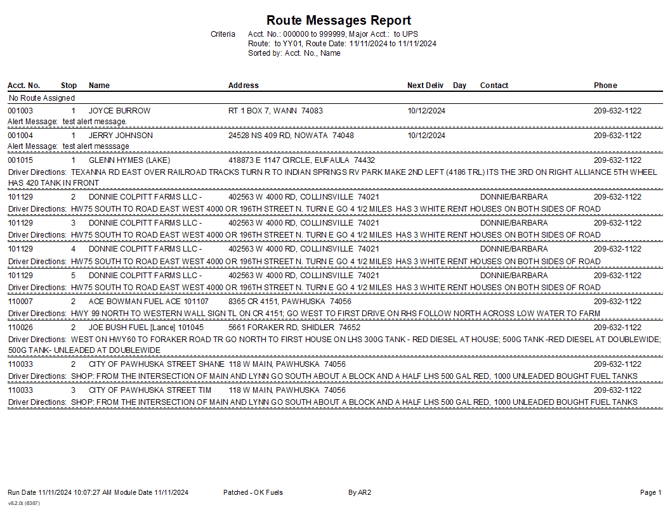
Here is an example of the Route Messages Report: