Introduction
The Route Commission Report is a type of business report that provides detailed information about the commissions earned by employees, such as salespeople or drivers, based on the routes they cover.
The reporting goes based off of the products sold and can be used for posted invoice or un-posted invoices. The numbers reflected in the report do not require a payment already being made to the invoice. The numbers only display based on invoices generated in the system.
This can be found under Reports > Management.
Fields:
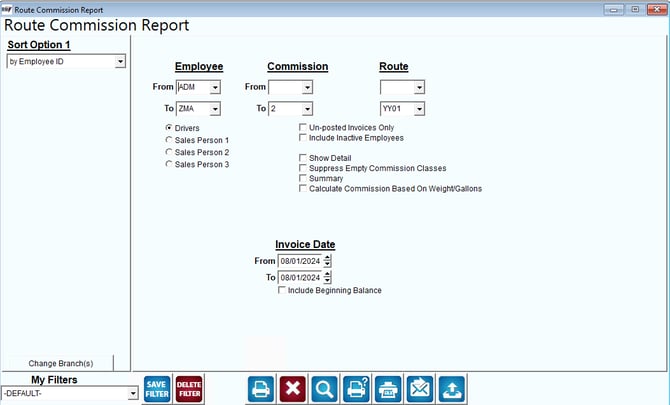
Sort Option 1: This dropdown allows users to specify how the report data should be sorted. The current option is "by Employee ID," which organizes the report based on employee identifiers.
Employee: The "Employee" section allows users to filter the report based on specific employees. Users can select a range of employees by entering "From" and "To" values and choose between drivers and sales personnel (Sales Person 1, 2, and 3).
Commission: The "Commission" fields allow users to filter the report based on commission amounts. Users can specify a range by entering "From" and "To" values to focus on particular commission levels.
Route: The "Route" dropdowns allow users to filter the report based on specific routes. This is useful for companies that pay commissions based on deliveries or sales within certain geographic areas.
Additional Options:
Un-posted Invoices Only: This option filters the report to include only commissions related to invoices that have not yet been posted.
Include Inactive Employees: Checking this option includes commissions for employees who are no longer active.
Show Detail: Provides a detailed breakdown of commission data.
Suppress Empty Commission Classes: Omits commission categories that have no data.
Summary: Generates a summarized version of the report.
Calculate Commission Based On Weight/Gallons: Allows the report to calculate commissions based on delivery weight or gallons, which is useful for industries like transportation or logistics.
Invoice Date: The "Invoice Date" fields enable users to filter the report by a date range for invoices. Users can specify a start and end date to view commissions related to invoices within that timeframe.
Include Beginning Balance: This option includes the beginning balance of commissions in the report.
My Filters: Users can apply, save, or delete custom filters for generating the report. The dropdown shows the current filter being used, which is "-DEFAULT-."
Action Buttons: The buttons at the bottom likely perform functions such as saving filters, deleting filters, printing the report, exporting data, accessing help, and resetting the form.
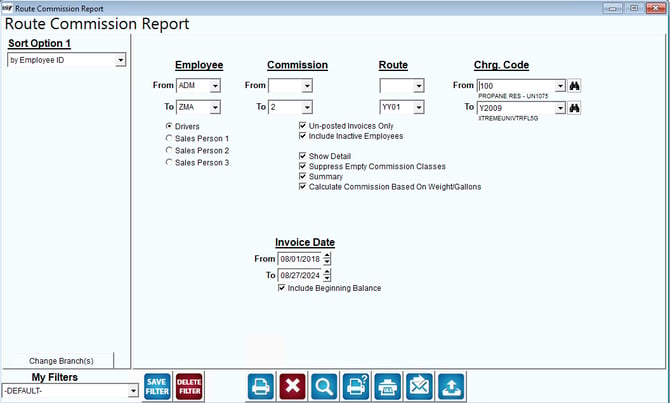
When "Show Detail" is selected and you run your report, the export function should operate correctly.
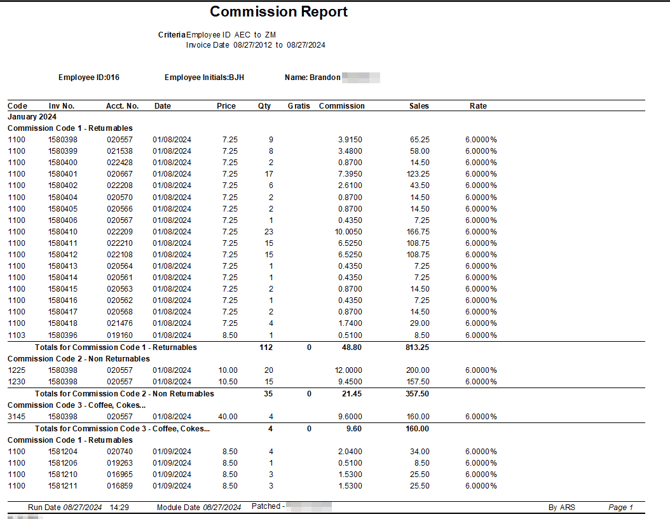
Here is an example of the report: