
Introduction
This option allows you to generate G/L totals based on the range of dates entered. It also allows you to do a data export for GL transactions. Be sure that you have properly set up the system before you attempt to do this. Typically, this means:
- You have GL codes set up in the system [under lists/accounting]
- You have made the proper entries in Branch Setup for GL [a few different tabs]. Be sure that you have made a selection on the Accounting System that you will be exporting transactions to so the transactions are in the proper format for your system.
- You have made invoice transactions in your RMA system. Only POSTED transactions will go into the GL export.
If you have completed all of these preparatory items, then you can continue with the report below.
You can find this report under Reports > Accounting > General Ledger > Reprint G/L Report(s).
NOTE: This is a useful alternative to the General Ledger Postings Report — found under the Transactions menu — for users that do not wish to capture month-to-date totals only. This report shows payments according to type.
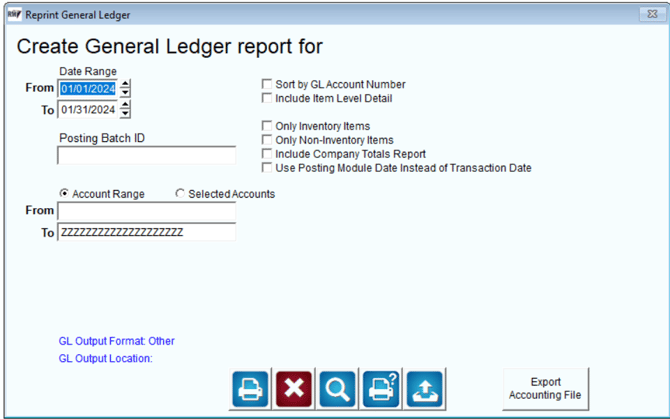
Export Accounting File: Click this option/button to generate transactions for your accounting program based on the criteria that you have selected. It will write this file using the format designated in Branch Setup to the location you originally put into Branch Setup. For your convenience, this is displayed on the screen in the lower left corner. While you cannot change it here, you can verify you are about to do the right format to the proper location.
At this point, you would need to go to your accounting program and import the created transactions so they appear in your system. This process varies according to the accounting system.
General Ledger Postings Report
Located under Transactions > General Ledger Postings Report, this function creates a G/L Posting from your Accounts Receivable transactions. You will receive a summary and detail report for the current period which includes all general ledger posted totals. This report is important for the accounting department to use for third-party accounting programs such as QuickBooks or Peachtree. It is important to review the General Ledger Postings report and make sure it is in “balance” before you proceed.
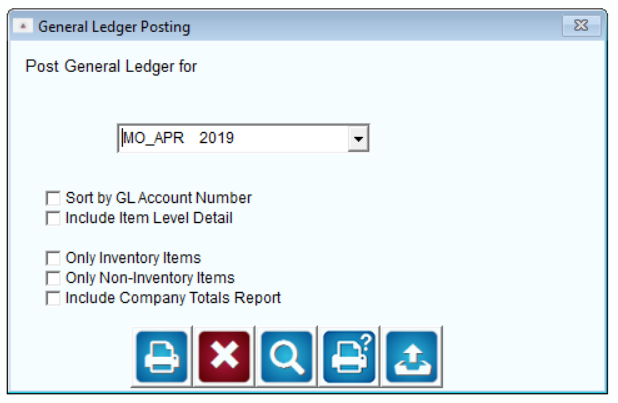
Fields: