
Introduction
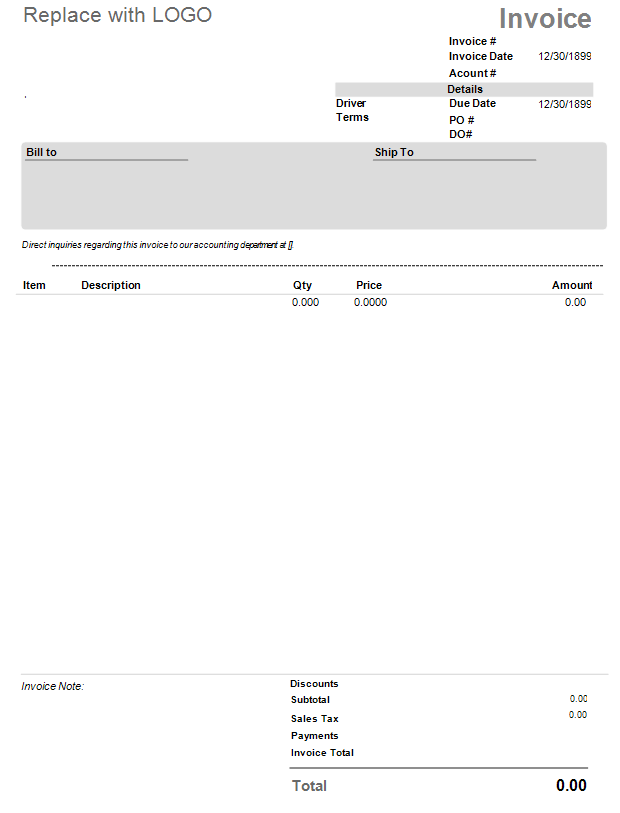
Desktop invoices in RMA have a standard format that will display the general invoice information for your customers. This standard format looks something like this:
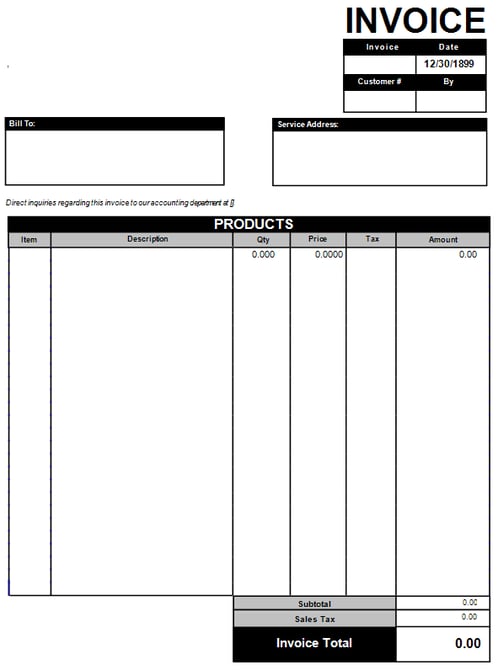
You can see that Invoice #, Date, Customer #, Products etc. will be displayed however, based on your industry, you may notice that certain key information is missing.
For example:
Water may want to display Deposit Information.
Propane may want to display Meter Information.
AU may want to display DD-MM-YYY.
Previously, the only way to modify this information is by creating a Custom Invoice Format through an ARS technician.
Now, in V8 8.1 3300+, you are able to use new Default Templates for invoices based on some of our top requests.
These new templates include the following:
- RMA Original
- Standard AU
- Standard AU with Deposits
- Standard AU with Meter Readings
- Standard Deposits
- Standard Meter Readings
- Standard US
Use the steps below to update your current invoice format to one of the system templates. If you are needing to add any additional information to your invoices outside of the template setup, please submit a custom invoice request to Support@advantagers.com with detailed information on what you would like to add.
A technician will then quote you on the time it will take to input the changes and modify the invoice once time is approved.
Template PreviewsRMA Original
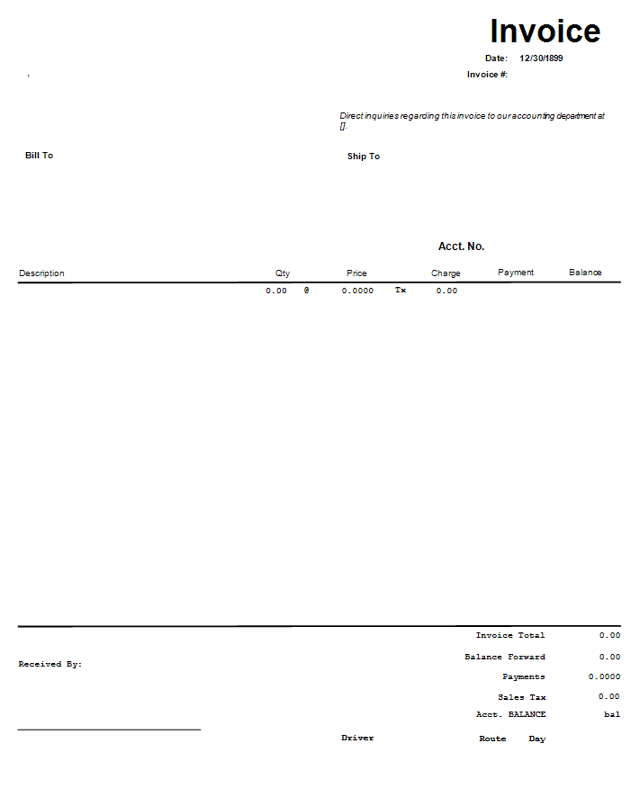
Standard AU
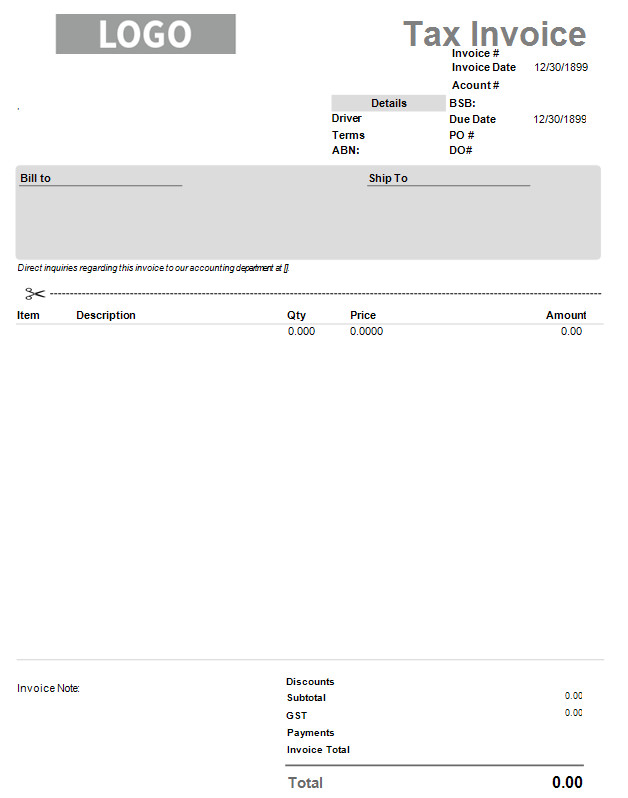
Standard AU with Deposits
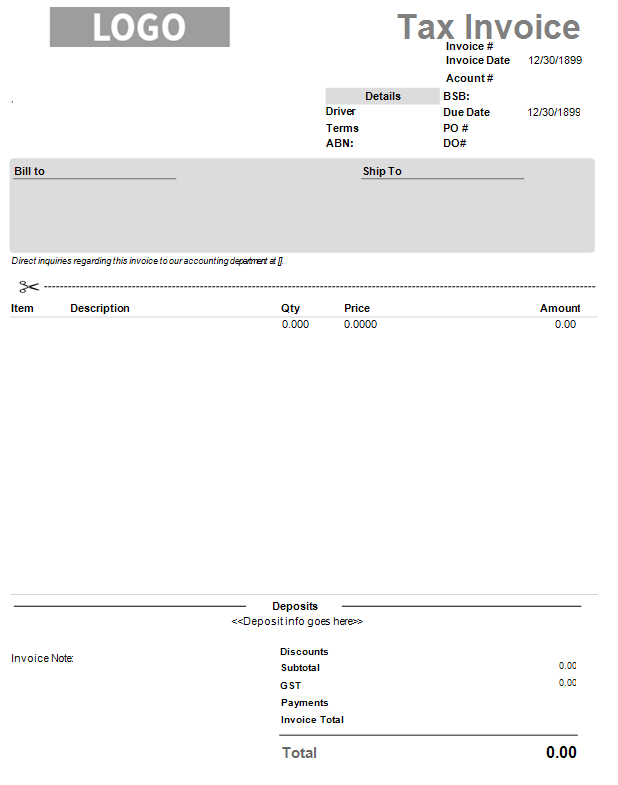
Standard AU with Meter Readings
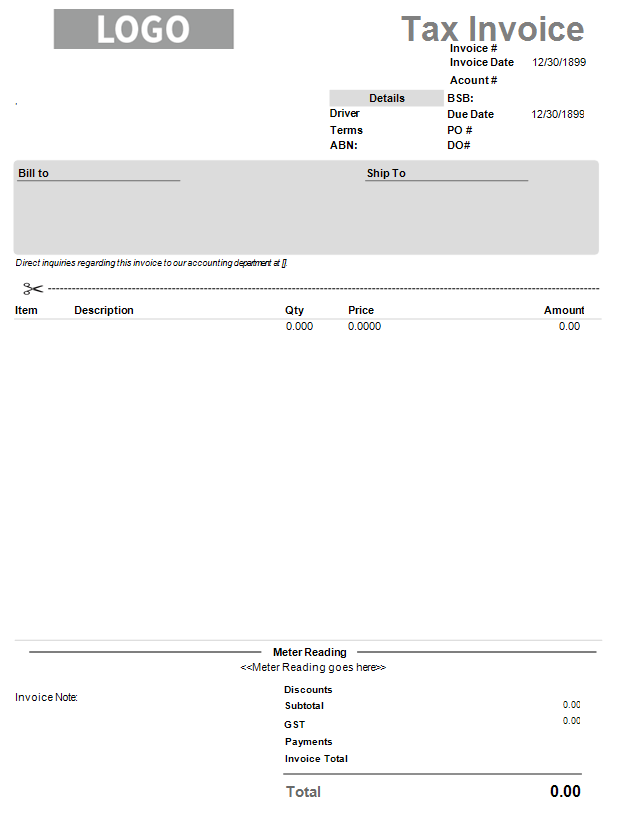
Standard Deposits
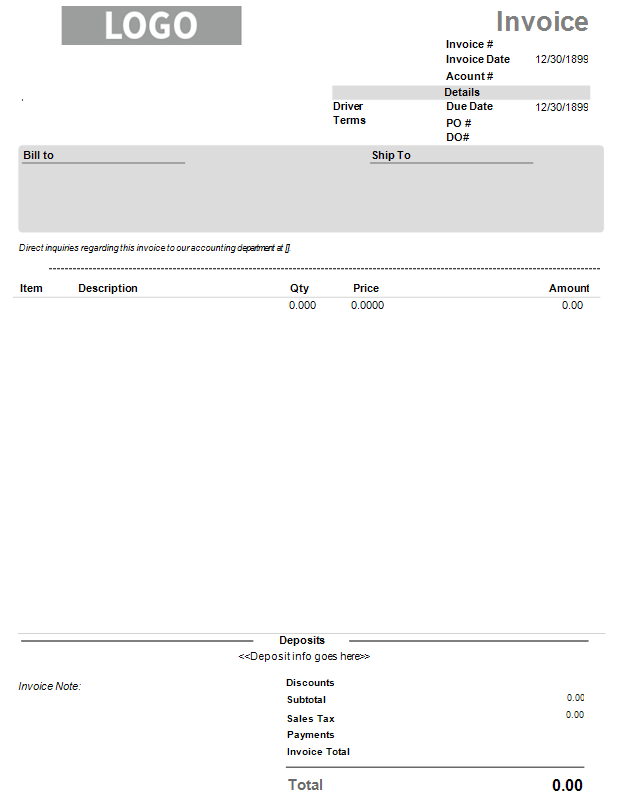
Standard Meter Readings
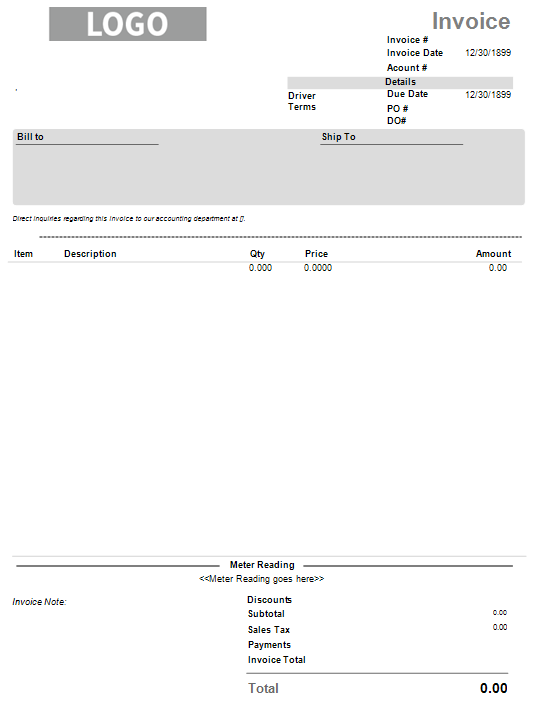
Standard US
 Setup
Setup
- Go to File>Branch Setup>Orders/Invoices.
- Click on the Modify Key.

- Under the 8 1/2 x 11 format section, choose the Default option:
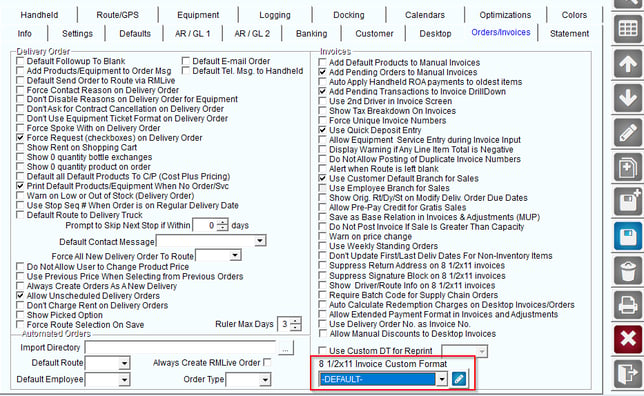
- Once selected, click on the Modify key next to the format to open the Report Designer Window.
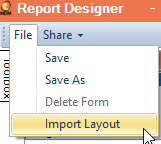
- In the Report Designer, click on File>Import Layout.
- In the pop up window, choose which format/template you would like to use.
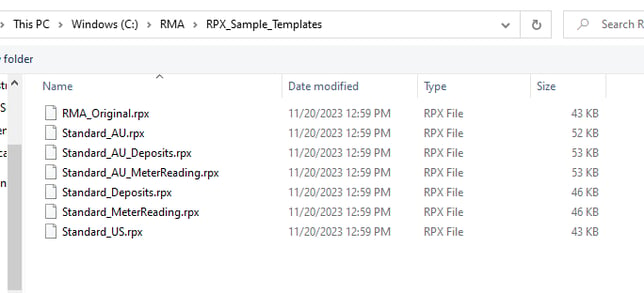
- Double click on the format/template to open.
- You will be required to name this template that you will be using.
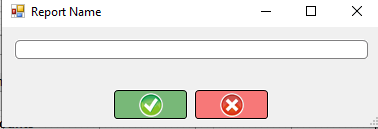
- Name it and then click on the green check mark to save.
- Once saved, you will see the template populate under the Reports section in the top corner of the window.
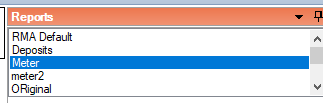
- All templates in this area are available for use in the Branch Setup.
- After you saved your template, close out of the Report Designer and close out of the Branch Setup.
- Reopen Branch Setup so that your new template is available on the drop down.
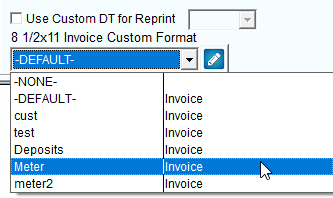
- Chose the new template and save it under Branch.
- Once saved, all 8 1/2 x 11 invoices moving forward will be under this format.