Introduction
Do you need to charge a Redemption Value charge for products being sold? Such as a "Plastic Bottle" fee? Or even just need to assign an additional charge when you sell a specific item? What about assigning a Tariff fee to a regular product charge code?
These scenarios are different for each state but the Redemption Value Charge codes within RMA can be used to fulfill the needs for each of these purposes.
Use the following information to setup a Redemption Value Charge Code and apply it to the scenario that is most needed for your companies operations.
Process
Redemption Value Code Setup
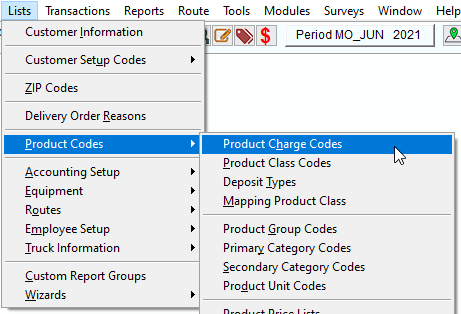
- Go to List > Product Codes > Product Charges.
- Create a Product Charge Code for your redemption value.
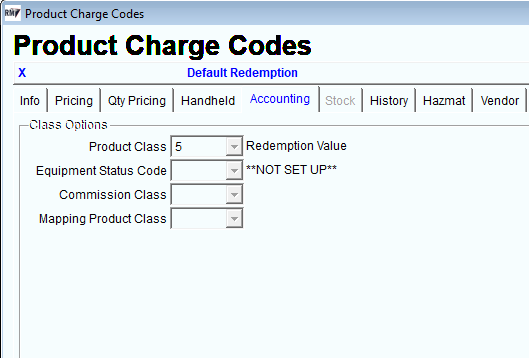
- Go to the Accounting Tab of the product and assign it to the Product Class 5.
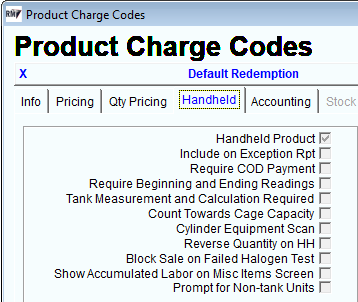
- Go to the Handheld Tab and check the Handheld Product check box.
- Go to the Pricing Tab and enter the price of the Redemption Value

- Next, open the Product Charge Code that the Redemption Value will be assigned to. Go to the Pricing Tab on the charge code and at the middle section (Redemption Value) use the drop down box and select the Redemption code you just created. You can choose up to 4 Redemption Values per product.

- Next, it is important you choose which Sales Tax Rates you want this applied to. This will only be charged on customers who are assigned to the sales tax rate you have marked to do so. Go to List > Accounting > Sales Tax Rates and select the Assess Bottle Redemption for each sales tax code you wish to have Redemption charged on.

- Go to List > Routes > Handheld Class > Labels and find the box labeled Redemption Value and enter a description as you would like it to appear on your receipts.
.jpg?width=219&height=71&name=setting-up-redemption-value-1501264198%20(1).jpg)
Note: Redemption Value works on a 1 to 1 ratio. If you sell 12 “bottles” of soda, you get 12 Redemption Value products. You sell 1 12 pack of soda, you get 1 Redemption Value product. So it has to be priced accordingly based on the product being sold. You may need multiple Redemption Value codes based on quantities of products sold (ie. a"Case" Redemption value and a single unit redemption value.)
RV Assessment Options
Automatic: (Recommended) You can set the redemption charges to be automatically generated on the desktop by going to File>Branch Setup>Orders/Invoices tab and selecting the option "Auto Calculate Redemption Charges on Desktop Invoices/Orders". For automatic you will not see the Redemption Value until after you have entered the product and saved the invoice.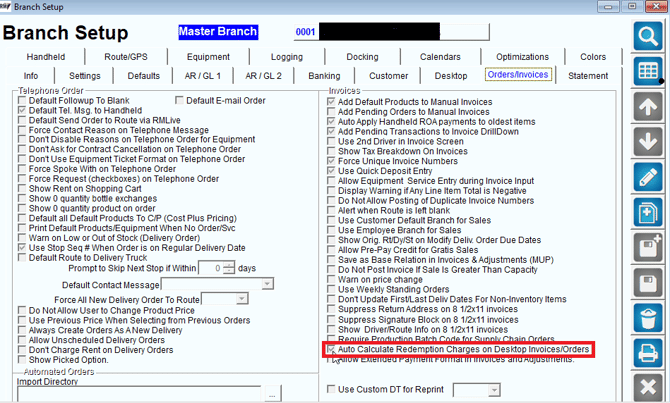
Manual: You can manually assess the redemption charges while entering an invoice on the desktop by pressing the button highlighted below. If you do not press "Assess Redemption Charge button", a redemption charge will not be added to the invoice.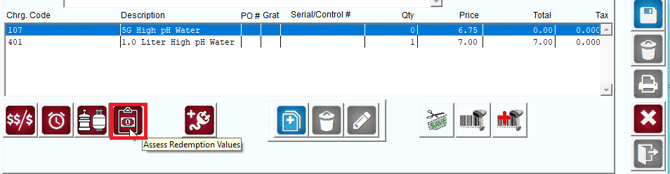
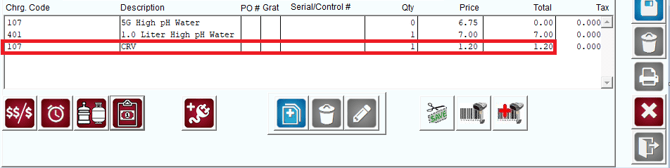
In either case, you will now see your Redemption Value appear below the other items on the invoice.