
Introduction
Often, customers will provide you with a Purchase Order number to identify product orders and make payments. This chapter will guide you through setting up, entering, and tracking Purchase Orders in the system.
Seven areas of the program are used to manage the Purchase Order system:
- Branch Setup
- Customer Information
- Delivery Orders
- Handhelds
- Desktop Invoices
- Expired P.O. Report
- Statements
Each option is covered in the order listed.
Setup
Branch Setup
Prior to getting started with the Purchase Order system, you will need to determine if you will use a single standing Purchase Order per stop or up to three.
Listed below are a few differences between a single and multiple Purchase Order system:
- One: Easy to manage; allows you to address the needs of most customers who simply ask that you either secure a Purchase Order each time you make a delivery. Additionally, you can keep one on file for a period, or until a set dollar amount is reached.
- Three: Typically, a multiple Purchase Order system is used when separate Purchase Orders are required for different types of items.
Navigate to File > Branch Setup, and click on the Customer tab.
A single P.O. system is enabled by default in Route Manager. To change to a multiple P.O. system, select the option ‘Use Multiple Purchase Orders’.
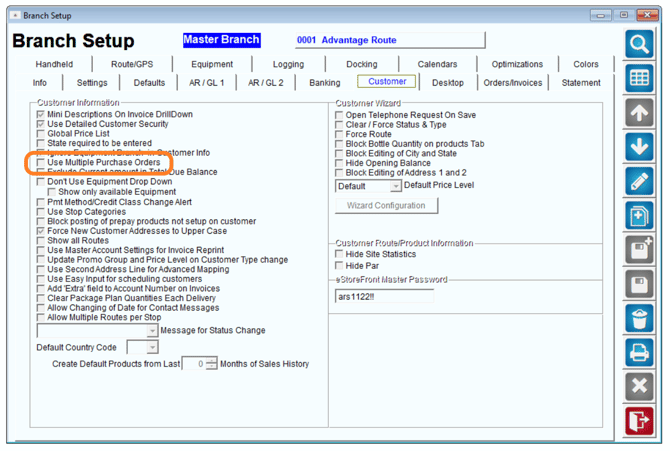
NOTE: This change can only be applied to the Master Branch.
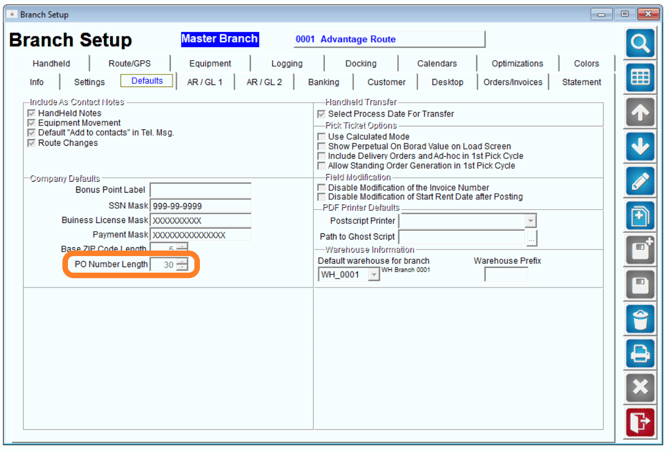
Additionally, the required P.O. character length can be established within the Defaults tab of Branch Setup:
Customer Information
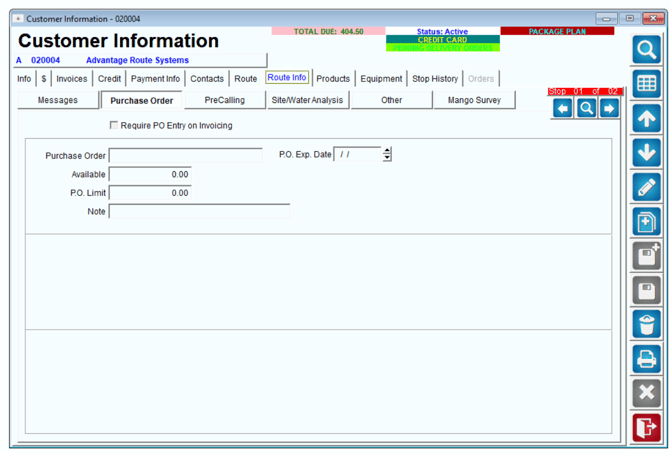
The Purchase Order option within each customer’s account can be found within the Route Info tab of Customer Information:
The following screen displays the Multiple Purchase Order field:
Field Definitions:
Require PO Entry on Invoicing: When this box is checked a PO number is required for all invoices generated for this customer.
Purchase Order: Displays the current P.O.
Purchase Order Expiration Date: This is the date the current P.O. will expire.
NOTE: Leave blank to establish a non-expiring P.O.
Purchase Order Class (only used with multiple Purchase Orders): This option allows you to select a Product Class Code from the drop down menu that the P.O. will be applied to on each invoice. This is helpful when you would like to apply the P.O. to a specific group of items.Leave the class field blank to apply the P.O. to all items being sold.
NOTE: If you have assigned a P.O. to a Product Class Code, it will be necessary to establish a second P.O. on the account that will be used for all additional items sold on the account.
Available (requires P.O. Limit below): Displays the available credit remaining on the P.O. This field is updated automatically when items are sold under the current P.O
P.O. Limit (Optional): Enter a limit for the current P.O.
Note (Optional): Enter a reference note for the current P.O. The note is only displayed within this screen.
Delivery Order Screen
The Delivery Order screen will automatically include the customer’s P.O. on their order (found within the Pending Orders screen Double click on the Orders section to open):
You can override the current P.O. if you would like to use a unique P.O. on the order:
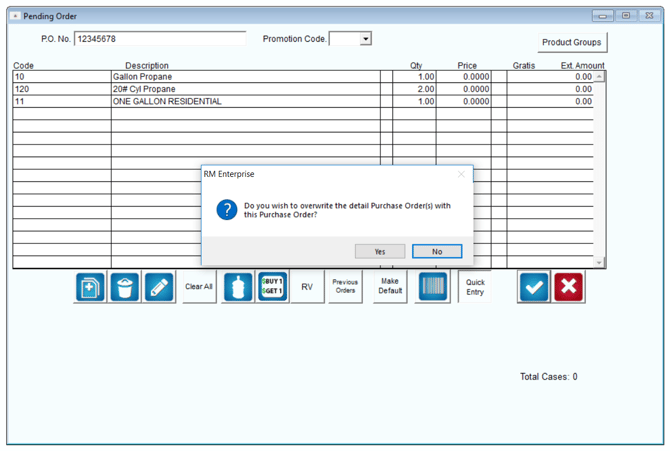
NOTE: This will not override the standing P.O. on the account and will only apply to the current order.
Additionally, if a customer is assigned multiple P.O. numbers on their account, the Delivery Order screen will display ‘Multiple PO’s’ in the P.O. No field:
Additionally, if a customer is assigned multiple P.O. numbers on their account, the Delivery Order screen will display ‘Multiple PO’s’ in the P.O. No field:
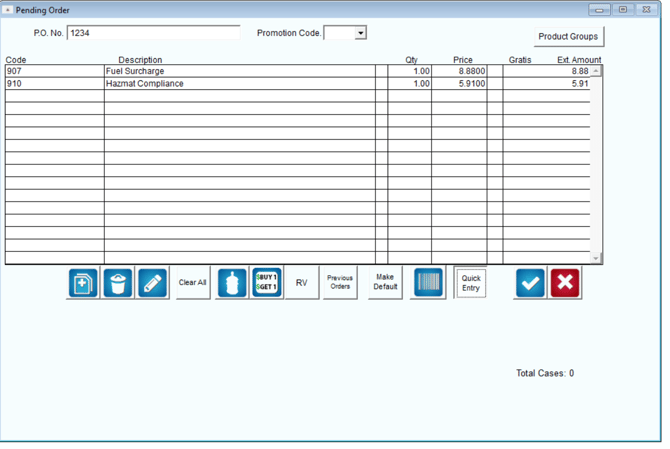
You can override the current P.O. if you would like to use a unique P.O. on the order.
NOTE: This will not override the standing P.O. on the account and will only apply to the current order.
On the Handheld
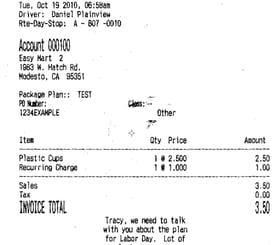
Assigned Purchase Orders will automatically be included, and printed, on all handheld invoices.
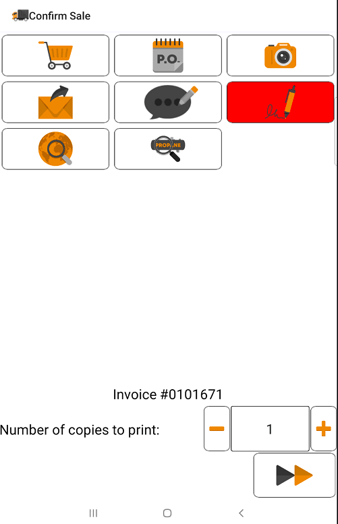
Should the driver need to enter a new P.O. on the invoice, the data can be entered on the Confirm Sale screen by tapping the P.O. key:
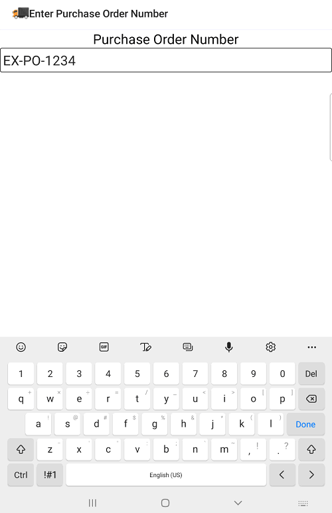
Once the P.O. key has been selected, the alphanumeric keypad will be displayed:
Enter the new P.O. and press the arrow key to save the new information.
Desktop Invoices
Purchase Orders can be entered per invoice during desktop entry. Each option is discussed below.
Route Settlement Entry
The Route Settlement Entry screen is used for manually entering route data at the end of the delivery day, and can be found under the Transactions menu.
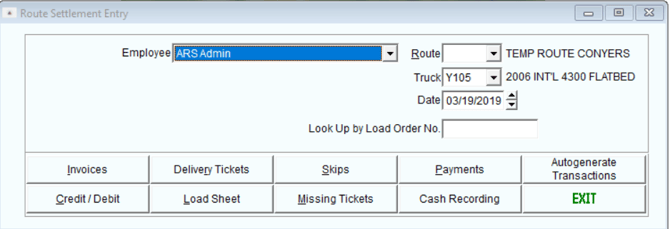
After selecting the Invoices key, a unique P.O. number can be added to each invoice during the data entry process:
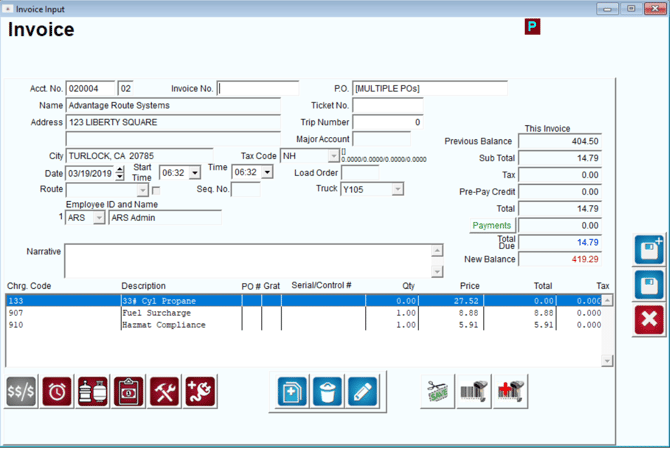
Alternatively, existing P.O. numbers will automatically be added per item on the invoice in the P.O. No field — depending on the number of P.O. on each account, the number displayed will vary:
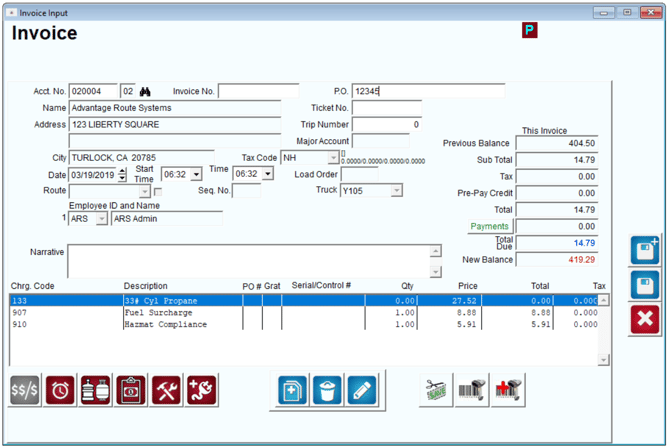
The P.O. No field is populated by the numbers 1-3, signifying the P.O. assigned in the corresponding field within the customer’s account.
NOTE: For further information on the Route Settlement Entry screen, refer to User Guide A.
Invoices and Adjustments
The Invoices and Adjustments screen is used when manually entering desktop invoices, and can be found under the Transactions menu.
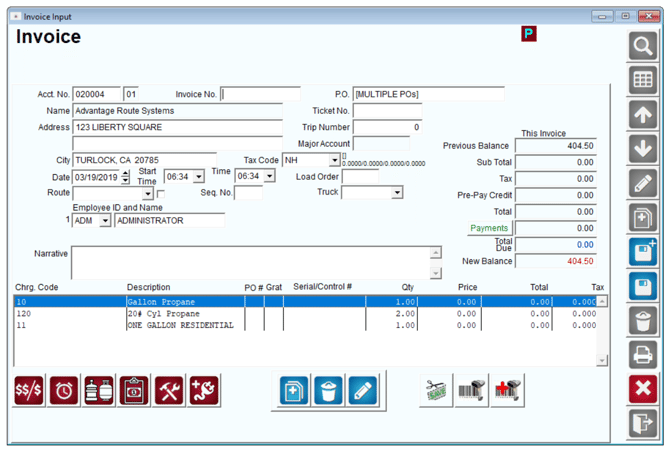
The P.O. options available within this screen match the Route Settlement Entry process discussed earlier. Refer to the previous section for further information.
NOTE: For further information on the Invoices & Adjustments screen, refer to User Guide A.
Expired Purchase Orders Report
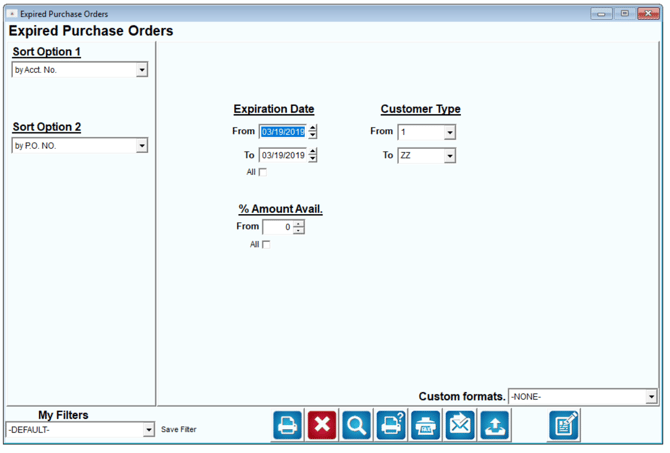
The Expired Purchase Orders report will provide you with any P.O. numbers that have or are going to expire, and their available credit amounts.
Navigate to Reports > Management Reports > Expired Purchase Orders.
Statements
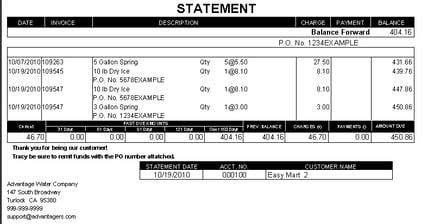
Your customer’s monthly statements will contain all of the Purchase Orders associated with each transaction:
Summary
By understanding the above principles, you should be able to enter, save, and track all Purchase Orders successfully for your clients, resulting in improved P.O. accuracy. If you need additional assistance or clarification, please contact Advantage Route Systems.