
The Propane Inspection process in Mango One Mobile is very similar to Mango Mobile V8. You will first begin your route as usual and service customers by inputting the delivered products. After invoicing is complete, you will then begin the inspection portion.
If you are not planning delivery of products to the customer, you will need to input a skip code reason in order to move forward to the Propane Inspection process on the handhelds.
Please note. before beginning the process you will need to make sure all pre-setup for Propane Inspection Forms is completed. You may use this article as a reference guide: General RMA Setup: Propane Inspection
ProcessTo initiate the Propane Inspection, download the route and service the customer as you typically would. The Propane Inspection begins when you are ready to checkout.
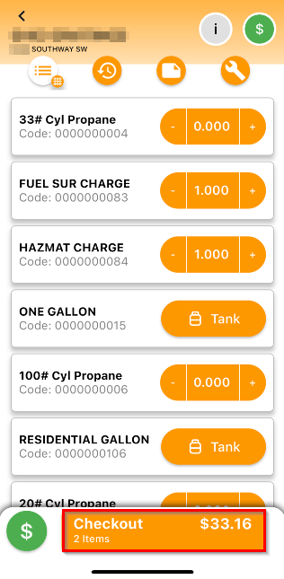
When you are ready to begin, select the orange "Checkout" button on your screen. This will lead you to the Shopping Cart screen.
Look for the "Propane Inspection" button. Select the orange "Propane Inspection" button to proceed.
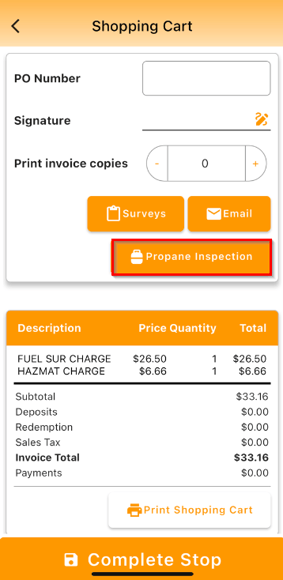
NOTE: If the setup was not properly done for Inspections/the Route, you will not see this option. Please refer to the manual to correct setup.
MOM User ManualPlease refer to Appendix A- Propane Inspection of the Mango One Mobile (MOM) User Manual to use Propane Inspection on MOM.
Mango One Mobile (MOM) User Manual
Summary
Please refer to Appendix A- Propane Inspection of the Mango One Mobile (MOM) User Manual to use Propane Inspection on MOM.