Introduction
In this article, you’ll learn:
-
Where to find the Product Deposits on Hand Report within RMA.
-
How the report tracks the total number of bottles or containers at each customer location.
-
What data the report uses to calculate quantities and pricing.
-
When and why to use the report for better inventory visibility and reconciliation.
The Product Deposits on Hand report can be found under Reports > Accounting Reports > Other > Product Deposits on Hand.
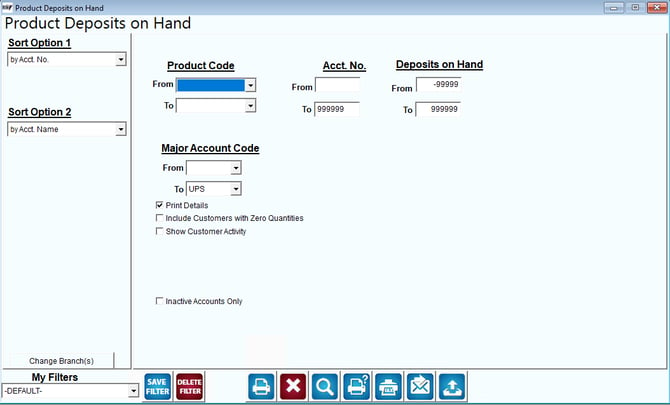
- Account Number
- Account Name
- Quantity
- Asset Tax ID
Select the ‘Print Details’ option to enable the Bottles on Hand field and include customer detail on the report. This option comes in handy if you want to review negative quantities on an account that may need corrections.
To view negative quantities only on the account, make sure to set the above Deposits on Hand field range to: -999999 to -1. This will then only display negative quantities.
If you want to view all quantity data, you may set the range to: -999999 to 999999.
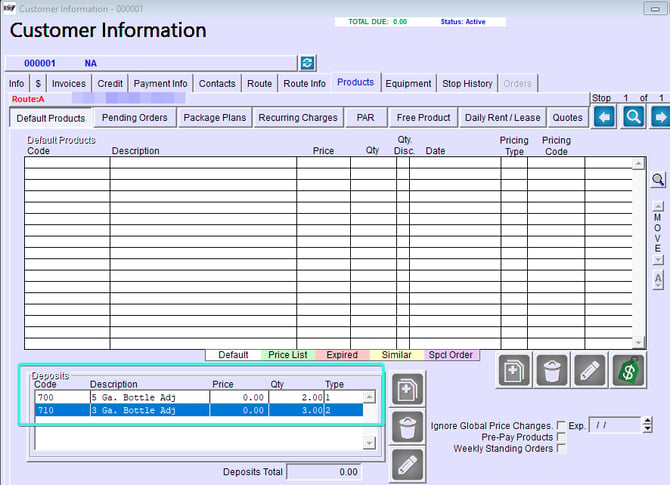
The report information will pull data directly from your customer's Products tab on their account. The QTY column and Price column information will display within the report.
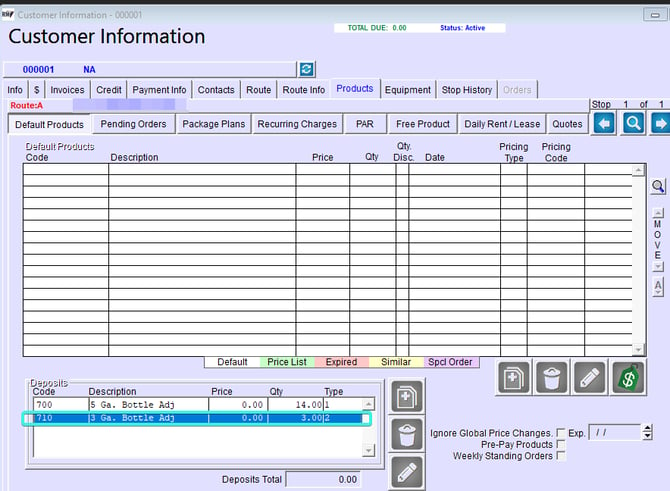
Customer Information Products Tab
Example Report
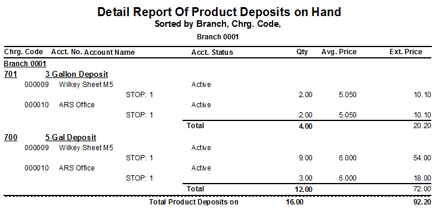
NOTE: The report includes assigned Account Status Codes when generated with ‘Print Details’ enabled.
Correcting Deposit Quantities on an Account
In this section we will go over how to correct a deposit quantity that is set on a customer's account.
Please be aware that all changes will be tracked for record keeping within the account through $0 invoices.
In order to change the quantity on hand for a customer, first you must go to their account.
Once in their account, locate the Products tab.
Click the modify button to modify the account.
Under the Deposits section, you can double click on the Deposit you wish to modify.
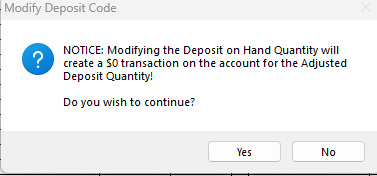
A prompt will then appear within the window requiring approval to modify the Deposit on Hand Quantity.
If the prompt is approved, a $0 invoice will appear on the account showing the modification to the quantity. This is required for paper trails within the system whenever an adjustment is made.
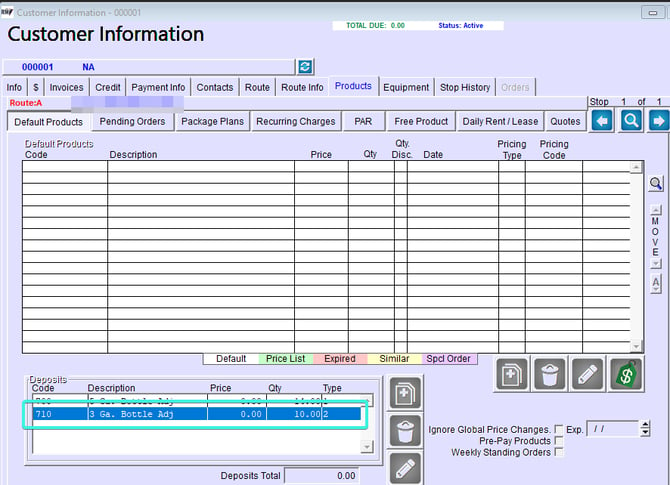
Once saved, the updated quantity will then appear within the Deposits section of the account.
Afterwards, you will find a posted $0 invoice record on the customer's Invoices tab.
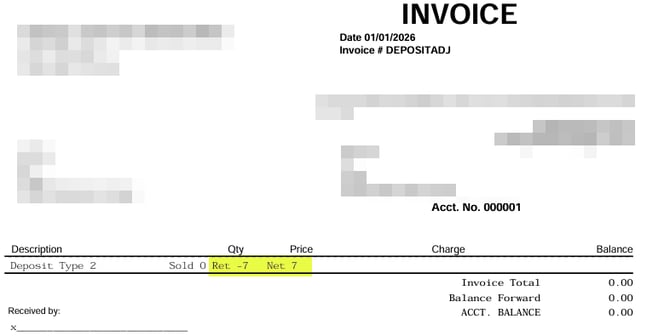
This will indicate that a user has made a manual adjustment to the account. The record will also display the invoice number as DEPOSITADJ.
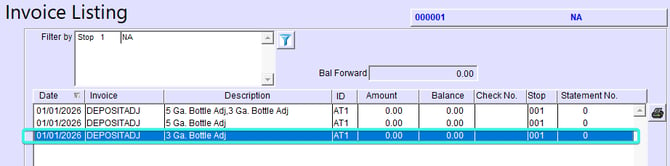
The invoice does not need to be manually posted since posting takes place once the changes are saved.
You also CANNOT delete the invoice within the customer's account.
On the invoice itself, the adjusted amount will reflect under the NET section as a positive and also under the RET field as a negative.
Example Above: The account originally displayed 3 bottles on hand for deposit type 2. An adjustment was made to reflect 10 bottles on hand instead. Once saved, a $0 invoice was auto created on the account showing the bottle adjustment of 7.
Invoice Example