
Introduction
This report includes all of the Delivery Orders created using the Route Pre-Sale function on the Route menu. The Pre-Sale Delivery Orders report can be found under Reports > Communication Reports > Delivery Orders. This has replaced the Pre-Sale Delivery Orders Report.
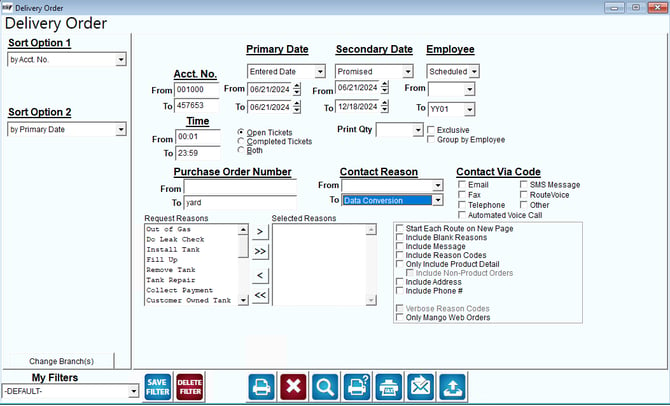
Fields:
Sort Option 1 & 2: Sort by the following fields:
- Account number
- Primary Date
- Secondary Date
- Employee
- Route
- Sequence
Change Branch: If you are logged into multiple branches, this option may be shown and allows you to re-select the branches to include in the report instead of having to completely exit the report.
Acct No: Enter the account number range to include in the report.
Time: Enter time that the Pre-Sale was completed to include on the report.
Primary & Secondary Date: Enter the range of primary and secondary dates to include in the report. This can be based off of several criteria that you can choose from the drop down.
Open Tickets: Choose this option to display the open orders.
Completed Tickets: Choose this option to display only the completed orders.
Both: Choose this option to include both the Open and Completed orders on the report.
Employee: Select the criteria for the employees. Then, select the range of employees that entered the request to include on the report.
Purchase Order Number: If you want to filter further and include only certain Purchase Orders, enter that here.
Contact Reasons: If you want to filter further and include only certain Contact Reason, enter that here.
Contact Via Codes: Choose the contact codes to include on the report:
- Fax
- Telephone
- Other
Start Each Route on New Page: Select this option to start each new route on its own page.
Include Blank Reasons: Select this option to include any orders that do not have a reason on them.
Include Delivery Order Message: Select this option to include the delivery order message on the report.
Include Reason Codes: Select this option to show the Reason Codes on the orders.
Include Product Detail: Select this option to include all products ordered by the customers.
Include (Delivery) Address: Select this option to include the customer’s delivery address on the report.
Include Phone Number: Select this option to include the phone number on the Orders.
Once you have chosen the proper criteria, you can view, print or send the orders selected.