
Introduction
Before your route drivers begin their routes each day, it is a good idea to print a copy of the stops to be visited. This is helpful for several reasons:
- It will let you call any past due account to ensure that the customer has a payment ready upon delivery.
- If the handheld should break or get lost, the route information is still available.
- It shows the entire route at a glance for possible improvements in the way the route is run.
The following screen shows your Pre-Route Report options. To access the Pre-Route Report, go to Route > Pre-Route Reports.
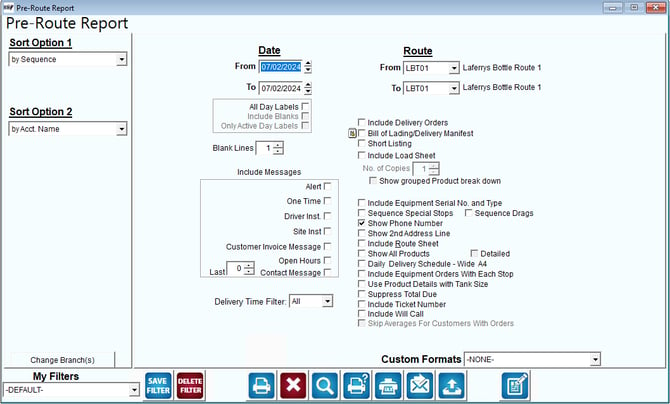
Fields:
Sort Option 1: The primary field to sort by. Choose from the following categories:
- Sequence
- Account Name
- Account Number
Date: The date you would like to print the Pre-Route report. This will pick up all stops for the date selected as well as the rent for the date shown and other date-specific items.
Route: The range of routes to include in this report. A separate report will be printed for each route.
All Day Labels: Choose this option if you would like to see all of the customers assigned to the specified route, regardless of delivery dates.
Include Blanks (available with “All Day Labels” option): Choose this option to include customers assigned to the currently selected route(s) but are not assigned to a day label.
Only Active Day Labels (available with “All Day Labels” option): Select this option to filter out older day label entries — based on the From Date entered.
Blank Lines: The number of blank lines to print out between each customer. Add extra lines to leave the route driver room to write in notes.
Include Messages (Alert, One Time, Driver Instructions, Site Instructions, Delivery Order Message, Open Hours, Contact Message):Select the message you would like to appear on the report. In the Last field, specify the number of Contact Messages to make available for review.
Bill of Lading/Delivery Manifest: Select this option to include Pick Processing information with the Pre-Route Report.
NOTE: Refer to Chapter 4.13 of the Supplemental Guide for further information on Pick Processing.
Short Listing: Check this box if you would like the consolidated, one-stop-per-line format. It will leave out some of the detail but is handy if you simply want a route list.
Include Load Sheet: Check this box to include a load sheet with your pre-route report. If you choose to include the load sheet, the Number of Copies field will become enabled. This will allow you to directly input how many copies of the load sheets you want to print with each pre-route report.
Show Grouped Product Breakdown: Check this box to show product by group as previously set up.
Include Equipment Serial No. and Type: Check this box if you want to include an equipment’s serial number and an equipment type in the report.
Sequence Special Stops: Selecting this option will cause special stops to be placed by their sequence number, not at the top of the route list for the day.
Sequence Drags: Selecting this option will place drag stops based on the customer’s default sequence number.
Show Phone Number: Select this option for phone numbers to appear on the report.
Show 2nd Address Line: Selecting this option will cause a second address to be printed on the report for the day.
Include Route Sheet: Select this option to include a route sheet for each account with the Pre-Route Report. The Route Sheet is formatted for the driver to use when a handheld is not an option.
Show All Products: Choose this option to include all products assigned in the default product section. Check the Detailed box if details are needed.
Daily Delivery Schedule – Wide A4: Choose this option to print a delivery schedule with the report.
Include Equipment Orders With Each Stop: Choose this option to include pending equipment orders on the report.
Use Product Details with Tank Size: This is part of a custom enhancement. Contact ARS for further information.
Suppress Total Due: Select this option to hide the Customers Total Due on the report.
Included Ticket Number: Select this option to hide the Ticket Numbers on the report.
Include Will Call: Select this option for the report to only pull in will call customers that have a route/day label assigned for the search criteria.
Delivery Time Filter: Select the preferred delivery time filter to apply to the report.
NOTE: Customers can be assigned and sorted by delivery time within their account under Lists > Customer Information > Route > Handheld Options, in the Deliv. Time field. Additionally, each account can be sorted by time on the handheld by selecting the ‘Allow Route List Filtering by Delivery Time’ option under Lists > Routes > Handheld Class, on the Screen tab.
Report Example
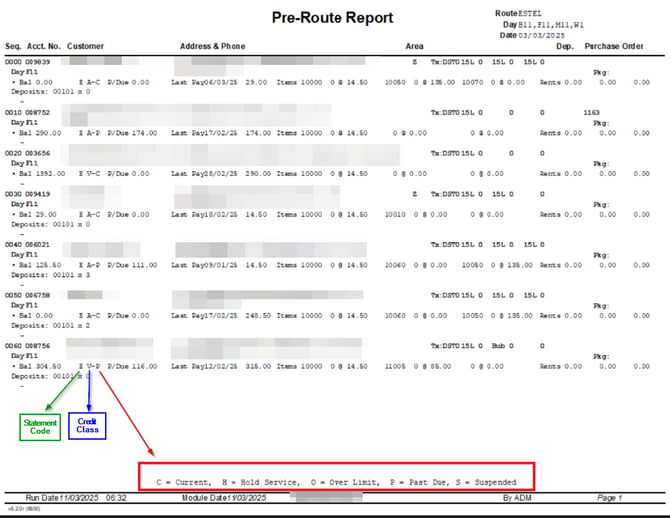
In the above example, you can see that the account flags/codes will display in the reporting as well.