
Posting Transactions V8
Introduction
This chapter covers the "Post Transactions" function within Route Manager.
The posting process removes all of the selected transactions from the pending area of the program, and permanently “posts” them to your accounts. This chapter will guide you through all aspects of the posting process.
NOTE: Once items have been posted, they can no longer be modified. Prior to posting your transactions, it is recommended that you review the Transaction Detail Report and Cash Journal Report to verify the transactions are accurate and ready to be posted.
Pre-Post Transactions
Companies that manage multiple branches within Route Manager will be required to use the Pre-Post Transactions option prior to permanently posting their transactions. If you are a single branch operation, or do not see the option within your menu, please skip to the Posting Process section of this document.
This option can be found under Transactions > Pre Post Transactions. At least one employee per branch should be assigned to pre-post transactions daily. Once all of the transactions for a given date, or dates, have been pre-posted at each branch, they can be posted permanently on your customer’s accounts by following the steps outlined in the Posting Process section of this document.
NOTE: The pre-posting process functions the same as the posting process covered in the next section; refer to the Posting Process section for the primary steps to follow.
Clear Pre-Postings
The Pre-Post Transactions process allows you to clear the pre-posted transactions if a problem is discovered — this is not possible when using the standard Post Transactions process. To clear pre-posted transactions, navigate to Tools > Administration > Clear Pre-Postings, and a screen similar to the following will be displayed:
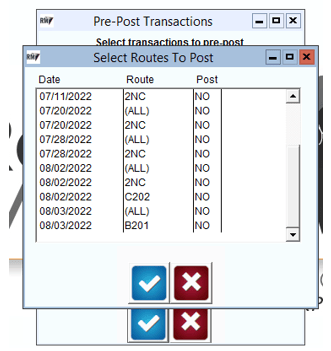
Select a single date to clear, or select multiple dates by holding the CTRL key. Click "OK" to clear the pre-posted transactions. A confirmation screen will be displayed:
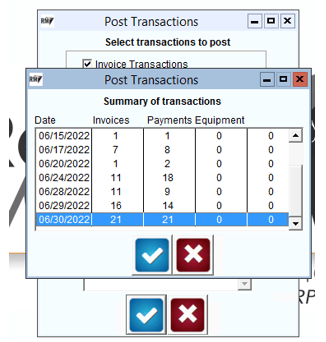
The transactions will now be returned to the pending transactions areas of the program.
Pre-Posting Summary Report
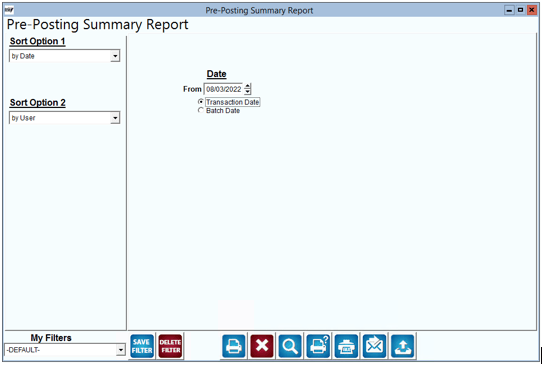
The Pre-Posting Summary Report can be used to identify what batches of invoices have been pre-posted, and are ready for final posting. Navigate to Transactions > Pre-Posting Summary Report.
MORE INFORMATION
- By Date
- By User
Posting Process
The Post Transactions option can be found under the Transactions menu in Route Manager. After you have selected the Post Transactions option, a screen similar to the following will appear, allowing you to select the types of transactions that you would like to post:
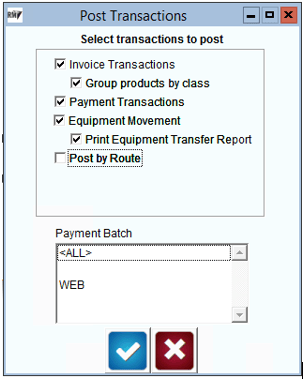
Choose one or all of the following options:
Make your selections and press OK to continue with the posting process.
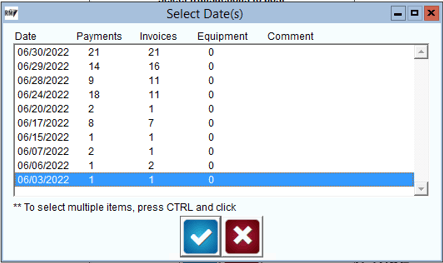
The Select Date(s) screen will be displayed, which includes all pending transaction dates found for the criteria selected in the previous step.
Select a single date to post or select multiple dates by holding the CTRL key while clicking each date. Click OK to continue to the next step in the posting process.
The Summary of Transactions screen will be displayed, allowing you to review the number of transactions that will be posted for the criteria selected:
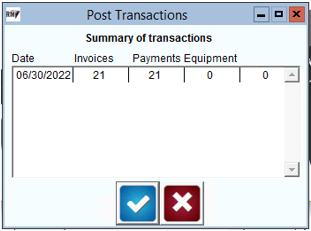
If the number of transactions listed is accurate, select the OK button to permanently post the transactions on your customer’s accounts. Select the Cancel key if the number of transactions listed is not accurate.
You can make any modifications necessary and return to this screen without posting. The system will verify that you would like to permanently post the transactions on the accounts:
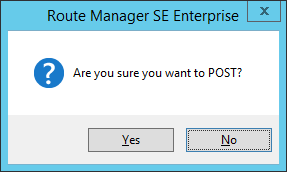
Select the "Yes" option to proceed or No to cancel.
During the Post Transactions process, a progress bar will be displayed on the screen.
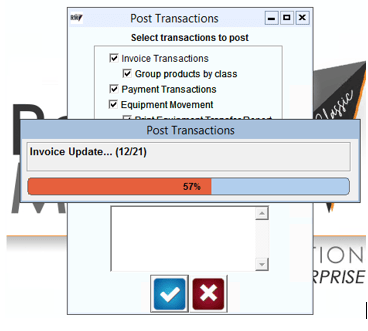
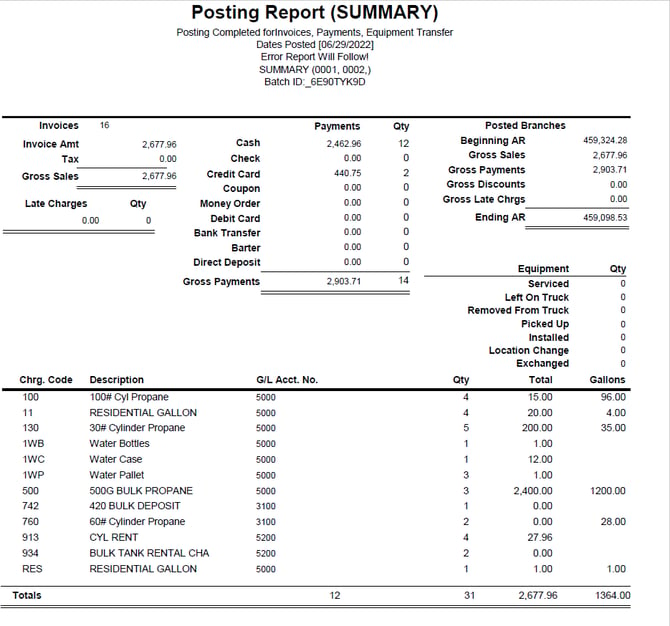
Once the posting process is complete, the program will print a Posting Summary Report automatically for your records.
The report includes various product, payment, and A/R summaries.
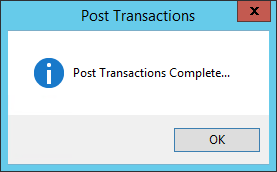
Once the posting process has been completed successfully, the following screen will appear:
Posting Reports
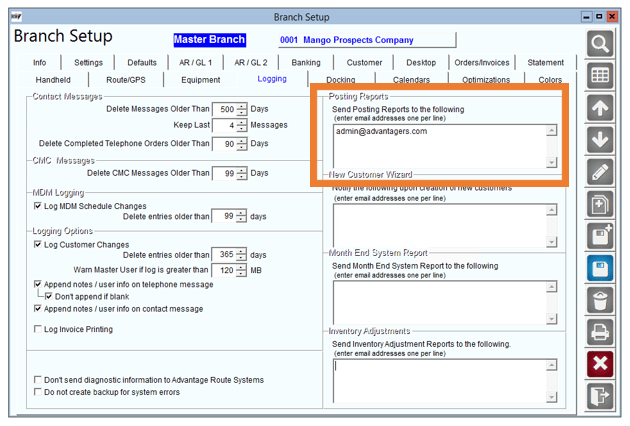
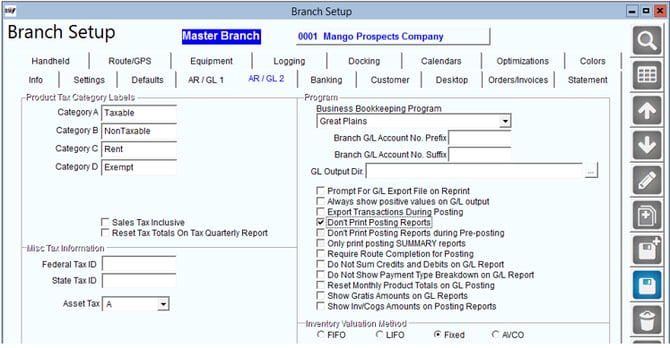
Posting reports will print at the end of each posting. Many users like to either email posting reports (PDF) and/or turn off the printing of posting reports. Do note, if you disable these from printing, there is not a way to reprint posting reports at a later time.
Navigate to File > Branch Setup > Logging tab. In the highlighted box below, you can enter one or several recipients. Just be sure to only enter one email address per line. When finished, press the save icon. As soon as you post your next batch of invoices, you will receive an emailed copy of the posting report.
To disable the printing of posting reports. Navigate to File > Branch Setup > AR / GL 2 tab. Select the option for "Don't Print Posting Reports."
Posting Errors
If there are any problems during the posting process, a Transaction Update Error Report will be generated automatically, and will include detailed information on the issue that prevented the transaction from being posted. Some of the common issues that you may run into are listed below.
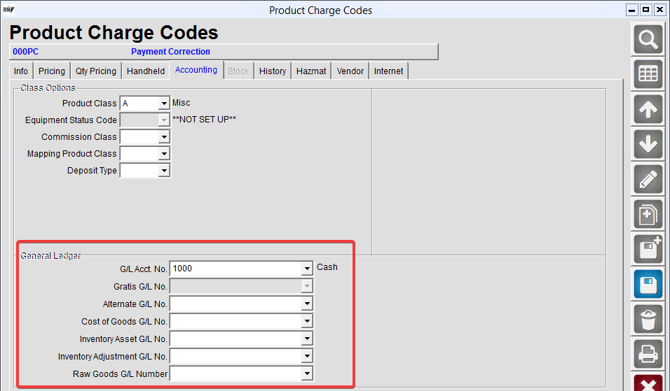
Error: PRODUCT CHARGE CODE (XXXXX) HAS A GL CODE THAT DOES NOT EXIST IN THE GL TABLES
CAUSE: The reported Product Charge Code is assigned to an invalid General Ledger Account number.
SOLUTION: From the List menu select Product Codes and then click on Product Charge Codes. Locate the product charge code that is giving the error. On the Accounting tab check for missing G/L Accounts, on the bottom section and fill in the missing GL Code.
Invoice XXX has a Rent Code (4 or R) and cannot find a Serial #
CAUSE: An employee input a rent code on an invoice (via desktop or handheld) without inputting the equipment's Serial Number.
SOLUTION: Go to Transactions>Invoices and Adjustments and search for the Invoice number listed in the Error Report.
On the invoice, locate the Rent Code that is listed on the invoice. If there are multiple Rent Codes, the error is connected to the code that does not have a Serial Number input in the field below.
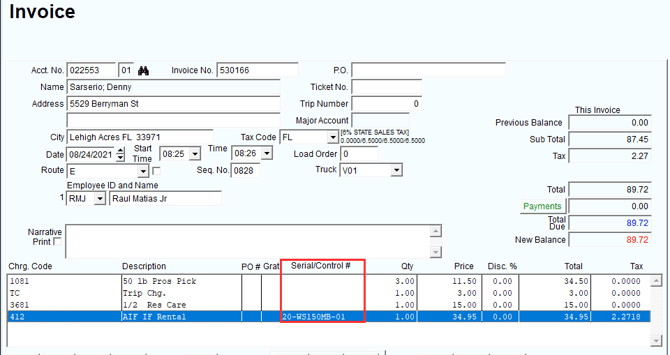
If the Qty/Price is not correct (usually its zeroed out), check to see if there are any duplicates of that Rent Code that does have a Qty/Price.
If the Rent Code is not needed, you can delete the duplicate that is zeroed out and try having them post again.
If the rent charge is needed, delete that Rent Code and add it again with the qty and price input and then post the transaction.