
Introduction
When using the Route Reorganization feature in Multi-Day Mapping, plotting a single stop can sometimes be challenging when searching by the account number. The search function may not always recognize or locate the stop when using an account number.
SetupTo plot a stop using an additional account number in Multi-Day Mapping, follow these steps:
- Enter the Additional Account Number:
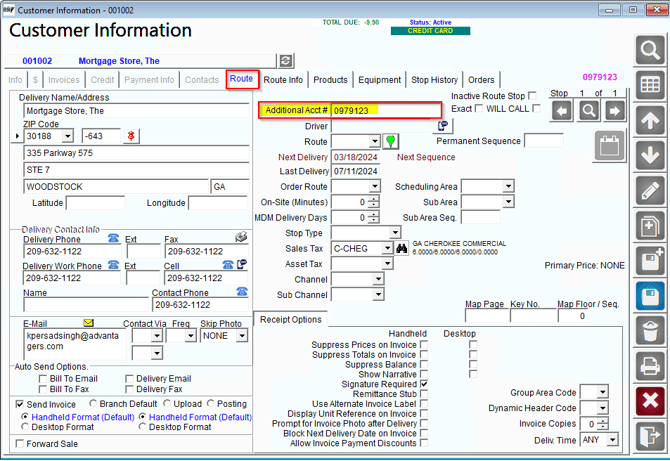
- In RMA, go to the Customer Information screen and navigate to the Route tab. This can be found under List > Customer Information > Route Tab.
- Enter the desired number in the Additional Acct # field.
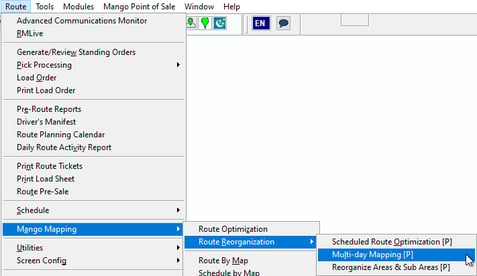
1. Access Multi-Day Mapping:
- Open the Multi-Day Mapping screen from the main menu.
2. Plot Stop:
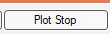
- Select Plot Stop from the top bar in the Multi-Day Mapping screen.
3. Search Using the Additional Account Number:
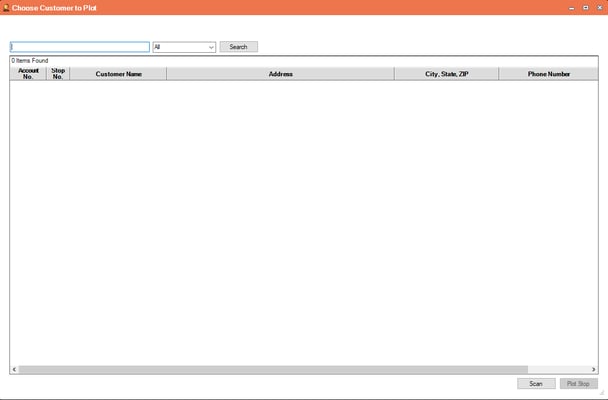
- In the search bar, enter the number you placed in the Additional Acct # field.
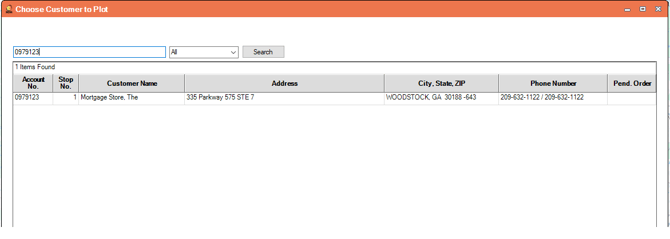
- Ensure the system is set to allow plotting stops on Multi-Day Mapping using additional account numbers.
By following these steps, you can successfully plot stops in Multi-Day Mapping using additional account numbers, allowing for more flexibility in locating and managing customer stops.