
Perpetual Inventory that can be included within Enhanced Inventory, gives you the ability to carry product inventory totals on your truck from day-to-day without having to unload inventory each afternoon. This is especially helpful for companies running coffee service, snack routes, or any other product where items are left on the vehicle each day.
SetupPrior to getting started, there are a handful of steps that you will need to follow in order to successfully set up inventory management in Route Manager:
- Enable the Enhanced Inventory feature.
- Setup all warehouse locations.
- Assign each warehouse to a branch.
- Setup new options in Truck Setup screen.
- Setup Inventory Adjustment Codes.
- Setup Quarantine Status Codes.
- Setup Daily Truck Stock Levels. (Optional)
Handheld Class
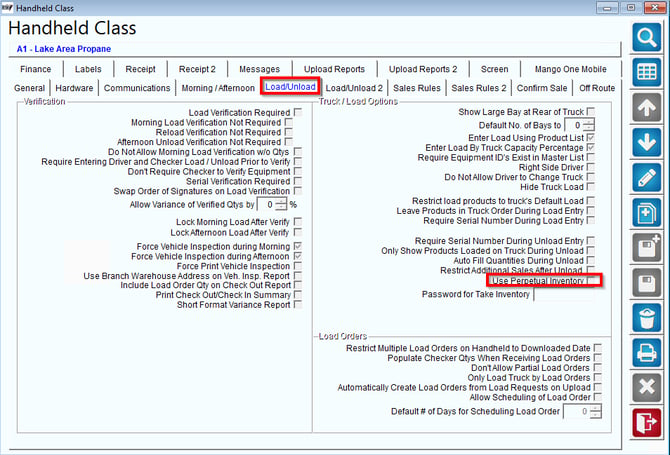
If you will be using the Perpetual Inventory option, select the Use Perpetual Inventory option under Lists > Routes > Handheld Class, on the Load/Unload tab. You must have Enhanced Inventory enabled in order for this to work.
Next, enable the Perpetual Inventory Report that will provide you with daily perpetual inventory totals during the Afternoon Card process. This option can be found on the Upload Reports tab within the Handheld Class screen.
Enter a 1 (or more) to receive a single copy of the report each day: 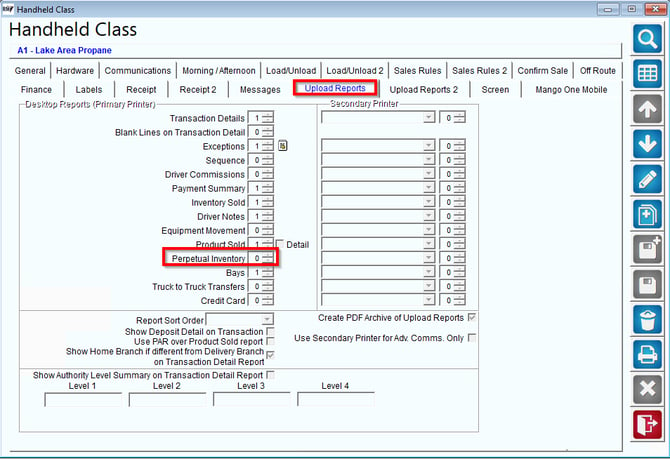
Continue to the next section to enable the optional Take Inventory feature, or skip to the Handheld Processing section.
Warehouse Setup
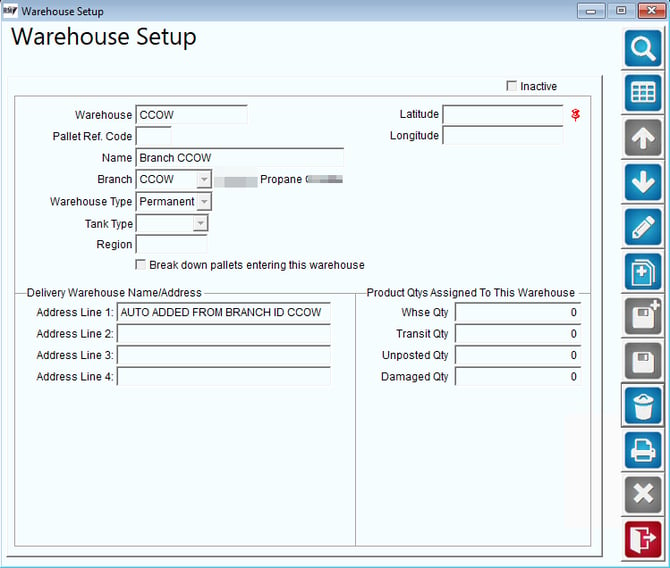
A Permanent Warehouse must be established for each branch within your company in order to track inventory properly. Warehouse Setup can be found under Modules > Inventory. Enhanced Inventory Users will need to create a series of Mobile Warehouses that will be used and assigned to each delivery vehicle for “in-transit” tracking.
Branch Setup
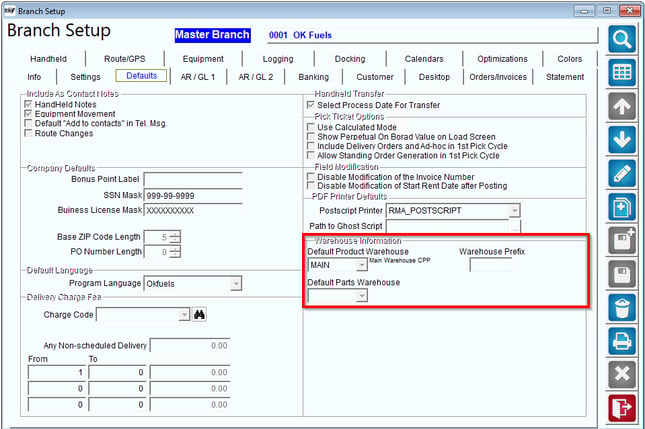
Every branch within Route Manager will need to be assigned to a Permanent Warehouse in order to successfully track inventory in Route Manager.
Assign the proper warehouse to each branch under Branch Setup, on the Defaults tab.
Inventory Valuation (if applicable)
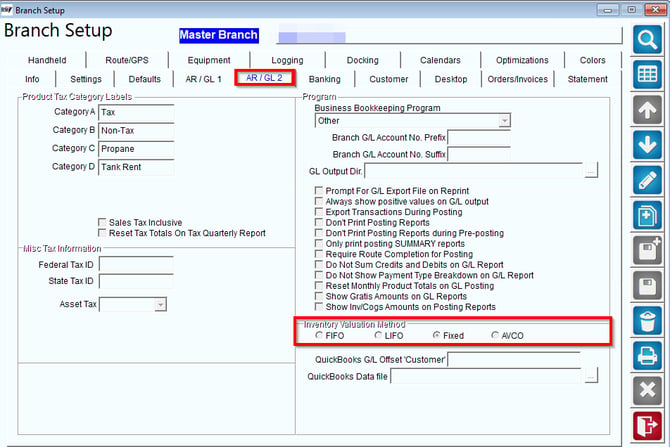
Before you can properly assess inventory valuation in the program, you will need to decide which method of tracking you would prefer to use:
- Fixed Cost: Costs are calculated based on the last cost amount entered in the Product Charge Code file.
- FIFO (First-in, First-out) and LIFO (Last-in, First-out): Inventory valuation is calculated based on an accumulation of the costs entered when receiving inventory.
NOTE: The FIFO or LIFO options offer more flexibility than the Fixed Cost option.
Inventory Valuation Setup
In order to enable the inventory valuation option of your choice, navigate to File > Branch Setup > Accounting tab.
Select one of three choices:
- FIFO (First-in, First-out): Inventory valuation is calculated based on an accumulation of the costs entered when receiving inventory. Inventory will be removed from the oldest batch first.
- LIFO (Last-in, First-out): Inventory valuation is calculated based on an accumulation of the costs entered when receiving inventory. Inventory will be removed from the latest batch first.
- Fixed Cost: Inventory valuation is calculated based on the cost entered within the Product Charge Code screen for each product. Inventory will not be separated by batch.
Make your selection and click Save to continue.
Truck Setup
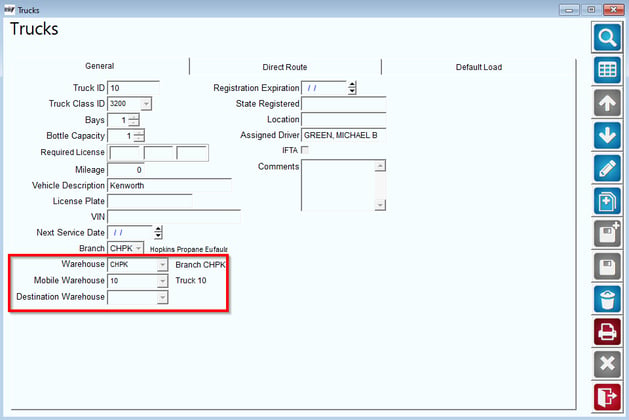
With Perpetual Inventory enabled you will now be required to assign your delivery vehicles to a loading Warehouse (the location to receive products) and a Mobile Warehouse (the delivery vehicle). The Mobile Warehouse supplies the “In-Transit” totals when using Enhanced Inventory.
Edit this information under Lists > Truck Information > Trucks.
Inventory Adjustment Codes
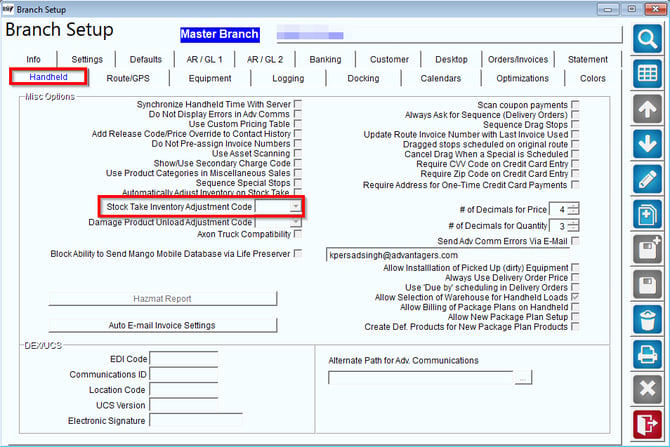
When receiving inventory in Route Manager, an Inventory Adjustment Code will be used based on the type of adjustment being made (e.g., Receiving Products, Bad Products). The codes created under Lists > Product Codes should reflect the needs of your company.
- Create a unique ‘Inventory Stock Take’ adjustment code within Lists > Product Codes > Inventory Adjustment Codes:
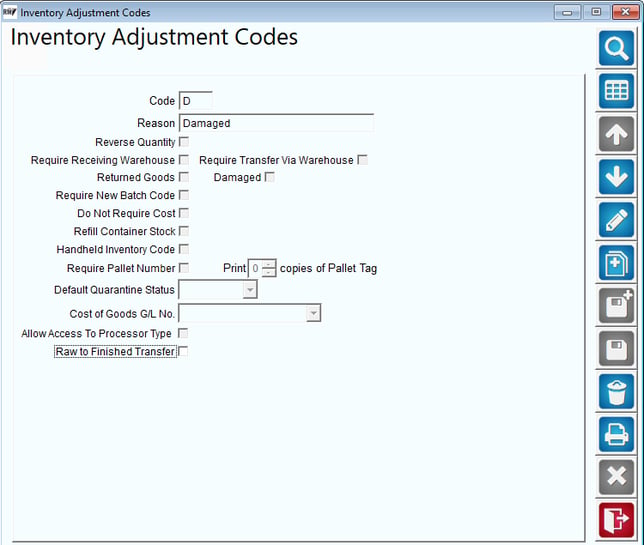 NOTE: This adjustment code will be used if the driver makes an adjustment to the inventory.
Fields:Code: Enter a two character code ID to represent the code.Reason: Describe the nature of the adjustment code.Reverse Quantity: Choose this option to remove items from inventory when using this code within the Inventory Adjustments screen (e.g., Bad Products). Require Receiving Warehouse: Choose this option to require a warehouse selection upon entry in the Inventory Adjustments screen (generally good practice with multi-warehouse companies).Require Transfer Via Warehouse: Choose this option to require a warehouse for transferring product.Returned Goods (Handheld) / Damaged: This option is used with Damaged and Returned Goods Processing in Route Manager. Refer to Chapter 2.13 of the Supplemental Guide for more information.Require New Mfg. Batch No: Choose this option to require a new “batch number” to be entered when receiving items in the Inventory Adjustments screen. This option will require that the number be entered—for the items associated with it—on desktop and handheld invoice entry for tracking purposes(if you select this option, you must select the option “Require Production Batch Code” on the Info tab of each product in the Product Charge Codes screen).Do Not Require Cost: Choose this option if the Cost does not have to be entered.Refill Container Stock: Choose this option if there is a refill container stock amount.Handheld Inventory Code: Choose this option to include the Handheld Inventory Code.Require Pallet Number: Choose this option to require a specific pallet number (for tracking).Print { } Copies of Pallet Tag: Enter the number of pallet tags needed for printing.NOTE: Refer to Article 4.02 of the Best Practices for further information.Default Quarantine Status: This feature can be enabled if you are using the ‘Require New Mfg. Batch No.’option within the Inventory Adjustment Code and you would like to temporary “quarantine”the items until they are ready to be sold.NOTE: Create Quarantine Status Codes under Lists>Product Codes>Quarantine Status Codes. Cost of Goods G/L No: This option is used with Damaged and Returned Goods Processing in Route Manager. Refer to Chapter 2.13 of the Supplemental Guide for more information.Allow Access to Processor Type: This option allows access to certain inventory codes for the Processor Employee Type.
Quarantine Status Codes (Optional)
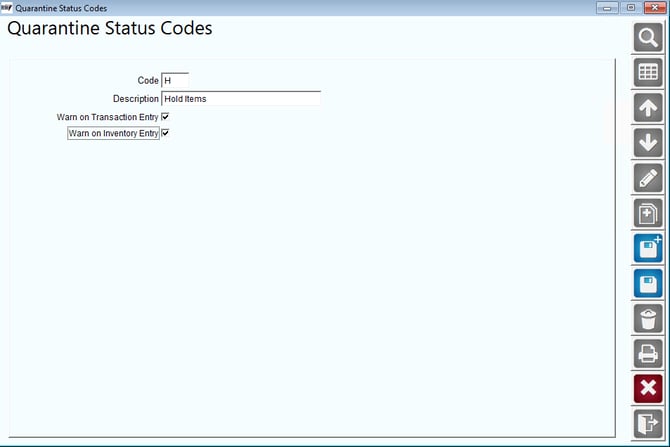
Quarantine Status Codes can be assigned to Inventory Adjustment Codes with the ‘Require New Mfg. Batch No.’ option enabled. The quarantine code will temporarily place a hold on the items until they are ready to be sold.
Navigate to Lists > Product Codes > Quarantine Status Codes.
Inventory Adjustments
The Inventory Adjustments screen allows you to enter inventory as you receive it from your supplier, or as you manufacture it. It can also be used to remove inventory from a warehouse. You can manually enter the inventory item by item, or you can import by using the Inventory Import Function.
This option can be found under Modules > Inventory > Inventory Adjustments.
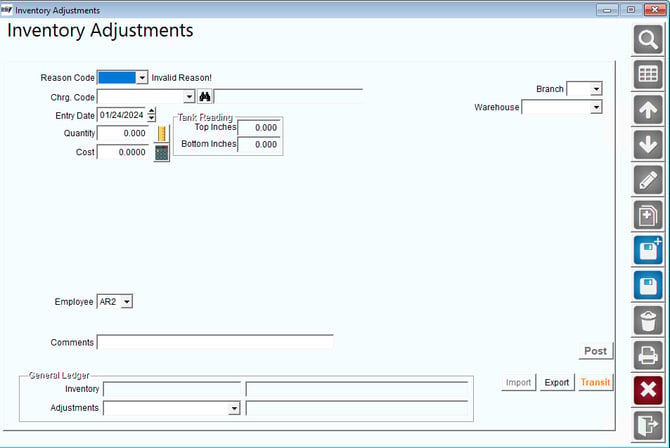
Follow the steps below to properly create an inventory adjustment in Route Manager:
1. Click the Add button.
2. Enter or select from the drop-down list the Product Charge Code of the product quantity to adjust.
3. Enter the date to use on the entry.
4. Enter the quantity of units being adjusted.
5. Enter the price per inventory item.
6. Select a Reason Code (Inventory Adjustment Code).
7. Enter a new Production Batch Code (if applicable).
8. Select the employee responsible for making the inventory adjustment.
9. Select the correct Branch ID where the adjustment will originate.
10. Select the Warehouse that the adjustment will apply to.
11. To make further adjustments to inventory, click the More button. Otherwise, click Save.
12. After all entries are made, click the Post button to update the inventory levels for all of the items.
13. Print the Receive Inventory report for this batch of products to complete the process.
14. If you are using the transit tool you will need to have an inventory adjustment code created that requires 'Transfer via warehouse'. When you post a record with an expected arrival date in the future, you can then use the transit tool to finish receiving goods in the destination warehouse. NOTE: this is only used when preforming warehouse to warehouse transfers.
Product Charge Codes
The Inventory totals for each product are displayed on the Stock tab of the Product Charge Codes screen. This area displays the assigned inventory per branch, the quantity on hand, and the reorder level for each product.
NOTE: The Reorder Level can be updated by clicking the Modify button and entering a value on this screen. If the inventory for the item dips below the reorder level entered, the system will automatically generate a report each time the Post Transactions option is ran.
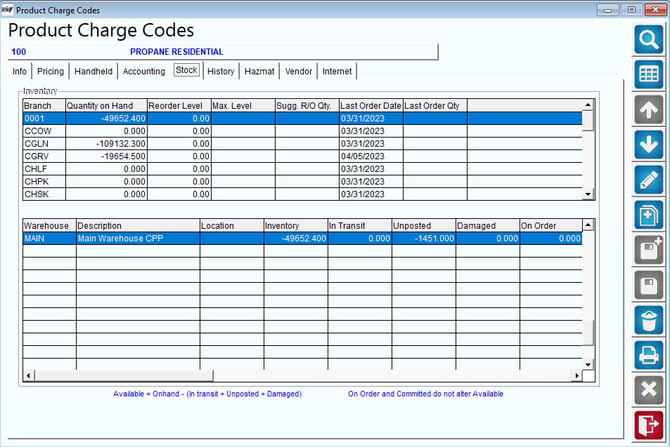
Enhanced Inventory Users: The information provided on the bottom of the Stock tab includes your ‘In-Transit’ totals that are currently assigned to Mobile Warehouse locations (i.e., trucks, satellite locations, etc.).
Load Orders in RMA
If you would like to use Load Orders for creating loads for the drivers, view article: Load Orders. The Load Order option allows you to create a “pick list” that will be available in report form and on the handheld unit for drivers to use when loading their trucks.
Inventory Physical CountIn order to reset the inventory in Route Manager, or mass change numbers, you can use the Inventory Physical Count Screen. To go through this process, view our article on Inventory Physical Count Process - Resetting Your Inventory.
Handheld InventoryThe Perpetual Inventory option is managed entirely on the handheld. The handheld will automatically carry-over inventory from one day to the next. This section will guide you through the changes and processes that should be followed on the handheld.
Morning Load
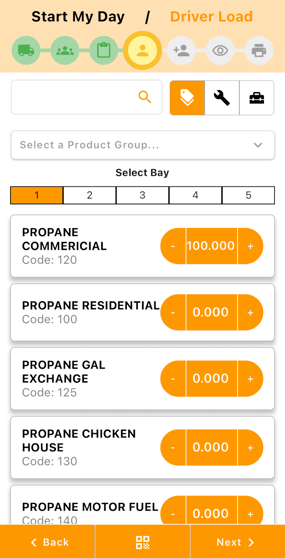
Perpetual Inventory enables two new icons on the Bay screen of the handheld, you can now see the Start column, which is the inventory carried over from the previous day and the Add column, which is the inventory added to the truck today. This gives you a very clear picture of what inventory is currently on the truck, as well as the items that have been added today.
Take Inventory (Optional)
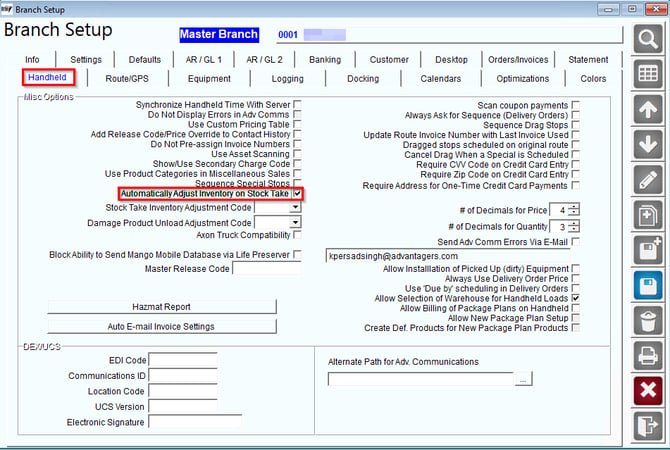
Occasionally, the driver may need to do a manual count of the truck to make sure the totals are accurate. If the ‘Take Inventory’ option has been enabled (covered earlier), the driver can select a new icon on the Load/Unload Truck screen of the handheld:
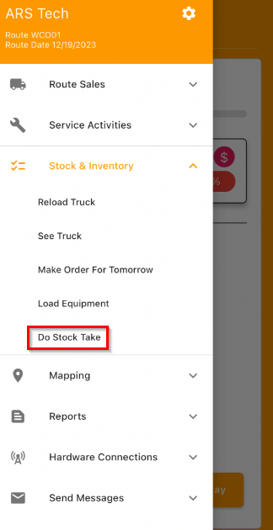
Follow the steps below to take inventory on the vehicle and print a report to the handheld printer:
- Choose Take Inventory.
- Select the correct Bay.
- Tap on the product and enter the quantity on the truck. Repeat this step for each product in the Bay.
- Tap Exit.
- Repeat for all additional Bays.
- After all Bays have been entered, tap the Save option on the bottom of the Take Inventory screen.
- You will be prompted to print the Inventory Stock Take Reports. Select Yes or No to print the report.
- Tap Exit.
Ideally, the variances in the report should remain at zero (0). If the count is off, the driver may need to correct the problem by doing a recount. If the stock count is still in error, then you will need to make a correcting entry within the ‘Previous’ section of the Bay screen.
Perpetual Inventory Report
The Perpetual Inventory Report displays product carry-over and variance information from day-to-day. This report will print automatically during the Afternoon Card process. This example illustrates perpetual data for product code ‘308’:
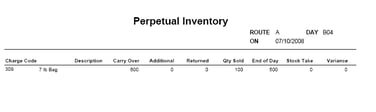
Product ‘308’ had a carry-over of 600 from the previous day and 100 were sold on the current day – leaving 500 on the truck for the next day.
NOTE: This report can be reprinted by navigating to Reports > Route Reports > Reprint > Reprint Perpetual Inventory Report.
Inventory Valuation ProcessDaily Processing
The daily process for keeping an accurate inventory valuation is:
- Receive Inventory.
- Generate report.
Each item is discussed below.
Receive Inventory
The Inventory Adjustments screen allows you to enter inventory as you receive it from your supplier, or as you manufacture it. Navigate to Modules > Inventory > Inventory Adjustments.
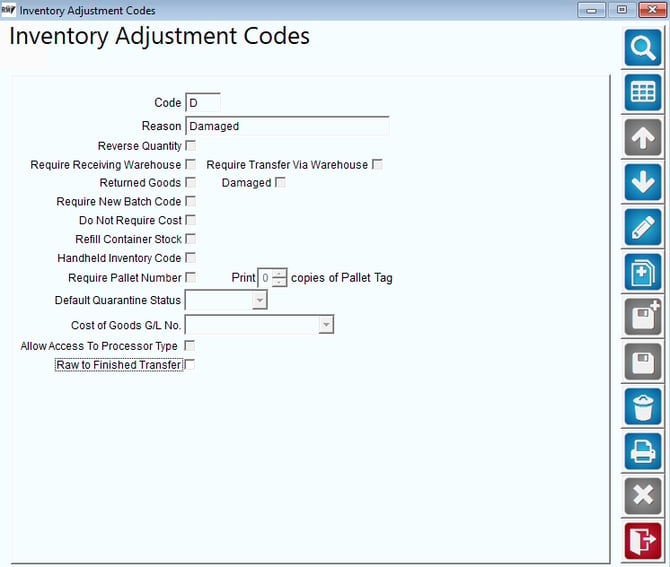
Follow the steps below to properly add inventory to the program:
- Click the Add button.
- Select the Product Charge Code of the product received from the drop down menu or use the lookup feature to find the correct charge code needed.
- Enter the date the product was received.
- Enter the Quantity of units received.
- Enter the Cost of the inventory items.
- Select an Inventory Adjustment Code.
- Enter a new Production Batch Code (if applicable).
- Select the Employee responsible for receiving the inventory.
- Select the receiving Branch.
- Enter the Warehouse that will receive the items.
- To add inventory for other products, click the More button. Otherwise, choose Save.
- After all entries are made, click the Post button to update the inventory and cost information for all products entered.
- To complete the process, you will be prompted to print the Receive Inventory report for this batch of entries
Inventory Valuation Report
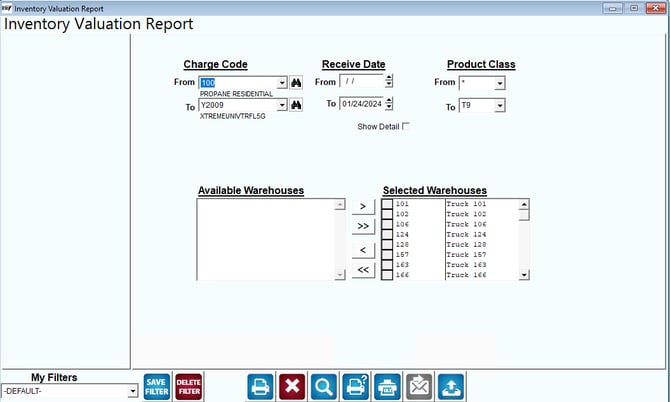
The Inventory Valuation Report will provide you with the current retail value, costs, and profit margins for all of your products on hand.
This report can be found under Reports > Inventory > Inventory Valuation Report.
|
Enter the criteria you would like to view and select Print or Preview.
NOTE: Select the Show Detail box to view all of the inventory entries and costs for each product within the entered date range. This option will only be available if you are using FIFO or LIFO inventory valuation.
In the following example, the Show Detail box has been selected for the item listed, showing all of the entries within the date range entered:
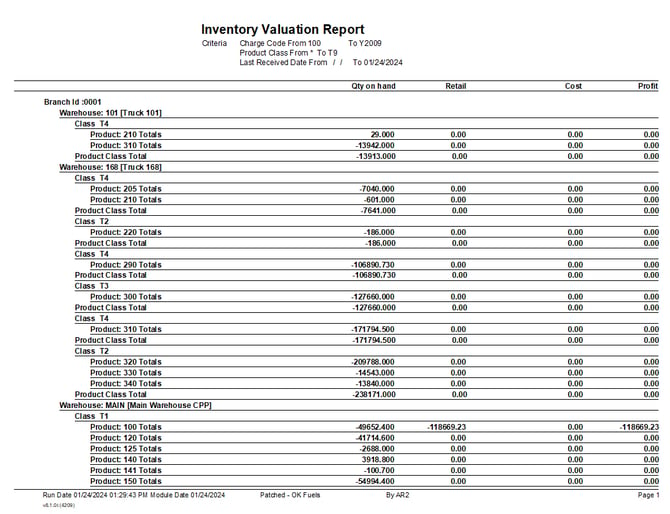
Depending on how you have set up the system, the report output data will vary. For example, if the FIFO method is being used: inventory sold to customers will be subtracted from the first batch of products listed on the report. Once the first batch is depleted, the batch and cost will no longer be displayed on the report. If LIFO is used: inventory sold to customers will be subtracted from the last batch of products listed on the report.
NOTE: If you are using the Fixed Cost option, you will not be able to view this level of detail on the report.
ReportingTo view all inventory reports please refer to the following link: https://advantageulibrary.knowledgeowl.com/help/inventory-reports-v8
Other Helpful Articles:Production Batch Codes
https://advantageulibrary.knowledgeowl.com/help/production-batch-codes-v81
Vendor Purchase Order System
https://advantageulibrary.knowledgeowl.com/help/inventory-962ad49-vendor-purchase-order-system
Supply Chain Orders
https://advantageulibrary.knowledgeowl.com/help/supply-chain-orders-v8