Introduction
The Period Discount Pricing option allows you to offer your customers discounts and free products based on a preset number of items purchased. This option differs from other discounting options offered in Route Manager in that Period Discount Pricing allows the customer to qualify for discounts or free goods over an established period of time, and not per transaction.
Setup
The Period Discount Pricing option offers two standard discounting methods:
- Free Product: Customers can receive free items based on an established quantity of items, or group of items, purchased within the allotted period.
- Product Discount: Customers can receive a discount based on an established quantity of items, or group of items, purchased within the allotted period.
After you have decided the discounting method you will use, there are additional options to choose from; for example, you can choose between discounting an individual item or groups of items. Additionally, you can establish the length of time that purchases will qualify for a discount.
Each option available is discussed within this document.
Desktop Setup
Depending on the type of Period Discount Pricing method you will use, the following changes to the program may be required:
- Setup Period Discount Pricing Calendar (Optional): The standard discounting feature enabled in the system uses Monthly, Quarterly, or Annual discount periods. Alternatively, use this option if you would like to offer discounts to your customers over a customized length of time.
- Create Product Group Codes (Optional): This option will allow you to group items together, which will allow the customer to qualify for discounts based on a group of items purchased — not individually.
- Discount Product Charge Code (Required): A product code will need to be added to your product list that will be used for discounting item prices.
- Additional Discount Product Charge Code (Optional): An additional product code can be added to handle any discounts offered that are not part of a standard price reduction on items (e.g., rentals, handling fees).
- Add Period Discount Pricing List (Required): This required option allows you to establish your Period Discount Pricing lists in the program.
Refer to each section that applies to your selected discount pricing method.
Period Discount Pricing Calendar
The Period Discount Pricing Calendar allows you to establish a custom cycle that will be used when generating period discounts.
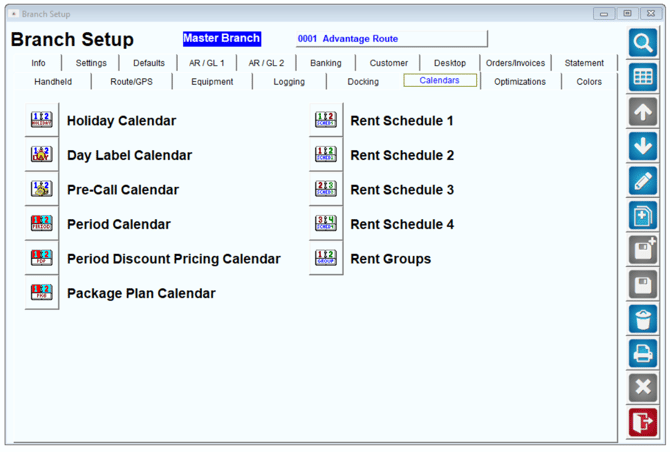
Navigate to File > Branch Setup > Calendars, and click on the Period Discount Pricing Calendar option.
The calendar allows you to create 1-4 week cycles, as well as a custom number of days (X Days Cycle).
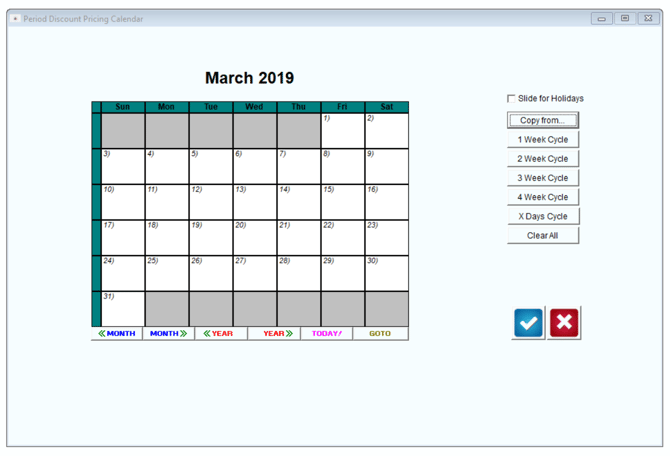
To create a new cycle, select the desired ‘Cycle’ button, and click on the date that you would like the cycle to begin:
NOTE: If you would like your new cycle to slide around established holidays within the Holiday Calendar, check the option ‘Slide for Holidays’ on the screen prior to choosing your cycle.
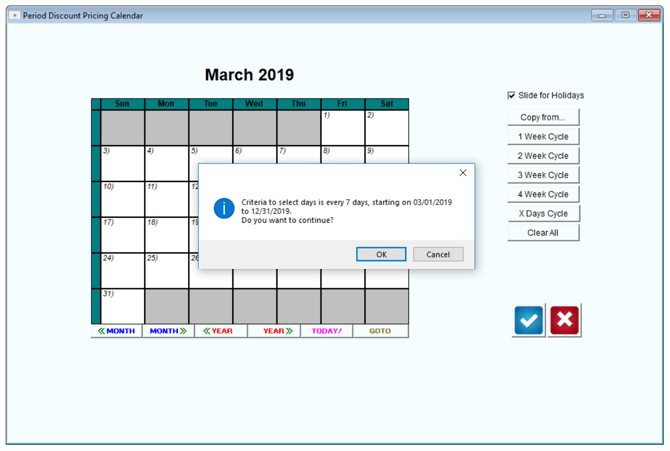
After a selection has been made, the calendar will be updated to reflect the chosen cycle:
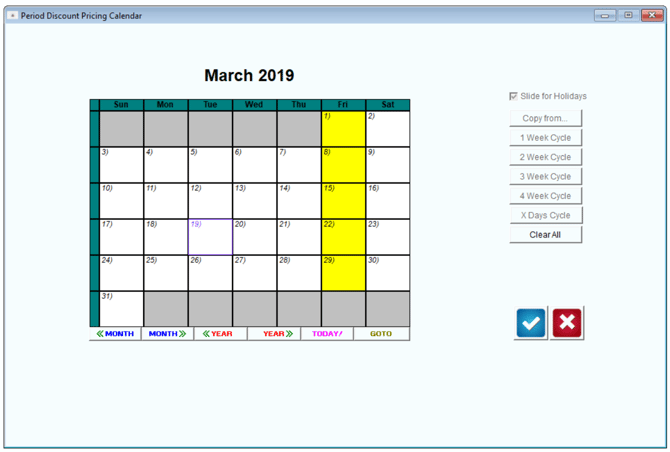
NOTE: In this example, 1 Week Cycle has been selected, and is set to begin on Friday, March 1.
Click OK to save the new calendar and exit the screen.
Product Group Codes
You can add Product Group Codes to the system if you would like to offer discounts or free goods for groups of items purchased, and not just individual items.
Navigate to Lists > Product Codes > Product Group Codes, and add all of the product groups you would like to use to the system.
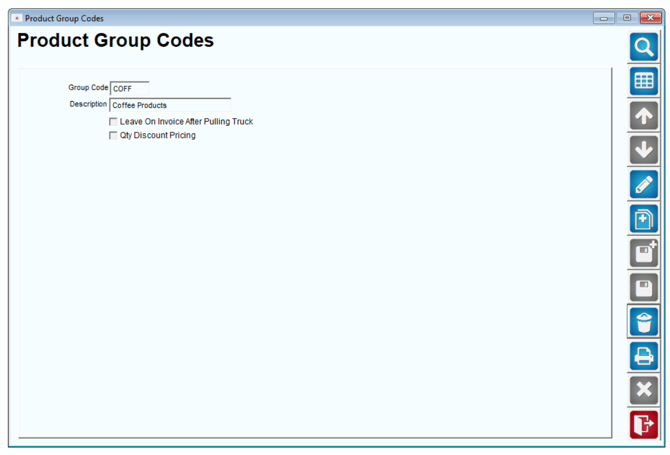
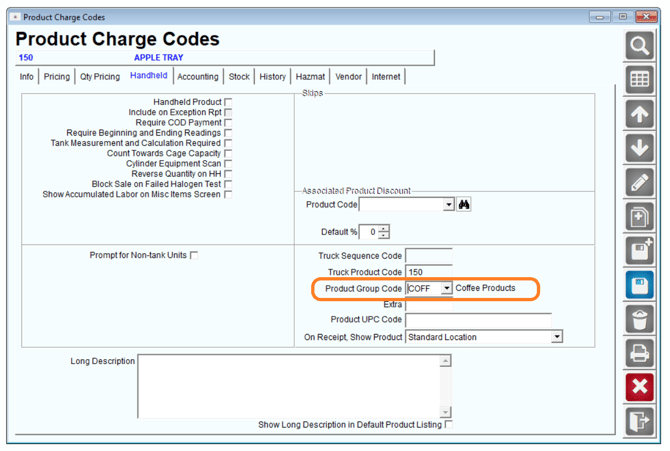
After you have added the Product Group Codes, they will need to be assigned to each item from within the Product Charge Codes screen.
Navigate to Lists > Product Codes > Product Charge Codes, and select the Handheld tab. In Modify mode, add the related group code to the product within the Product Group Code field.
Discount Product Charge Code
A new Product Charge Code will need to be added to the program to handle discounted totals. The new code will be used to apply a credit to the customer’s account when applicable.
- Follow the steps below to create the new product code.
- Navigate to Lists > Product Codes > Product Charge Codes and select the Add button.
- Enter a Charge Code ID and Description for the code (e.g., Promo Credit).
- Select the Pricing tab and choose a non-taxable tax category for the item.
- Complete the setup process by selecting the Accounting tab and choosing a Product Class and G/L Number.
Click Save.
Additional Discount Product Charge Code
An additional discount product code can be added to the program if you would like to offer an additional discount to any Period Discount Code. This option can be used for including an additional flat rate discount of your choice to any plan offered. For example, this can be used for crediting a rental amount or handling fee.
Follow the steps listed in the Discount Product Charge Code section above to create the new product code.
Period Discount Pricing List
The Period Discount Pricing screen is used to create and manage each active promotion, and can be found under Lists > Product Codes within RMA.
Three example promotions are created in the following section to illustrate the different configuration options available.
- Example 1: This scenario details a free product promotion.
- Example 2: This scenario details a standard discount promotion.
- Example 3: This scenario details a custom discount promotion that includes the custom calendar, and additional discounting features.
Refer to each example that applies to your company.
Example 1: Free Product Promotion
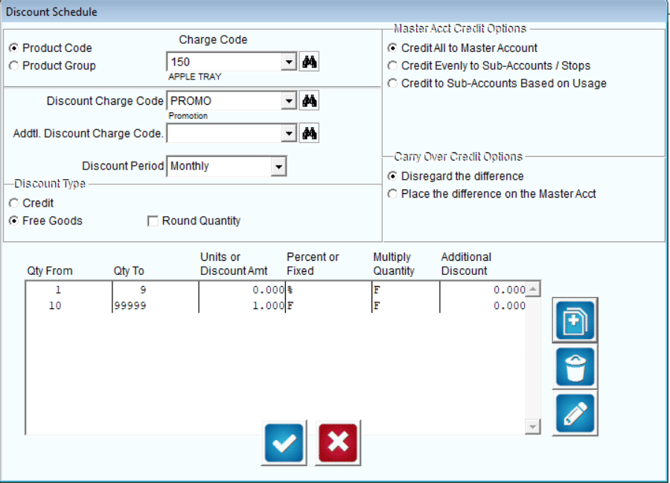
Customers assigned to this promotion will receive a free 5-gallon bottle of water for every 10 bottles that are purchased in one month.
- Choose the Add key.
- Enter a Code and Description for the promotion.
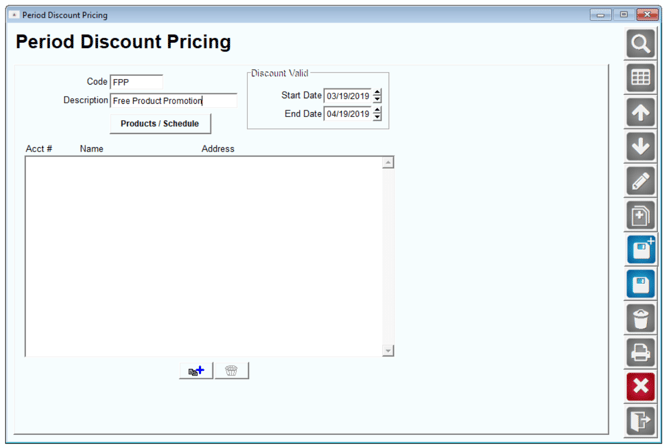
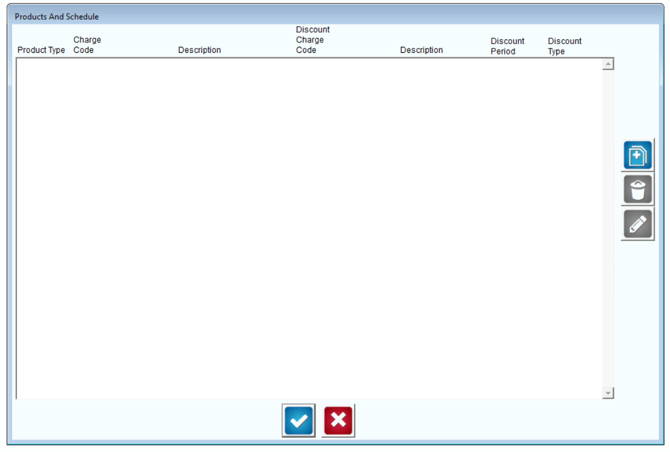
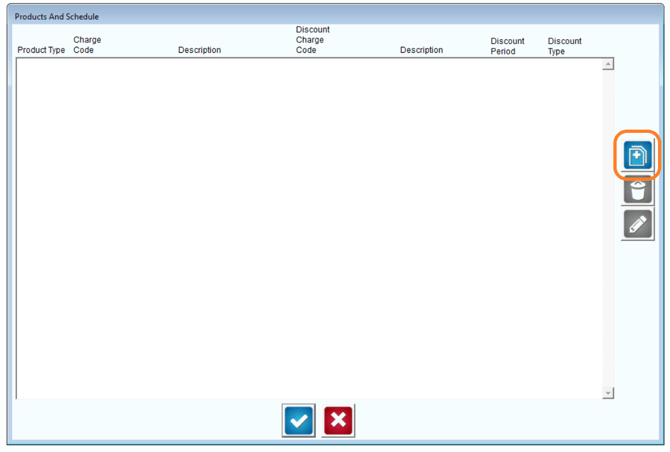
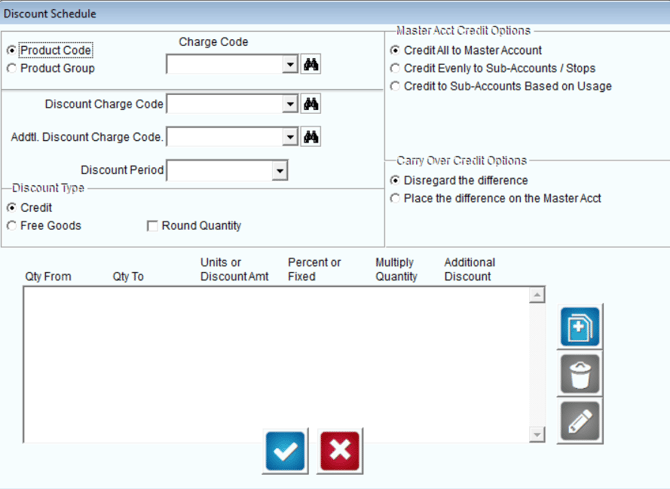
6. Select the item that will qualify for the promotion within the Charge Code field. Additionally, select the Discount Charge Code created in the previous section.
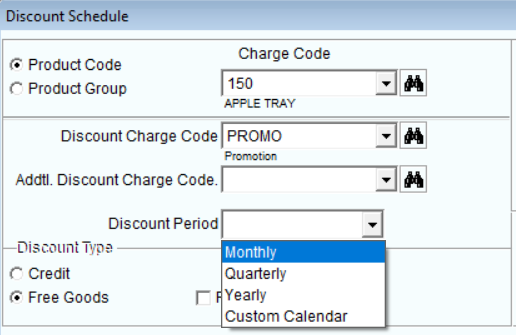
7. Select the Discount Period you would like to use. Promotion goods or discounts will be calculated based on sales during a month, quarter, year, or custom calendar. In this case, Monthly is used.
8. Within the Discount Type field, select Free Goods.
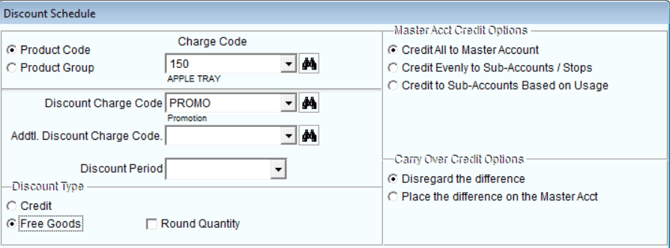
NOTE: Select the Round Quantity option if you would like the system to round to the nearest whole number when partial quantities exist; otherwise, decimals will be ignored.
9. The Master Acct Credit Options field contains items that apply to promotions earned on Master Billed accounts, select one of the following:
- Credit All to Master Account:Choose this option to credit all promotions to the Master Account on a Master Billed account.
- Credit Evenly to Sub-Accounts / Stops: Choose this option to distribute all promotions between Sub-Accounts on Master Billed accounts.
- Credit to Sub-Accounts Based on Usage: Choose this option to distribute the credit to Sub-Accounts that purchased the most items on Master Billed accounts.
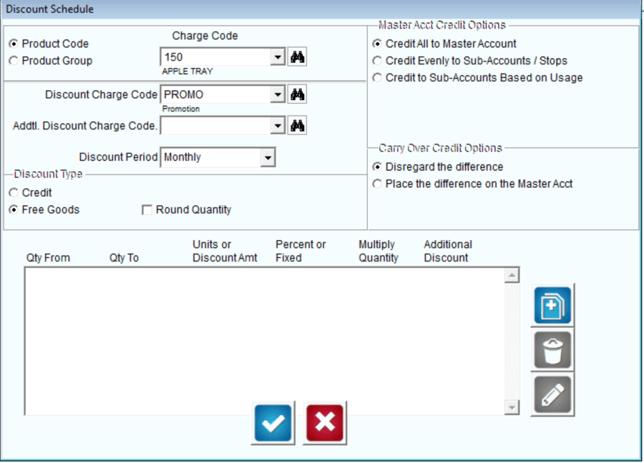
4. The Carry Over Credit Options field contains items that apply to any credit differences remaining after they have been distributed evenly, select one of the following:
Disregard the Difference: Choose this option to drop any remaining values.
Place the difference on the Master Acct: Select this option to apply the remaining values to the Master Account.
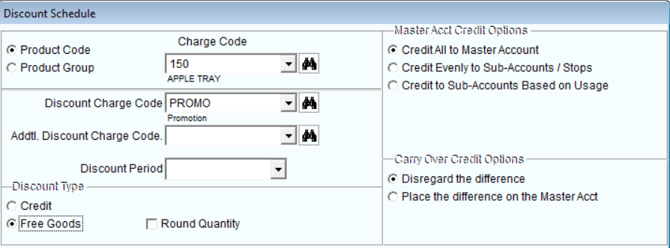
5. Select the Add key to establish the promotion quantity rules.
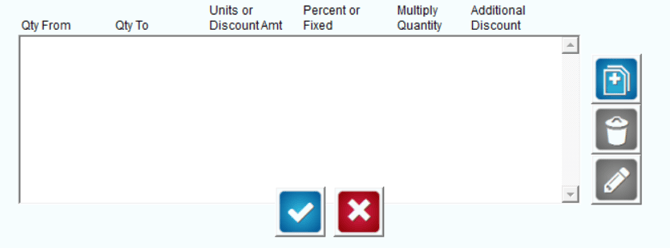
6. Enter the minimum (Qty From) and maximum (Qty To) quantities that will qualify for the promotion. In this case, the customer will not receive a free item until ten items have been purchased. This is considered the base rule. Click OK after establishing the base rule.
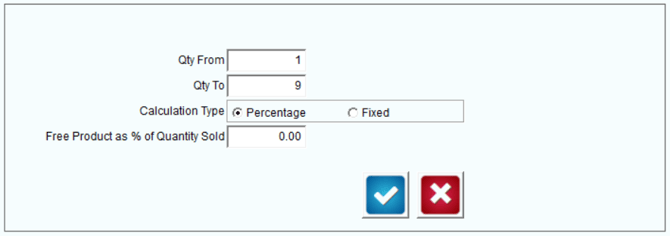
7. Click Add again to establish additional quantity discount rules:
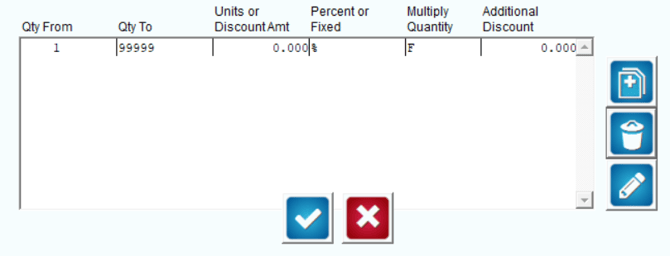
8. Enter the additional quantity figures and select the Fixed option.
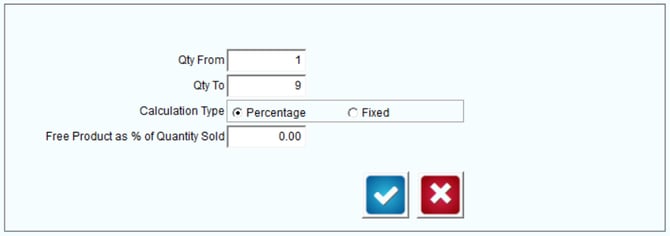
9. Enter the number of promotional items that will be given to the customer within the Free Product (Units) field.
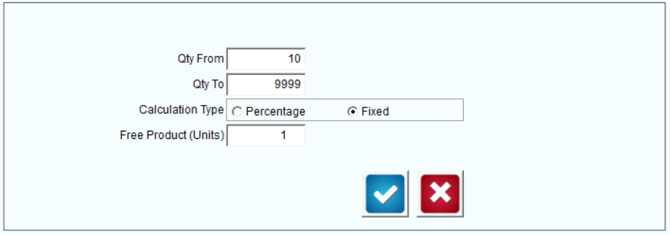
NOTE: This screen establishes that the customer will receive one free item after 10 or more have been purchased.
10. Click OK to save the new rule. Repeat these steps until each tier of the promotion has been added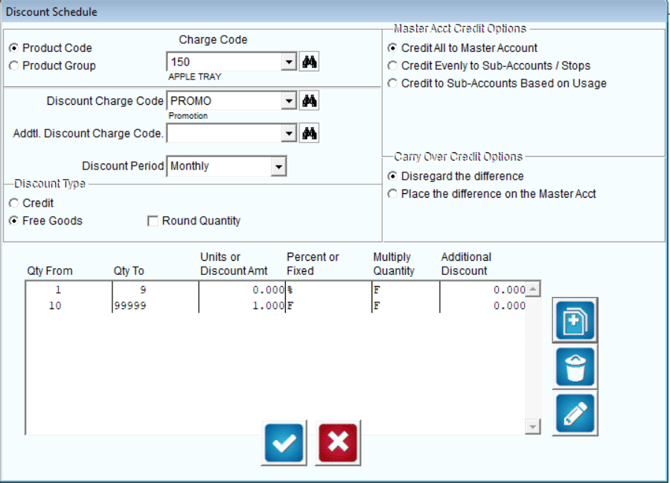
Here is an example of the completed promotion:
11. Click OK to each window displayed until you return to the Period Discount Pricing screen.
12. Choose the Add key on the bottom portion of the screen.
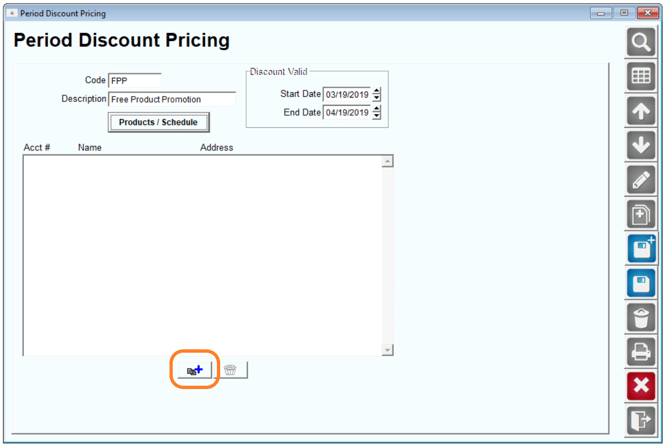
13. Enter an account number or specify the account criteria in the Multiple Accounts field to assign the promotion to your customers, and click OK.
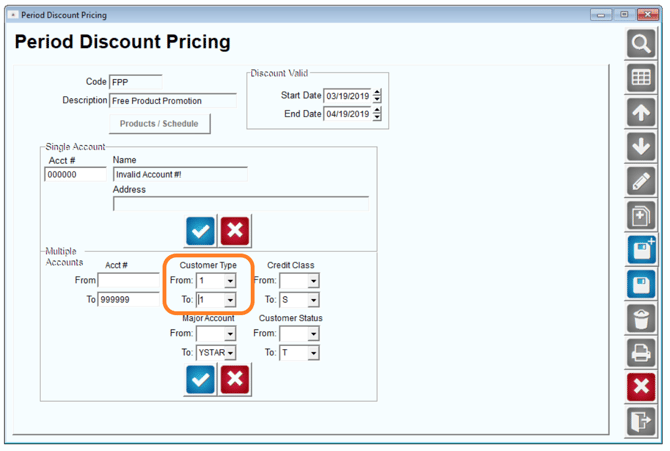
NOTE: In this example, all Customer Type ‘1’ accounts will be assigned to the promotion. Alternatively, customers can be assigned to a Period Discount Pricing Code within their account under Lists > Customer Information > Credit, on the Billing/Statement screen.
14. Click Save or More to complete the process.
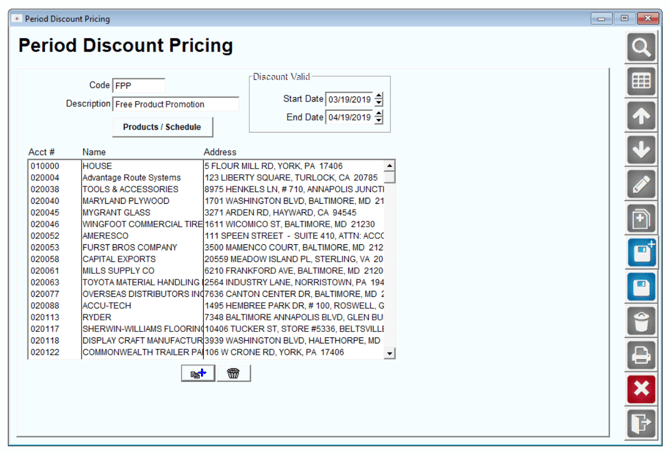
This completes the setup process for a fixed product promotion.
Example 2: 10% Discount Promotion
Customers assigned to this promotion will receive a 10% discount on each 5-gallon bottle of water if purchases exceed 15 (5-gallon) bottles in one month.
- Complete Steps 1-7 in the previous section.
- Within the Discount Type field, select Credit.
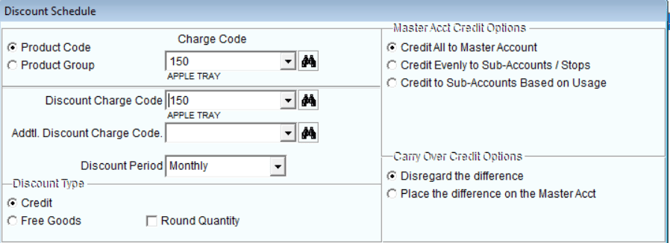
NOTE: Select the Round Quantity option if you would like the system to round to the nearest whole number when partial quantities exist; otherwise, decimals will be ignored.
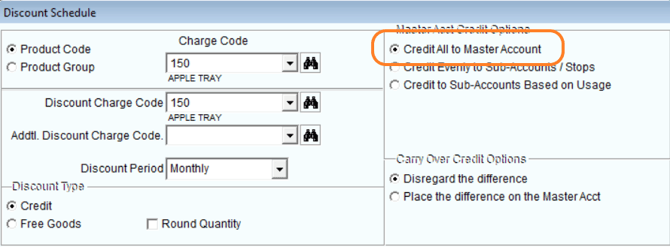
3. The Master Acct Credit Options field contains items that apply to promotions earned on Master Billed accounts, select one of the following:
Credit All to Master Account: Choose this option to credit all promotions to the Master Account on a Master Billed account.
Credit Evenly to Sub-Accounts / Stops: Choose this option to distribute all promotions between Sub-Accounts on Master Billed accounts.
Credit to Sub-Accounts Based on Usage: Choose this option to distribute the credit to Sub-Accounts that purchased the most items on Master Billed accounts.
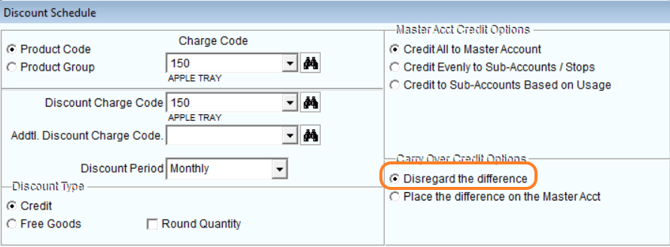
- The Carry Over Credit Options field contains items that apply to any credit differences remaining after they have been distributed evenly, select one of the following:
- Disregard the Difference: Choose this option to drop any remaining values.
- Place the difference on the Master Acct: Select this option to apply the remaining values to the Master Account.
Select the Add key to establish the promotion quantity rules.
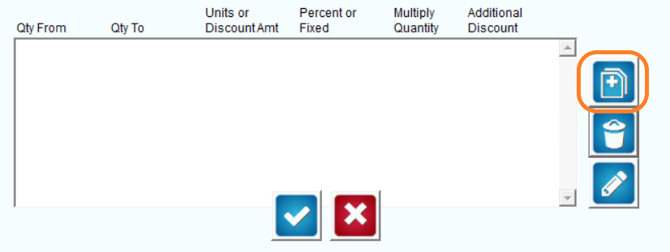
Enter the minimum (Qty From) and maximum (Qty To) quantities that will qualify for the promotion. In this case, the customer will not receive a free item until 15 items have been purchased. This is considered the base rule. Click OK to add additional rules.
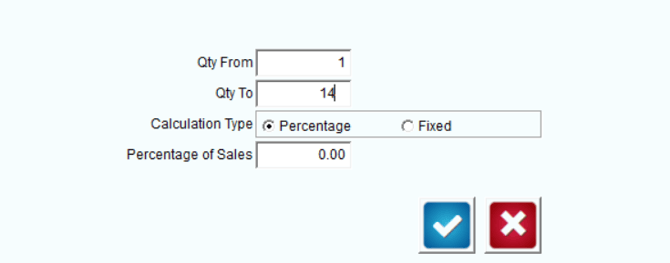
Click Add again to establish additional quantity discount rules:
Enter the additional quantity figures and select the Percentage option.
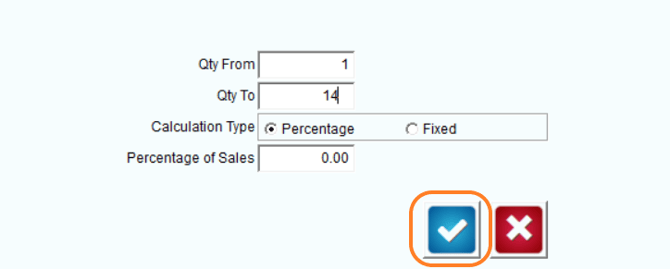 Enter the percentage discount that will be given to the customer within the ‘Percentage of Sales’ field:
Click OK to save the new rule. Repeat these steps until each tier of the promotion has been added.
Here is an example of the completed promotion:
Click OK to each window displayed until you return to the Period Discount Pricing screen.
Choose the Add key on the bottom portion of the screen.
- Enter an account number or specify the account criteria in the Multiple Accounts field to assign the promotion to your customers, and click OK.
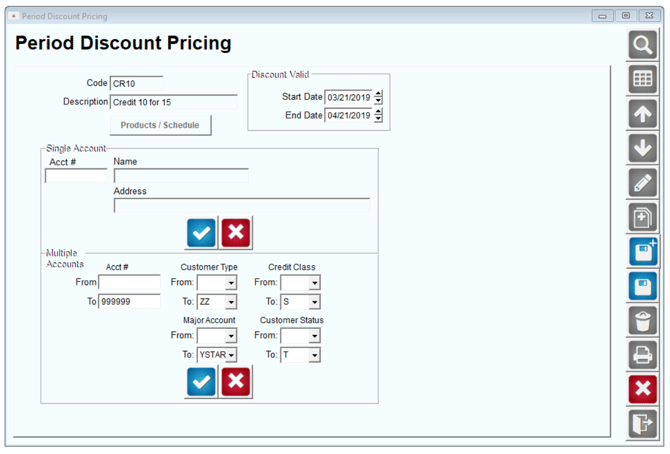
NOTE: In this example, all accounts will be assigned to the promotion. Alternatively, customers can be assigned a Period Discount Pricing Code within their account under Lists > Customer Information > Credit, on the Billing/Statement screen.
1. Click Save or More to complete the process.
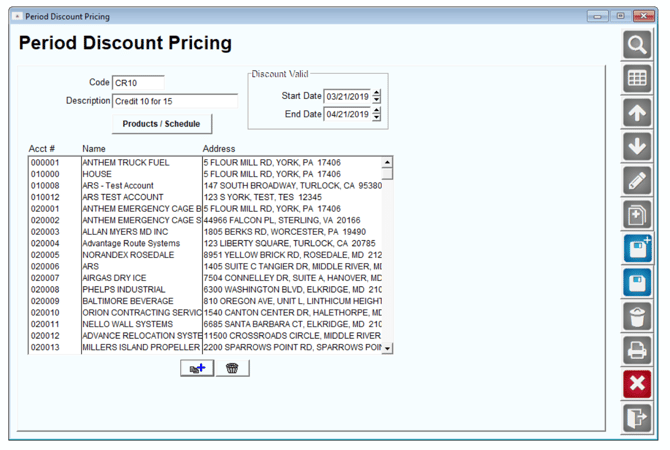
This completes the setup process for a discount product promotion.
Example 3: Custom Promotion
Customers assigned to this promotion will receive discounts and a free rental for purchasing an established level of items assigned to the same product group over an established timeframe.
Navigate to Lists > Product Codes > Period Discount Pricing.
1. Choose the Add key.
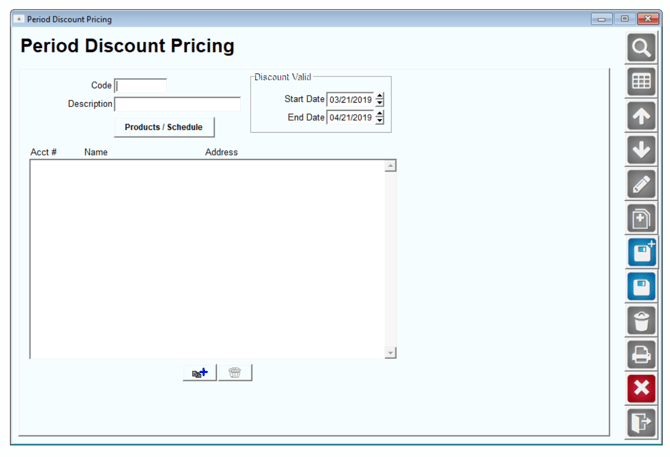
2. Enter a Code and Description for the promotion.
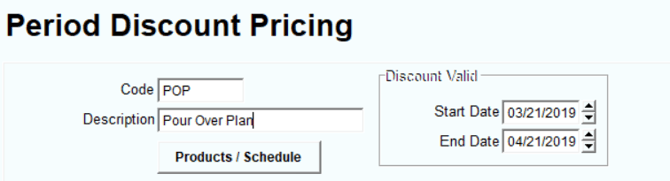
3. Adjust the Start Date and End Date to control the valid dates of the promotion.
4 Select the ‘Products / Schedule’ key to enter the product details of the promotion.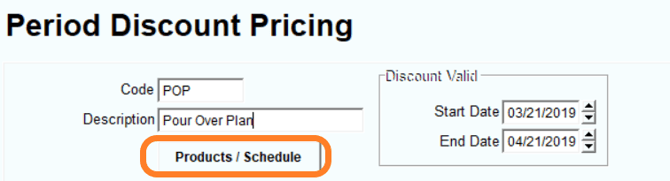
5. Select the Add key on the right side of the screen.
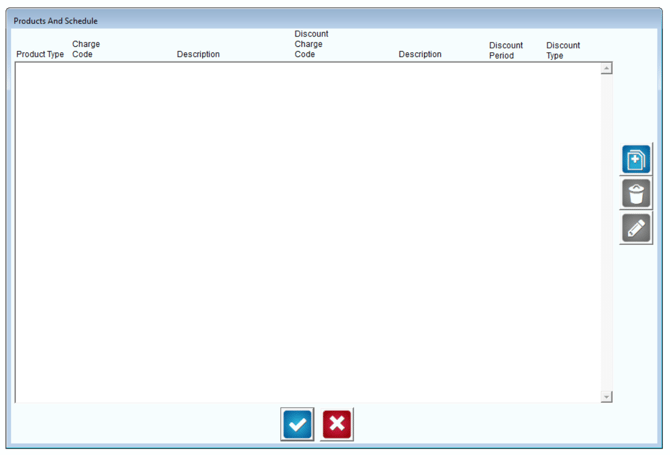
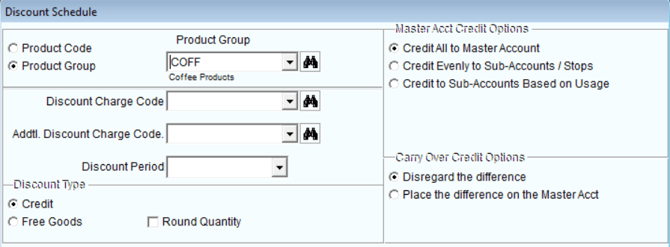
6. Select the Product Group option, and choose the desired group from the drop-down list. 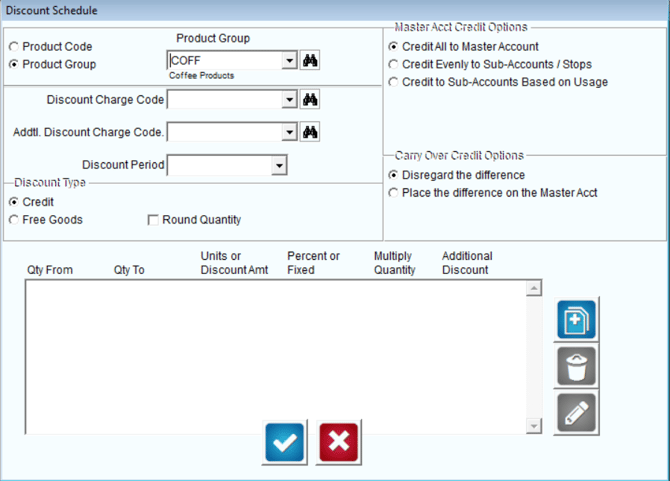 7. Select the charge code that will be used for applying discounts from within the Discount Charge Code drop-down list:
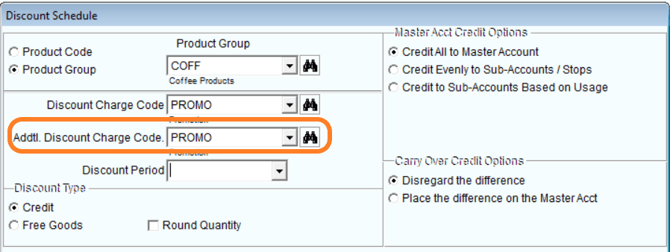
8. Since this example will include an additional discount for a rental charge, the product code to use for the discount is selected within the Addtl. Discount Charge Code field:
9. Select the charge code that will be used for applying discounts from within the Discount Charge Code drop-down list:
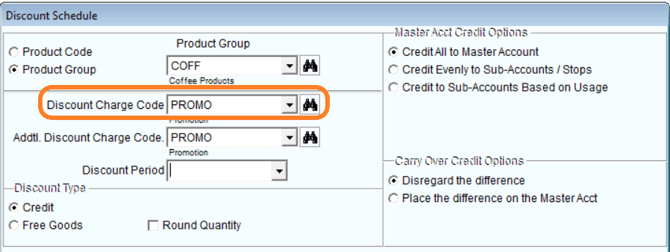
Since this example will include an additional discount for a rental charge, the product code to use for the discount is selected within the Addtl. Discount Charge Code field:
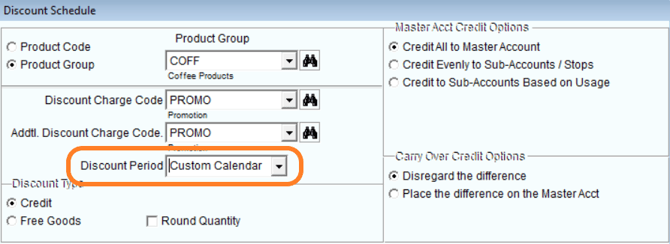
10. Select the Discount Period you would like to use. In this case, a custom schedule will be used:
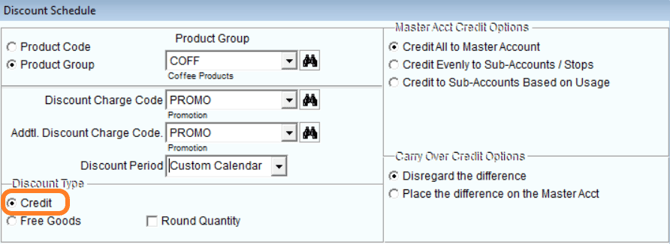
11. This promotion will offer the customer a flat rate discount based on the number of items they purchase from the assigned Product Group Code. In this scenario, the Discount Type will be ‘Credit’.
NOTE: Select the Round Quantity option if you would like the system to round to the nearest whole number when partial quantities exist; otherwise, decimals will be ignored.
12. The Master Acct Credit Options field contains items that apply to promotions earned on Master Billed accounts, select one of the following:
Credit All to Master Account: Choose this option to credit all promotions to the Master Account on a Master Billed account.
Credit Evenly to Sub-Accounts / Stops: Choose this option to distribute evenly all promotions between Sub-Accounts on Master Billed accounts.
Credit to Sub-Accounts Based on Usage: Choose this option to distribute any credits to Sub-Accounts that purchased the most items on Master Billed accounts.
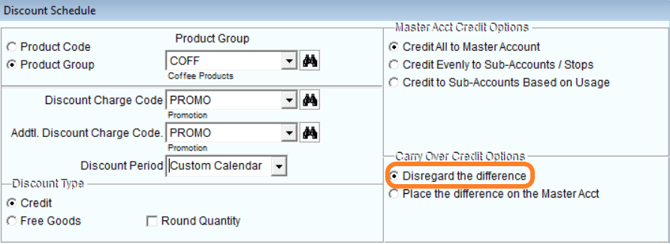
The Carry Over Credit Options fields contains items that apply to any credit differences remaining after they have been distributed evenly, select one of the following:
Disregard the Difference: Choose this option to drop any remaining values.
Place the difference on the Master Acct: Select this option to apply the remaining values on the Master Account.
13. Select the Add key to establish the promotion quantity rules.
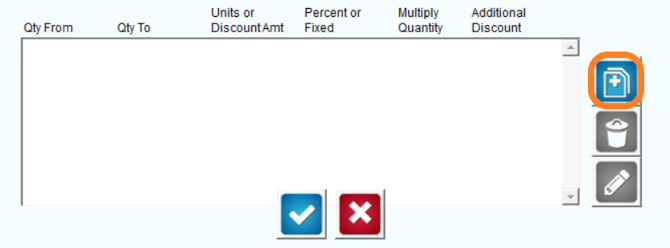 14. Enter the minimum (Qty From) and maximum (Qty To) quantities that will qualify for the promotion. In this case, the customer receives a standard price for purchasing between 1-12 items within the group. This is considered the base rule. Click OK to add additional rules.
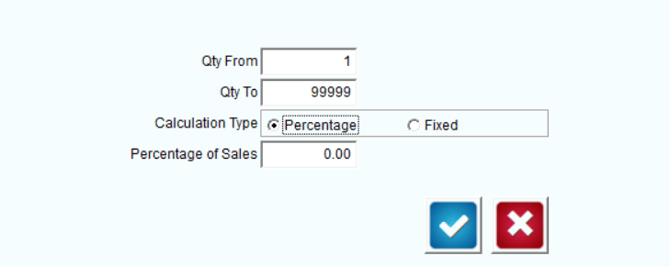
15. Click Add again to establish additional quantity discount rules:
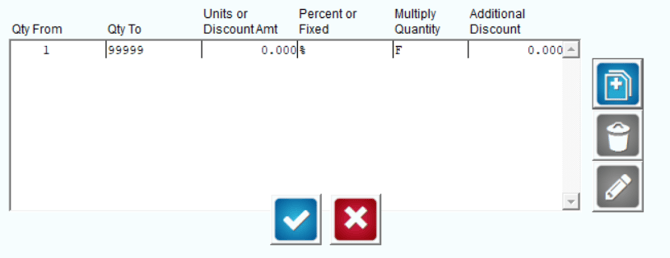
16. Enter the additional quantity figures, and select the Fixed option. A ‘1.00’ fixed discount is used in this example:
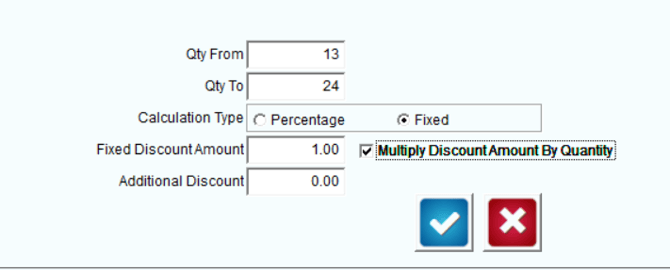
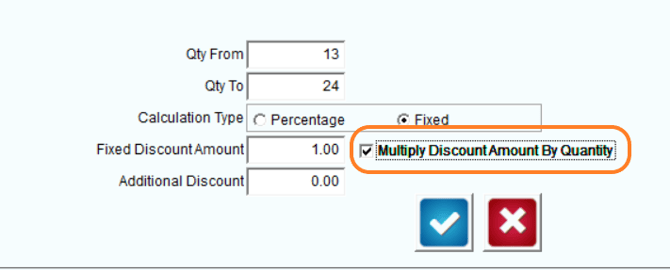
17. Enter the discount amount within the Fixed Discount Amount field:
18. If you would like the discount to be applied to all the items that qualify for a discount, select the option ‘Multiply Discount Amount by Quantity’ — this will result in the 1.00 discount being applied to each item individually.
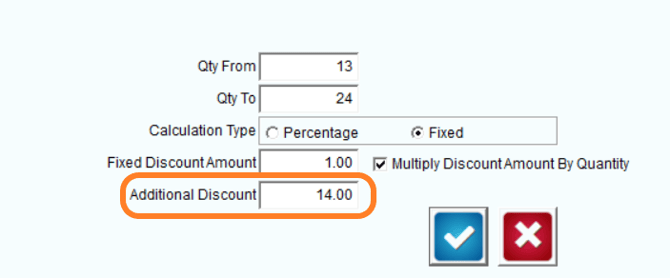
19. The Additional Discount option allows you to enter a fixed additional discount to the promotion. In this case, a rental credit is included for ‘14.00’:
20. Click OK to save the new rule. Repeat these steps until each tier of the promotion has been added.
Here is an example of the completed promotion:
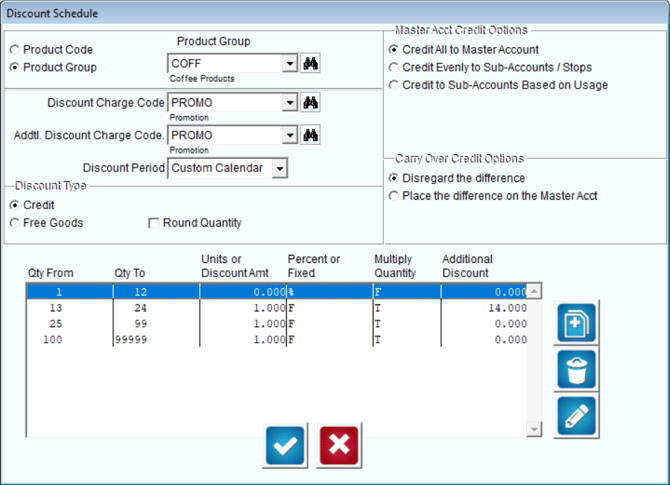
In summary, customers assigned to this promotion will qualify for the following discounts when they purchase the preset number of items in the assigned product group, within the allotted period:
- 1-12 items purchased: Standard price, no discounts earned.
- 13-24 items purchased: ‘1.00’ dollar discount earned on each item, with an additional ‘14.00’ credit earned for rent.
- 25-99 items purchased: ‘2.00’ dollar discount earned on each item, with an additional ‘14.00’ credit earned for rent.
- 100-99999 items purchased: ‘2.45’ dollar discount earned on each item, with an additional ‘14.00’ credit earned for rent.
Click OK twice to return to the Period Discount Pricing screen.
21. To add customers to the promotion, choose the Add key on the bottom of the screen.
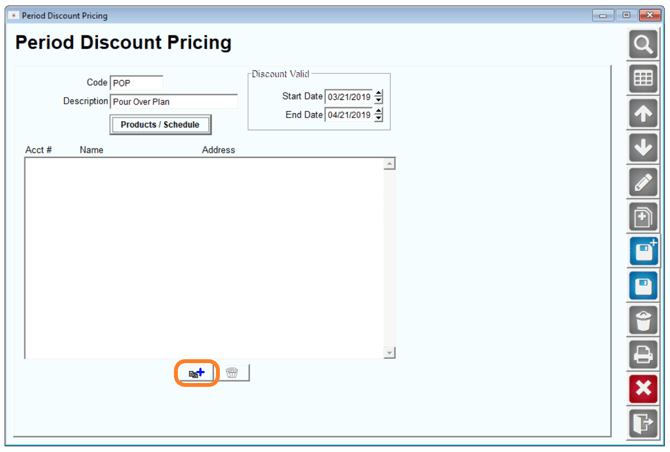
22. Enter an account number or specify the account criteria in the Multiple Accounts field to assign the promotion to your customers, and click OK.
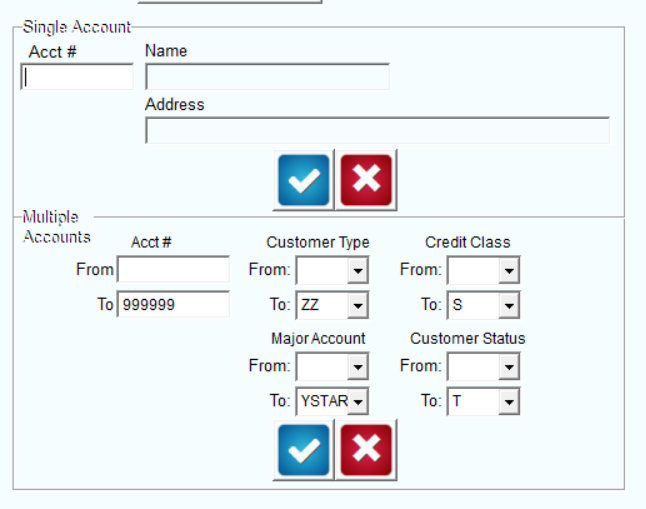
NOTE: In this example, all Customer Types will be assigned to the promotion. Alternatively, customers can be assigned a Period Discount Pricing Code within their account under Lists > Customer Information > Credit, on the Billing/Statement screen.
23. Click Save or More to complete the process.
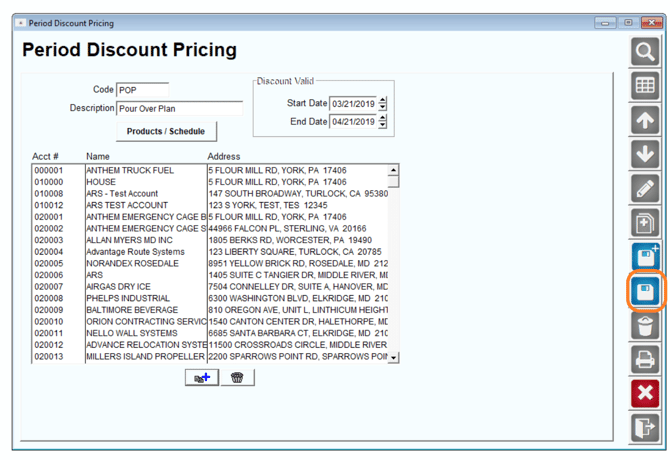
This completes the setup process for a discount promotion using the custom calendar. Continue to the next section to learn the daily process for Period Discount Pricing.
Daily Processing – Desktop
Managing Period Discount Pricing will take place during the end of month process unless you are using the custom Period Discount Pricing Calendar (discussed earlier within this document). Refer to the section that applies to your company.
NOTE: Technical Note: The Invoices created for the “Discounts” will be found in the rmrdginvtmph/d tables with an invoice key that starts with “PD_C_”. The Invoices created for the Free Products, will be stored in the rmrdginvfreeproducts table with an inv_key that starts with “PD_F_”.
Standard Schedule (Monthly, Quarterly, Yearly)
Managing Period Discount Pricing on the desktop takes place during the end of month process. The following steps will be added to your normal Period Close routine.
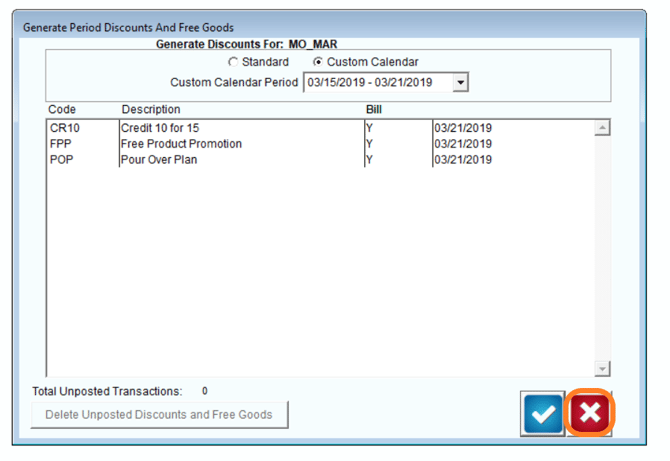
- Navigate to Transactions > Generate Discounts and Free Goods.
- Click OK to generate credits or free goods on accounts assigned to the displayed promotions.
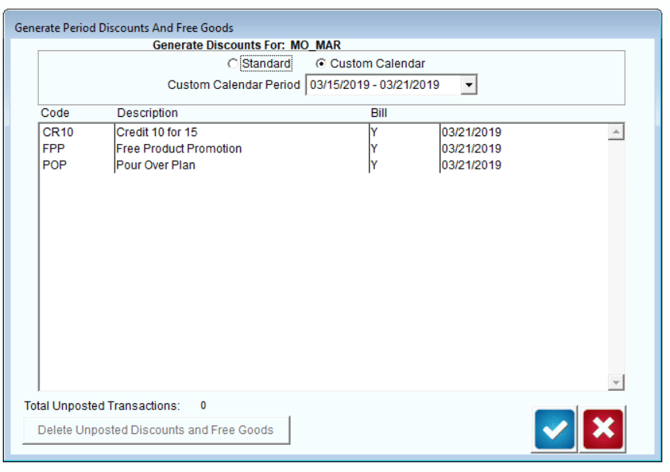
NOTE: To ignore any displayed promotion, simply click on it to toggle the Bill option from ‘Y’ to ‘N’.
3. If credits or free goods are due, Route Manager will automatically generate a detailed discount report.
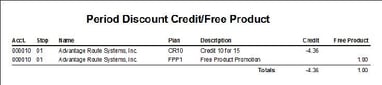
4. Once you have printed or closed the report screen, choose ‘Yes’ to generate credits or free goods, or ‘No’ to cancel.
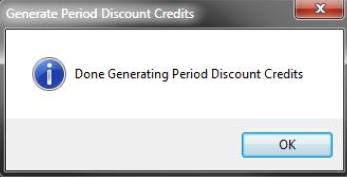
5. Click OK to the confirmation message.
6. Choose Exit to close the Generate Discounts and Free Goods screen.
To apply credits or free goods to each account, the transactions generated will need to be posted to complete the process.
Examples of generated discounts are included below:
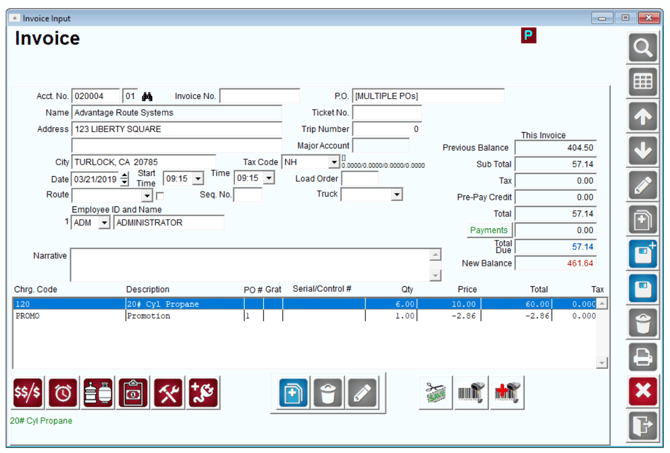
Discount Invoice Example
The following invoice reflects a 10% discount credit generated on an account that purchased ‘60’ bottles of water (at about ‘0.48’ each) during the current promotion period:
Free Goods Example
When generating “free goods” discounts, the invoices created cannot be viewed within the Invoices and Adjustments screen. These types of transactions cannot be modified in the system, but will need to be posted to complete the discount credit process.
NOTE: The free goods transactions generated will be listed within the Post Transactions screen. Additionally, they can be deleted within the Generate Discounts and Free Goods screen prior to posting, if necessary.
Once the transactions have been posted, the free goods credits can be viewed within Lists > Customer Information > Products, then by selecting the Free Product button on the screen.
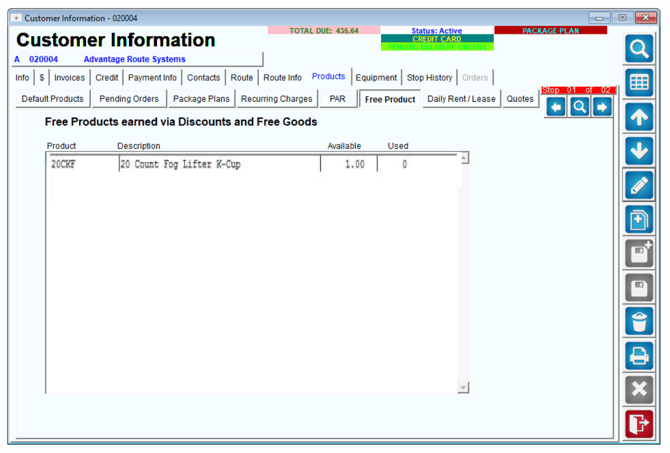
Any free goods credits will automatically be credited on invoice entry during the customer’s next transaction on the desktop or handheld.
Desktop Invoice
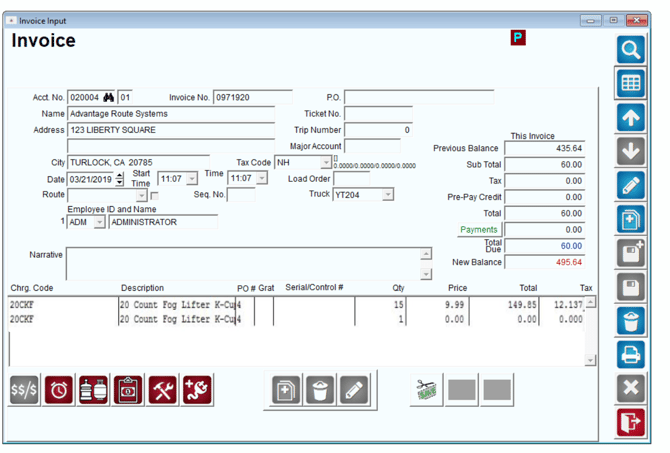
The following desktop invoice reflects that the customer is purchasing 15 K-Cup boxes, and automatically receives an additional box free of charge:
Handheld Invoice
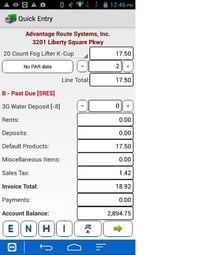
The following handheld transaction reflects that the customer is purchasing two bottles, and automatically receives one bottle free of charge:
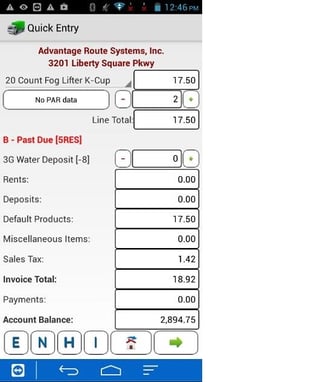
The printed handheld invoice reflects the free box credit:
Custom Schedule (Period Discount Pricing Calendar)
Managing Period Discount Pricing will depend on the discount cycle established within your Period Discount Pricing Calendar. In this example, a bi-weekly calendar has been established:
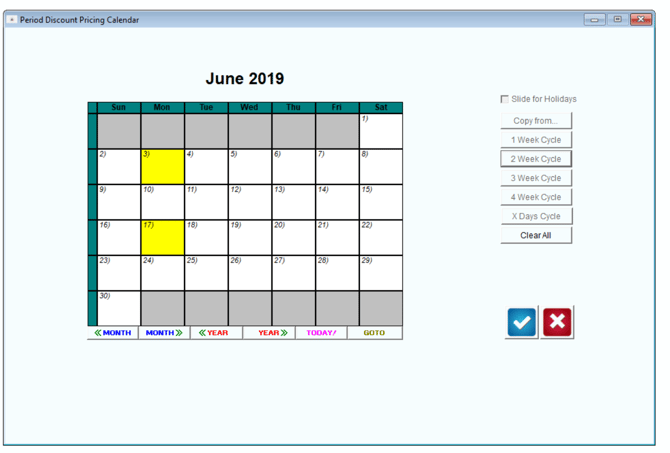
NOTE: Generating discounts should take place on, or around the end of each cycle (i.e., the 14th and 28th on the calendar above).
To generate discounts on your accounts, follow the steps below:
- Navigate to Transactions > Generate Discounts and Free Goods.
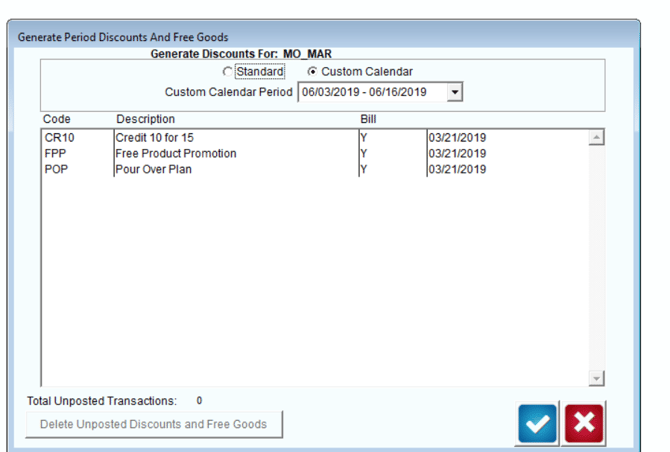
2. Select the ‘Custom Calendar Period’ that you would like to generate discounts for from the drop-down list:
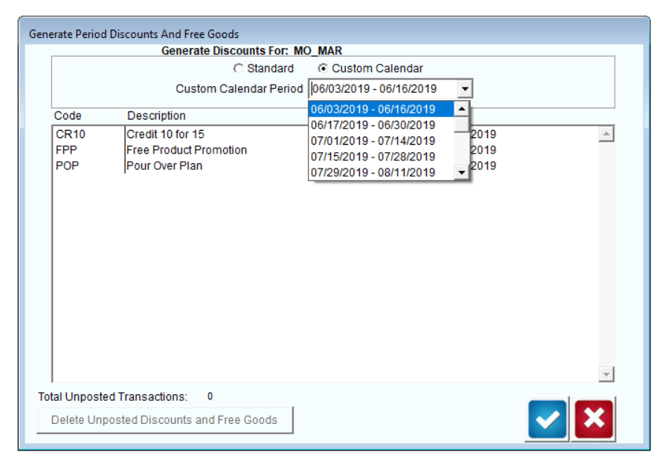
NOTE: The Custom Calendar view will automatically be displayed if the system detects an established Period Discount Pricing Calendar in RMA.
3. Click OK to generate the qualified discount transactions:
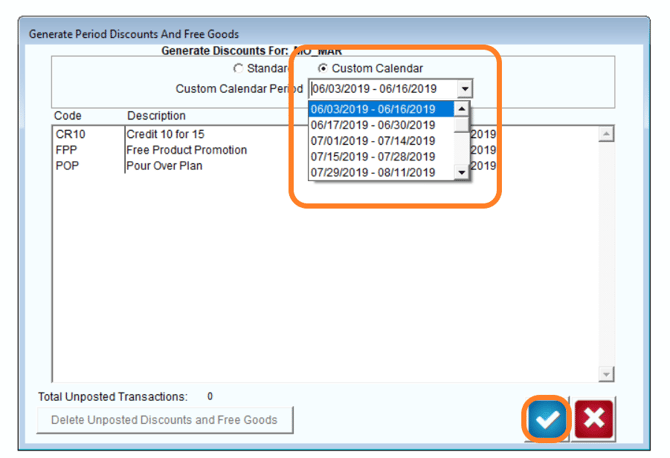
NOTE: To ignore any displayed promotion, simply click on it to toggle the Bill option from ‘Y’ to ‘N’.
4. If credits or free goods are due, Route Manager will automatically generate a detailed discount report.
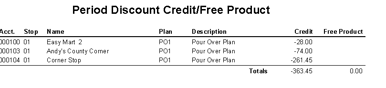
5. Once you have printed or closed the report screen, choose ‘Yes’ to generate credits or free goods, or ‘No’ to cancel.
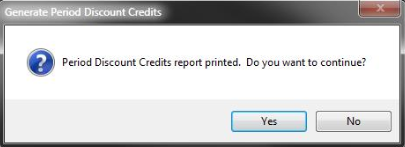
6. Click OK to the confirmation message.
7. Choose Exit to close the Generate Discounts and Free Goods screen.
To apply the credits to each account, the transactions generated will need to be posted to complete the process.
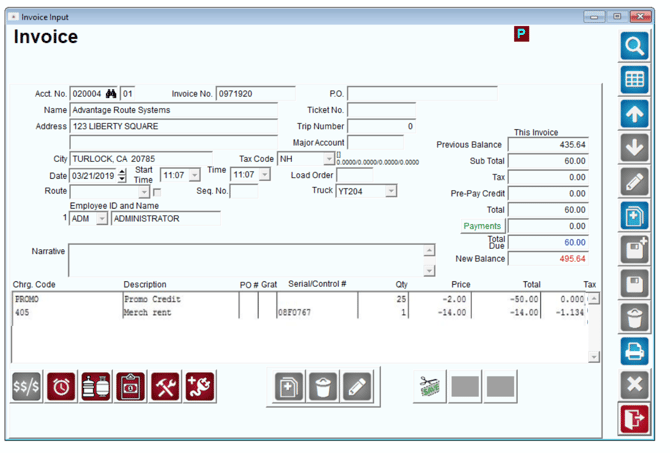
An example of a generated discount is included below:
Discount Invoice Example (with Additional Discount)
The following invoice reflects a fixed one-dollar discount on ‘15’ items purchased within the same item group, with an additional ‘14.00’ rental discount applied:
Available Quantity
An additional button has been added to the Customer Information screen to reference the number of free products available, and used, on each account.
NOTE: This option does not apply to the ‘discount’ type plans discussed earlier.
To view a customer’s Period Discount product details, navigate to Lists > Customer Information, and select the Products tab. Click on the ‘FREE’ button on the screen to view the available product information.
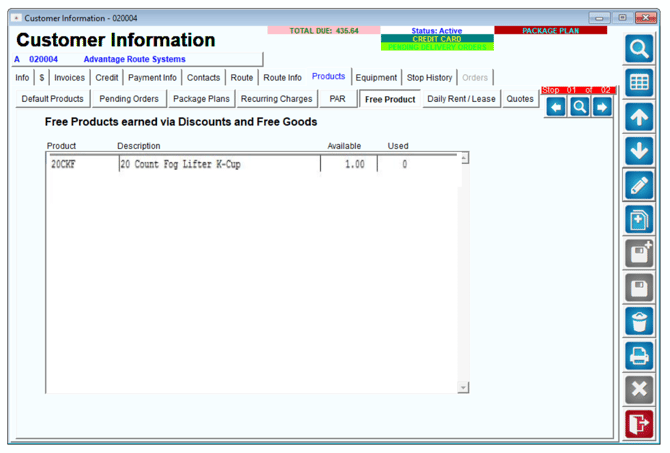
Based on the information displayed above, the current customer qualifies for 1 free '20 Count Fog Lifter K-Cup'’ (Available), and they have received no K-Cups that were applied to their account in the past (Used).
Reports
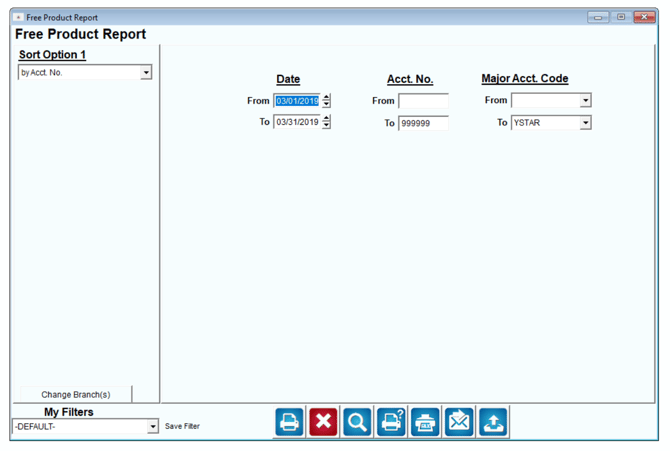
The Free Product Report includes detailed free product information generated when using the Period Discount Pricing option, and can be found under Reports > Management Reports.
NOTE: This option does not apply to the ‘discount’ type plans discussed earlier.