
Introduction
Print this report by day and distribute to the appropriate driver or sales person to place urgency on collecting payments from customers.
The Past Due by Route Day report should be run two or three days in advance of the regular delivery day to allow the office staff to make contact with tardy accounts. Several criteria can be defined as you generate the report.
The Past Due by Route Day report can be found under Reports > Route Reports > Daily > Past Due by Route Day.
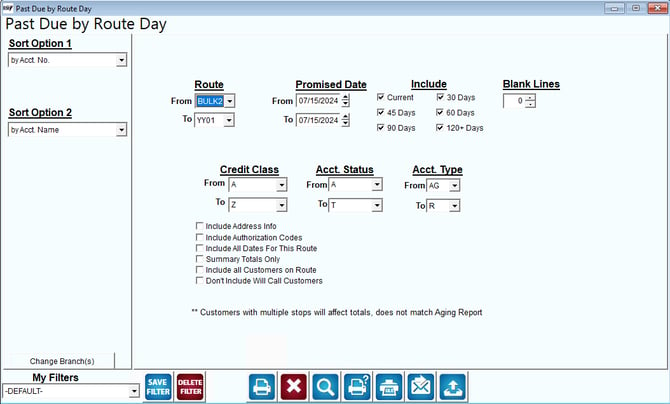
Once the report is generated, a customer service representative can contact each account that is past due and attempt to secure a commitment from the customer to make a payment. Continual follow-up on chronic past due accounts is necessary to avoid excessive accounts receivable totals.
Fields:
Sort Option 1 & 2: You can choose from the following categories:
- Account Number
- Account Name
- By Sequence
- Credit class
- Status Code
- Customer Type
- Day (Date of Last Payment)
Change Branch: If you are logged into multiple branches, this option may be shown and allows you to re-select the branches to include in the report instead of having to completely exit the report.
Route: Specify a range of routes to include in the report from the drop-down list.
Promised Date: The range of route dates to include in the report.
Include: Choose the data ranges to include in this report.
Blank Lines: Select how many blank lines you want between each account on the report.
Credit Class: The range of credit classes to include in the report.
Acct Status: The range of account status codes to include in the report.
Acct Type: The range of customer account types to include in the report.
Include Address Info (Extended Info): Select this option to include the following additional details for each account:
- Address Info
- If the account has equipment installed
- Last Payment Date
- Day Label/Sequence
Include Authorization Codes: Select this box to have the requested Authorization Codes listed on the report.
Include All Dates for this Route:Checking this box to include ALL Dates on the route(s) specified.
Summary Totals Only: Choose this option to suppress the detailed customer information on the report.
Include all Customers on Route: Choose this option to include all customers on the report, regardless of balance or past due status.
Don’t Include Will Call Customers: Choose this option to exclude accounts marked as ‘Will Call’ from the report.