

Overview
This article will review the process of creating a notepad file to give SADocking customers the ability to access the New Customer Wizard in RMA.
Note: Customer needs special permission to have the New Customer Wizard when they are on Docking. This can be obtained by Janelle Huth.
Cause
By default we do not allow SADocking customers to create customers in RMA, however there are a few exceptions to this rule. If a SADocking customer needs to be able to add customers in their RMA software vs adding them into their Accounting software please contact your Tech Support Manager and NCC staff before proceeding to make this change. This should only be used if transactions are being created where there is no financial impact from the data being collected in RMA.
Resolution
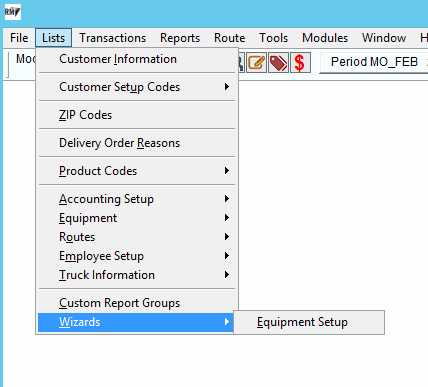
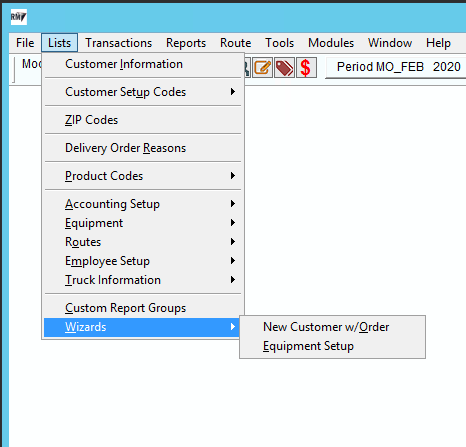
When you log into RMA and navigate to Lists>Wizards you will notice that only the Equipment Setup Wizard is available. To add the New Customer Wizard, please follow the steps below.
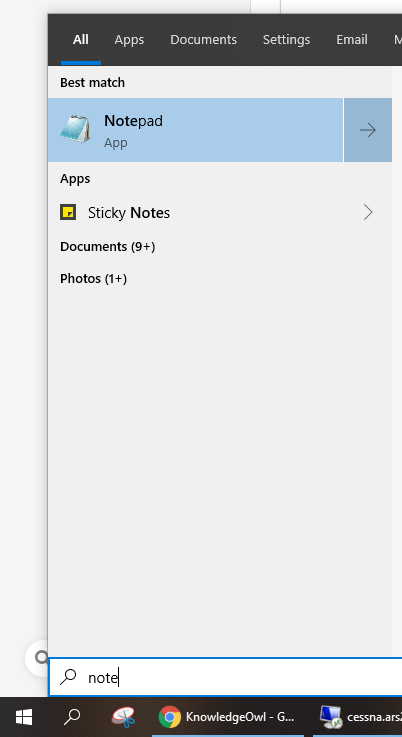
1) Open Notepad by going to your start menu and entering "Notepad" and open the program to create a new file:
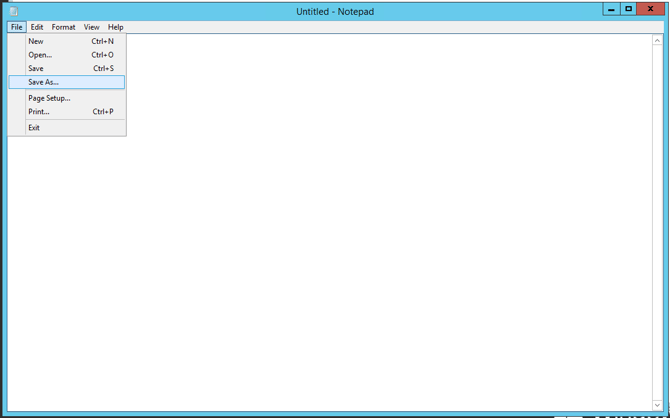
2) Open Notepad and navigate to the File Menu and select 'Save As':
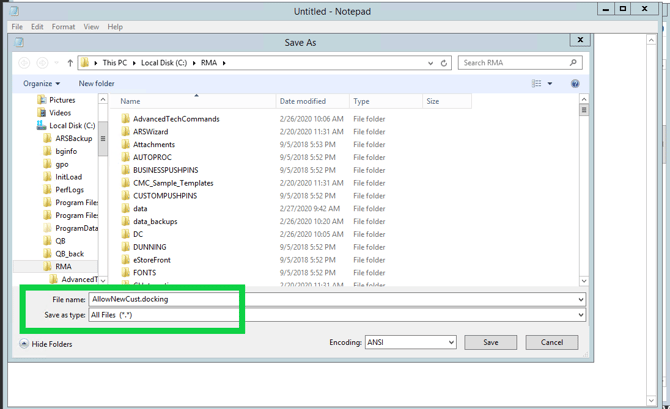
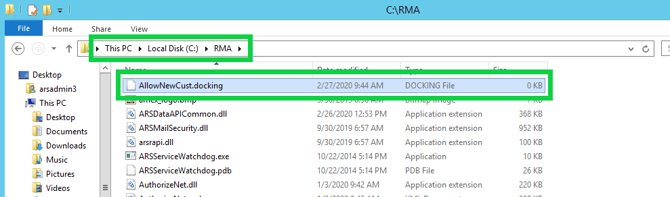
3) First, locate your RMA ROOT folder to save your new file, this typically is under your local disk C then RMA (ex: C:\RMA). Name your file: AllowNewCust.docking and save your file as : All Files (*.*) :
4) Once your New file is saved in your RMA root folder it will show up similar to this screen: Note there are no contents required inside the Notepad file. It is empty and has a size of 0 bytes.
5) Once your file is saved in your Root folder, please exit out of RMA and log back in to see changes in your Wizards Menu.
More Information
If you have followed all of these steps and need more assistance please contact a level 2 technician or the Tech Support Manager.