
Introduction
The Multi-Unit Pricing feature is a unique pricing option that allows you to establish a relationship between various units of sale, such as a logical hierarchy similar to the following:
- Single
- Unit
- 6-pack
- Case
- Pallet
Once these units of sale are created, you can choose which unit type you will sell to each customer on the handheld.
NOTE: If you are using the barcode scanning feature, each Multi-Unit item scanned will allow you to choose any of the associated units (i.e., a ‘6-pack’ is scanned, and a ‘Case’ can be selected).
This chapter will guide you through setting up and using this option on the desktop and handheld.
Overview
To illustrate the Multi-Unit Pricing feature in this document, we have created an example scenario using trays of apples as our product.
Assume that we sell apples in the following quantities:
- Trays (9 individual apples)
- Cases (5 trays)
- Pallets (10 cases)
We will need to add three new product codes to the system that will represent each quantity option:
- 101 - Apple Tray
- 102 - Apple Case
- 103 - Apple Pallet
One of the products added will be the Base Unit. All other products associated with the Base Unit are considered Base Relation Units.
NOTE: In most cases, the Base Unit will be the smallest unit quantity being sold.
In this example, the Base Unit will be the ‘Apple Tray,’ and the Base Relation Units are the ‘Apple Case’ and ‘Apple Pallet’ items.
Continue to the next section to be guided through the set up process.
Desktop Setup
This section will guide you through all of the desktop set up steps required before you can begin using the Multi-Unit Pricing feature. The example scenario detailed in the Overview section will be used throughout the remainder of this document for reference.
Product Unit Codes
A series of Product Unit Codes will need to be added to Route Manager that represent the quantities of units that you sell.
Navigate to Lists > Product Codes > Product Unit Codes. Using the example established earlier, three unit codes are created:
- Tray – TR
- Case – CS
- Pallet – PLT
Add all of the Product Unit Codes that will be used in your company.

Continue to the next section to add Multi-Unit items to Route Manager.
Product Charge Codes
A Product Charge Code will need to be added for each unit quantity that you will be selling.
Continuing to use the example started earlier, three items are added:
- 101: Apple Tray
- 102: Apple Case
- 103: Apple Pallet
Follow the steps below to add the new items to the program.
Base Unit Code Setup
The first unit added will function as the “base unit” for the Multi-Unit items. Generally, this is the smallest quantity sold of the item (in this example: Apple Tray). This is the unit which will be used for inventory purposes, and tracked when the driver uploads or downloads the handheld.
NOTE: This section focuses on the options related to Multi-Unit Pricing, and does not cover all of the steps related to adding a product code to Route Manager. See product codes for further instruction on how to create a product code.
Navigate to Lists > Product Codes > Product Charge Codes.
- Click the Add key to create the Base Unit item, or modify an existing item.
- On the Info tab, select the related Product Unit Code for the item within the ‘Product Unit Ref.’ field drop-down list.
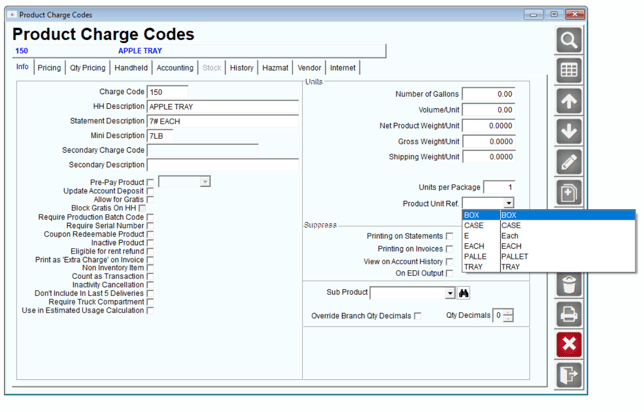 Complete all of the remaining steps required to add the product to Route Manager and save your changes.
NOTE: You will need to refresh the Product Charge Codes screen by exiting and returning to the screen before continuing to the next section.
Base Relation Unit Code Setup
After the Base Unit has been established, the Base Relation Units will need to be added.
- Click the Add key to create the Base Relation Unit, or modify an existing item.
- On the Info tab, select the related Product Unit Code for the item within the ‘Product Unit Ref.’ field drop-down list.
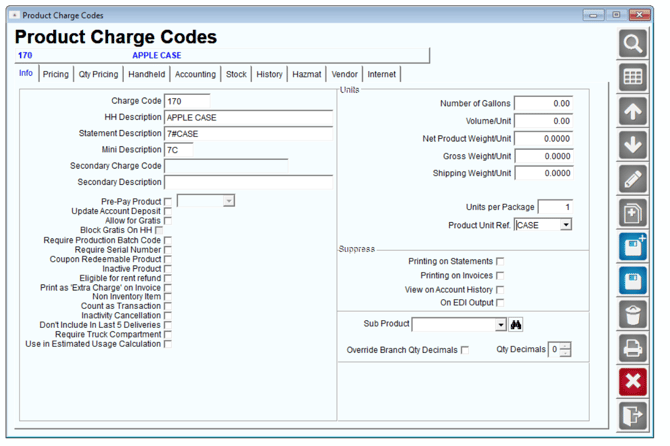
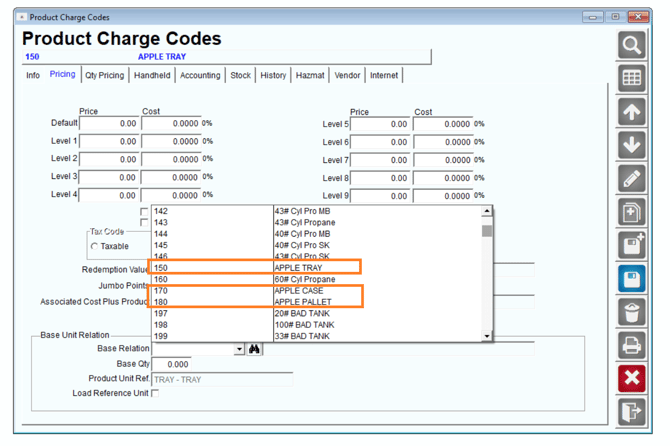
- On the Pricing tab, select the related "Base Unit Code" created earlier for the item (in this example: Apple Tray Code 150) within the Base Relation field drop-down list.
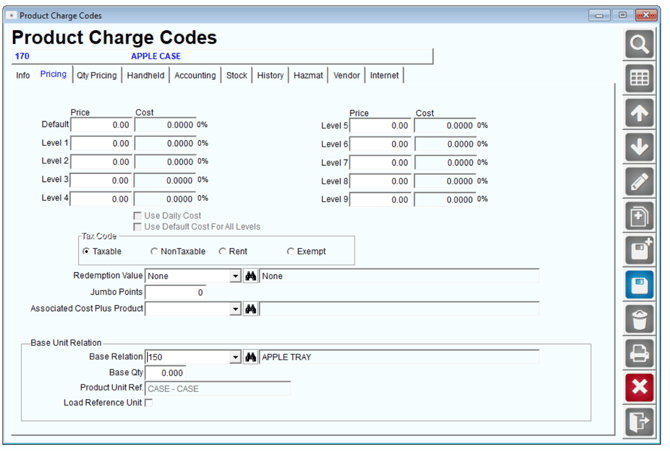
- Enter the quantity of Base Units that should be used when the Base Relation Unit is sold to the customer within the ‘Base Qty’ field. In this example, there are ‘20’ Apple Trays per case.

- Save your changes and repeat these steps for each Base Relation Unit.
NOTE: If the product uses Vendors, you may see the following prompt when saving the base relation setup:
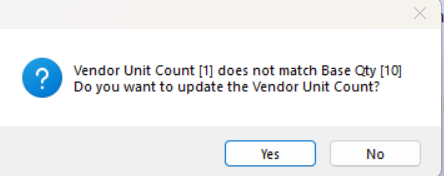
This is fine. If you do not wish for the vendor unit qty on the larger unit product code to match the base relation qty, you can select no here. If you select yes, the vendor unit count will then match to the base relation qty.
Repeat the steps within this section for all of the Multi-Unit items that your company will use.
Load Reference Unit (Optional)
If you would like to override the Base Unit quantity rule and reference a Base Relation Unit for quantity information on reports and certain areas of the handheld, select the ‘Load Reference Unit’ option on the Pricing tab of the Product Charge Code screen.
For example, if the ‘Load Reference Unit’ option is selected on the Base Relation Unit ‘Apples – Cases’ and you have ‘60’ of the Base Unit ‘Apple Trays’ remaining on the delivery vehicle, all inventory related screens and reports will convert the quantities to reflect the number of ‘Apples – Cases' remaining, sold, etc. Any remaining quantities will be listed as the Base Unit product.
Handheld Class (Optional)
Within each Handheld Class, you can determine whether the Multi-Unit item selected will always be used, or if the driver will be prompted to select from a list of all associated Multi-Unit items.
Navigate to Lists > Routes > Handheld Class, and choose the General tab. Select the option ‘Prompt for Units on Case Prices’ to enable a pop-up dialog screen that will be displayed when a Multi-Unit item is selected from within the Misc. Items screen on the handheld (and Invoices and Adjustments on the desktop).
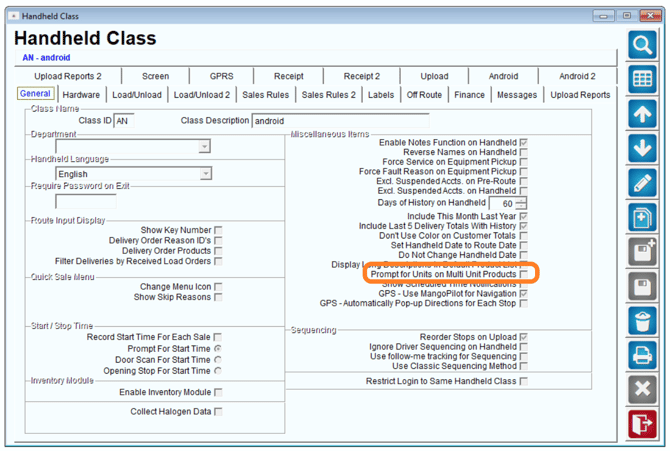
An example of this option is included on the next page.
Note: You cannot use the ' Save a s Base Relation in Invoices and Adjustments (MUP)' option in Branch Setup when the 'Prompt for Units on Multi Unit Products' Option is selected in handheld class.
EXAMPLE
With the option ‘Prompt for Units on Case Prices’ selected, the following screen will be available on the handheld when a Multi-Unit item is selected:
The ‘Apples – Cases’ item is selected from within the Misc. Items screen:
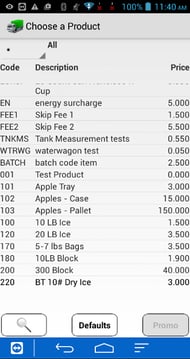
The ‘Choose Unit Type’ dialog screen will be displayed automatically:
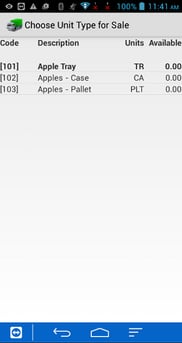
The driver will select the desired unit type to continue. This option can speed up the data entry process for Multi-Unit items.
Branch Setup (Optional)
Within Branch Setup, you can determine whether the “Base” Multi-Unit item will always be used. Instead of the specific item the driver entered. Locate the Save as Base Relation in Invoices & Adjustments (MUP) checkbox located on the Orders/Invoices tab. By selecting this option, the driver can choose a product within any level of the Multi Unit Pricing (ie. the Case, Pallet, etc), and upon saving the invoice it will automatically convert the sale to use the Base Unit as defined in Product Charge Code setup.
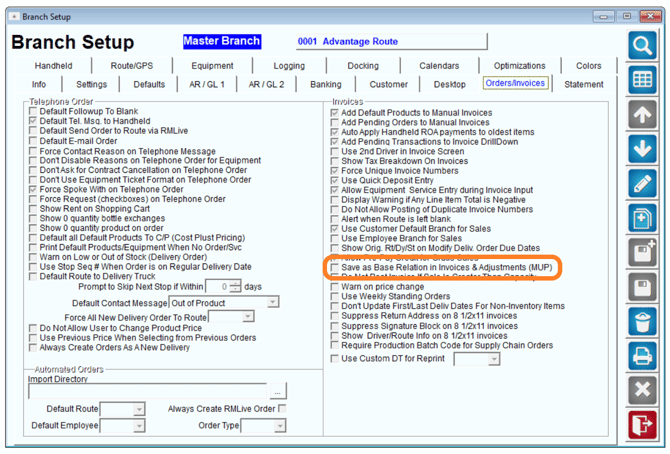
For example, If a driver sold a customer 1 Case of Apples (as we previously determined, a case is 5 Trays). Upon saving the invoice the invoice would print out that the driver sold 5 Trays of Apples.
NOTE: If the driver was to override the default price of the Case of Apples, the system will automatically calculate the Per Unit Price of each Tray, and print that value on the receipt.
Daily Processing - Desktop
The Multi-Unit Pricing option can be used during desktop data entry within the Invoices and Adjustments and Route Settlement Entry screens. Both options are detailed within this section.
Invoices and Adjustments
Products associated with Multi-Unit Pricing can be keyed into the Invoices & Adjustments screen following the standard entry process.
Alternatively, if the ‘Prompt for Units on Case Prices’ option (covered in the previous section) is enabled within the Handheld Class associated with the current route driver, you will be prompted for the unit type upon entry of any Multi-Unit product.
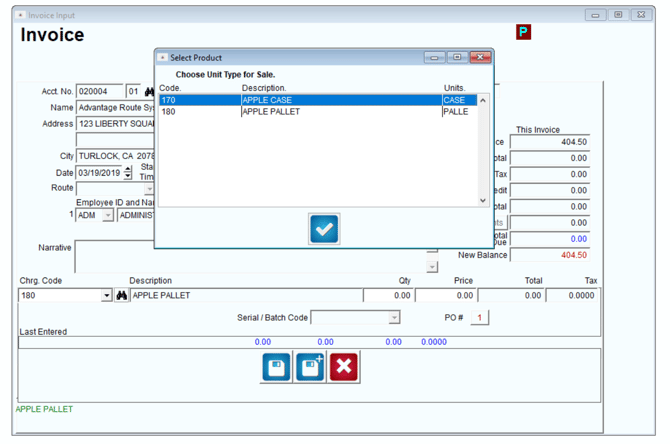
NOTE:
The employee ID assigned to the invoice must be assigned to a Handheld Class with the ‘Prompt for Units on Case Prices’ option enabled in order for this screen to be displayed.
Delivery Order Entry
Products associated with Multi-Unit Pricing can be keyed into the Delivery Order screen following the standard entry process.
Alternatively, if the ‘Prompt for Units on Case Prices’ option (covered in the previous section) is enabled within the Handheld Class associated with the current route driver, you will be prompted for the unit type upon entry of any Multi-Unit product.
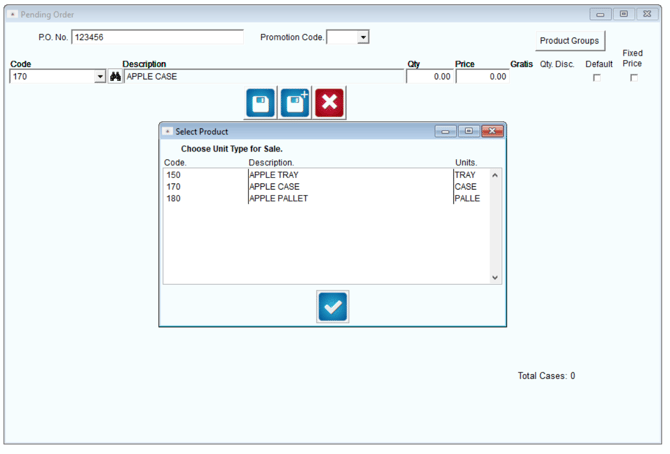
NOTE: The employee ID assigned to the invoice must be assigned to a Handheld Class with the ‘Prompt for Units on Case Prices’ option enabled in order for this screen to be displayed.
Route Settlement Entry
During the afternoon process, it may be necessary to manually key invoice, payment, and route data into the system. If your company uses this feature, the Multi-Unit pricing option functions in the same fashion as the Invoices and Adjustments screen (discussed previously).
Daily processing – Handheld
Two key areas of the handheld program utilize the Multi-Unit Pricing feature:
- Load/Unload Truck
- Misc. Items
Each option is discussed within this section.
Load Truck
The Load Truck option is part of the standard daily process on the handheld. When loading a Multi-Unit item onto the truck, the quantity entered will always be converted to Base Unit quantities automatically.
EXAMPLE
If ‘3’ cases of apples are loaded, simply choose product code ‘102’ and enter a quantity of ‘3.’ Doing so will add ‘15’ Apple Trays (Base Unit) to the truck.
Alternatively, if you are loading ‘50’ Apple Trays (Base Unit) onto the truck — this equals ‘1’ pallet according to our example items — you can choose product code ‘103’ and simply key in a quantity of ‘1.’
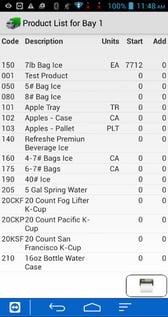
Note: Multi-Unit Items are indicated by their Unit Type in the Load Truck screen:
The Truck Status screen will always reflect the Base Unit quantity for the Multi-Unit items. In this example, when a Base Relation Unit is loaded (i.e., Case or Pallet), the quantities added to the truck will reflect product code ‘101’ Apple Trays.
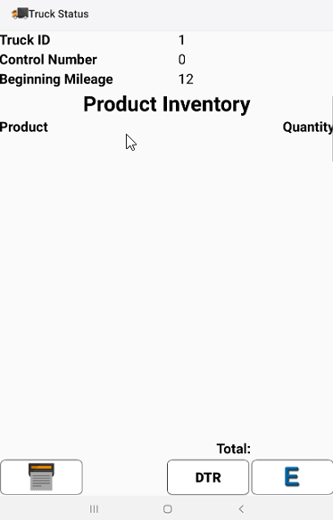
NOTE: If the option Load Reference Unit (discussed previously) is selected on any of the Base Relation Units, the description and quantity will be converted and displayed accordingly.
Unload Truck
The Unload Truck process is modified when dealing with Multi-Unit items. The driver can unload the truck using any of the Multi-Unit items.
For example, if there are ‘5’ Apple Cases coming off of the truck, the driver can enter product code ‘101’ for Apple Trays, and a quantity of ‘25’ (‘5’ trays per case) during the unload process. Alternatively, the driver can simply choose product code ‘102’ for Apple Cases, and enter a quantity of ‘5.’
Product Entry - Misc. Items
Adding Multi-Unit products to an invoice is done through the ‘Misc. Items’ option located on the Quick Entry screen.
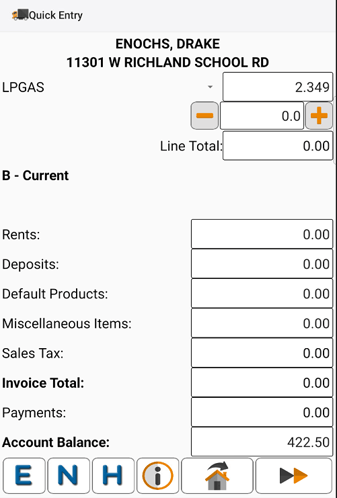
NOTE: You can add Multi-Unit items from the Default Product list of the Quick Entry screen, but you can only use the ‘Prompt for Units on Case Prices’ option from within the Misc. Items screen.
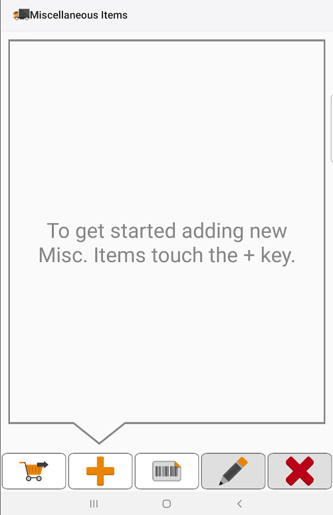
Tap on the Misc. Items option and choose the plus button on the screen.
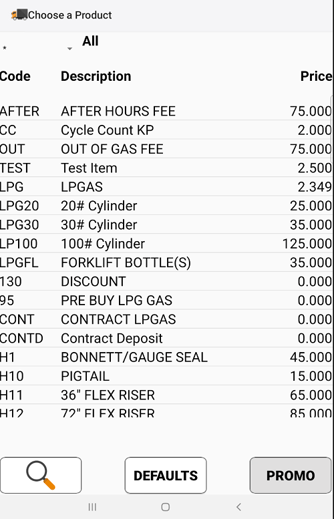
Touch the product unit type being sold to the customer.
If the option ‘Prompt for Units on Case Prices’ is selected within the current driver’s Handheld Class, you will be prompted for the unit type:
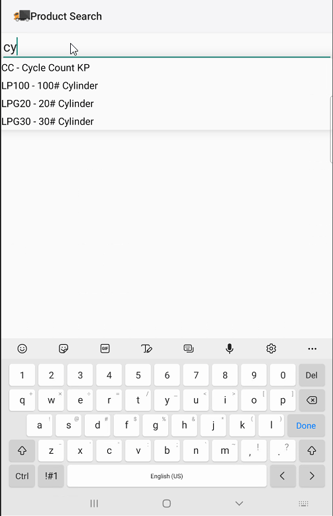
Make your selection and enter the quantity:
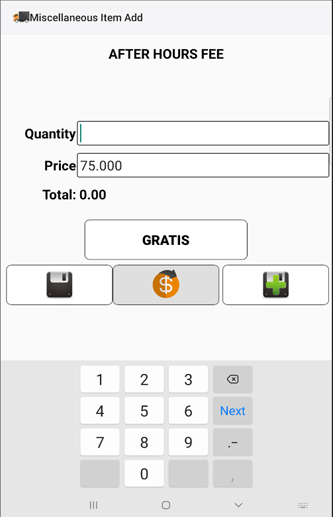
Complete the sale or repeat this step as needed.
Inventory
Inventory totals are only updated on Base Unit items. When a Base Relation Unit is sold (i.e., Apple Case or Pallet), inventory will be adjusted on the Base Unit only (Apple Tray). The quantity reduced from inventory on the Base Unit is determined by the ‘Base Qty’ field of each Base Relation Unit.
Summary
The Multi-Unit Pricing feature is a powerful addition to our pricing options in Route Manager. As new pricing methods are adopted within each business, we will continue to enhance our software to work for you. If you have any questions regarding this feature or its usage, please contact Advantage Route Systems.