Getting Started
RMA now gives the ability for the handheld device using Mango One Mobile to be able to connect to multiple meters at a time. The following documents gives guidance on how this can be setup.
Multi Fuel ETI
RMA Setup:
Go to Lists> Routes> Handheld Class> Sales Rules 2
Under the Propane Meter Reading section there is the Direct Meter Transfer Type option.
At the bottom of that section there is a new option called “Second Direct Meter Transfer Type” which allows the user to select the meter type.
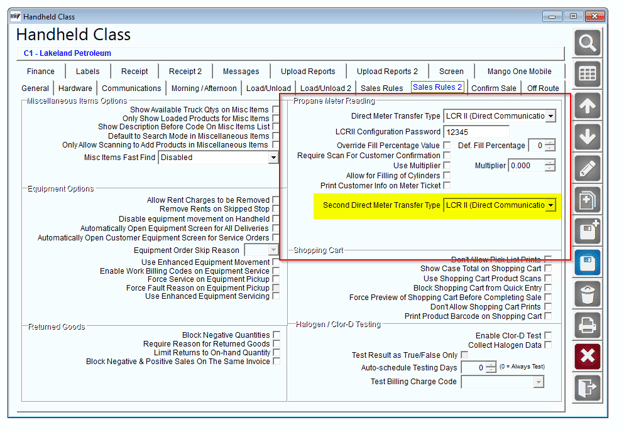
Select the types of meters that will be connected on MOM.
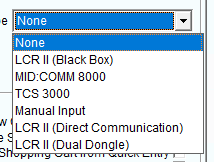
Save the changes and download a route on MOM.
Mango One Mobile Setup:
MOM is now able to connect to two ETI meters at the same time.
Download a route and get through the Start my Day process.
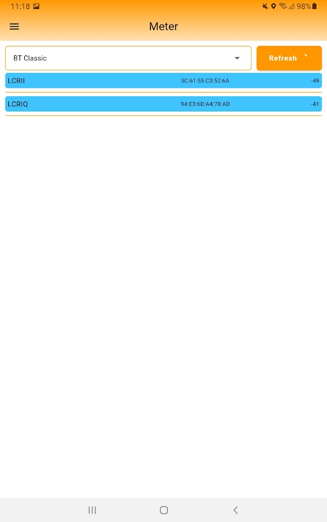
Go to Hardware Connections>Meter
Select the connection type and select the first meter.
Connect and save the meter.
Go back to Hardware Connections>Meter
The first meter should be highlighted in blue.
Select the second meter
Connect and save.
Go back in to Hardware Connections>Meter
Both meters should now appear highlighted in blue.
Go to a stop on the route and select a metered product.
Click “Connect to Meter”
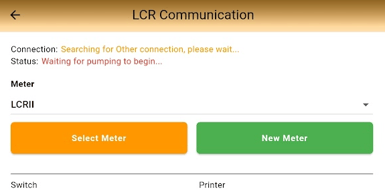
The LCR Communications screen now contains a drop-down menu that lists the established connections:
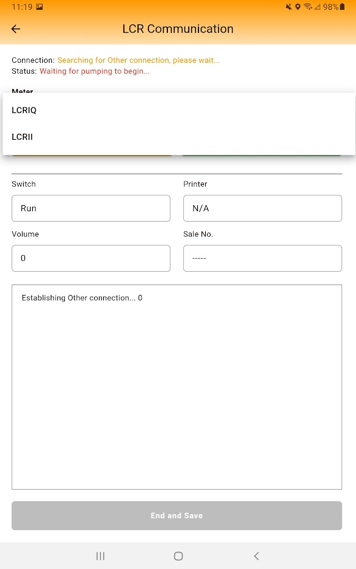
Select the correct meter and click “Select Meter”
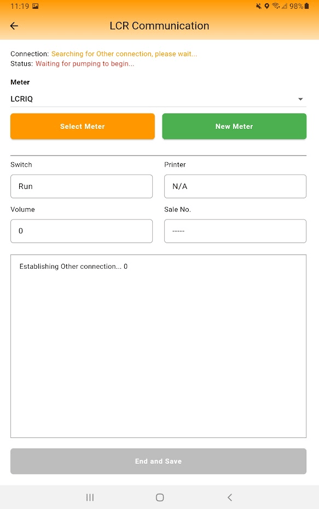
The meter name label should be on the header of the screen. Begin pumping.
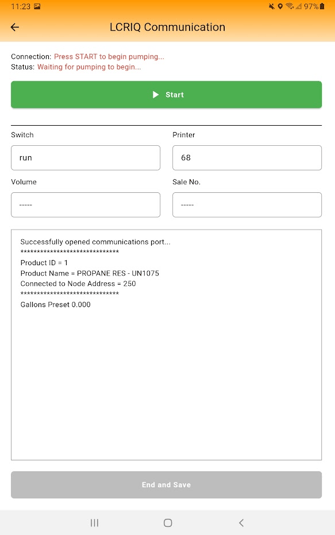
Only one metered transaction is allowed per invoice.
If you enter a stop with a metered product and the correct meter is not listed among the established connections, click “New Meter” to go to the Meter connections screen.
Find and save the connection to the correct meter, then begin pumping.