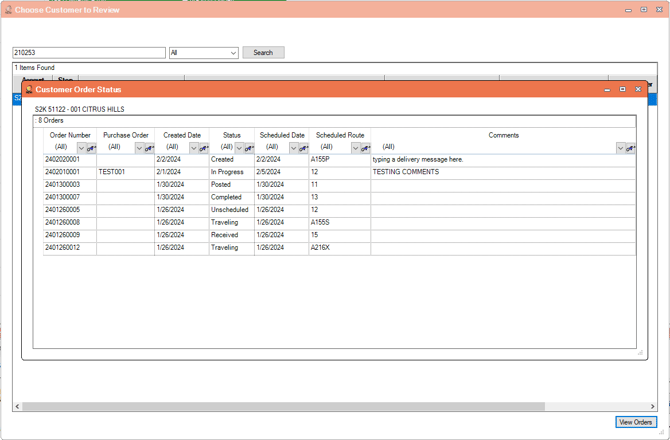
The Order Status Tracking function on MDM allows the tracking of service orders as they move through the various stages from creation to posting. This function was primarily created to work with the Multi-Day Functionality for Service Orders. Each Status created, equates to an action performed on the order. The service order and the status is written to rmrdgordertracking.
10 -Created - New order is created.
20 - Assigned - Order is assigned to a new route/date.
30 - Unscheduled - Order is moved to unscheduled.
40 - Received - Order is received by the hh, either download or RM Live.
50 - Traveling - Set when a travel code is started on the hh (work time billing).
60 - Work Started - Set when a non-travel code is started on the hh (work time billing).
65 - Order In Progress.
70 - Completed - The order is completed on the hh.
80 - Uploaded - The completed order is received on the desktop.
90 - Posted - The invoice from the order is posted.
Setup - Allowing Multi-Day Service Orders
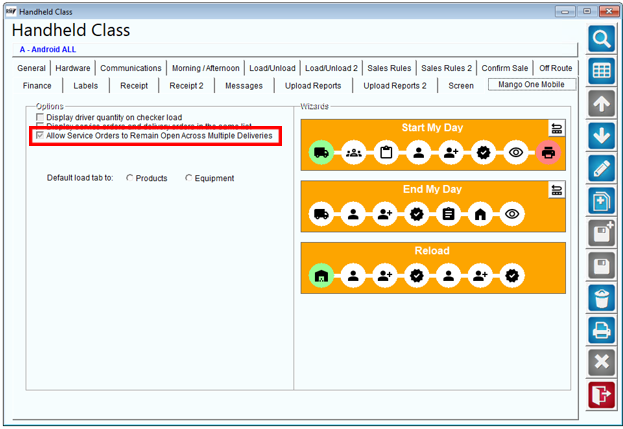
On Handheld Class > Mango One Mobile, allow the function 'Allow Service Orders to remain open across Multiple Deliveries'.
This function will allow processing of one Service Order but allow the order to be moved to different routes and dates.
Daily Processing - Mango One Mobile
- Create service order on MDM.
- If the service order is created on MDM and accepted on Mango One Mobile, this order, when selected, will open directly to the service order details screen.
2. Select the equipment to be serviced and enter the service details:
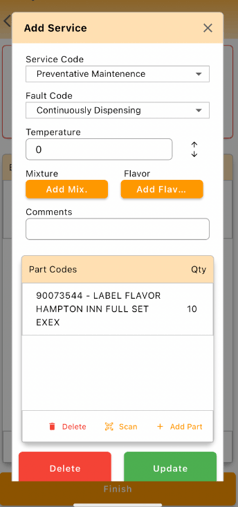
3. Select Update on this screen to save the service details.
4. Select Finish, to exit the service window.
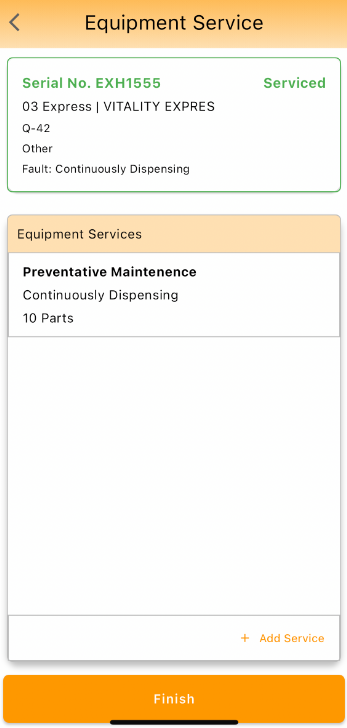
5. To move this order to a new Route/Date, select the Save and Hold button:
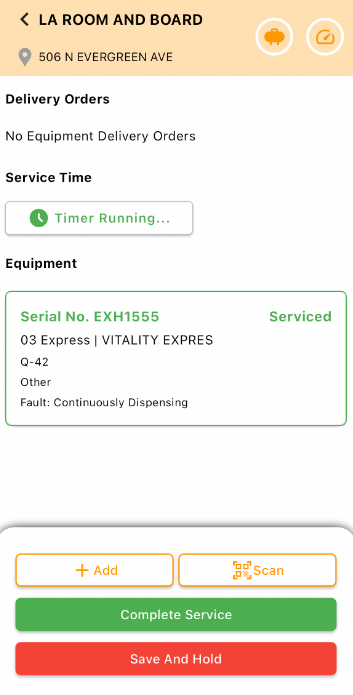
6. A prompt will be shown on the screen to select the new route and new date to move this order to:
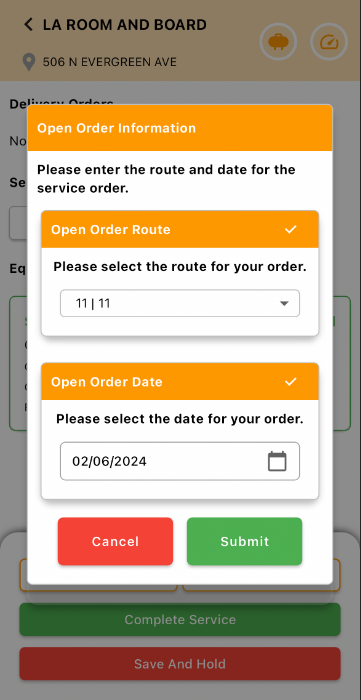
7. Once options are entered, select Submit.
8. Select Checkout and complete transactions.
Three things happen here:
- Service order remains open on Mango One Mobile
- If the customer is invoices for parts or work time, the invoice will be seen on MDM on the current route and date.
- The service order on MDM is moved to the new route/date as entered on Mango One Mobile, and remains open.
When each of the steps above have been completed the status can be seen on RMA: go to MDM > Tools > Order Status Lookup.
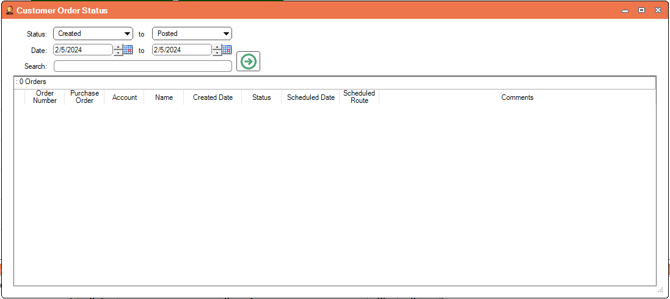
Fields:
Status: This allows the selecting of a status. A 'To' status is also required.
Date: Select the date of the order. This will be the scheduled date of the order.
Search: Enter the customer ID or the Ticket number
Selecting the Green arrow will give the results of the query.
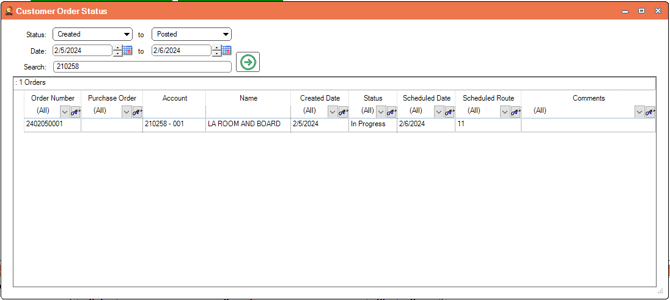
Fields:
Order Number: This gives the order number of the transaction.
Purchase Order: If a PO number was entered on the delivery/service order.
Account: The Customer ID and stop.
Name: The Customer Name.
Created Date: The created date of the order.
Status: The current status of the order (refer to the top of this article for details on the available statuses).
Scheduled Date: The date the order is scheduled.
Scheduled Route: The scheduled route for the order.
Comments: Delivery message entered on the order.
Alternatively, the option: MDM > Tools > Customer Order Status can be used to see all the orders for a given customer and their status. Select the customer account and select View Orders:
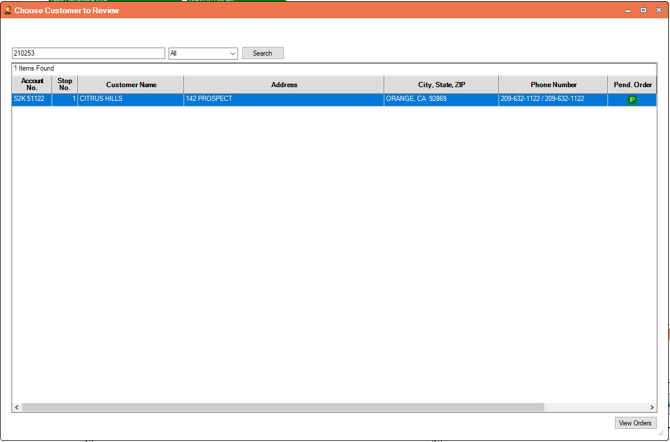
All existing orders for the selected customer will be displayed: