
In this Appendix, we will explore the integration of surveys into the handheld process, guiding users on accessing, completing, and reviewing survey results seamlessly within their customer service routine.
How to access your surveyOnce you have selected a customer to service, you will service them as usual. When you get to your Shopping Cart screen, you will select your survey button.
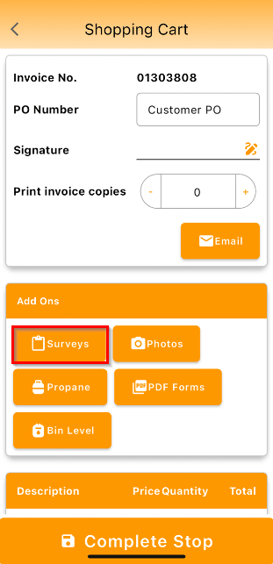
Any surveys assigned to this route, handheld class, or customer type will appear in the screen below.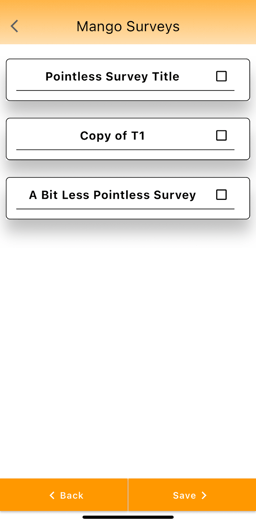
After you have selected a survey, you will need to fill it out. There will be questions where you might leave a comment, rating a service, or potentially leave a signature. These can all be configured in RMA- Mango Surveys.
Here is an example of the survey:
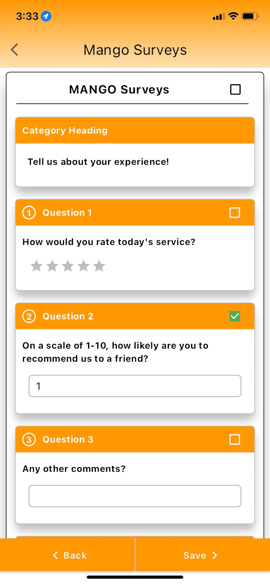
Once you have completed the survey, select “Save” to continue.
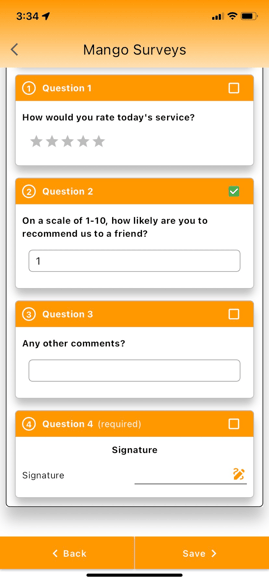
Note: You must fill out every survey form that is available.
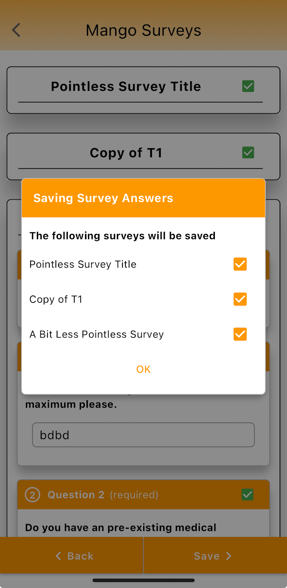
After you have completed all of the surveys, select “Save”. Then, select “OK” on the “Saving Survey Answers” prompt.
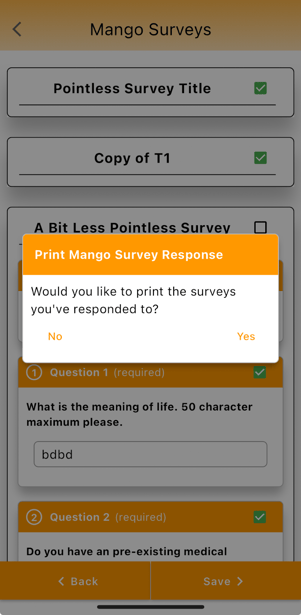
Select “Yes” or “No” to print the Survey's Response.
When your survey is complete you will complete the rest of your route, when you upload all of your survey information will go to the Route info tab of your customers.
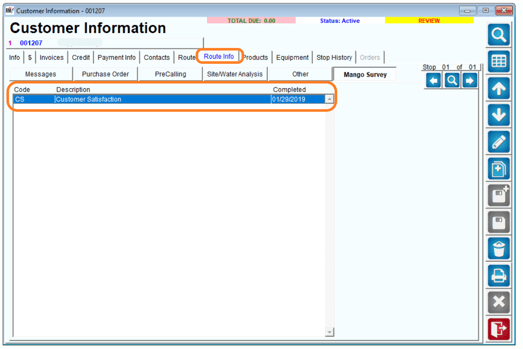
If you double click on the uploaded survey, you can view your survey results.