
This article will go over the process to create a Mango Survey template within RMA.
ProcessAdding a New Survey
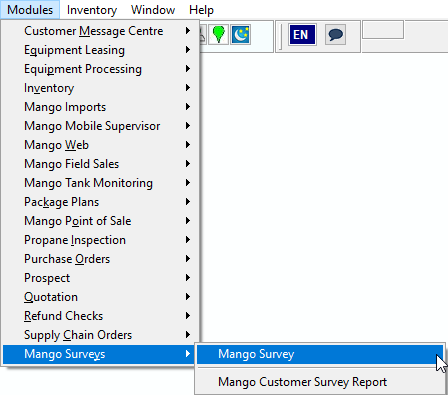
Navigate to Modules> Mango Surveys> Mango Survey.
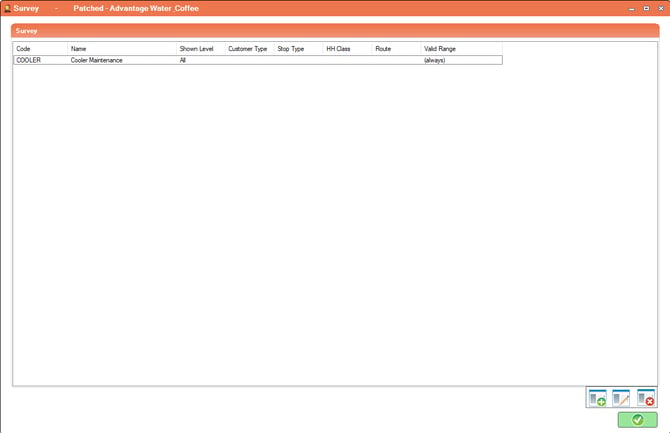
The following window will appear with any current Surveys you have created.
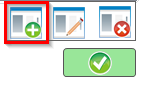
Select the Paper with the green plus sign to add a new survey.
A default template will then appear with a Header to start your Survey.
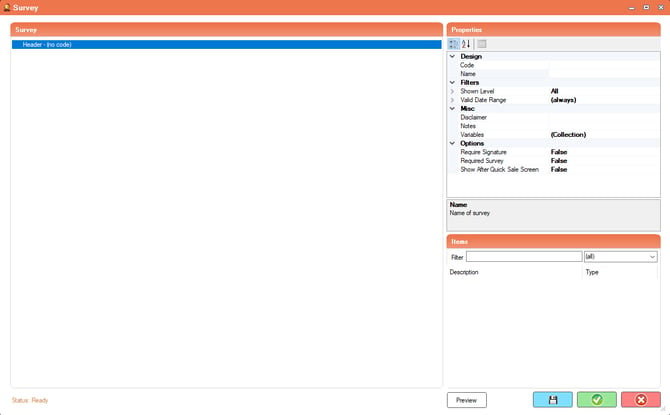
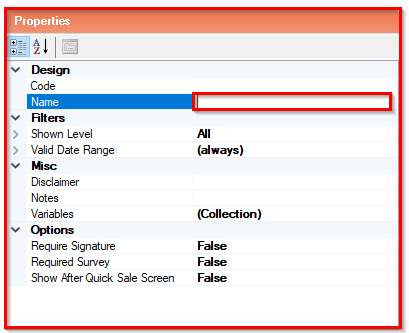
Highlight the line you wish to edit and you will notice a Properties section to the right of your window.
This is where you will edit the selected lines information.
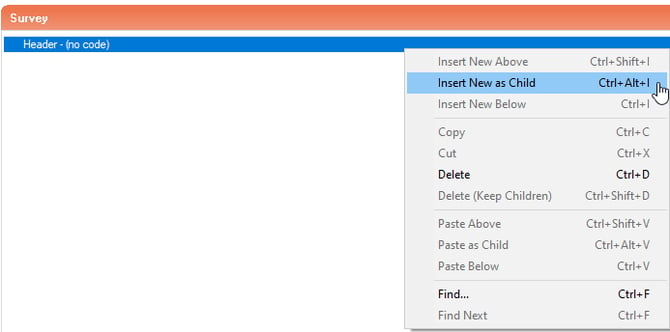
To start the first questionnaire section, you will right click on the header and select "Insert New as Child".
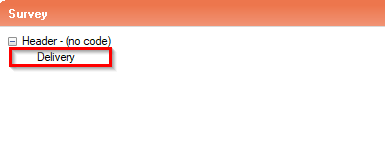
This will create a sub section below the header.
In the example, I have set this line to Item Type: Category Header. This will be the title of my first section of questions.
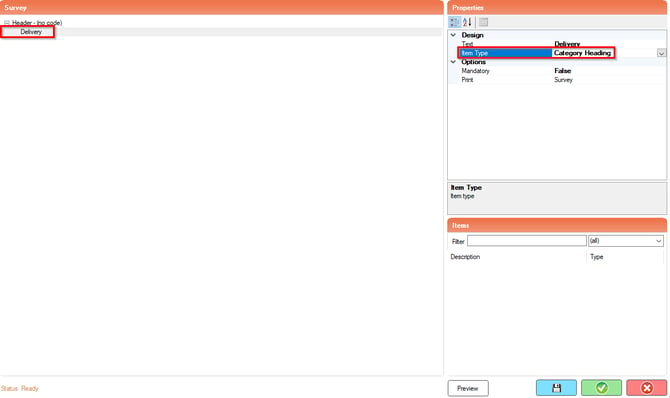
Right click on the line and select "Insert New as Child".
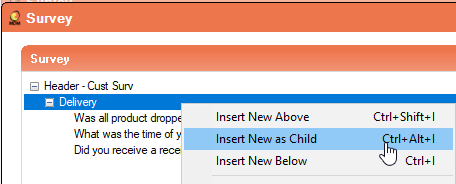
This will create the next section for your "Delivery" questions.
Input a question and then use the Properties section to setup how you want the question to display under the Item Type field.
Once all questions are created for this section, you will then want to highlight the header of that section and click "Insert New Below".
This will create a new section below the last question.

Continue through this process until all sections and questions are filled out.
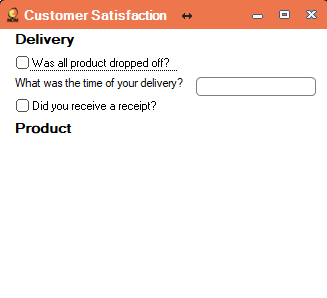
When you have finished creating your survey, you can use the Preview button to view how your survey will appear on the handhelds.
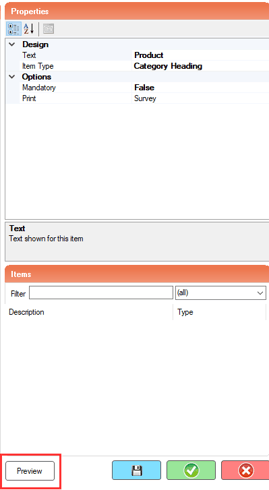
The window will display like below:
If you need to delete any lines, just highlight the line, right click and select delete.
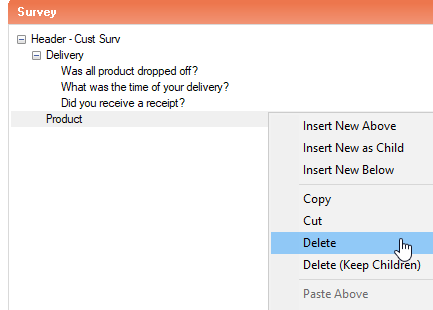
Follow the prompt to remove the line.
To finalize your survey you will select the green check mark at the bottom of the screen.
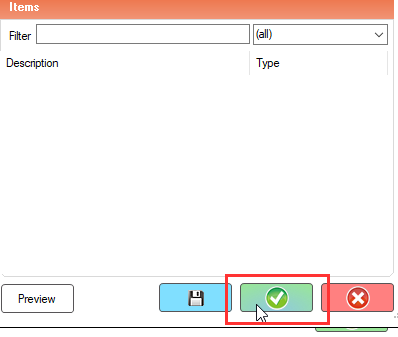
This will then save your Survey to the templates window.

Adding Pictures to Surveys
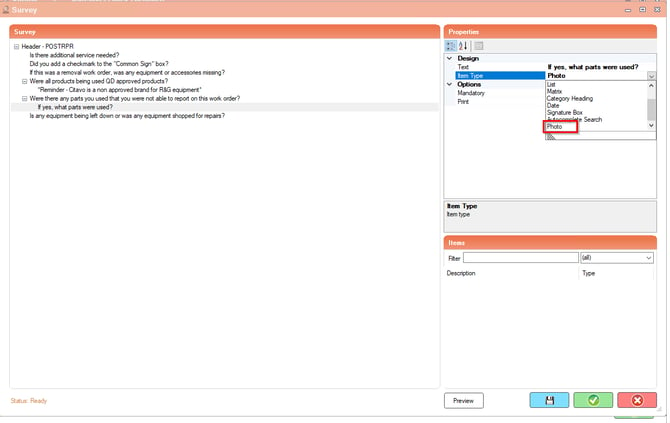
When creating your survey, you have various options for configuring how each question will appear. To add a question that requires a photo as an answer, follow these steps:
- Select the question you want to configure.
- On the right side of the Mango Surveys screen, locate the design configuration section labeled "Item Type."
- Click the dropdown menu under "Item Type" to choose the desired answer format.
- Select "Photo" as the response type.
- Save your changes to apply this configuration.
Now, your survey question will prompt respondents to answer by uploading a photo.
If you would like more information on how this works on the handheld, please visit this Knowledgebase Article: