

Overview
Any users needing access to the Mango POS system will need to have an employee account created in RMA and setup for a Mango POS login. This article will go over the standard process you will need to use for the POS login setup.
Keep in mind, V8 Mango POS usage is determined based on licensing. Whoever signs into the POS system will use up a license. It will also use up a license if you are logging into two or more different browsers even if you are using the same user credentials.
i.e. If you log into POS on your computer and then log into POS on the POS system with the same user credentials you used on your computer, it will use up 2 licenses.
Once the licenses have reached their limit for the day, any additional users will be blocked from entering the system unless more licenses are purchased or you wait until the following day when the licenses refresh at 12:01 AM.
SetupThe setup for Mango POS users can be done within RMA by any users that have access to the Employee setup screen.
- Go to Lists>Employees>Employee Setup.
- Select the Employee account you would like to setup POS for.
- If the Employee does not currently have an RMA account, you will need to create one.
- Select the Internet tab.
- Create the Log In credentials for the employee under the "Web Applications Login" page:
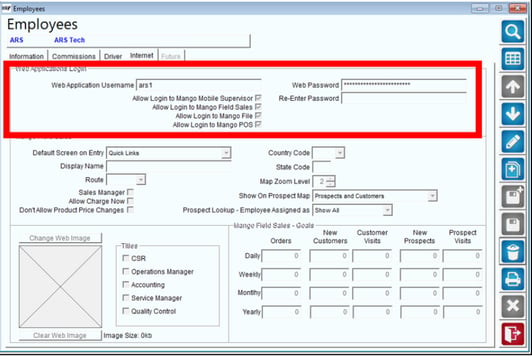
- Username has a maximum character limit of 20. The password has a minimum character limit of 3 and maximum character limit of 200.
- Checkmark the "Allow login to Mango POS" option.
- Save the changes to the employee account.
- Once saved, have the employee go to the POS website on the workstation they plan to use to test out the login.
- If any issues occur after creating the user and you need further assistance, please contact support at Support@advantagers.com
Additional Information
If the user is attempting to use POS on a new device, they may be prompted with the following POP Up message: