
 Mango Backup!™ is the latest software technology developed by Advantage Route Systems. It gives you a safe and secure way of storing your Route Manager™ data on a remote server so if anything ever happens to your live data, you can quickly, easily, and completely restore your data for immediate use. You can download the data to a new computer or take advantage of our direct Web access, which allows you to run your company from our servers in California over the Web. It is designed to be easy to use and is affordable. No company should be without it! Sleep better at night knowing your data is secure with ARS.
Manual
Here is the link to the Mango Backup Manual. Last updated on December 12, 2023:
How it works
Once the software has been installed, you will enter the directories that Mango Backup will automatically backup each day. Then you need to schedule a time to backup the software: daily, weekly, or any combination you see fit. The data will be transferred and stored on one of the Mango Backup Server according to your schedule.
What you will need
In order to run the Mango Backup! software, you will need a computer with your RMA Data running Windows Server 7-10 and high speed internet access. You can also run Mango Backup with Mango Cloud™ hosting.
Installing the Software
Locate the download link provide by Advantage Route Systems to download the file. Double-click on the downloaded file to begin installation. This will bring up a screen similar to the following:
Download Link: MangoBackup_v500_3045.exe
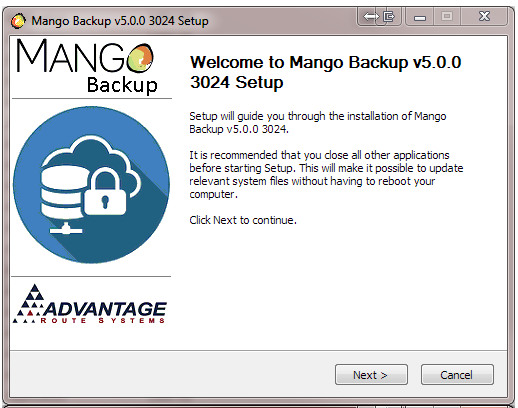
Select NEXT to continue. The license agreement screen will follow.
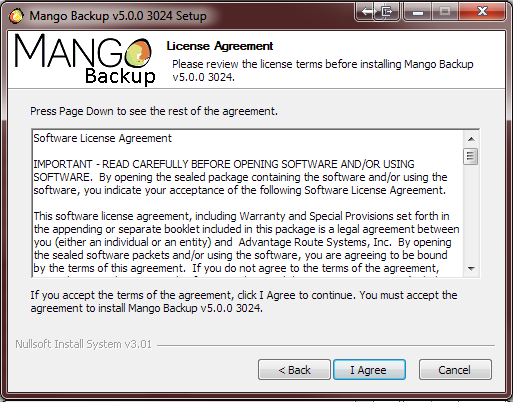
Carefully read the license agreement. If you agree to the terms outlined, select I Agree to continue.
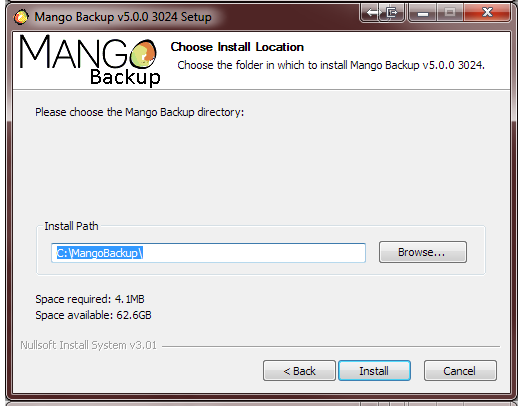
Now, click NEXT to install to the recommended folder c:\MangoBackup, (unless you have a conflict with other software.)
To install Mango Backup! into a different directory, click BROWSE and then select another directory, DO NOT put a space in the nameof the directory as this can cause an error.
After clicking NEXT, the setup program will proceed to copy files, decompress data, and install the Mango Backup. software package. To quit the installation at any time, click CANCEL on the progress bar.
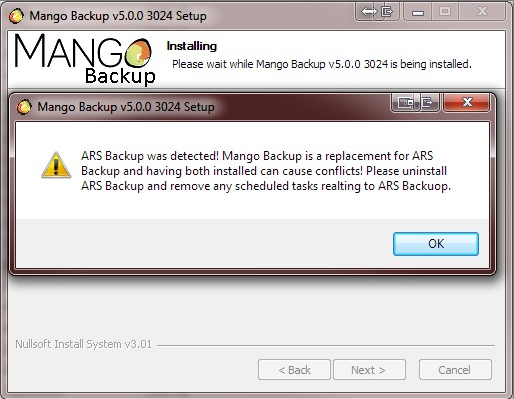
If you already have ARSBackup you will receive the prompt below when installing Mango Backup:
When the installation is complete, you will see the screen below. Read the information on the screen and then click FINISH.
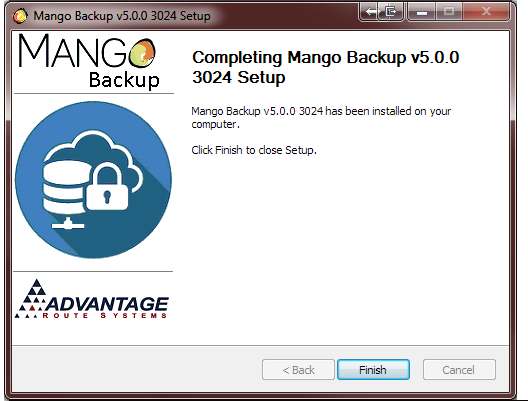
The installation of Mango Backup! is now complete.
The setup program will also create a program group under the start menu in Windows.
Settings Tab
The Settings tab allows you to fill in the username and password, you will also enter an IP address and port number for our remote-server. All of this information will be sent to you after signing up for the service.
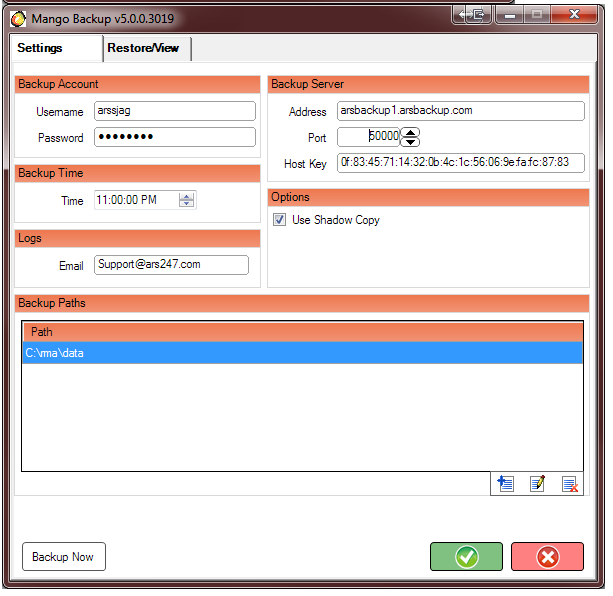
The information below will explain the fields on this screen:
Creating a Backup
Enter the provided user information, email, and backup location; this information is used to verify the account information when backups are sent to the ARS servers. The information should be similar to the screen below:
Note: The user name assigned will generally be the company CI CODE.
The Backup Path should be set to the ‘DATA’ folder within your RM directory. Additional folders can also be chosen for Route Manager supporting files (Handheld Photos, QuickBooks Integration, EF2000 Documents, etc).
NOTE: The Backup Path can only be set to folders; files cannot be set in the backup directory. Any files you want to set in the directory to Mango Backup! must be in a folder. We recommend creating a folder for specific files you wish to back up if they are not already in a folder.
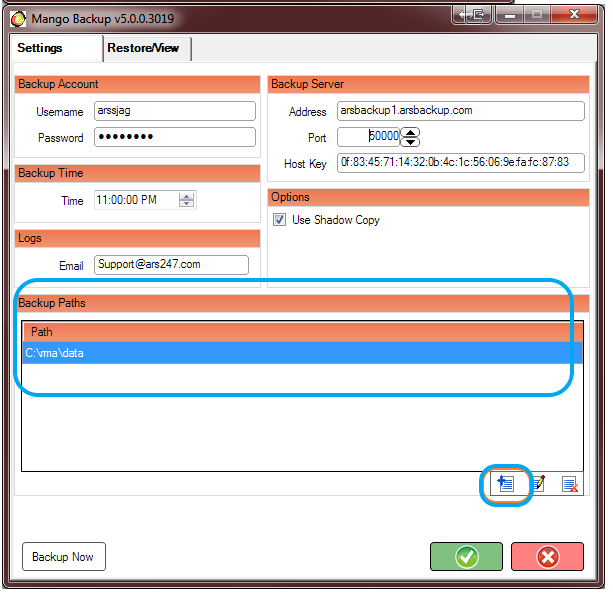
In the example below, you will first select the Add button and then you can choose the directory you would like to backup. Repeat this process for each directory (up to 10).
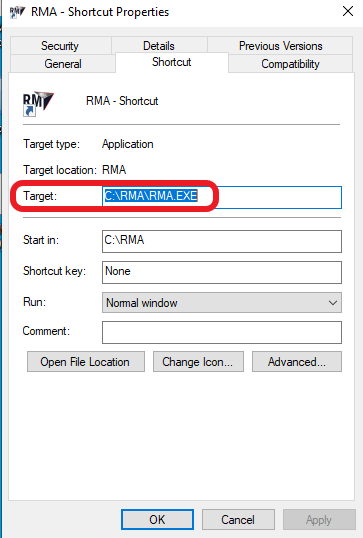
NOTE: A simple method for locating your RM directory is to right-click on your Desktop RM shortcut then select Properties > Shortcut. The target location will display your RM directory.
If Using Mango File:
Open up file explorer and select the drive that RMA is installed on.
Search the Drive for the "ScanFiles" folder.
Once found, view your target path listed below the file name:
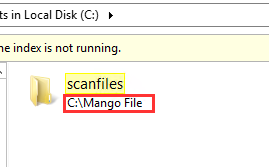
Input this target path into the MangoBackup "Backup Paths" section with the \scanfiles input at the end of the path.
- Example: C:\MangoFile\Scanfiles.
Open up file explorer and select the drive that Quickbooks is installed on.
Go to Users>Public>Public Documents>Intuit.
Select the Intuit folder and input that under the "Backup Paths" section.
- Example: C:\Users\Public|Public Documents\Intuit
Once complete, choose the green check mark icon to save the new settings.
To create a backup manually, choose the ‘Backup Now’ button. A screen similar to the one below will appear:
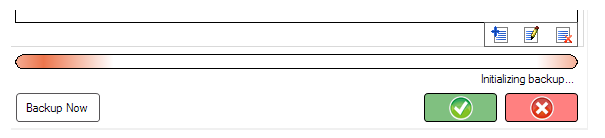
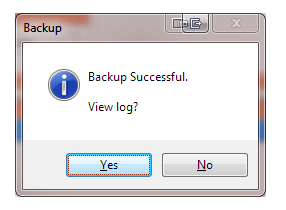
The progress will be displayed on the screen during the backup, once complete, the ‘Backup Successful!’ prompt will appear, select 'Yes' to view log or 'No" to move past this prompt
If you select 'Yes" you will see a log similar to below:
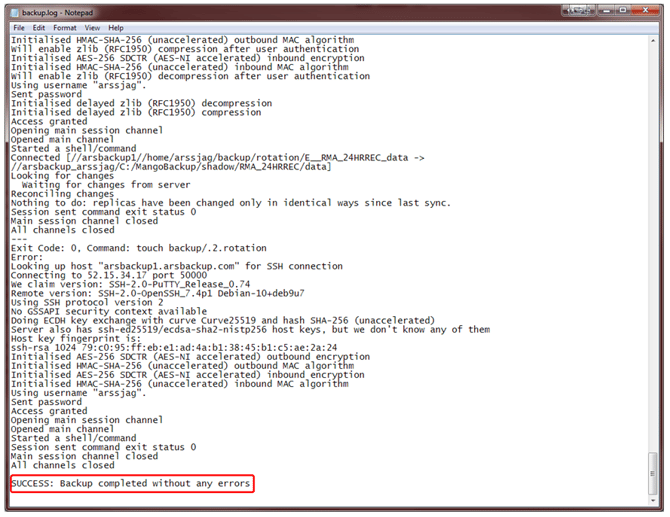
Note: You will see the below "Success' portion on your Mango Backup to indicated the result of your last attempt

The backup can be done at anytime, we recommend using Windows Task Scheduler to create backups during a time that users will be logged out of the system.
After your first backup, you will notice that the data will not take as long to transfer; this is because the system will only pull files that have been updated since the last backup, this is helpful in speeding up the process.
Note: Mango Backup! will allow you to restore from your last 7 backups, deleting the oldest to accommodate the data in the rotation. These rotations will be notated as: rotation.1, rotation.2, etc..
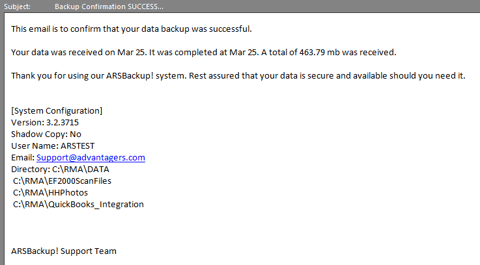
An email confirmation will be sent to the email address entered on the ‘Settings’ tab after a backup is received or if it is unsuccessful.
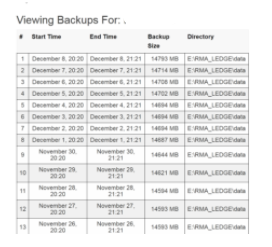
Backup information can also be viewed on www.ars247.com under ‘ARSBackup within your account. This information is display only, see below:
Restore Tab and Restoring Data with Mango Backup!
WARNING: Restoring data without first consulting with ARS Technical Support is not recommended.
The restore tab allows you to choose a previously backed-up directory to be restored into RMA.
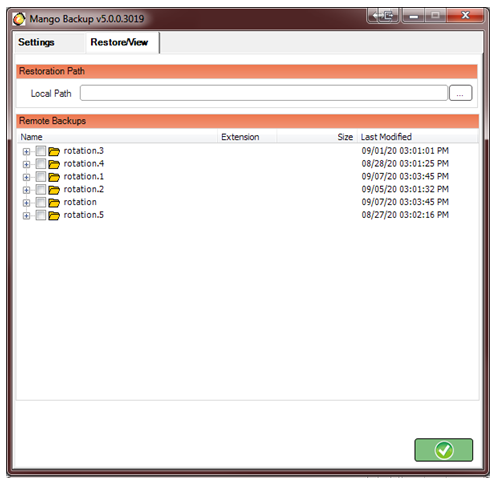
Choose the ‘Get Directory’ option to view the backup information stored on our remote server. The backup information displayed can be restored by selecting the data and choosing the ‘Restore’ button in the same section.
Below, a ‘DATA’ folder has been selected; we recommend restoring data to a temporary directory prior to overwriting your existing data. In the example below, we will restore to a temporary ‘Backups’ directory created on the local computer.
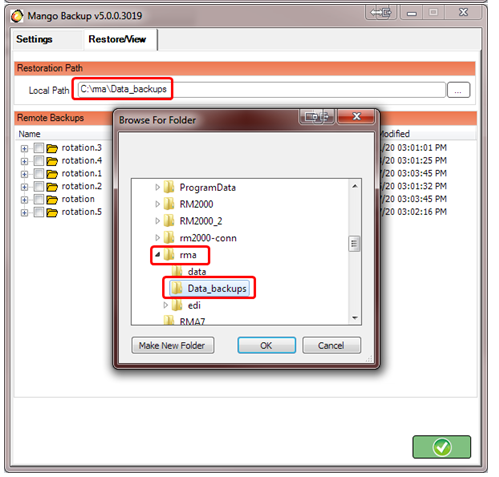
Note: When a directory is selected, the date and time it was created shows up on this screen.
Choose the ‘Restore’ button to download the data to your local computer. A screen similar to the following will be displayed:
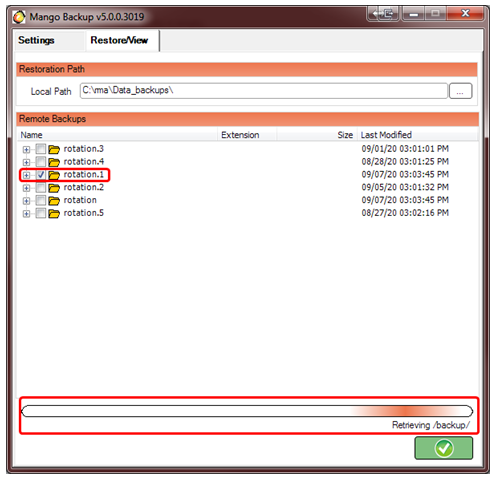
The information will download to the directory specified. Once complete, the following screen will be displayed:
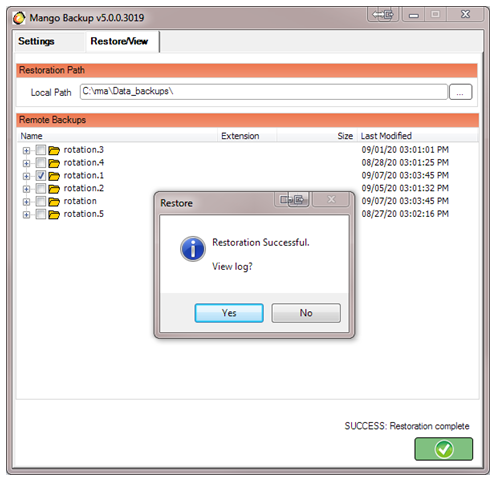
Click ‘OK’, your data is now available on the local machine.
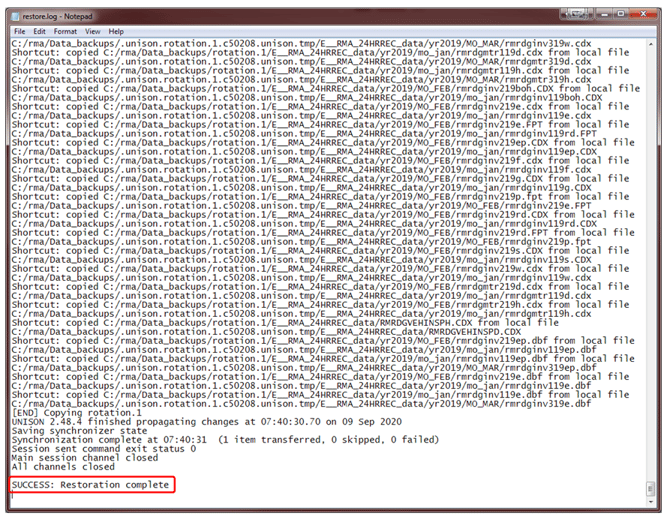
The progress will be displayed on the screen during the restoration, once complete, the ‘Restoration Successful!’ prompt will appear, select 'Yes' to view log or 'No" to move past this prompt
Example Log:
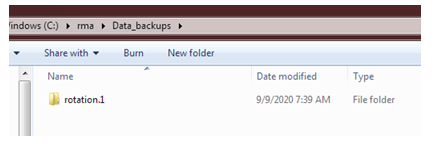
Browse to the ‘Restore’ directory chosen, in the above example we used C:\RMA\data_backups:
Select the _Backup_Date.TXT to view the date for your restoration
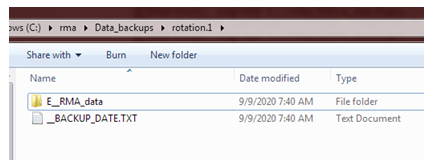 To view the date select the TXT file, and the date will be displayed: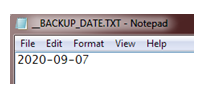
Example Files in the RM Data folder
Mango Backup will back up data from within the folders specified in the directories established. It may be helpful to remove certain files from this directory that are not needed in the backup. The following section details the files that are excluded and included in a backup.
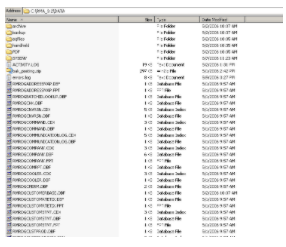
The folders will contain information that may not necessarily need to be backed up. To save space and speed up the data backup process, we have excluded the following folders and files from the backup list (this list is subject to change):
|
Folders Names |
Files Types |
| HANDHELD | *bak |
| ARCHIEVE | *tmp |
| BACKUP | *.log |
| MAPPING | .*.iso |
| EQ FILES | *.mdb |
| *.doc | |
| SYSENV | *.xls |
| *.exe |
FAQ
Q - If I originally had ARSBackup installed, can I restore my backup with MangoBackup?
A - Yes. However, ARSBackup data will be completely rotated out after 7 successful backups with MangoBackup.
Q – Do I need to keep my ARSBackup program or can I remove it.
A - ARSBackup needs to be removed to prevent conflicts with MangoBackup.
Q - Why do I need to backup my data?
A - Backing up files can protect against accidental loss of user data, database corruption, hardware failures, and even natural disasters. It is your job as an administrator to make sure that backups are performed regularly, kept in a secure location, and are routinely checked to ensure they are valid and functional. With the popularity of Ransom style viruses, a good backup is imperative. Trying to retrieve your data from a Ransom attacker may cost tens of thousands of dollars, and is not guaranteed.
Q - How does it work?
A - Once Mango Backup! is installed on the same computer as Route Manager, and the schedule is setup, it will automatically backup all Route Manager data changes to our secure offsite server. Also, we rotate through the last 7 backups. So in the event your system was compromised and backed up prior to you recognizing it, we have 6 other backups to refer to. To minimize bandwidth, and maximize efficiency, only files that "changed" are updated each day.
Q - Where is my data stored?
A - Your data is stored on our secure offsite servers daily. Additionally, an e-mail will be transmitted to you each time your data is successfully backed up to our servers or if there was an issue and it did not complete the backup.
Q - What operating systems is it compatible with?
A - Mango Backup version 3025 and later is compatible with Windows Severs 7 and higher, both in the 32bit and 64bit versions.