
Introduction
To track changes made by users in Route Manager you can turn on the options under Log Report (Reports > Communication Reports > Log Report). Some users may want to check this report to see which employee made a change to a certain account, deleted an invoice, changed pricing for a customer, edited an email on an account, or various other information.
The amount of information logged can be adjusted under Branch Setup, on the Logging tab. In order for this report to work, you MUST check the box for "Log Customer Changes".
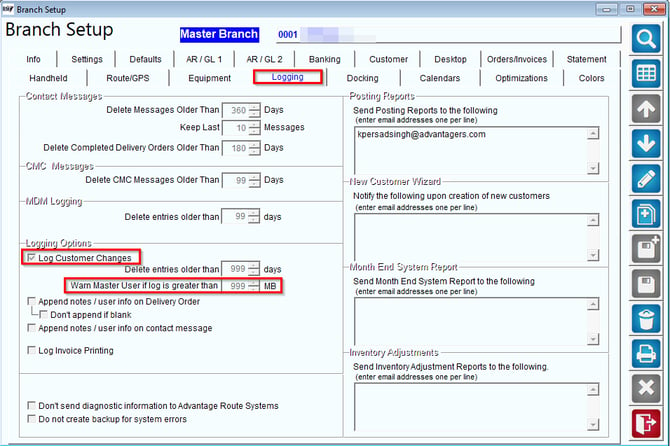
Log Customer Changes: Select this option to activate the Route Manager logging feature. This feature will record certain changes made to each customer’s account, and the employee making the changes.
NOTE: The Log Report can be generated under Transactions > Reports > Communication Reports > Log Report.
Delete Entries Older Than () Days: Enter the maximum number of days to retain logged activity.
Warn Master User if log is greater than () MB: Enter the file size (in megabytes) that should be reached prior to informing a ‘Master User’ that the log file may need to be edited.
Append notes / User Info on Telephone: Select this option to disable the ability to edit a previous Delivery Message or Invoice Message on a saved Delivery Order. The user editing the order will be forced to add a new message if necessary, and both will be displayed on the Delivery Order.
Do not append if blank: Select this option to allow users to edit the original message field only if the field was left blank on the Delivery Order.
Append notes / User Info on Contact: Select this option to disable the ability to edit a previous message entered on a saved Contact Message. The user will be forced to enter a new message if necessary, and both will be displayed on the Contact Message.
Log Invoice Printing: Select this option to log Invoice printing, this will record all previewed/printed invoices in the log report when checked.
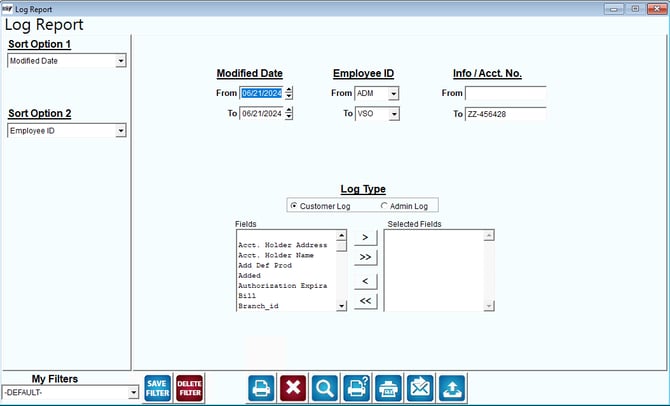
The Log Report can be found under Reports > Communication Reports > Log Report.
Fields:
Sort Option 1 & 2:The primary and secondary fields to sort by. You can choose from the following categories:
- Modified Date
- Employee ID
Equipment ID:
Date Range: Input the range of dates the record(s) shown on this report were modified.
Percentage Used:
Employee ID: Select the range of employee ID numbers you want included on the report.
Acct: Select the range of Account numbers you want included on the report.
Cust Type: The range of Customer Types to include in the report.
Equipment Style: The range of Equipment Style to include in the report.
Zip Code: The range of Zip Codes to include in the report.
Route: The range of Routes to include in the report.
Group Area: The range of Group Area to include in the report.
Product Class: The range of Customer Types to include in the report.
Charge Code: The range of Charge Codes to include in the report.
Fields: The list of available fields to include on the report.
Selected Fields: This list shows the fields you have chosen to include on the report.
 Click this button to move the selected field from Fields to Selected Fields.
 Click this button to move all of the fields in Fields to Selected Fields.
 Click this button to move the selected field from Selected Fields to Fields.
 Click this button to move all of the fields in Selected Fields to Fields.