Introduction
This article will go over how to connect your local printers to your RDP connection.
Setup
On your local desktop select the Start button at the bottom left of your screen.

Left click and type in Remote Desktop Connection. You should then see the following Icon:
Select this Icon to open up your RDP screen.
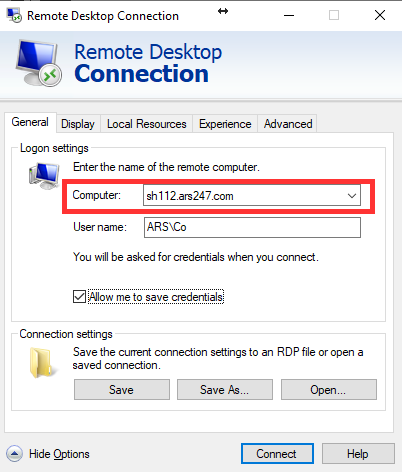
On this screen you will need to enter your server address in the "Computer" section:
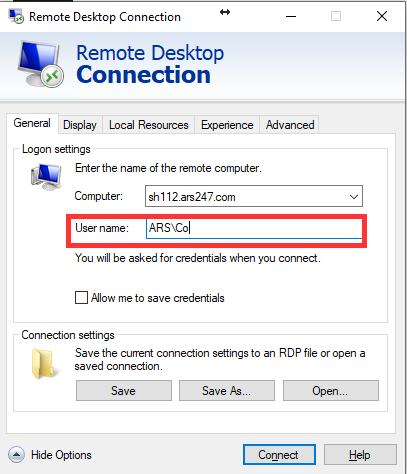
Enter in your username.
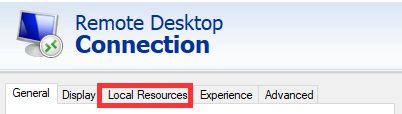
Select the "Local Resources" tab.
Under the "Local devices and resources" section, you will want to make sure that the "Printers" option is selected.
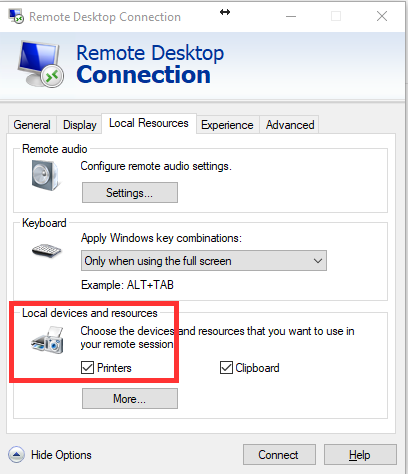
Once that has been selected, go back to the "General" tab and select "Connect".
This will then prompt you to input your password and connect up to the RDP connection.
Once connected, select the Start button again within your RDP connection and type in "Printers and Devices".
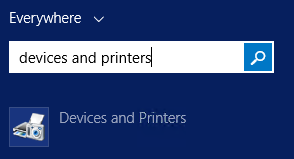
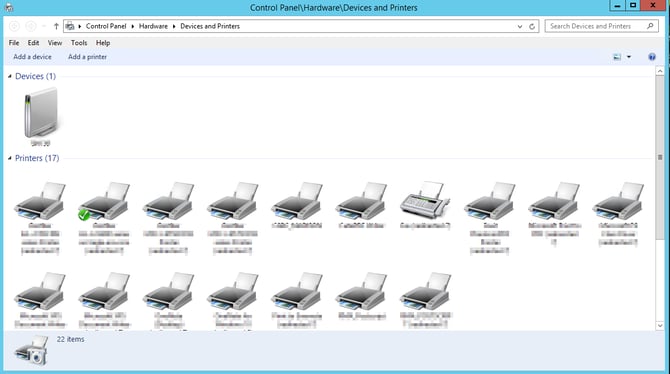
The following window will show you all of your printers that have been connected to the server.