
This article will guide you through the process of Loading Equipment onto pallets in Mango One Mobile. This is used with a barcode scanning feature.
Setup
Warehouse User
On the main screen of MOM, navigate to the Hamburger Menu > Stock & Inventory > Make Pallet.
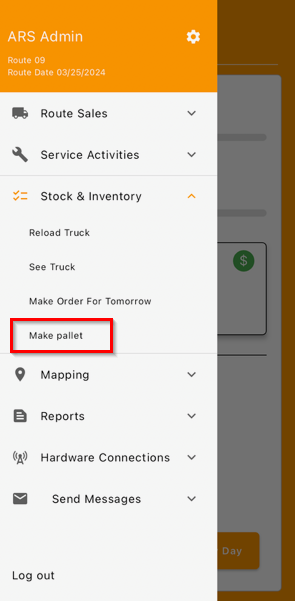
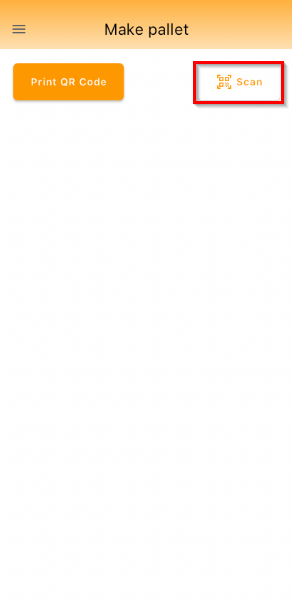
Then, select "Scan" on the Make Pallet screen.
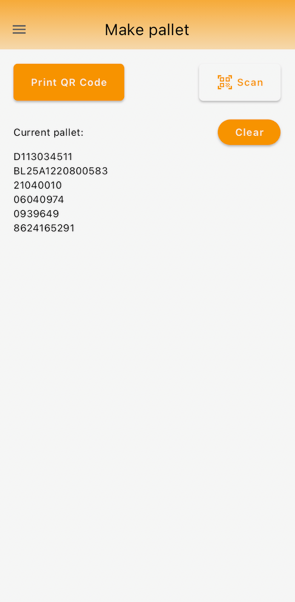
Scan all of the pieces of equipment that will be loaded onto the pallet, then click “Print QR Code”.
Note: The equipment serial numbers must already be in RMA database in the warehouse – they can’t be installed or on truck.
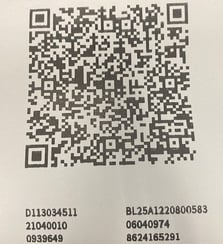
Here is an example of the barcode:
Note: This is the end for warehouse user.
Driver User
After downloading a route, navigate to the Equipment Tab in Start My Day when you are loading the truck.
Scan the QR code.
Note: The driver and checker can both scan equipment.
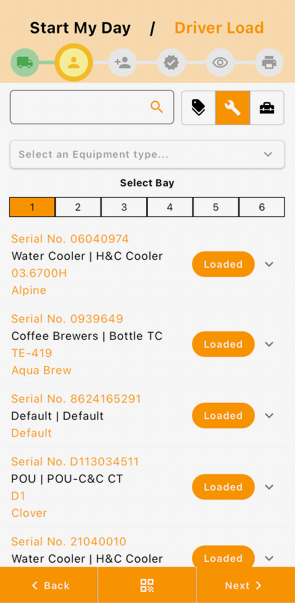
Verify the load and finish the Start my Day setup.
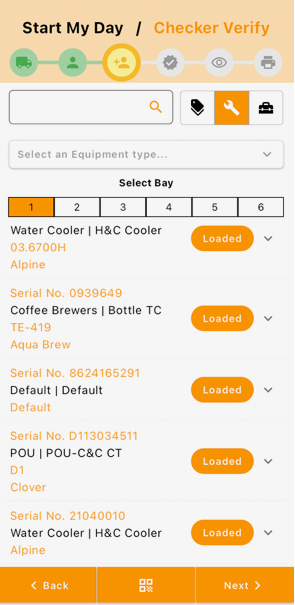
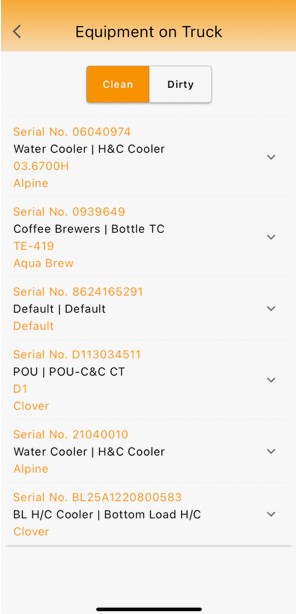
The equipment listed on the QR code is now loaded on the truck.
Summary
In conclusion, you will be able to load equipment onto pallets using a barcode scanning feature in MOM.