
In the fast-paced world of route management, managing equipment leases efficiently is crucial for maintaining smooth operations. Whether it's ensuring that the right equipment is in the right hands or making sure that all contracts are properly signed and documented, the process needs to be seamless and intuitive. This guide will take you through the step-by-step process of creating and managing equipment leases within Mango One Mobile, ensuring that your team can handle these tasks with ease and confidence.
Imagine a driver arriving at a customer location, ready to lease out critical equipment. The process must be straightforward—no time wasted on complicated procedures or unclear instructions. This article will walk you through how to efficiently set up and process equipment leases, ensuring every detail is captured accurately.
Setup
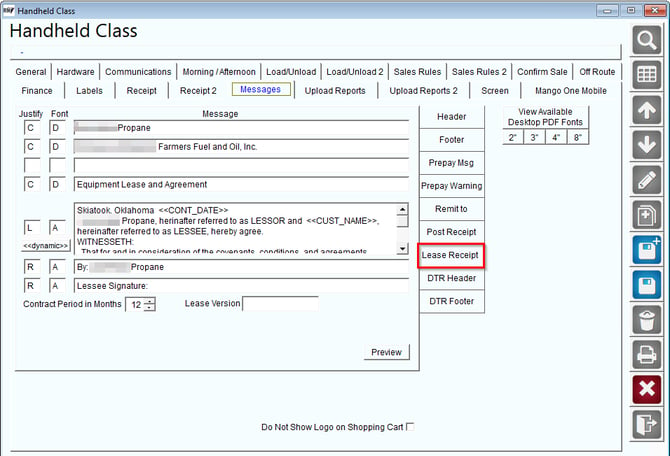
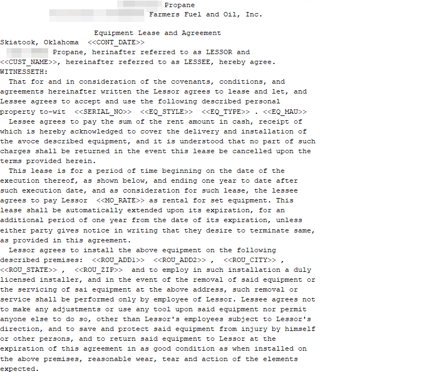
The Lease Agreement Receipt can be generated and printed directly from the handheld device. You can set up or modify this information in the Handheld Class screen.
To format the agreement to your needs:
1. Navigate to the Lease Receipt Option:
- Go to
Lists > Routes > Handheld Class > Messagestab. - Choose the Lease Receipt option.
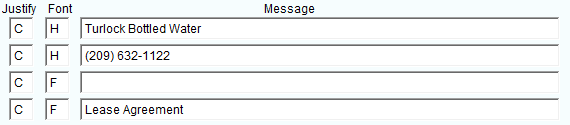
2. Enter the Header Message:
- Input the header message that you want to print on the lease agreement.
Note: For font examples, click the "View Available Desktop PDF Fonts" option on the right side of the Handheld Class screen, tailored to your printer size.
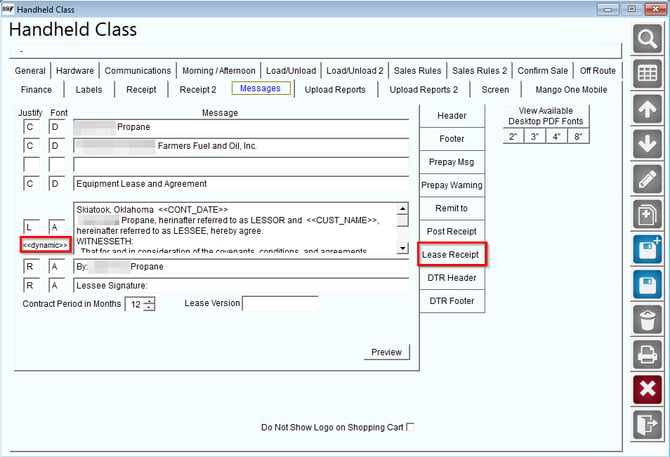
3. Enter the Body Text:
- Input the text you want to appear in the body of the agreement.
- To add dynamic information, click the Dynamic button. This will display all available field options, which you can double-click to insert into the Lease Agreement.
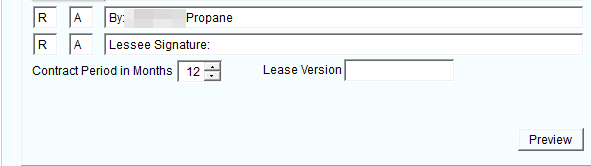
4. Enter the Footer Message:
- Input the footer message for the lease agreement.
- You can also specify a Lease Version to indicate the year or reference number for the current agreements.
5. Preview and Save:
- After completing the setup, click the Preview button to view an example of the lease agreement.
- Once satisfied with the format, choose Save.
Repeat these steps for each Handheld Class that will use lease agreements on the handheld device.
ProcessOn Mango One Mobile, you can access the lease agreement by following these steps.
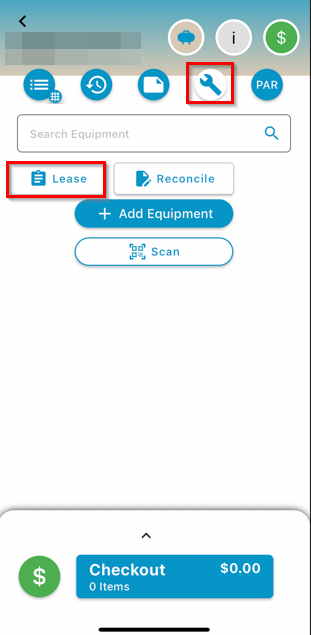
1. Access the Lease Option:
- When you click on a stop, navigate to the iron wrench icon for Equipment and select "Lease".
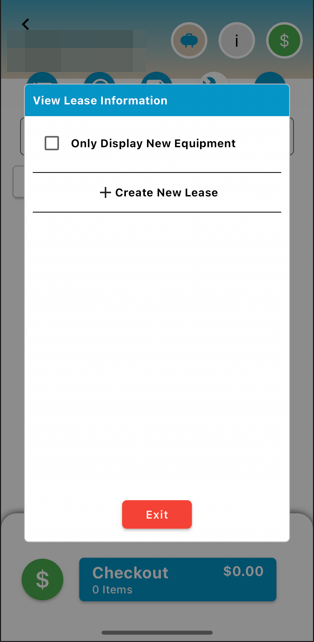
2. View Lease Information:
- On the View Lease Information screen, select "Create New Lease".
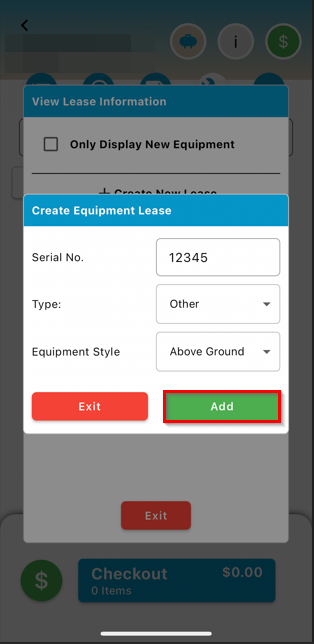
3. Create the Equipment Lease:
- Enter the serial number.
- Select the Equipment Type from the drop-down menu.
- Choose the equipment style from the drop-down menu.
- Click "Add."
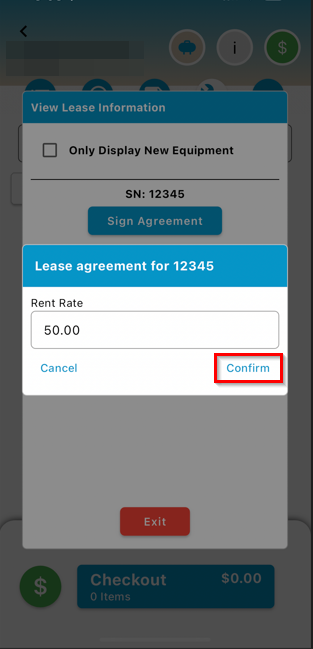
4. Enter Rent Rate:
- Input the quantity for the rent rate. Then, select "Confirm."
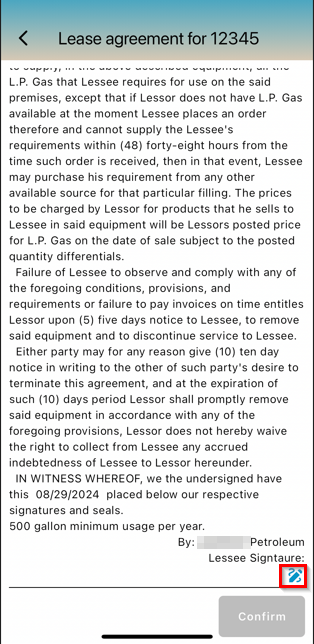
5. Review and Sign the Lease Agreement:
- After reading through the lease agreement, select the blue pencil icon at the bottom of the screen to add a signature.
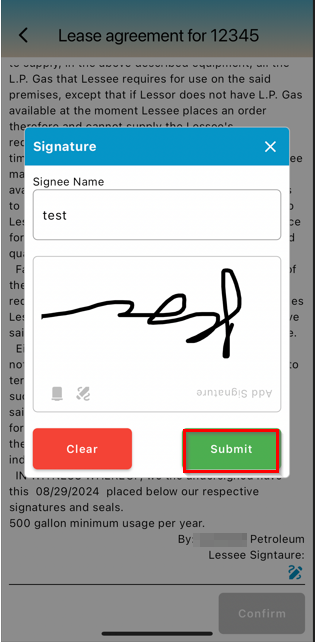
- This will prompt the Signature prompt. Enter the signee's name under "Signee Name" and provide the signature. Select the green "Submit" button.
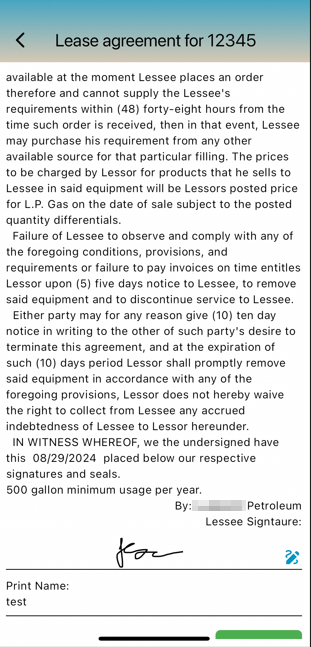
6. Finalize the Lease:
- The lease agreement is completed with the signature provided, ensuring that the equipment is officially leased out under the agreed terms.
This article has provided information on setting up and managing equipment leases within MOM. By following the steps outlined, you can efficiently handle equipment leases, ensuring all agreements are properly executed and recorded. This process not only streamlines operations but also ensures compliance with contract terms, giving your team the tools they need to manage equipment leasing effectively.