
Introduction
The Invoice Reprint option can be used to reprint any invoice created on the desktop or handheld. Navigate to Reports > Accounting Reports > Lookup > Invoice Reprint.
NOTE: Additionally, you can reprint individual invoices using the Invoice Lookup option within each customer’s account.
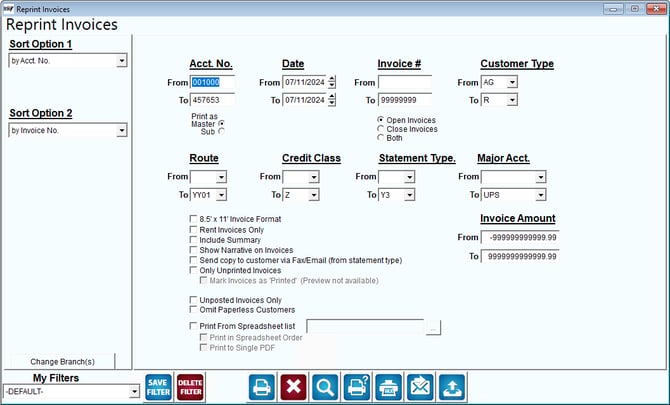
Fields:
Sort Option 1 & 2: The primary and secondary fields to sort by. You can choose from the following categories:
- Account Number
- Invoice Number
- Account Name
- Sales Rep 1
- Sales Rep 2
- Sales Rep 3
Change Branch: If you are logged into multiple branches, this option may be shown and allows you to re-select the branches to include in the report instead of having to completely exit the report.
Acct No: The range of accounts to include in the report.
Date: The range of invoice dates to include in the report.
Invoice No: The range of invoice numbers to include in the report, from the first to last invoice number.
Customer Type: The range of customer types to include in the report. Customer types are set up in the Customer Type Codes field, under the Customer Setup Codes in the Lists menu and are applied to each account.
Route: The range of Routes to include in the report.
Credit Class: The range of customer Credit Class Codes to include in the report.
Statement Type: The range of customer Statement Codes to include in the report.
Invoice Amount:
Print as: Select the account number to include on the invoices:
- Master Account Number
- Sub-Account Number
Open invoices: Select this box to show only open invoices.
Close Invoices: Select this box to show only closed invoices
Both: Select this box to show both open and closed invoices.
Rent Invoices Only: Will only print rental invoices.
Include Summary: Prints a summary of reprinted invoices.
Show Narrative on Invoices: Select this box to show narratives on invoices.
Send copy to customer Via Fax/Email (from statement type): Selecting this option allows you to send copies of the invoices that match the search criteria to customers who have a Statement Code setup for either Email or Faxing. This allows you to send out a large batch of invoice copies to multiple accounts easily.
Only Unprinted Invoices: Select this option to only print unprinted invoices
Omit Paperless Customers: Select this option to not allow printing for customers who have “auto send invoice on posting/upload” checked on their account.
Mark Invoices as “Printed” (Preview not available):
Print from Spreadsheet list
Print in Spreadsheet Order:
Print to Single PDF: