
Introduction
This document explains how to install the Electronic Truck Interface (ETI) in your vehicle. It assumes that you have a standard LCR-II installation on your vehicle with an Epson printer.
NOTE: The LCR-II register must be set to use node 250 (hex 0xFA) or node 1 for communications. Contact us if you are using a different node for assistance.
Process
Configure the LCR-II for Communications
- Turn the meter power off. Most likely you will want to turn your truck off.
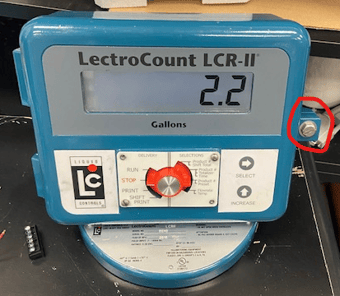
- Open the door to your LCR II Meter by loosening the bolt on the right side.

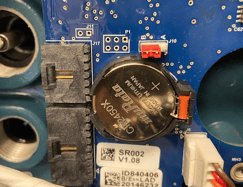
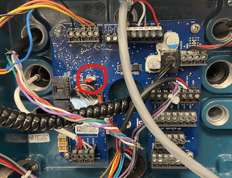
3. Check the J10 jumper. This must be set on B or P, depending on the version of the board.
|
|
Installing Electronic Truck Interface to communicate with LCR Meter
1. You should have 3 pieces in the box as you receive it. These are:
a. Bluetooth transceiver and antenna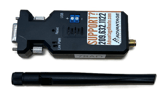
b. Double ended cable
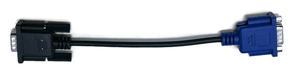
c. ETI interface adapter
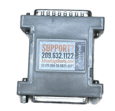
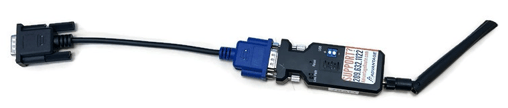
2. Remove the Electronic Truck Interface (ETI) out of the box and connect the antenna. The Bluetooth adapter should be attached to the blue end. When completed, it should look this:
3. Locate the “ETI interface adapter.”
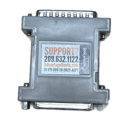
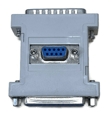
4. Connect the open terminal on the Electronic Truck Interface (ETI) to the adapter using the black end of the cable as shown below.
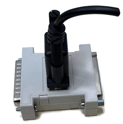
5. Disconnect printer cable from the back of your Epson printer.
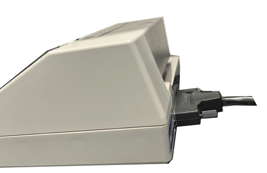
6. Connect the Interface Adapter to the printer on its DB25 port. It will only connect one way.
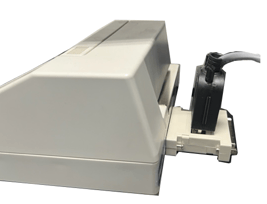
7. Attach the printer cable to the Interface Adapter on the other DB25 end.
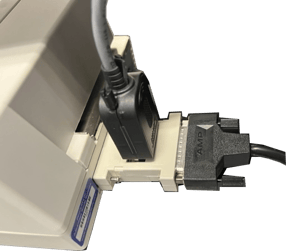
10. Ensure that power is running through the ETI by confirming that the light on the Bluetooth adapter is on. This is the red light shown below.
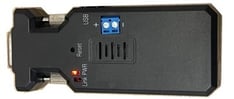
11. The last 4 digits of the MAC address are labeled on the side of the Bluetooth adapter. Use those to identify each device and to pair your device to your handheld.
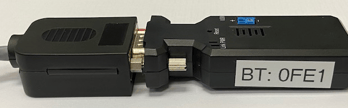
Connecting handheld to Bluetooth RMA Version 8
- In order to connect the interface to a handheld, they must be paired with Bluetooth.
- On the handheld, open the Mango Mobile app and select the tools icon (highlighted in blue), then the Bluetooth symbol.

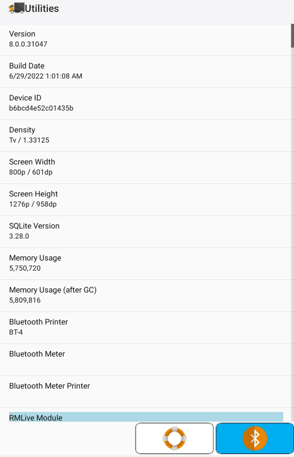
3. From the Bluetooth Devices menu, select “Meter”.
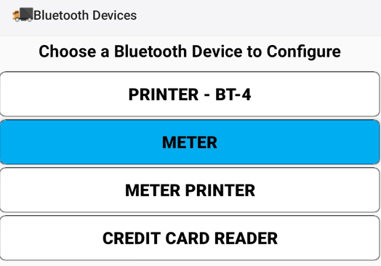
4. Find the device that shows the last 4 digits of the Bluetooth adapter that were noted earlier.
5. If the device does not appear right away, try going back and selecting meter again to refresh the device list.
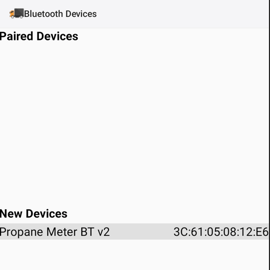
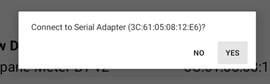
6. Go back to the Bluetooth Devices menu to ensure that the Meter option shows that the correct device is connected.
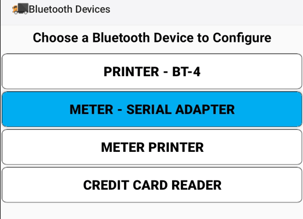
7. You are now ready to start using the LCR interface on the Meter.
Testing the ETI interface
You will need to test the device before using it on your truck. Do these steps to ensure the system is working properly.
- Connect to the truck.
- Run a sample ticket.