
Installing the Mango One Mobile app on your device is the first thing you need to do in order to use the app. In the next section, you will learn the actions that need to be taken.
iOS - AppStore
Follow these steps to install the Mango One Mobile application from the AppStore.
- On the iOS device, navigate to the AppStore app
- Go to Search and look for the Mango One Mobile app
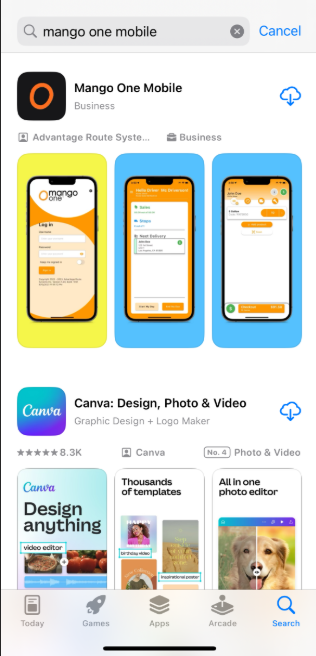
- Click the icon to install the app
- When the app is installed, select the app to open. Permissions must be grant in order to use the fully functionality of the app. Select 'Allow' on the two messages below:
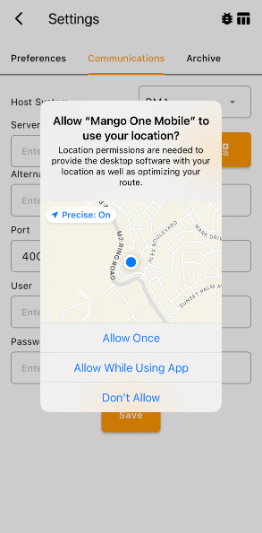
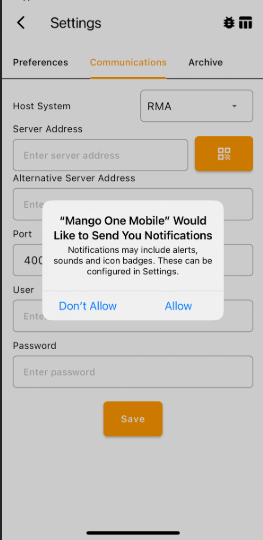
- Follow the instructions from the Mango One Mobile user manual to get connected: Mango One Mobile (MOM) User Manual
Android -Mango One Mobile
Two methods can be utilized for the installation of the Mango One Mobile application:
- Install by QR Code that is stored in RMA.
- Installation through the use of your server's IP address and an advanced communication port number.
Using the QR Code
To download the Mango One Mobile application, drivers should have access to the QR code stored in the RMA. In the RMA system, navigate to Lists>Routes>Handheld Class.
Please note that the Mango One Mobile licenses need to be applied to your CICODE (Contact a Tech Support for more information).
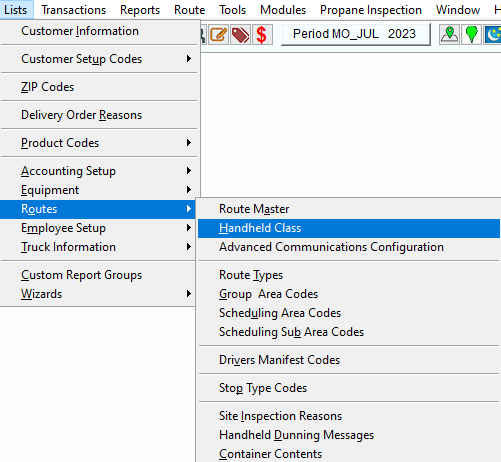 Lists>Routes>Handheld Class
Next, select the Communications Tab. The QR code is located at the bottom left of the screen.
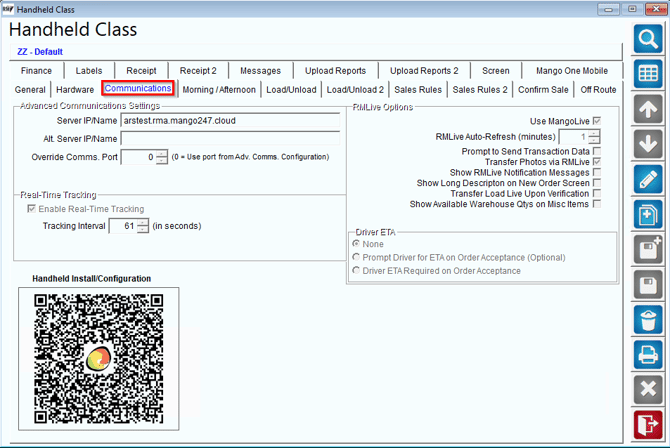 Communications Tab
With your mobile device, open the camera application and scan this QR code.
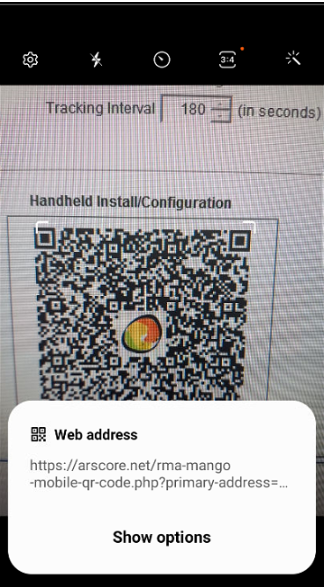 QR Code
Click on the displayed address, which will initiate the file download. Once downloaded, open the app, then go to the Transfer Parameters screen.
Here, enter the server details as displayed on the Communications Tab of the Handheld class.
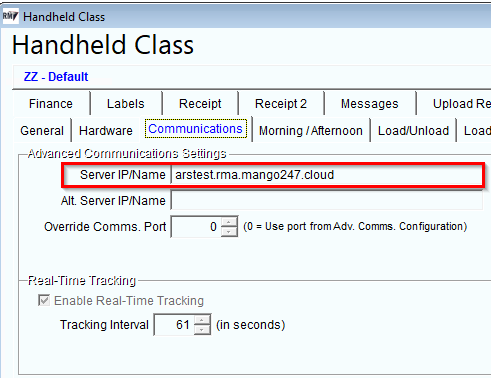 Server IP/Name
The Advanced Communications Service Configuration located under Lists> Routes> Advanced Communications Configuration.
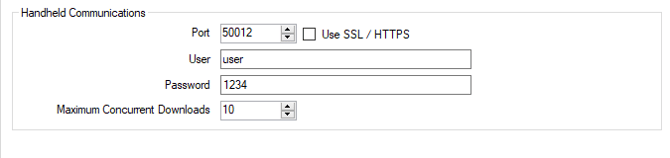 Advanced Communications Service Configuration
Using the Server IP/Port Number
To download the application directly from your server, use your handheld communication port. This process involves the format: Server IP: Port Number.
For instance, we will use the credentials below. Your Server IP is located under Lists> Routes> Handheld Class> Communications.
Server IP/Name Credentials
Your port number can be found under Lists> Routes> Handheld Class> Advanced Communications Configuration in the Setup Tab.
Advanced Communications Configuration
- Open a web browser on your Android device and enter your server IP: advanced communications port number.
For instance, input arstest.rma.mango247.cloud:50012 to access the web page below. From this page, select the Mango One Mobile option to initiate the application install.
 Server+Port Number in Browser
Installing the Mango One Mobile Application on Android
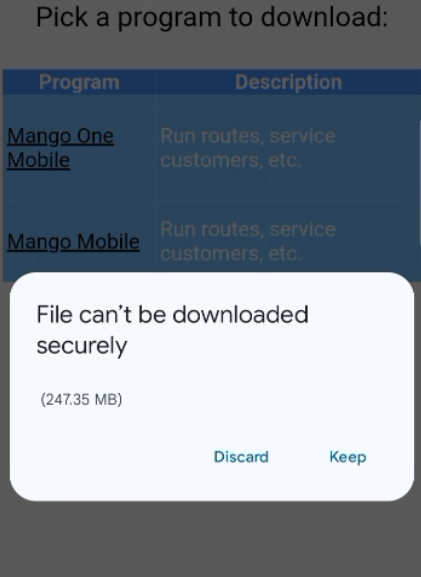
- You will be prompted with the message below. Select 'Keep'
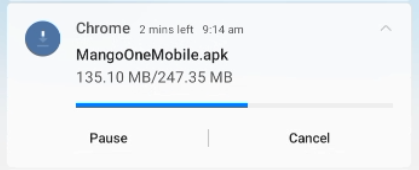
- Go to the Notifications Centre (swipe down on device) to view the progress of the download:
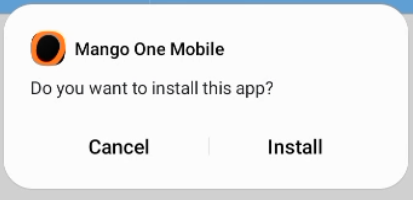
- Once the app is downloaded, tap on the download
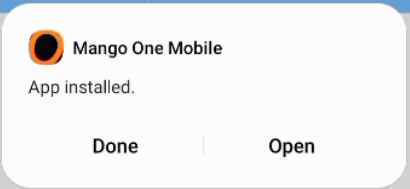
- Once the installation is complete, select open.
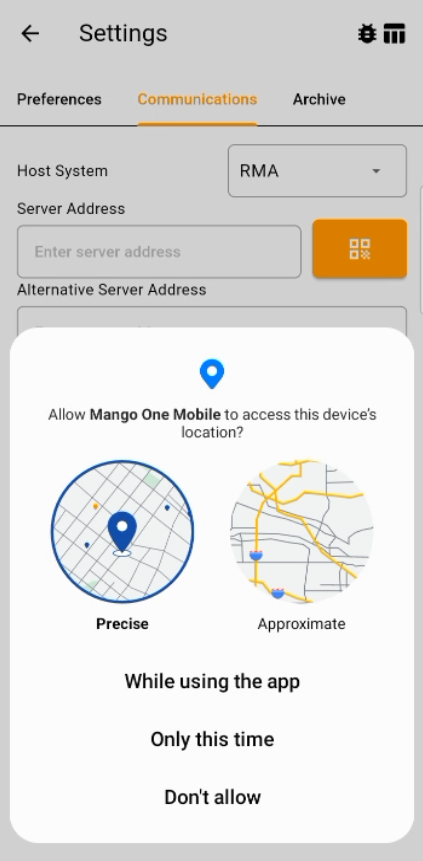
- You will encounter several prompts to grant access to phone information while using Mango Mobile.
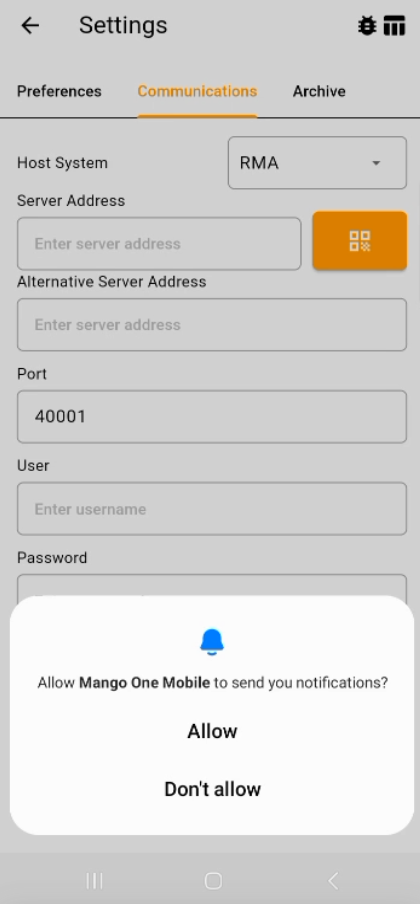
Here is an example of granting access to your application:
- Enter your server information from the communications tab into the Transfer Parameters screen. Once you have entered all of the necessary information, select the save icon located in the bottom right corner. All this information is found under your Handheld Class Communications settings/ Advanced Communications Configuration Settings shown in step 1.
You may also open your Camera app and scan the QR code located under: Handheld Class> Communications. This action will transfer all parameters to your mobile device.
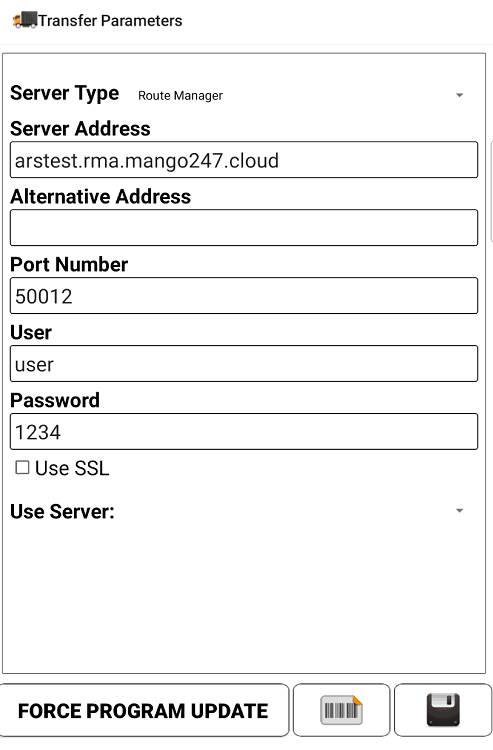 Transfer Parameters