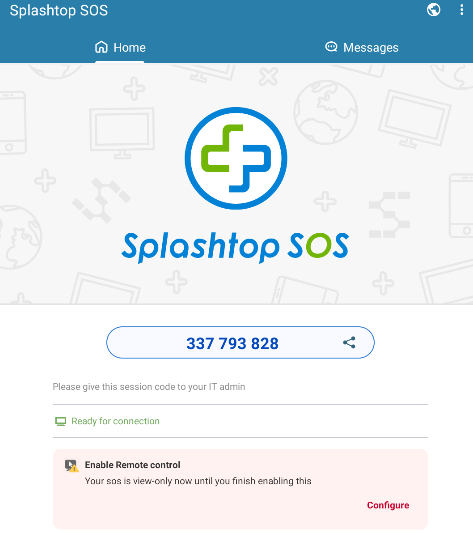
Getting Started
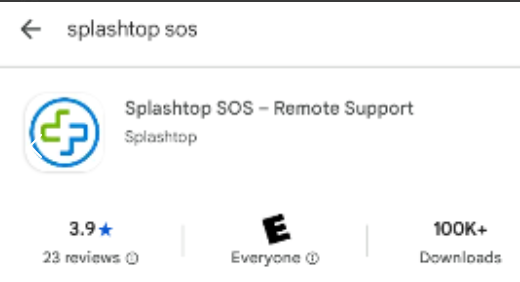
Navigate to Google Play (Android) or App Store (iOS) search for "Splashtop SOS"
NOTE: iOS does not allow for screen control. It only allows for screen sharing.
Download the install the application onto the handheld.

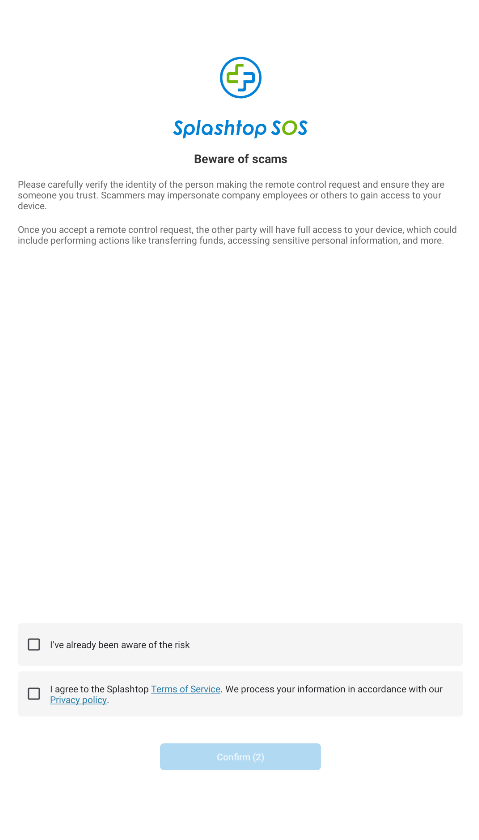
Once you have installed the application, Splashtop will give you some warnings. Please read and agree to these. Choose both box and then hit confirm.
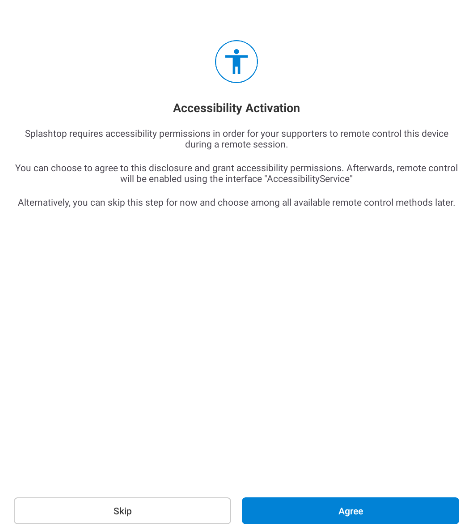
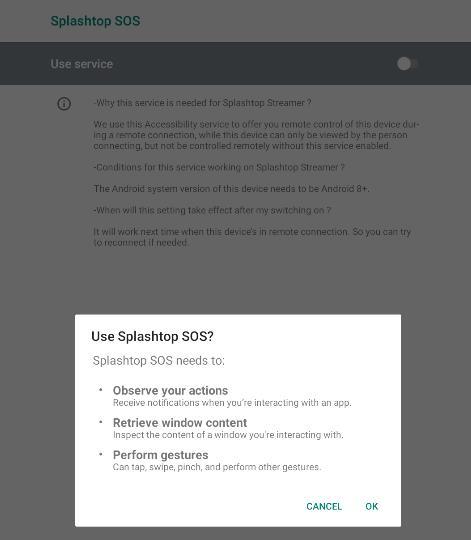
Next another screen to setup accessibility will show up. This option allows you to set whether or not you will allow the technician to remotely control your handheld.
Click here to turn the Off to On. This allows remote access on the handheld.
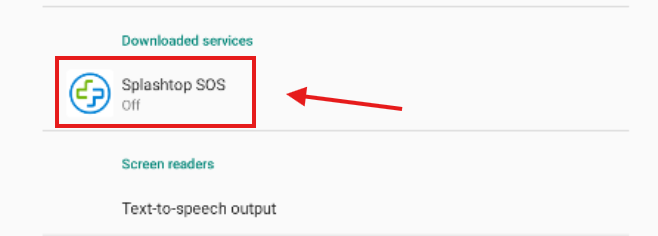
Once Accessibility is turned on, return to the application and allow Splashtop Streamer. This finalizes the last step in allowing access to the technician to remote control the handheld.
Lastly share the nine digit code with the technician. Once the technician connects the application will prompt you for a screenshare. Allow for the screenshare.