
Overview
This article will go over the process to run a sync for a Docking customer with our Route Manager software.
Docking syncs are used to send invoice data/transactions from RMA to the external parties accounting software. The sync can also pull data from the accounting software into the RMA program.
Please use this article as a reference guide for what data a Docking sync can send/pull: Functionality of Small Account Docking
Process
Please note that a sync should typically be ran directly on the server. If the sync is done through a mapped drive connection there is potential for data loss.
If a customer is hosting their accounting software on the server's desktop, you must be logged into the accounting software for the sync to run. If they use QB online or any other online accounting software, you do not have to have it open on the server.
You must also make sure no other users are running a sync at the same time nor should they be modifying any transactions/customer records during the sync.
Syncs are not Single-User Mode functions and can be ran as often as the external party prefers.
Use the following steps to run a sync.
- Log into any Desktop Accounting Software that is needed for the sync. If they use online, you may skip step 1.
- Next, locate the QBDocConsole.
- This can either be found by an icon on the server desktop:
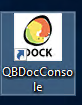
- Or you can locate the console by going to the RMA Root Folder>SADocking Folder>QBDocConsole.

- This can either be found by an icon on the server desktop:
- Double click on the console file or icon to start the sync.
- Once the sync is open, it will automatically begin.
- You should have a black box with data populating within it.
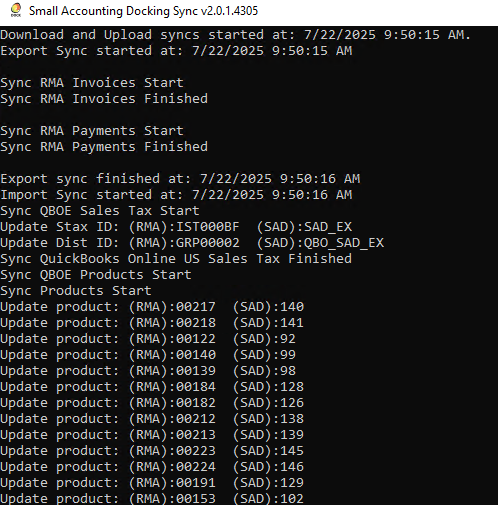
- The sync will run through different tables within RMA.
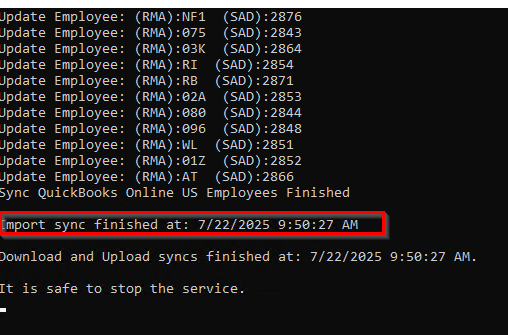
- You must wait for the sync to state "Import sync finished at: xxx. It is safe to stop the service." before you close out the sync.
- To properly close the sync type "Q" in the command window and press "Enter".
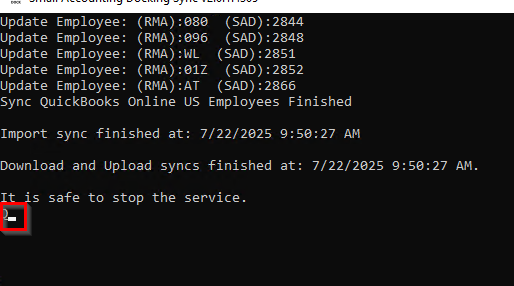
- This will then close out the window and your sync is finalized.
Please be aware, if the sync finishes quickly without showing any data processing, it means it is not properly connected to the accounting software. You must close the sync, log into the accounting software and rerun the sync once more.