
Locking routes in Mango Dispatch Manager (MDM) is a useful feature for situations such as when a driver is off work or when you want to prevent changes to a route. Note that changes within MDM will only affect the routes in MDM, not in RMA.
Ability to Lock Routes from MDM Header
To lock a route in the MDM header:
1. Right-click on the header to open a drop-down menu.
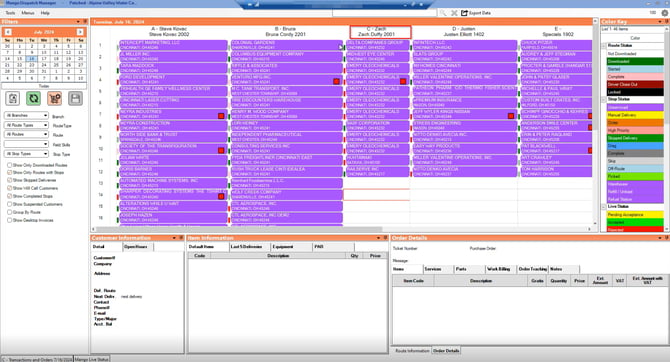
2. Select "Lock Route."
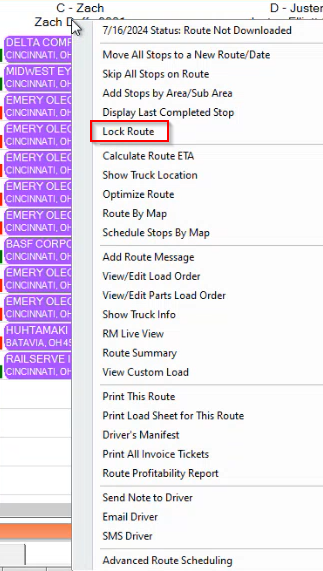
The header of the locked route will turn black, indicating that it is locked.
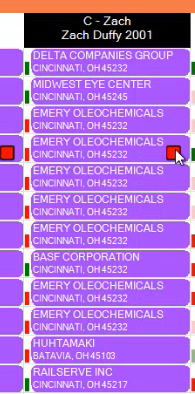
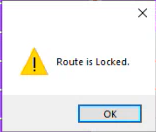
Once a route is locked, you cannot drag stops into it. If you try, you will receive a notification.
However, you can still drag stops out of the locked route. To do so, click on the stop and drag it to the desired route.
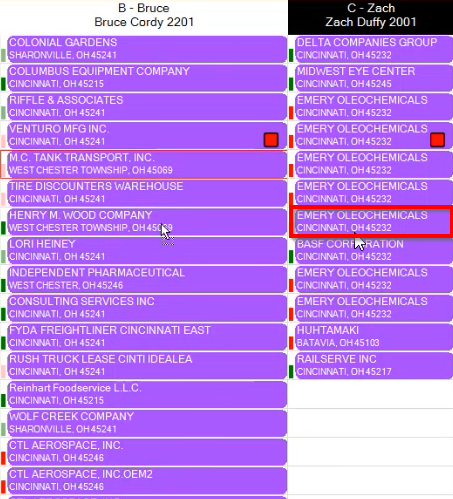
For example, in this illustration, the stop is now under Route B.
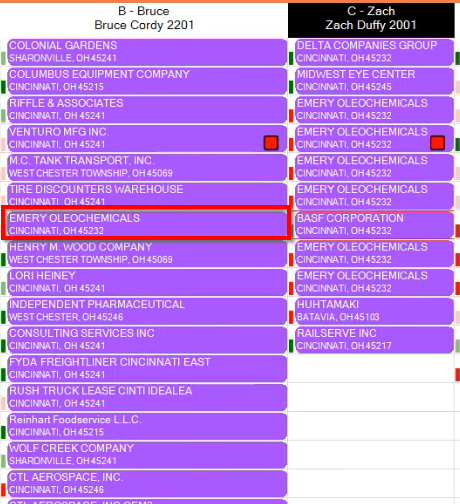
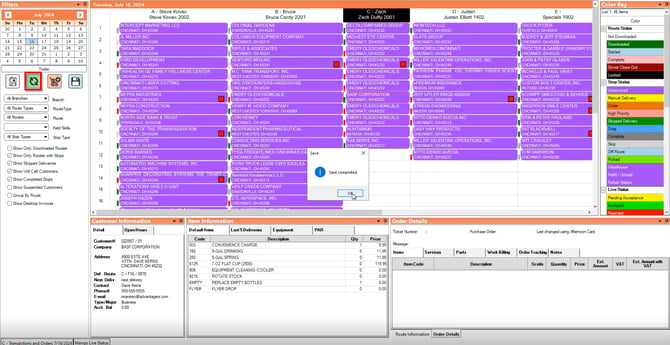
Remember to save your changes as you go.
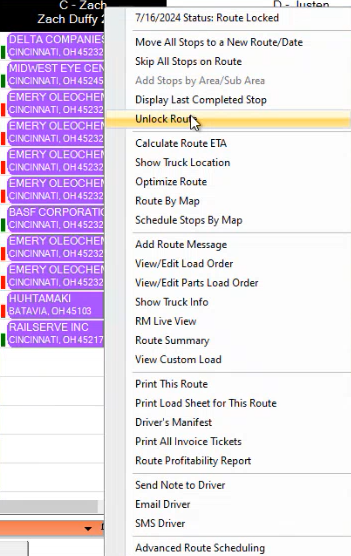
Unlock Route
To unlock a route and move stops back into it:
1. Right-click on the locked route and select "Unlock Route."
2. Drag the desired stop back into the route.
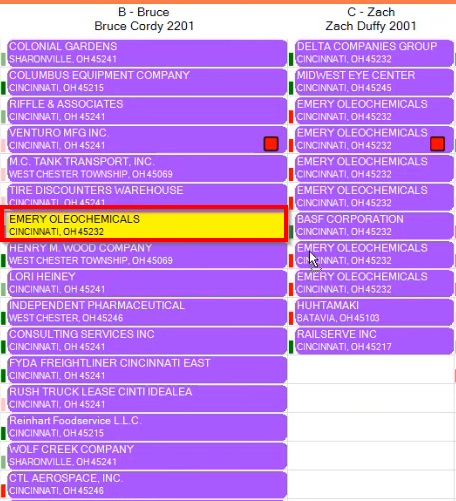
Here is the stop moved back into the route:
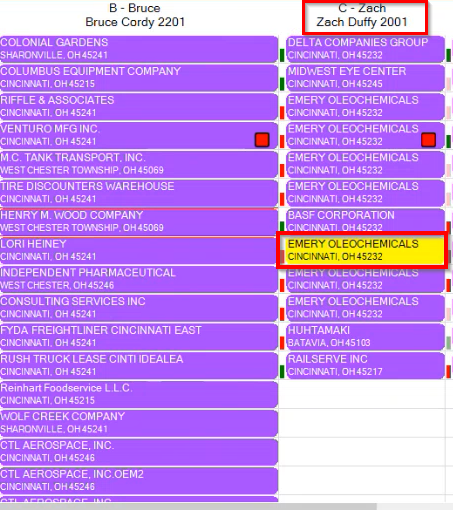
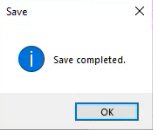
4. Select "Save."
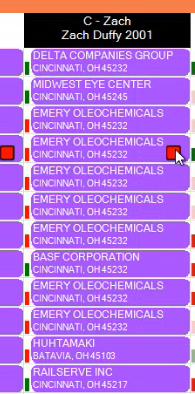
4. Lock the route again if needed.
Unable to Add to the Route
On the side menu of MDM, select the cart button with a plus sign.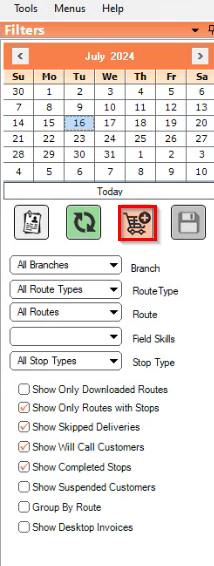
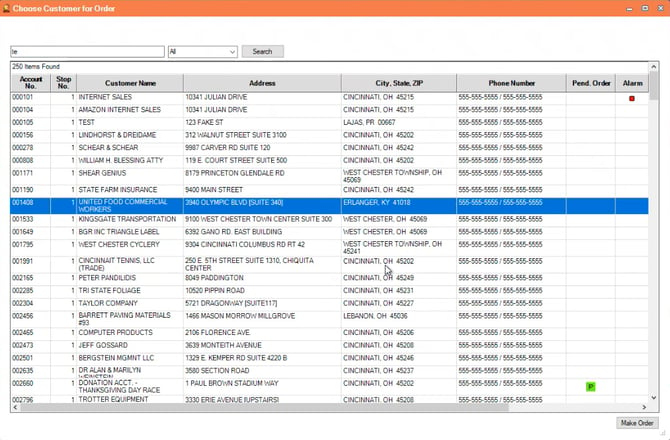
Select the customer for order.
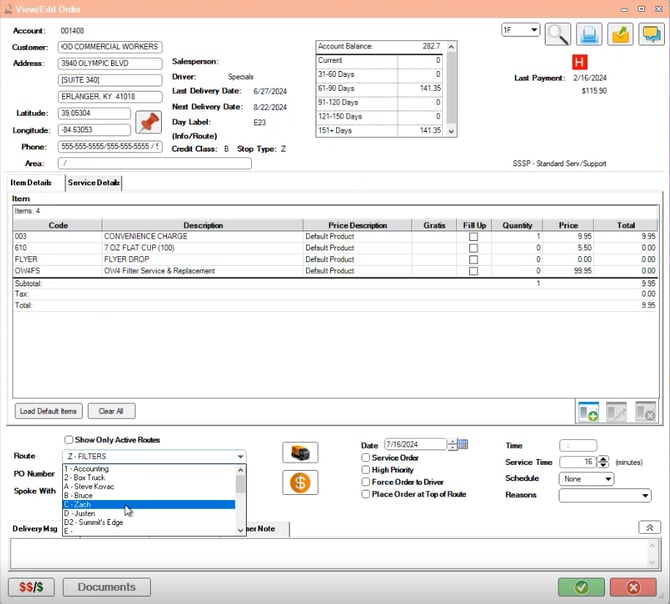
Modify the order by selecting the locked route to assign it to.
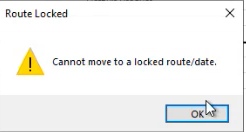
You will receive a notification indicating that the route is locked and you cannot add to it.
Unable to Add an Existing Order
If you create an order and attempt to add it to a locked route:
1. Right-click on the stop.
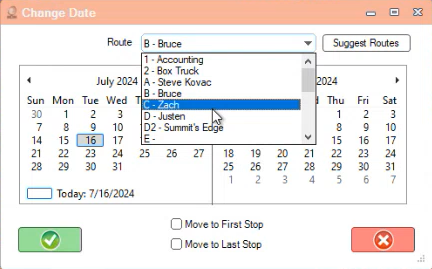
2. Select "Change Date" and try to change the route to the locked route.
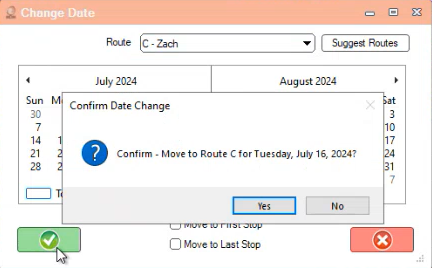
You will receive a notification that the route is locked.
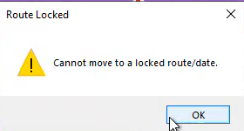
You will not be able to add a locked route in Route by Map.
1. In MDM, navigate to Tools > Mango Mapping > Route by Map.
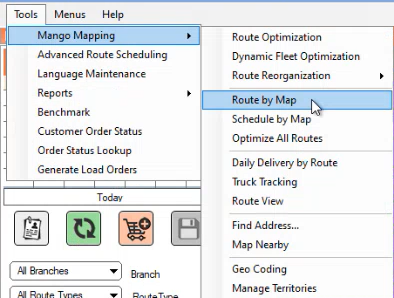
2. Select the routes on the left side menu and click "Plot."
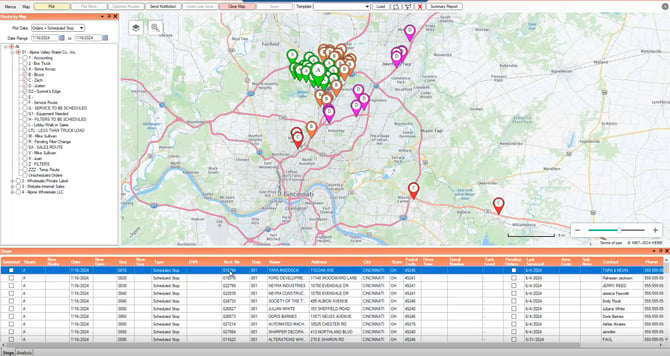
3. Right-click on a stop and select "Change Route/Date."
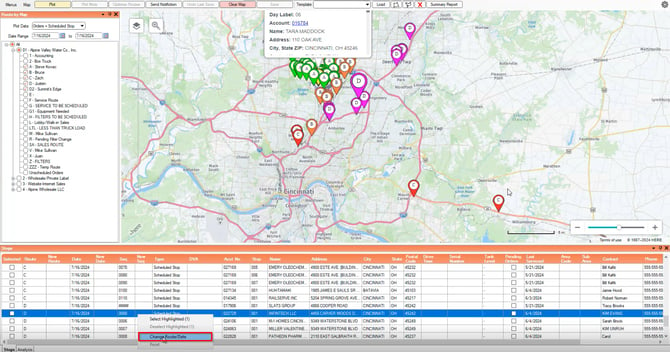
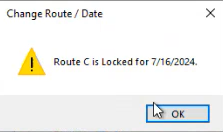
4. Attempting to change the route to a locked route will trigger a notification.
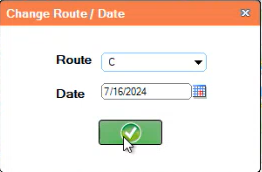
5. Click "OK" to clear it.
You will not be able to add a locked route in Schedule by Map.
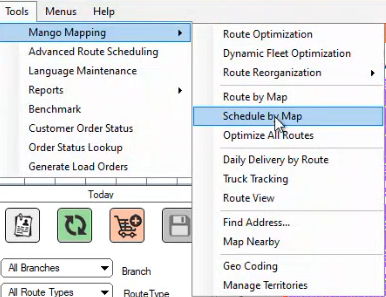
1. In MDM, navigate to Tools > Mango Mapping > Schedule by Map.
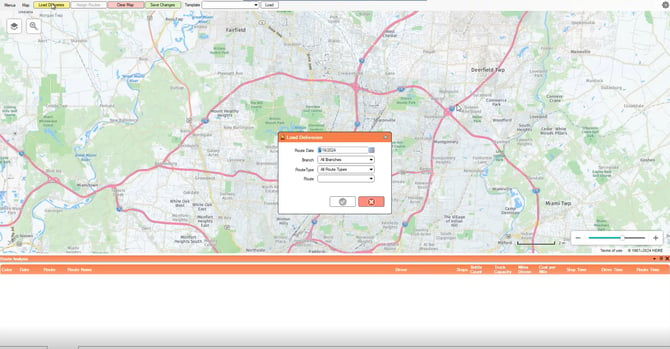
2. Select "Load Deliveries".
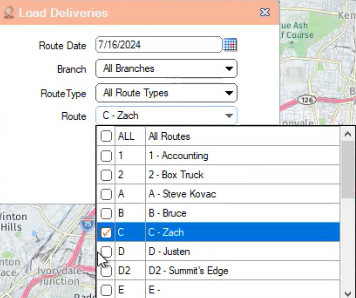
3. Choose the routes you want to load.
4. The stops will appear at the bottom of the screen.
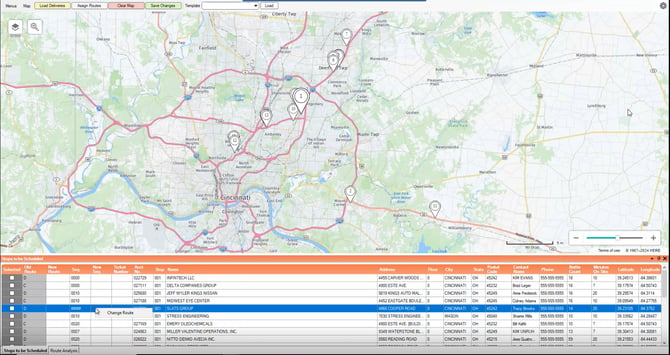
5. Select the stop's checkbox, right-click on the stop.

6. Try assigning the stop to the locked route.
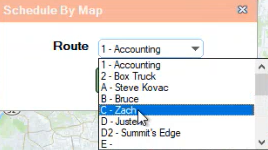
7. You will receive a notification indicating the route is locked.
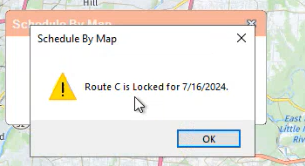
This article provides a detailed guide on how to lock and unlock routes in Mango Dispatch Manager (MDM), as well as the implications of locking routes, such as the inability to add stops or orders to locked routes. It covers step-by-step instructions for locking routes from the MDM header, unlocking routes, and managing routes via mapping tools. Understanding these features ensures efficient route management and prevents unwanted changes in the dispatch system.