
Overview
This article will go over the process to create a Bad Debt/Write-Off charge code to use with the Customer Finance Assistant Tool and during the process of Terminating an account.
Setup
- Go to Lists > Product Codes > Product Charge Codes.
- Use the Add button "
 " to create a new charge code.
 - On the Info tab, input a Code ID and Description for either Bad Debt or Write-Off that your company can use.
- Example:
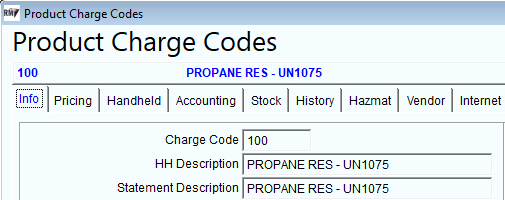
- Example:
- Next, select the Pricing tab and choose which Tax Category this code should fall under.
- NOTE: It is highly recommended that the Bad Debt/Write-Off code is discussed with the company's internal accounting department to determine what tax category it should fall under as well as the Class Code and G/L account #.
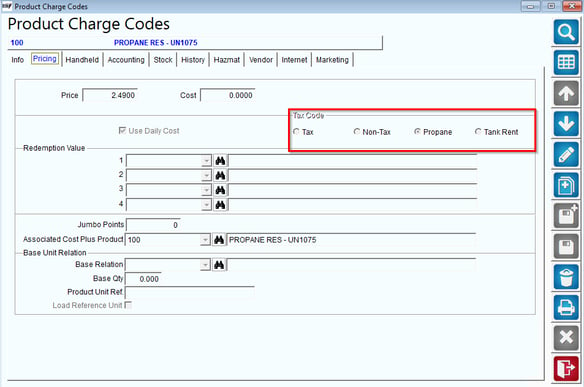
- NOTE: It is highly recommended that the Bad Debt/Write-Off code is discussed with the company's internal accounting department to determine what tax category it should fall under as well as the Class Code and G/L account #.
- On the Accounting tab, select the Class code and G/L account number your accounting team has chosen for the Bad Debt/Write-Off option.
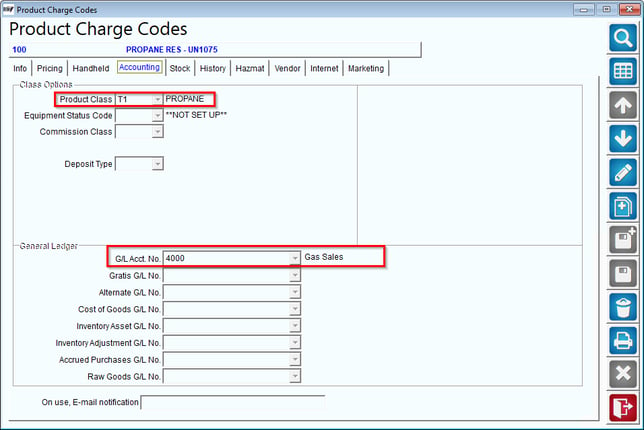
- Select Save to complete the charge code setup.
- Once fully saved, you will now be able to use the code through the Customer Finance Assistant Tool and through Transactions Invoices and Adjustments.
- NOTE: The information noted above is the basic necessities needed to create a Bad Debt/Write-Off charge code. Any other changes to the pricing/selected functions/handheld settings/etc. input on the charge code will be up to the companies discretion.