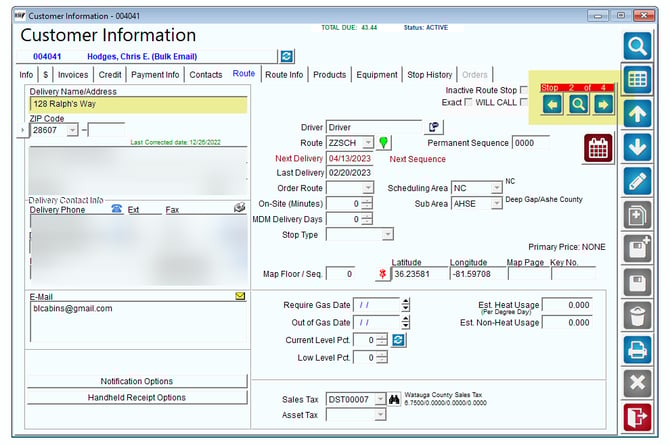
As a Quickbooks Desktop User, the standard process when creating new customer accounts for RMA is to first create them within QB Desktop and sync them over to RMA. This process is also similar when you are wanting to add multiple stops to a single account within QB/RMA.
The following information will show you the proper steps to take in order to create multiple Stops, or "jobs" in QB, for a single customer's account.
Note: This process is only meant to be used for Quickbooks Desktop. For Quickbooks Online, please refer to this article: coming soon
Steps
Log into your Quickbooks Desktop Company File.
Click on the New Customer & Job section.
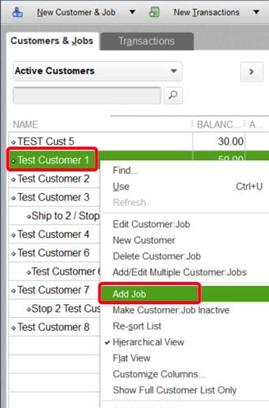
Locate the customer's account that you would like to add a secondary stop (job) for.
Right click on Customer and select Add Job.
Add data for this Stop
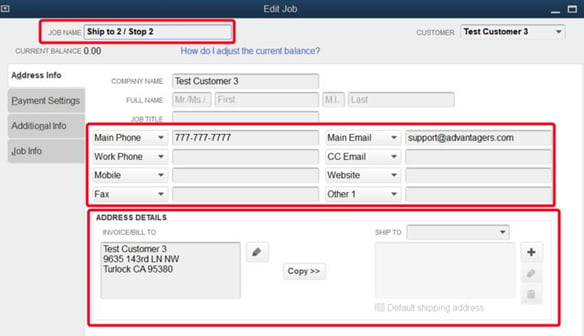
Save the information and then run the Sync.

The "job" Customer will now be listed as stop 2 in the customers account in RMA.
Stop 1 for the RMA account will always be the Parent account from Quickbooks in case you deliver to the parent address/stop as well.