
Mango Surveys are a powerful tool for gathering valuable feedback and insights. With the increasing importance of visual data, adding the ability for respondents to upload pictures can enhance the depth and relevance of the responses you receive. Whether you're conducting surveys for customer feedback, product assessments, or field research, incorporating photo responses can provide a richer and more understanding of the data collected. In this article, we’ll walk you through the process of setting up a survey that includes photo responses, guide you on how to capture these photos during the survey, and explain how these responses are handled in reports.
After reading this, you’ll be able to seamlessly add picture-taking capabilities to your surveys, ensuring you gather the most relevant data for your needs.
Setup
Adding Pictures to Surveys
When creating your survey, you have various options for configuring how each question will appear. To add a question that requires a photo as an answer, follow these steps:
- Select the question you want to configure.
- On the right side of the Mango Surveys screen, locate the design configuration section labeled "Item Type."
- Click the dropdown menu under "Item Type" to choose the desired answer format.
- Select "Photo" as the response type.
- Save your changes to apply this configuration.
Now, your survey question will prompt respondents to answer by uploading a photo.
.png?width=670&height=424&name=1724346082009%20(1).png)
Process on the Handheld (MOM)
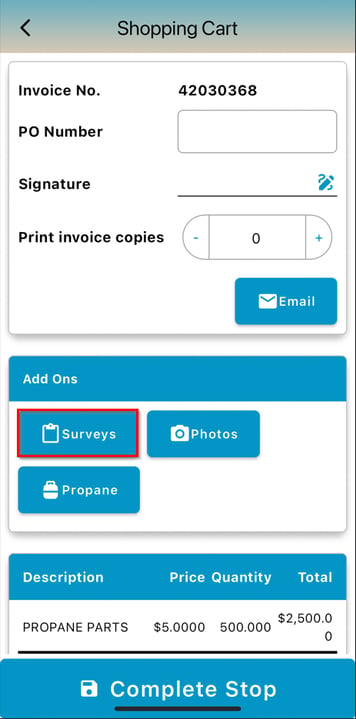
1. Navigate to the Shopping Cart screen after servicing a stop as usual when you are ready to checkout.
2. Select "Surveys" on this screen.
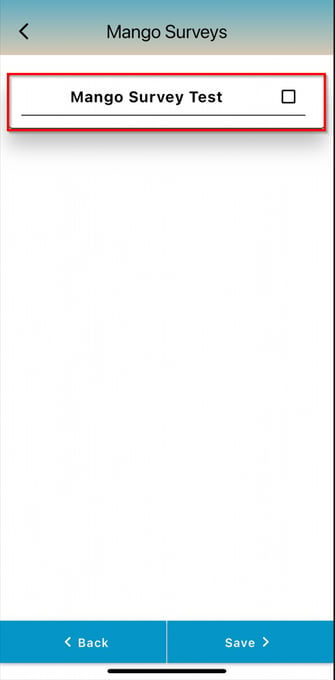
3. Choose the survey you would like to complete.
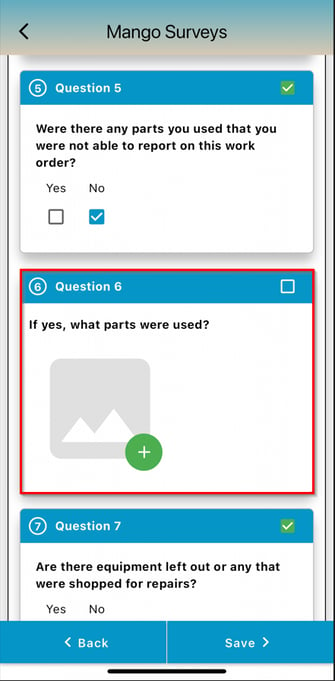
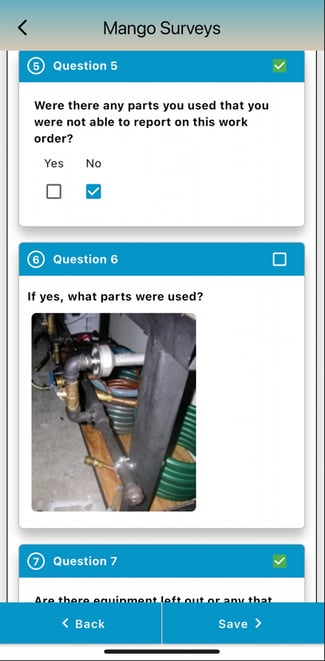
4. When you reach the photo-required question, it will be presented with a green plus sign button. Select the green plus sign to add a photo.
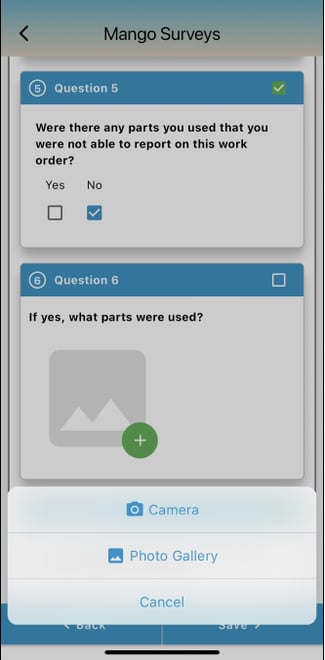
5. You can either snap a picture by selecting "Camera" or insert an image from your device's photo gallery.
6. After selecting or taking a picture, it will appear on the survey.
.
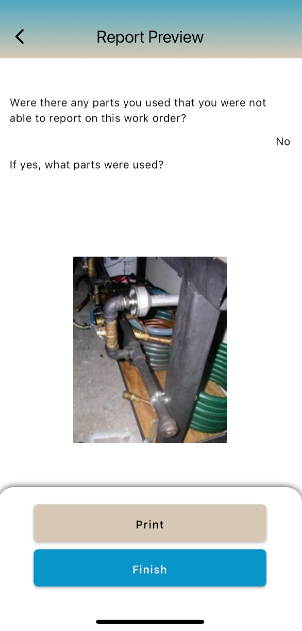
ReportingWhen previewing reports for Mango Surveys, the image will display on the Report Preview.
You can access Mango Survey images in RMA through three different locations:
1. Route Info Tab
2. Invoices and Adjustments
3. View Documents from Invoices Tab
Route Info Tab
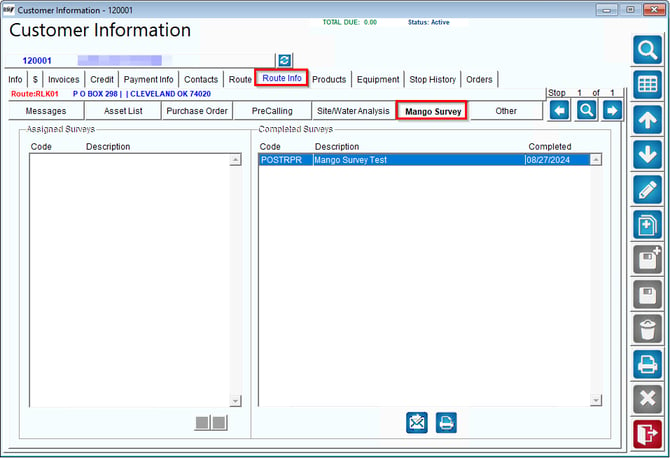
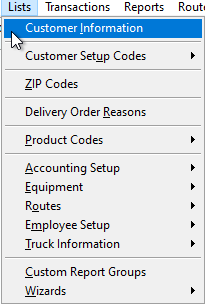
In RMA, navigate to Lists > Customer Information > Route Info tab > Mango Survey.
- Navigate to the Route Info tab under Customer Information.
- Double-click on the completed survey.
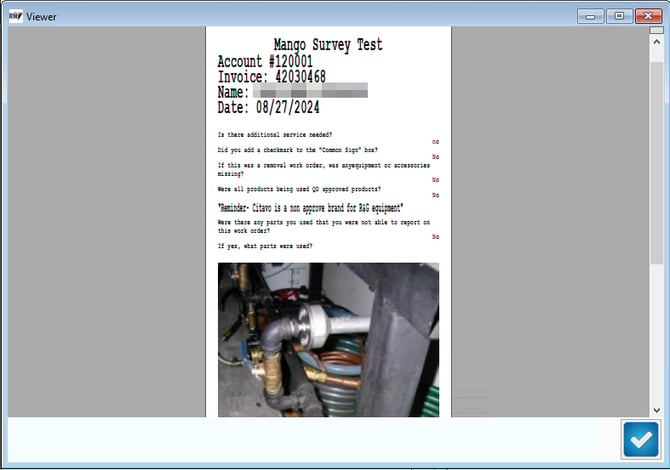
3. A preview of the survey will appear, displaying the image.
Invoices and Adjustments
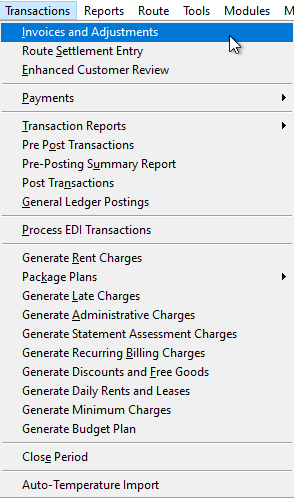
1. Go to Transactions and select Invoices and Adjustments.
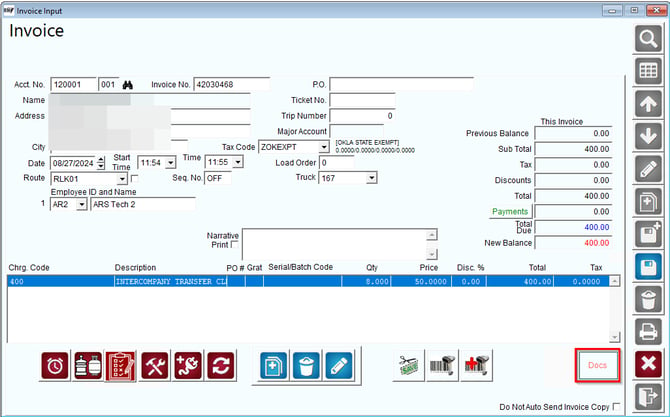
2. Click on the edit button and select Docs.
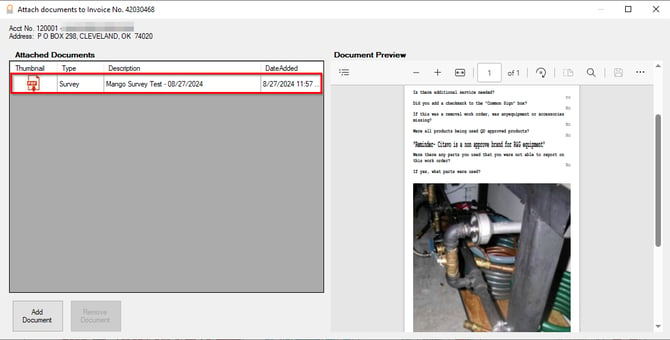
3. Locate the attached survey, double-click on it, and the preview of the completed survey with the image will be displayed.
View Documents from Invoices Tab
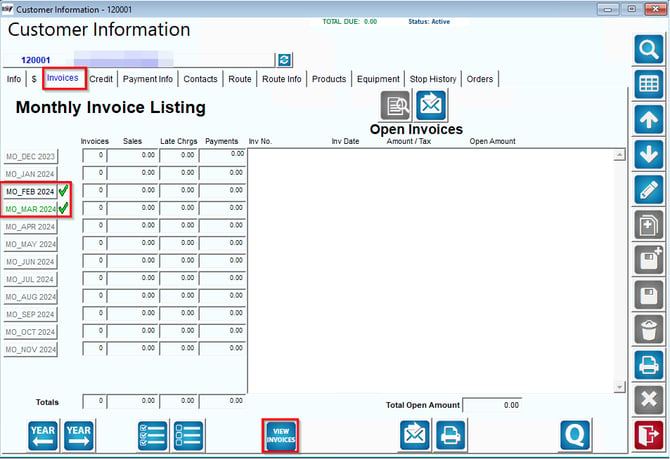
1. Navigate to the Invoices tab under Customer Information.
2. Select the monthly invoice listing and then click on View Invoices.
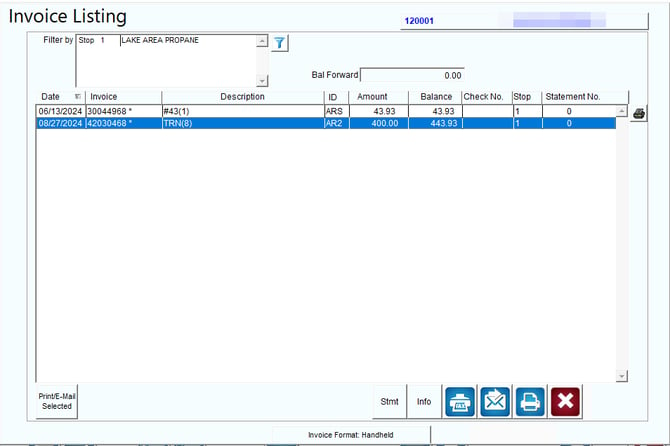
3. On the Invoice Listing screen, double-click the invoice.
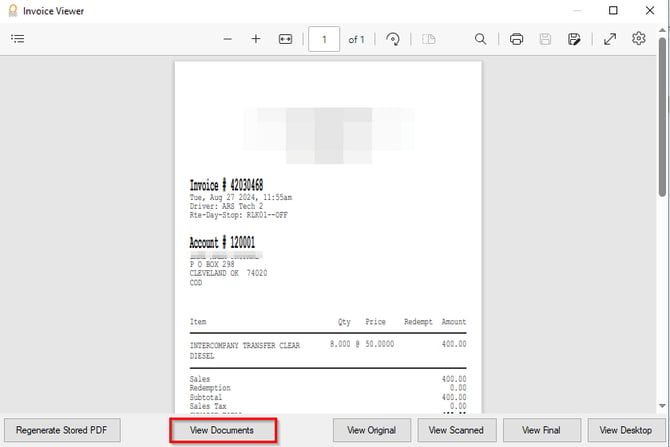
4. In the Invoice Viewer, select View Documents.
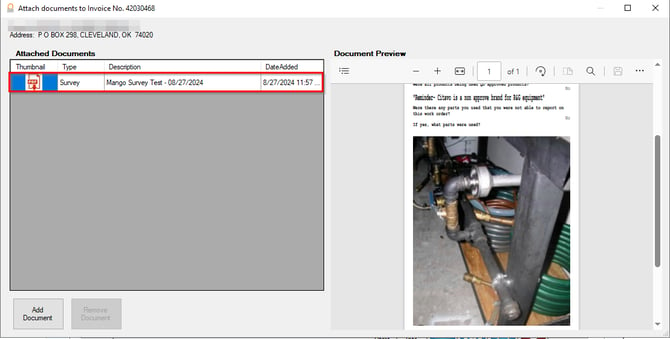
5. Double-click on the survey to view the image.
Summary
Incorporating photo responses into your surveys can significantly enrich the data you collect. By following the steps outlined above, you can easily set up and manage surveys that require visual input from respondents. Whether on the handheld or within your reporting tools, Mango Surveys ensures that these images are captured and stored effectively, providing you with the comprehensive insights you need.